Get it for my Mac (6 MB)
 PopClip
2026.8.1 fix EDiSO
PopClip
2026.8.1 fix EDiSO
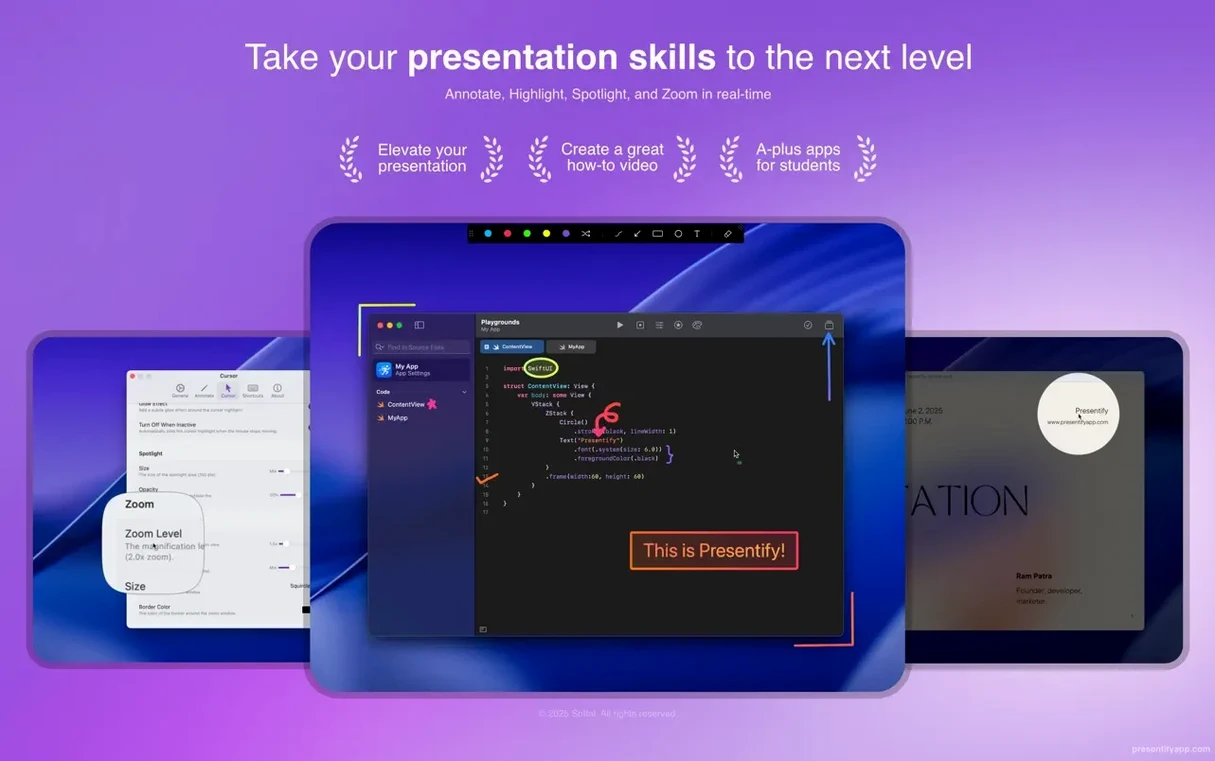
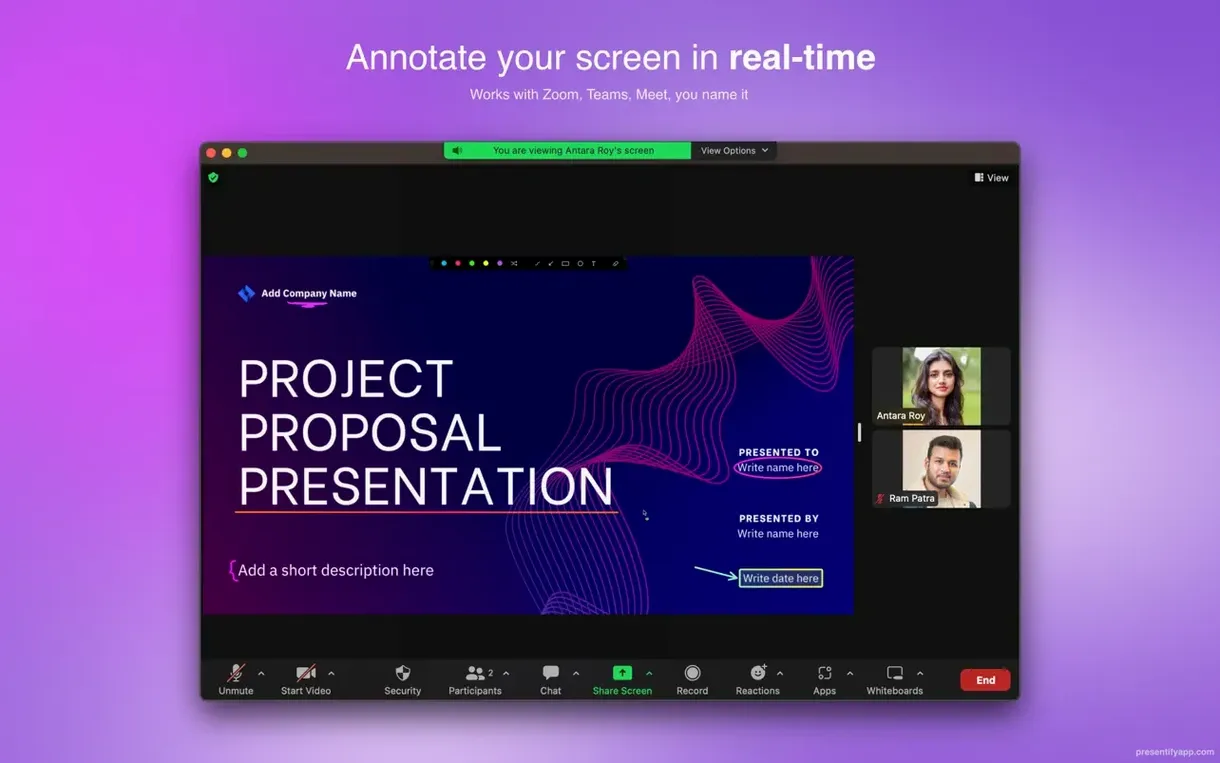
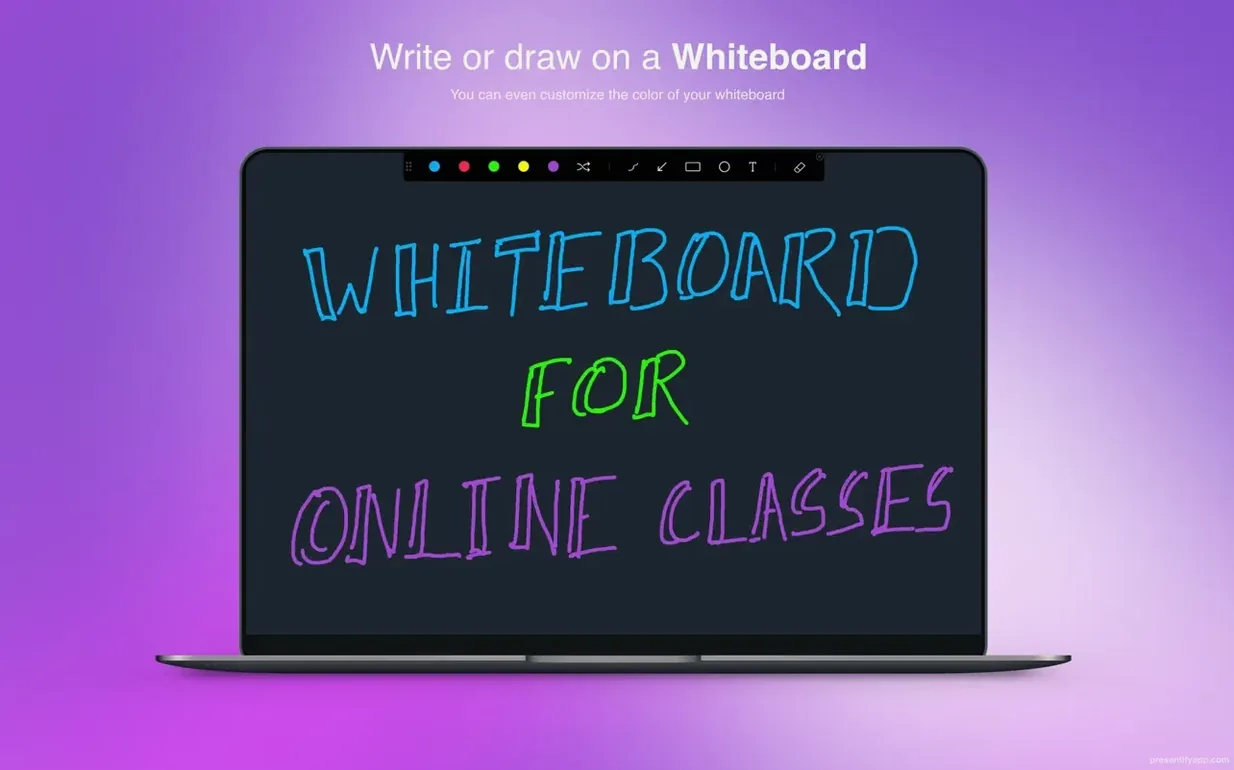
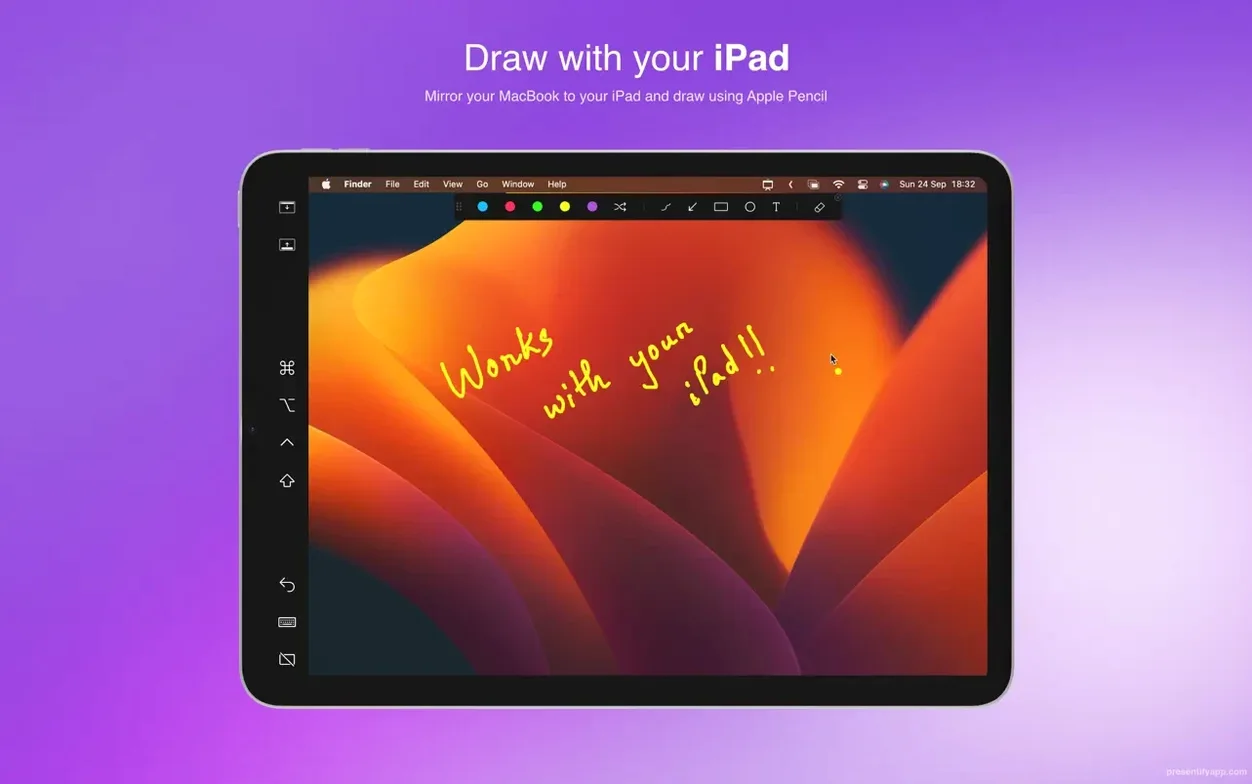
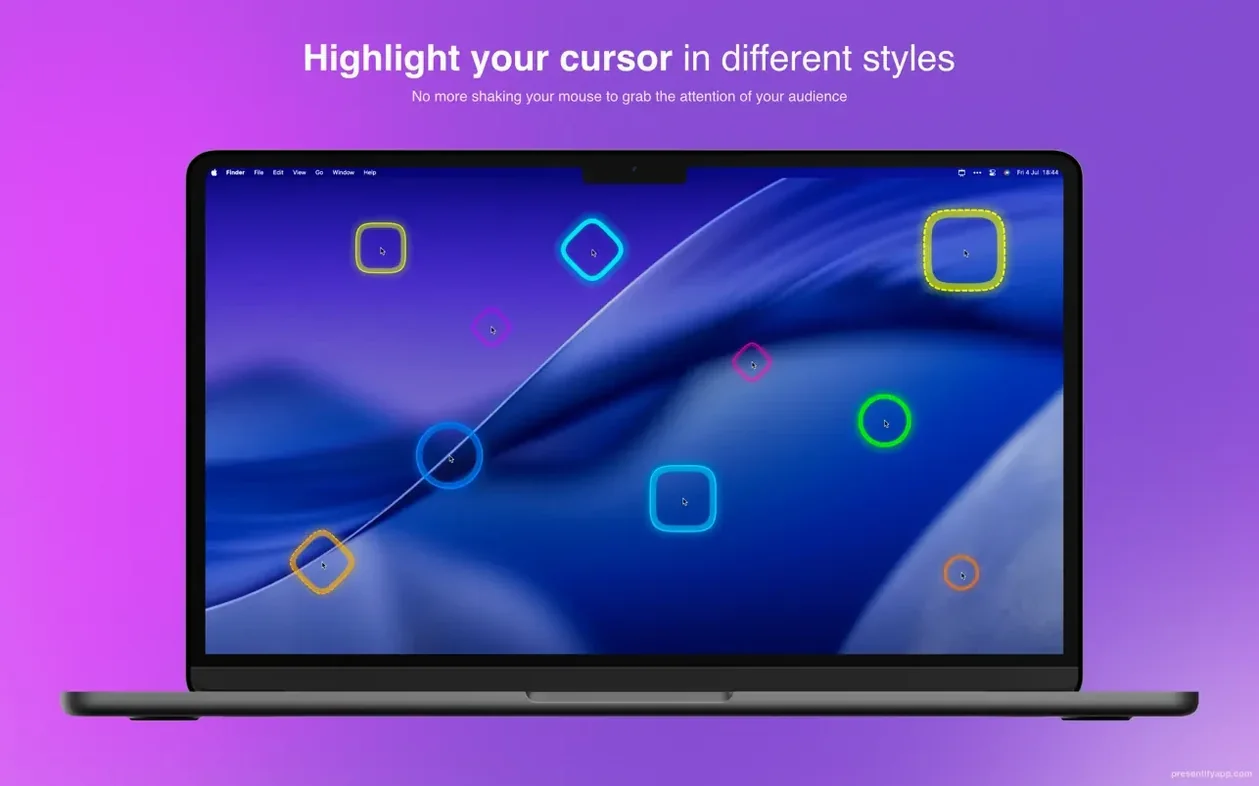
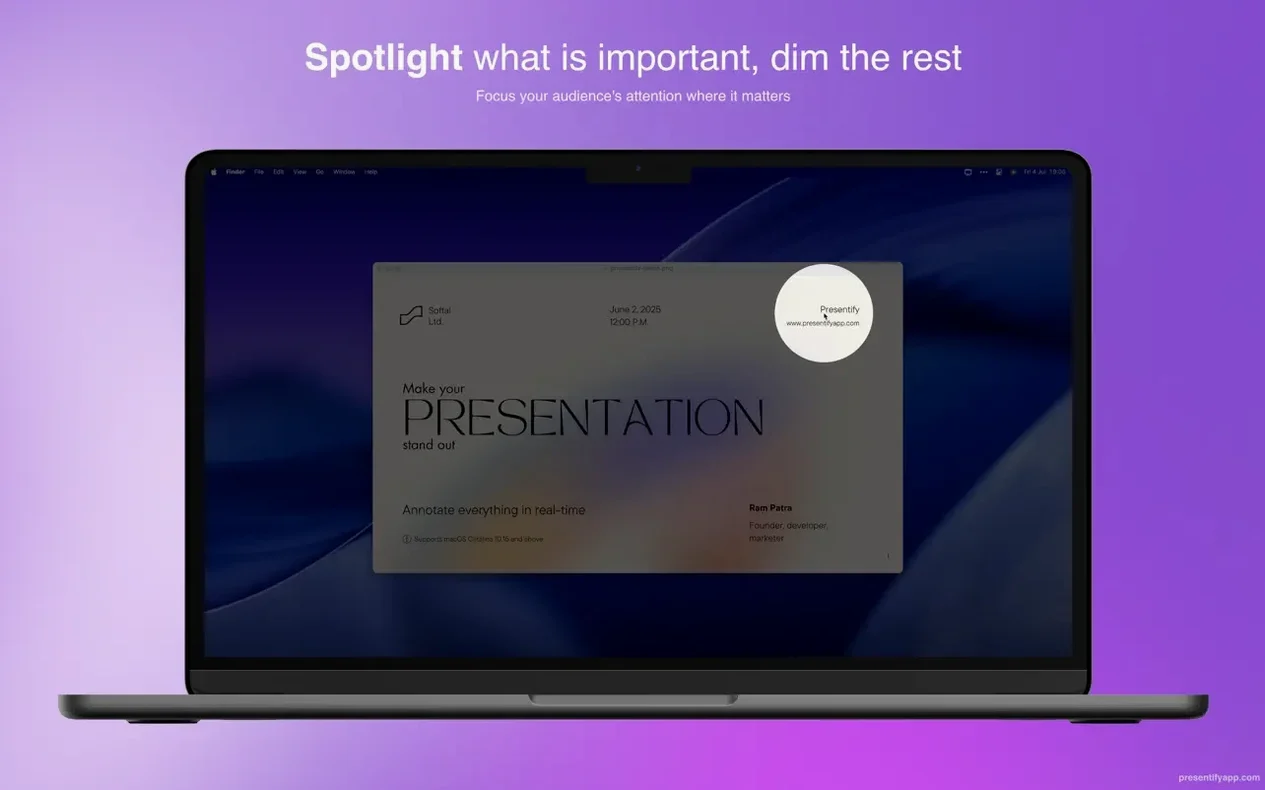
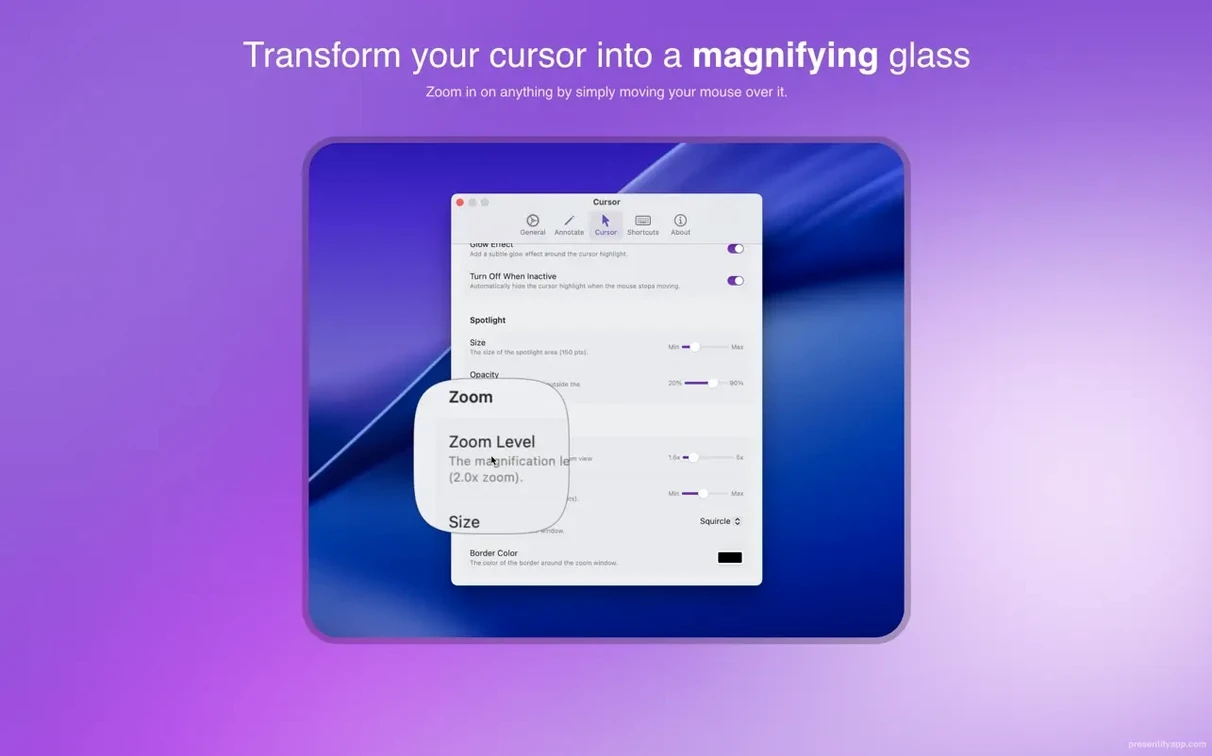
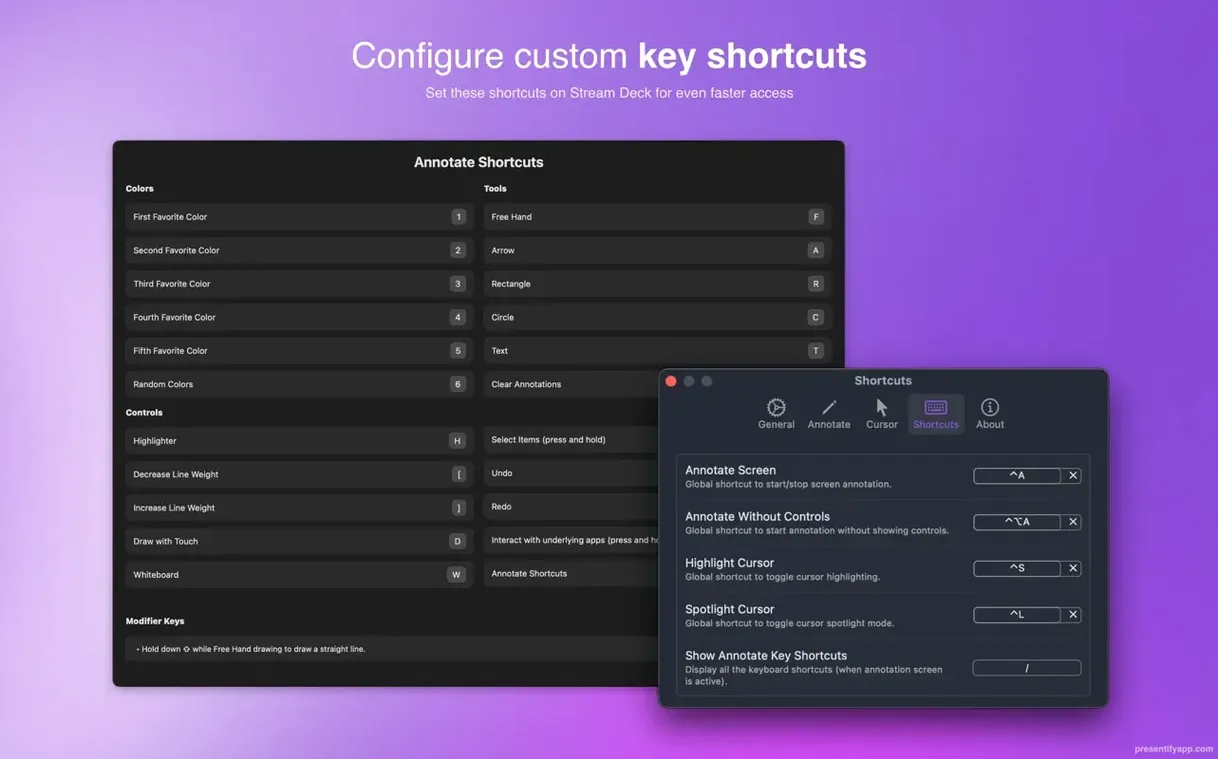
Presentify handles all the annotation you need during a presentation or online class from the macOS menu bar. Version 8.1.3 keeps the same set of tools: cursor highlighting, spotlight effects, zoom, and automatic erasing of annotations. You can draw shapes and add text over any app, even in full-screen mode, and it works with Keynote.
Screen annotation isn't just for deck builders. When you are walking a client through an online gallery, explaining crops, or pointing out details in a video call, Presentify gives you a clean overlay — no clutter, no extra windows. It runs quietly in the background and appears when you need it.
If you have used ZoomIt on Windows and missed a simple screen annotation tool on the Mac, Presentify fills that gap neatly. Unlike Skitch, which is built around saving annotated screenshots to a file, Presentify works as a live overlay — you draw and highlight while the screen is still moving, which matters when you are in a live meeting or recording a tutorial. Another option is KeyCastr, which shows keystrokes on screen but does not give you drawing tools or spotlight effects. Presentify combines cursor highlighting, zoom, and annotation in one menu bar app, so you do not need three utilities running at once.
For teachers and video creators, the difference is that Presentify lets you interact with the app underneath while annotating. Hold the Fn key and you can click buttons, scroll, or change slides without switching tools. That keeps the flow natural during a recording.
Presentify sits in the menu bar and activates only when you need it, which is exactly how a presentation tool should behave on a Mac. It works with Zoom, Google Meet, and Skype, so you can annotate over a shared screen without the video call app interfering. It also works in full-screen mode, so if you are presenting from Keynote or showing a PDF in Preview, the overlay stays available.
If you use a Wacom or XP-Pen tablet for photo retouching, the same tablet works for drawing annotations in Presentify. That saves you from switching input devices when you move from editing to explaining. The app supports basic app interaction while annotating, so you can keep your workflow inside Lightroom or Capture One while pointing out adjustments on screen.
For anyone who records tutorials or walkthroughs with Screen Flow or OBS, Presentify adds a visual layer that stays on top of the recording window. The automatic erasing feature is useful here — you can draw a few arrows and let them fade while you keep talking, without having to stop and clear the screen manually.
Presenters and online instructors are the obvious fit, but the app also suits video creators who record software tutorials or code walkthroughs. The cursor highlighting and zoom tools help viewers follow along without guessing where you are on screen.
Photographers who do client reviews over video calls will find the spotlight effect useful for drawing attention to a specific area of an image without marking the file itself. Since it works as a visual layer, you can point to a crop line or a skin retouch detail and the client sees only the overlay, not a permanent annotation on the photo.
Developers and designers who present code or mockups during stand-ups or sprint reviews can use the text annotation and shape tools to mark up screenshots on the fly. The app supports highlighting text without covering it, which is handy when you are walking through a block of code or a UI spec.
For anyone who uses multiple monitors during presentations, the menu bar access means you can enable Presentify on the display you are sharing without opening a separate window. It is a small convenience, but it makes a difference when you are already juggling windows during a live session.
Presentify provides cursor highlighting, spotlight effects, zoom tools, text and shape annotation, and automatic erasing of annotations.
Yes, Presentify works in full-screen mode and with Keynote.
Sign in or create your account to leave a comment.
No notes from photographers yet. If you have used this on a real folder, say which camera and which Mac.