Get it for my Mac (26 MB)
 Parallels Desktop
27.0.3-58680
Parallels Desktop
27.0.3-58680

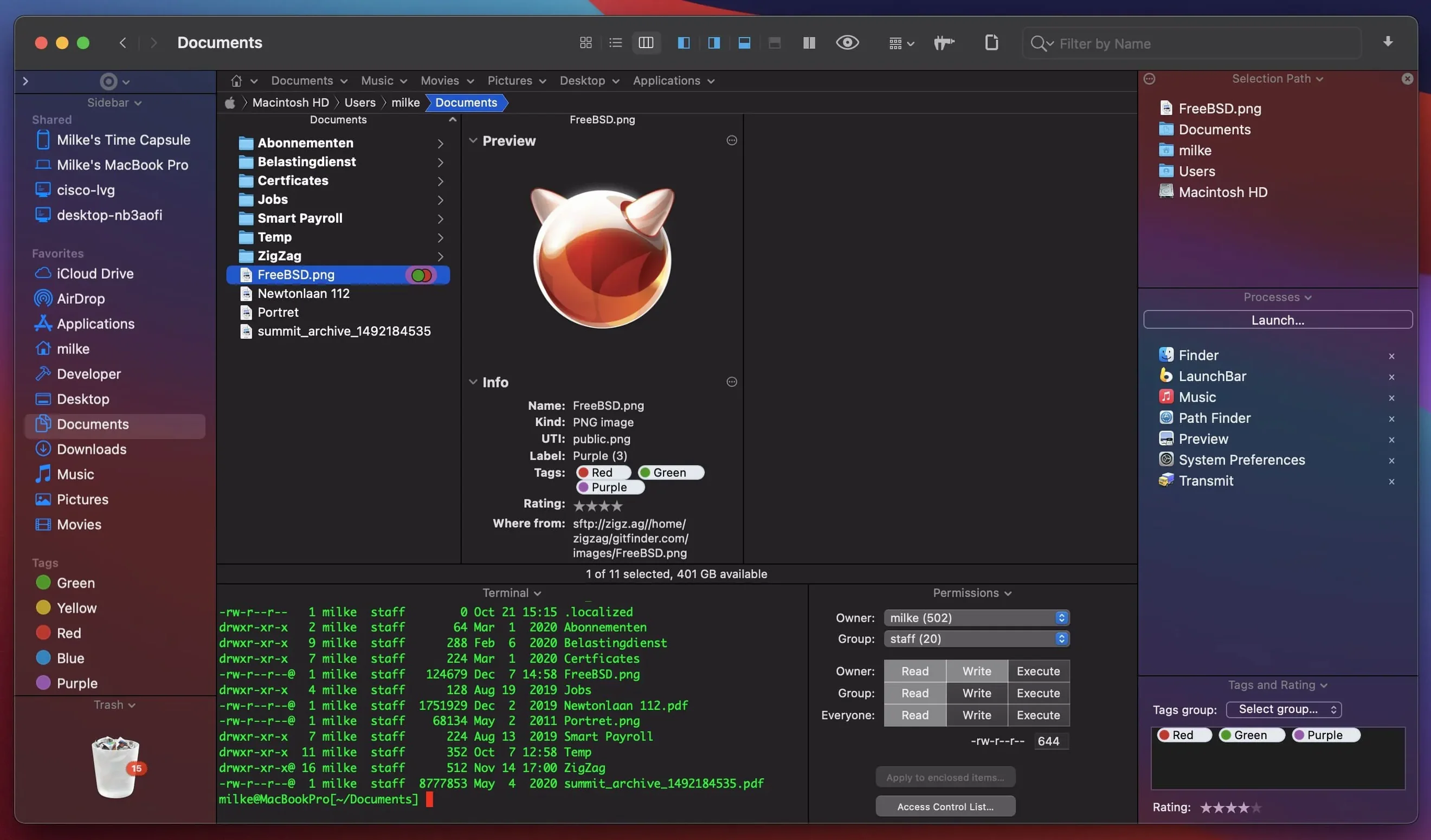
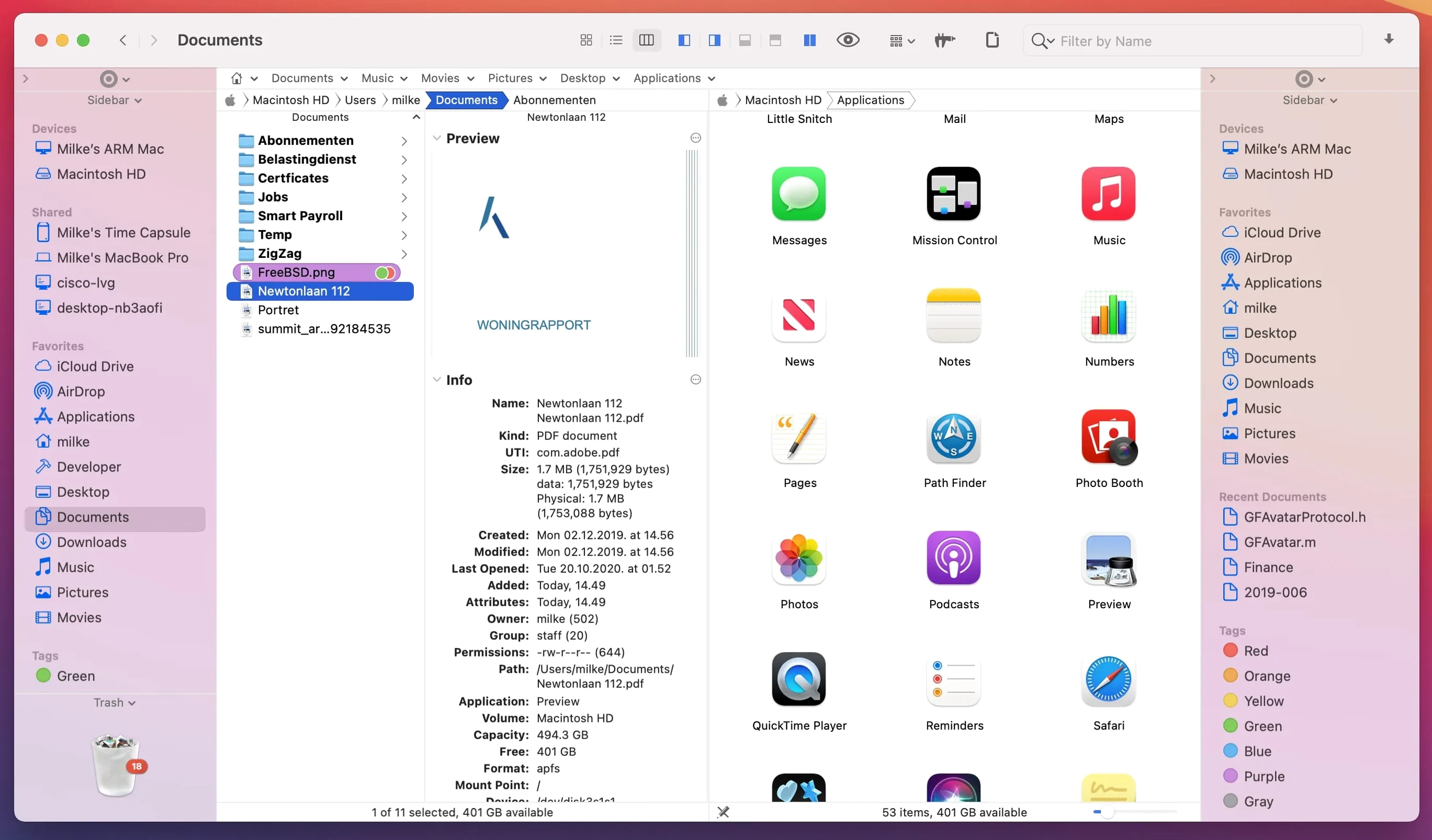
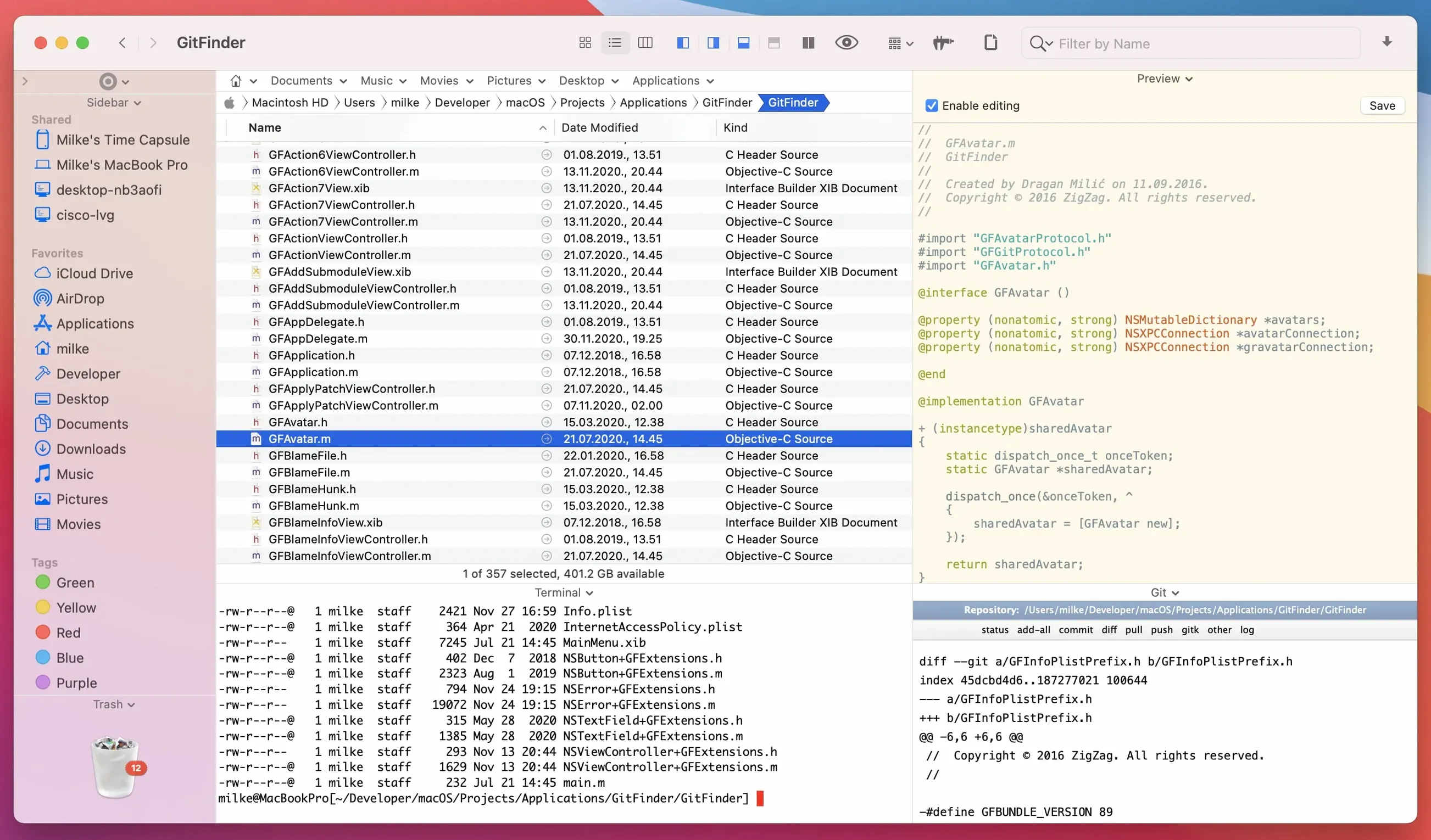
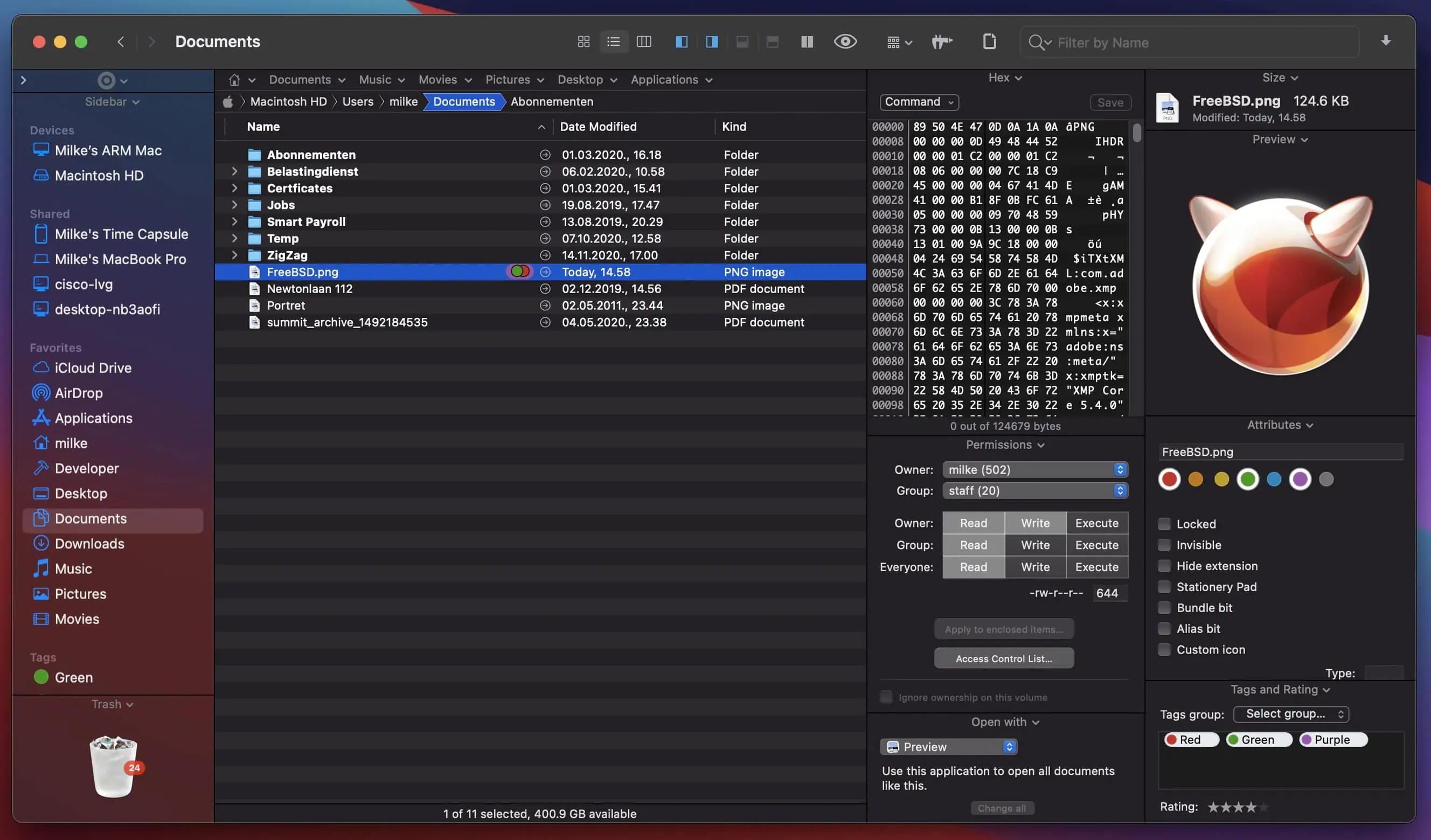
The current version of Path Finder — 26.1.9 — focuses on polish and compatibility. The team fixed double-click behaviour in List View, a batch rename limit that stopped at 31 files, and multiple-item selection in List View. Label colour badges, iCloud status icons and drag-and-drop animations all work better now. There are also minor UI fixes for macOS 27 Golden Gate.
For anyone new to it, here is what Path Finder is:
File manager replacement — It sits alongside or replaces the standard macOS Finder, offering tabs and a dual-pane view for side-by-side browsing.
Keyboard-driven browsing — You can navigate folders and select files without reaching for the mouse.
Built-in FTP client — Transfer files to and from remote servers directly inside the app.
Modular tools — Includes a text editor, image editor, app launcher and archive tool. You get archive handling for common formats without opening a separate app.
Search by type — Find files by keyword, extension or file type. You can also reassign system hotkeys to suit your workflow.
Give yourself a few hours to let the interface sink in. Path Finder is not a reskinned Finder — it expects you to work differently, and the first instinct is to look for familiar buttons. Instead, start with the dual-pane view. Open two folders side by side and copy files across. That alone will show you why a proper file manager beats dragging between windows.
Next, spend time with the preview panel. Select a document, an image, or an audio file and see what Path Finder shows you. It handles more formats than the standard Quick Look, and you can preview without opening the file in another app. This is especially useful when you are sorting through a folder of mixed media.
Set aside ten minutes to browse the toolbar. Right-click or control-click to customise it — add the buttons you reach for most, remove the ones you do not need. The default layout is sensible, but your workflow will be different from mine.
If you deal with archives regularly, test the built-in archive tool early. Compress a folder, then decompress the result. Path Finder handles zip and other common formats without launching a separate utility.
The most common error is treating Path Finder like a Finder skin and never exploring its deeper features. It is easy to install, open a single pane, and carry on as before. That misses the point. The dual-pane view, the keyboard shortcuts, the FTP client — those are the reasons to use it.
Another mistake is ignoring the process manager. When an app freezes or a file refuses to eject, the standard Force Quit window is limited. Path Finder gives you a more detailed view of running processes. Beginners often do not know it is there, so they reach for Activity Monitor instead.
Some people try to change every system hotkey at once. That is a good way to lose track of what does what. Start by reassigning one or two shortcuts that genuinely slow you down. Learn those, then add more.
Beginners also tend to forget about the batch rename tool until they need to rename thirty files and realise they could have done it in seconds. Make a habit of selecting multiple files and looking for the rename option. It is one of those features you will use more than you expect.
The installer disk image includes a note about running a Terminal command to bypass Gatekeeper. Follow that step exactly, then drag the app to Applications. Once it opens the first time, it will work normally.
The dual-pane view feels cramped on a smaller screen. Path Finder lets you adjust the pane divider. Drag it to give more space to the side you are working on. You can also collapse one pane temporarily and bring it back with a click.
Files do not show up after a search. Check that the search scope is set to the folder you think it is. Path Finder searches by keyword, extension, or type, but if the scope is wrong, it will look in the wrong place. Reset the search field and try again.
Labels and tag badges look odd. The 26.1.9 update fixed colour badge display in Icons, List, and Columns views. If you still see mismatched colours, restart the app. That refreshes the rendering and usually resolves it.
Drag and drop feels sluggish. The same update improved drag-and-drop selection drawing and the slide-back animation. If it still feels off, check that you are not running an older version. The latest build is 26.1.9, and those fixes are in it.
Path Finder 11 users moving to the current version will notice the interface has changed, but the core workflow — browsing, organising, previewing — stays the same.
Sign in or create your account to leave a comment.
No notes from photographers yet. If you have used this on a real folder, say which camera and which Mac.