Get it for my Mac (5 MB)




 MotionVFX mModules
- Developer
- motionVFX
- Licence on file
- Not required
In the edit
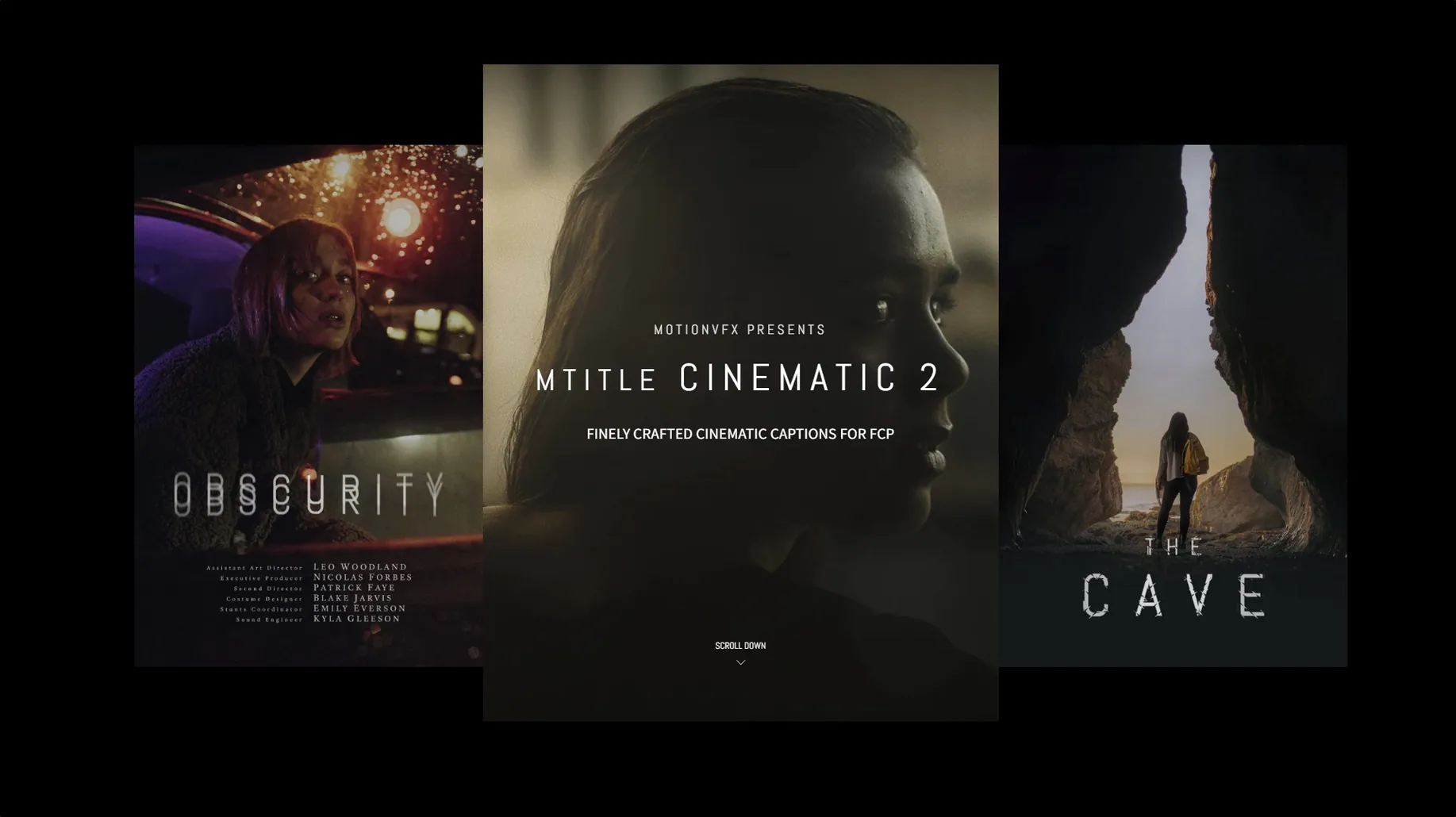
Open the Titles browser in Final Cut Pro and you’ll find mTitle Cinematic sitting there with fifty captions built for horizontal aspect ratios. motionVFX put this together as a straightforward pack of cinematic titles — nothing flashy, just solid, usable text overlays that sit well over footage.
Compatibility and host apps
The titles run inside Final Cut Pro, with a minimum of Motion 5.4.3 or FCP 10.4.6. macOS 10.14.4 is the floor. That covers most modern Macs still on a supported OS, so it should land on your machine without fuss. The package copies straight into the Motion Templates folder under your user Movies directory.
The sound side of things
Each title comes with its own audio track — a short whoosh or a subtle tone that matches the visual. It’s a small touch, but it saves you digging through sound libraries when you just need something that fits the moment. The audio follows the title’s length, so it stays in sync as you adjust the duration.
Don't stretch mTitle Cinematic titles too short or the animation cuts off
The most common one is dropping a title onto the timeline and expecting it to work like a still text box. mTitle Cinematic titles are animated, so they have a natural duration. Beginners often stretch them too short, cutting off the motion before it finishes. Let the title play through its full animation once before you trim — you can always adjust the length after you see how it behaves.
Another one is ignoring the audio track that comes with each title. People hear a whoosh they didn’t place and assume something’s broken. It’s not. The sound is part of the title. If you don’t want it, detach the audio in Final Cut Pro and delete it. If you do want it, make sure you adjust the title’s length so the sound doesn’t cut off mid-way.
Beginners also tend to use the same title for every scene. Fifty captions are in the pack for a reason. Skim through them. Some work better as full-screen openers, others as lower-thirds for interviews. Matching the style to the footage makes a bigger difference than any colour tweak you could make.
A small but repeated mistake: placing the title on a connected clip rather than the primary storyline. When you move clips around, the title can drift out of sync. Keep it attached to the storyline or use a compound clip to lock it in place.
Test each title by scrubbing a one-minute sequence before you render
Start with one project, not three. Pick a short sequence — maybe a minute of footage — and try each title that looks remotely useful. You don’t need to render everything. Just scrub through the timeline and see how the animation feels over your footage. After a few passes, you’ll have a mental shortlist of the titles you reach for most.
Create a dedicated bin in Final Cut Pro for your favourite mTitle Cinematic titles. Drag the ones you like into it. That way you’re not scrolling through all fifty every time you need a caption. You can always add more later.
Play with the duration. Some titles look better when they linger, others when they snap in and out fast. There’s no right setting. Trust what looks right on your footage, not what the default says.
If you edit a lot of interviews, try the shorter titles first. They’re less intrusive and let the speaker stay the focus. The longer, more elaborate titles work better for openers or transition points in a narrative.
Keep an eye on the audio tracks. If you’re layering music or voiceover, the built-in sounds can clash. Mute them early and replace them with your own audio if needed. It’s quicker than fixing it later in the mix.
You don't need Motion installed to use these titles in Final Cut Pro
Do I need Motion installed to use these titles? No. Final Cut Pro is enough. Motion is only required if you want to customise the title’s internal animation or change something the Final Cut interface doesn’t expose. For most editors, Final Cut handles everything you need.
Will these titles work with vertical or square projects? They’re designed for horizontal aspect ratio. You can force them into a vertical timeline, but the composition will crop or scale oddly. Stick to landscape projects for the best result.
Can I use the same title more than once in a project? Yes. Each instance is independent. You can adjust the text, colour, and timing separately. No limit on how many times you apply it.
Does the pack include any fonts? No. The titles use whatever fonts you have installed on your Mac. If you want a specific look, add the font to your system before you start editing. The titles will pick it up automatically.
What if I delete the title from the Motion Templates folder later? The titles you’ve already placed in your timeline stay there. You just won’t see them in the Titles browser anymore. You can always copy the folder back if you change your mind.
Build a film opener by placing the title card over a wide establishing shot
Let’s say you’re editing a short film and need an opener with the title card. Start by selecting your establishing shot — a wide landscape or a building exterior, something that holds for a few seconds. Place it on the primary storyline.
Open the Titles browser and scroll through mTitle Cinematic. Pick one that matches the mood. For a dramatic opener, choose something with a slow fade and a subtle movement. Drag it onto the storyline above your footage.
Double-click the title in the timeline to edit the text. Type your film’s name. Keep it short — two or three words work best with animated titles. Adjust the font and size in the inspector if the default doesn’t fit.
Play the sequence. Watch the animation from start to finish. If the title moves too fast or too slow, adjust its duration by dragging the edge in the timeline. Aim for a pace that lets the viewer read the text and absorb the shot beneath it.
Check the audio track. If the built-in sound works with your music, leave it. If it doesn’t, detach the audio and delete it. Add a low drone or a soft piano note underneath instead.
Render a small section and watch it full screen. Look at how the title sits over the footage — is it too bright, too large, too central? Go back to the inspector and tweak the opacity or position. Sometimes a small shift makes the difference between a title that floats and one that feels part of the scene.
Once you’re happy, lock the title in place with a compound clip. That stops it from shifting if you move clips around later. Move on to the next scene with the same title or a different one — whichever fits the story.
Mac it needs
- macOS 10.14.4 or later
- Motion 5.4.3 or Final Cut Pro 10.4.6
Questions I actually get
Which versions of Final Cut Pro does mTitle Cinematic work with?
You need Motion 5.4.3 or Final Cut Pro 10.4.6 at minimum. macOS 10.14.4 or later is required.
How many titles are in the set?
The pack includes 50 cinematic captions, all built for horizontal aspect ratios.
Where do I install the files?
Copy them to /Users/username/Movies/Motion Templates/Titles.
Installing on a Mac
- Copy the files to /Users/username/Movies/Motion Templates/Titles.
Notes from photographers
Sign in or create your account to leave a comment.
No notes from photographers yet. If you have used this on a real folder, say which camera and which Mac.