
 Get it for my Mac (8 MB)




 CorelDRAW
27.2.0

- Version
- 2.1.4
- Developer
- PixelCut
- Interface in
- English
- Licence on file
- K'ed by TNT team
- macOS it runs on
- macOS 11.5 or later
- Chip support
- Intel 64-bit
In the edit
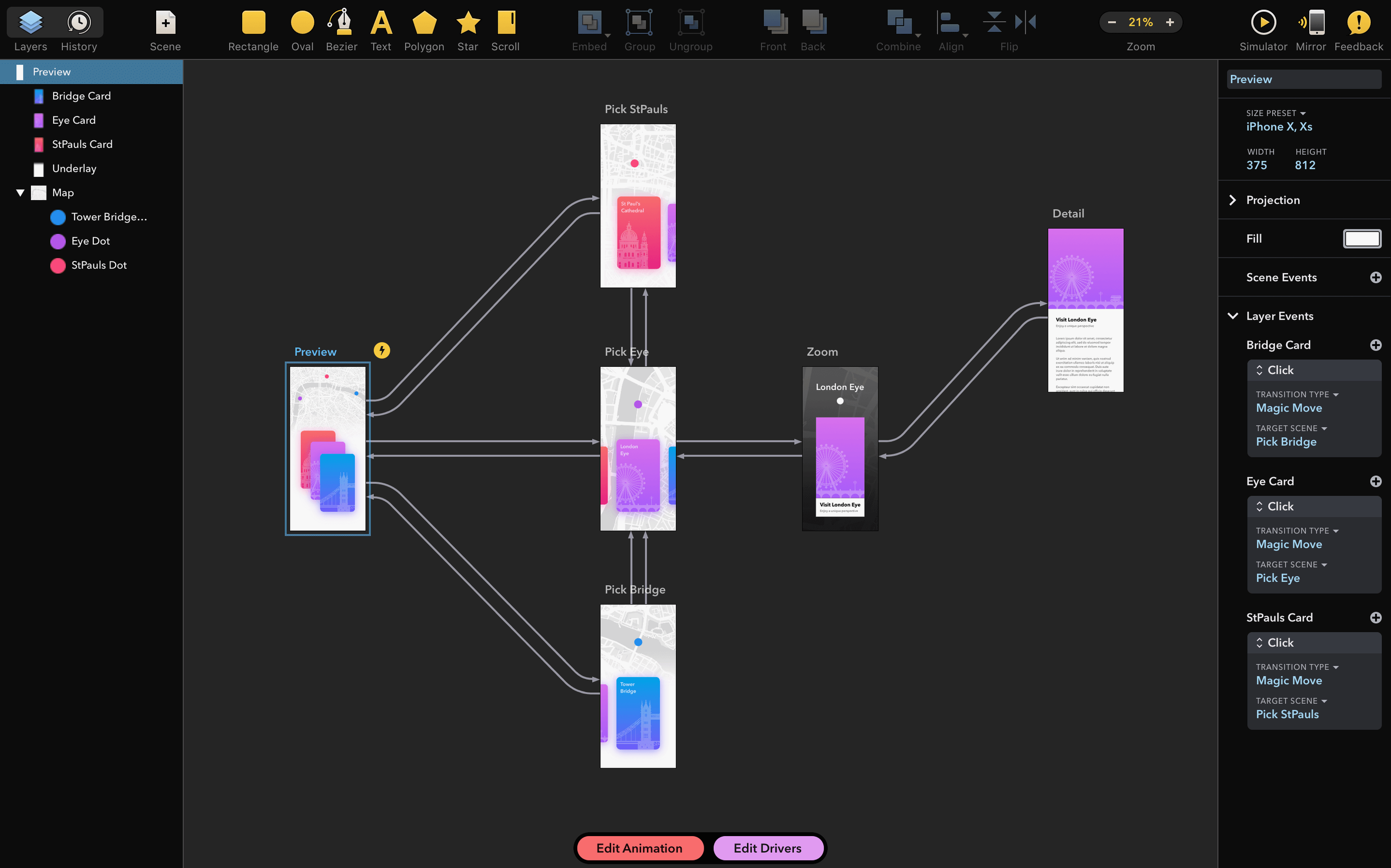
Drama is for the designer who sketches a prototype, then wants to see it move without switching apps. PixelCut calls it a 3-in-1 tool, and that is about right — vector design, interactive prototyping and animation live in one window.
Vector workspace — standard drawing tools, boolean operations and a layers panel that feels familiar if you have used Sketch or Figma.
Prototyping mode — link screens, set transitions and preview interactions. No code, just drag-and-drop linking.
Animation timeline — keyframe-based motion for layers. Easing curves, group animations and export as video or GIF.
Export options — PNG, JPEG, PDF, SVG, video and GIF. Handy for handing off to developers or posting a motion study.
macOS 11.5+ — works on Intel Macs; English interface only.
Building a simple app flow from start to finish
One way to get a feel for Drama is to walk through a short prototype. Say you have a login screen and a home screen, and you want to show what happens when someone taps the sign-in button.
Start in the vector workspace. Draw a couple of rectangles for the email and password fields, add a rounded button and a label or two. The tools are familiar — you can group elements, adjust fills and set layer order without hunting for hidden panels.
Switch to prototyping mode. Every screen you have drawn becomes a canvas. Drag a connection from the sign-in button to the home screen canvas. Drama asks what trigger you want: tap, drag, hover or a few others. Pick tap, then choose a transition — slide in from the right, fade or cross-dissolve. You can preview the interaction right there in the window. No export needed yet.
If you want the home screen to have a loading animation before it appears, that is where the timeline comes in. Select the home screen canvas and switch to animation mode. Add a second layer that spins in. You can set an easing curve so the motion does not feel robotic. Preview the whole thing again — the tap triggers the transition, then the animation plays. Export the final flow as a video to share with a client or as a GIF for a quick demo.
Does drama replace a dedicated vector tool like Illustrator
Some people wonder if Drama replaces a dedicated vector tool like Illustrator. It does not try to. The vector workspace handles the shapes and layouts you need for screens and UI elements, but it is not built for illustration or complex print work. You design your prototype pieces and animate them in the same app, which saves context-switching.
Another common question is about sharing prototypes with people who do not have Drama. You can export stills and motion as standard formats — PNG, JPEG, PDF, SVG, video and GIF. That covers most hand-off scenarios. There is no built-in cloud preview or web link, so you send files.
People also ask whether you can import designs from Figma or Sketch. Drama does not list import filters for those formats. You build your screens inside the app or bring in SVG assets. For a tool that combines design and animation in one place, that trade-off is fair.
And yes, it runs on Intel Macs only. If you are on Apple Silicon, you will need Rosetta. The app is English-only, so the menus and tooltips are in English.
Group animations that save setting keyframes on each element
Drama keeps its interface clean, but a few details reward poking around.
Group animations — you can animate a group of layers together, which saves setting keyframes on each element individually. Useful for a button that contains a label and an icon.
Easing curves — the timeline gives you control over how motion accelerates and decelerates. You can pick from presets or adjust the curve yourself. That makes a big difference when you want a natural-feeling bounce or a slow fade.
Export as video or GIF — both options are there in the export menu. Video is good for client presentations; GIF works for quick sharing on Slack or Notion.
Layers panel stays consistent — whether you are in design, prototyping or animation, the layers panel shows the same structure. You do not have to re-learn where things are when you switch modes.
MacOS 11.5 or later and an Intel processor required
Drama requires macOS 11.5 or later and an Intel processor. It is a 64-bit x86 app, so it runs natively on Intel Macs and through Rosetta on Apple Silicon machines. The installer is a disk image — you mount it, run a quick Gatekeeper bypass in Terminal, drag the app to Applications and you are set. The whole install takes a couple of minutes.
Version 2.1.4 includes a fix for a crash that could happen on launch if certain fonts were installed. That was the main change in this release. Other than that, the app behaves as a stable design and animation tool for its intended workflow.
New this release
- Fixed a crash on start that occurred with certain installed fonts.
Mac it needs
- macOS 11.5 or later
- Intel processor
Questions I actually get
Is Drama only for animation?
No, it covers prototyping and vector design too, which is why PixelCut calls it a 3-in-1 tool.
What macOS version do I need?
Drama requires macOS 11.5 or later and runs on Intel Macs.
Does Drama support Apple Silicon?
The system requirements list Intel architecture, so it may not run natively on Apple Silicon.
Installing on a Mac
- Mount the disk image and run the Gatekeeper-friendly tool.
- Press Enter in Terminal to bypass Gatekeeper.
- Drag the app to the Applications folder.
- Open the app after installation.
Notes from photographers
Sign in or create your account to leave a comment.
No notes from photographers yet. If you have used this on a real folder, say which camera and which Mac.
