
 Get it for my Mac (3.5 GB)
 Imagenomic Portraiture
4.5 Build 4501
Imagenomic Portraiture
4.5 Build 4501

- Version
- 9.0 fix
- Developer
- DxO Labs
- Interface in
- Russian, English, German, Arabic, Spanish, Italian, Chinese (Traditional), Chinese (Simplified), Korean, Dutch, Polish, Turkish, French, Japanese
- Licence on file
- K'ed by Antibiotics
- macOS it runs on
- macOS 13.3 or later
- Chip support
- Apple Silicon, Intel 64-bit
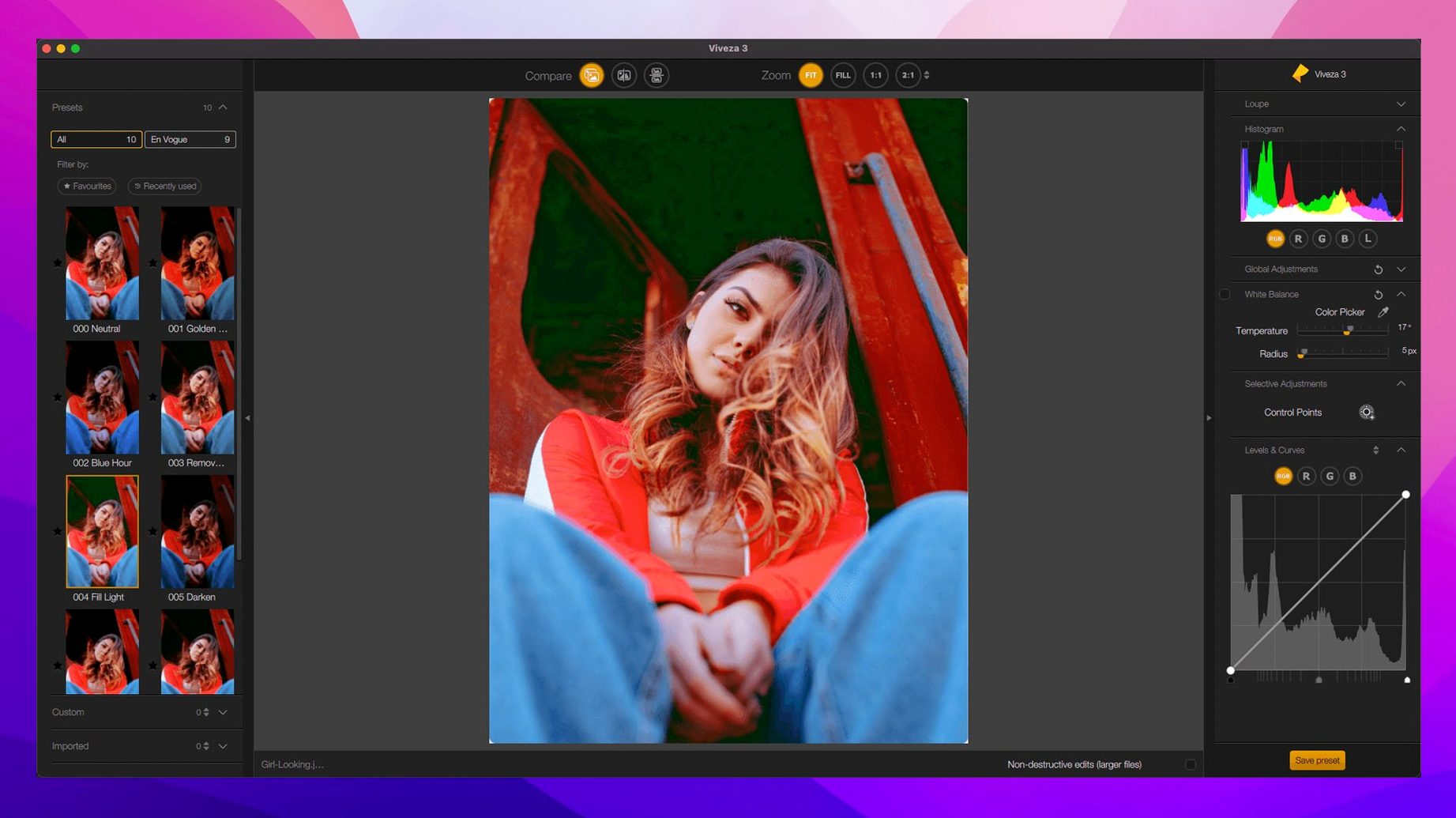
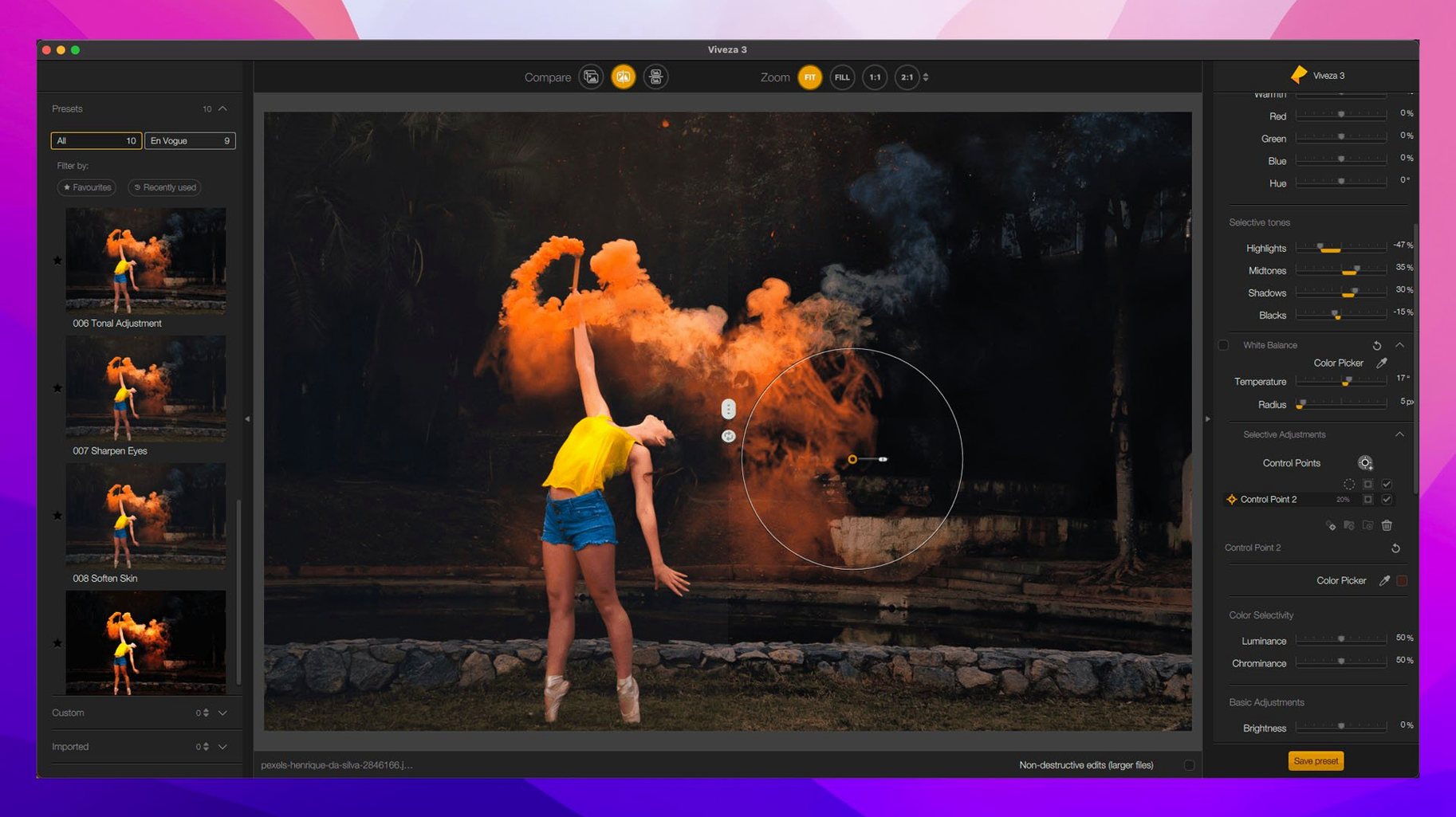
In the edit
You are halfway through a wedding edit, and the bride’s dress has blown out in three frames. You could spend ten minutes masking in Photoshop, or you could open Viveza, drop a control point on the highlight and pull it back in seconds. That is the Nik Collection in a real session: quick local fixes that stay local, and a bunch of creative effects you reach for when a shot needs a mood shift.
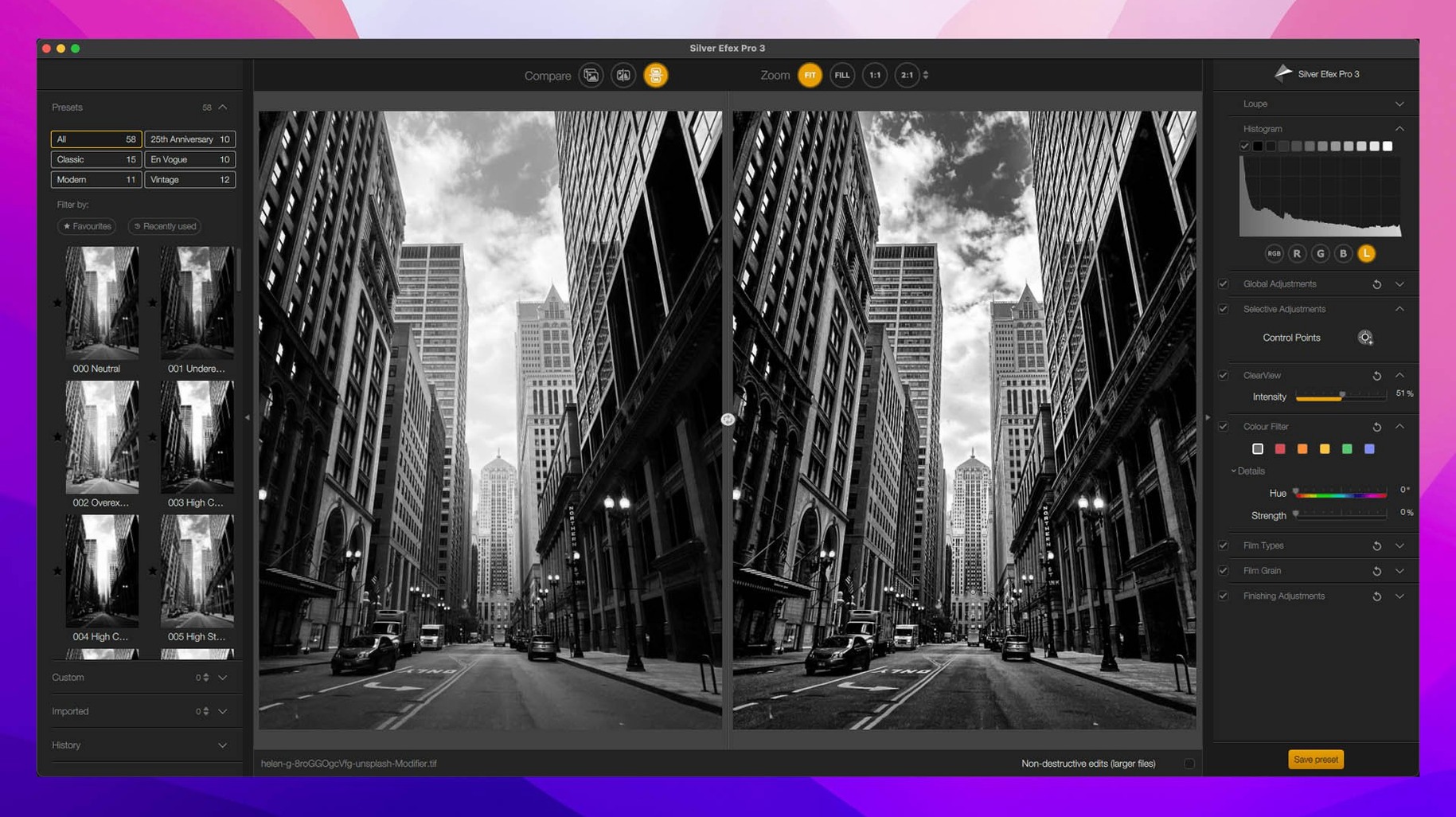
Version 9 adds Depth Masks and AI Masks, which makes selecting by distance or subject a lot faster inside Nik Color Efex. The new Color Grading tool sits alongside the usual filter stack, so you can warm up shadows or cool down highlights without jumping between plugins. Silver Efex Pro still handles black and white conversion with a before-and-after split preview that actually helps you decide, and Sharpener Pro keeps output sharpening clean for 16-bit files going to print or gallery.
The suite runs inside Photoshop, Affinity and DxO PhotoLab, and the Preset Hover Preview in version 9 means you can skim looks before committing. For a wedding photographer editing on a MacBook Pro, that saves a bit of clicking around. Analog Efex Pro has more than 80 tools if you want film grain or lens effects, but most days you will live in Viveza and Color Efex, making small adjustments that add up to a consistent set.
Depth Masks and AI Masks change how you edit
The headline additions in Nik Collection 9 — Depth Masks and AI Masks — are the ones that change how you work on a busy edit. Before, if you wanted to adjust only the sky or only the foreground, you either painted a mask in Photoshop or used control points in Viveza. Depth Masks let you select by distance from the camera, so a landscape with a near rock and a far horizon becomes two separate adjustment zones without any brushwork. AI Masks do the same for subjects: people, buildings, trees, whatever the scene contains. In practice, that means you can open a portrait in Color Efex, apply a moody vignette, mask the face with one click, and keep the skin tones untouched.
Mask Overlays are a small thing that makes a big difference when you are working fast. They show you exactly where your mask is applied, in colour, so you are not guessing. And the copy and paste of local adjustments between images is a time-saver for batch edits — if you spent time tweaking a control point setup on one photo of a reception table, you can paste the same adjustments onto the next five shots and only fine-tune the exposure.
The new Color Grading tool in Color Efex works like a colour wheel: you shift shadows, midtones or highlights separately. I use it to pull a bit of blue into the shadows of a cloudy outdoor ceremony and add warmth to the highlights, which gives the set a consistent film look without opening a separate LUT tool. Chromatic Shift, Glass Effect and Halation are more niche — you would reach for them when you want a deliberate lens flare, a glass overlay or a subtle glow — but they sit in the same filter stack, so you can stack them with other effects and see the result in the Preset Hover Preview before committing.
Treating presets as one-click filters is the top mistake
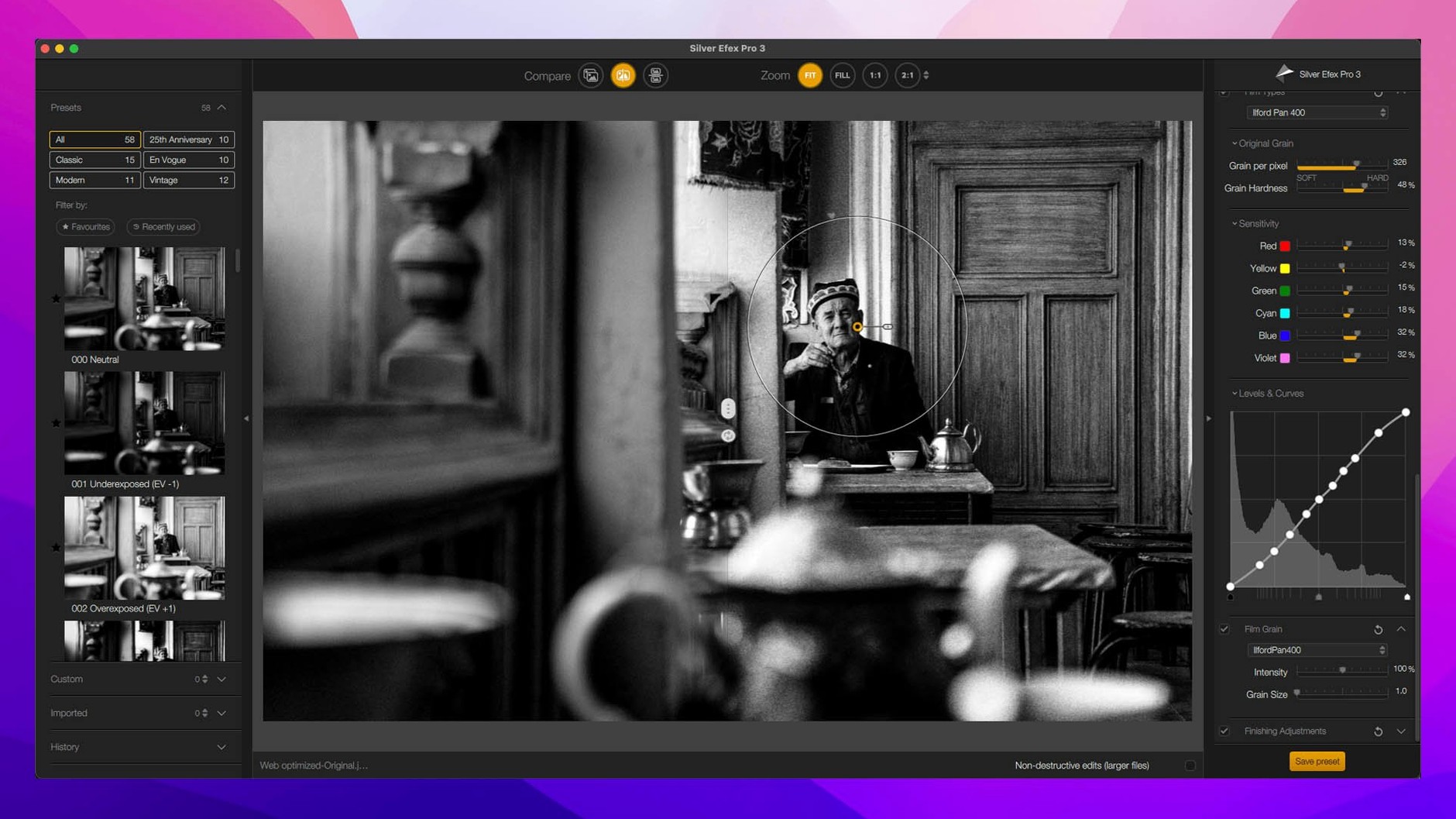
The most common mistake is treating every plugin like a one-click filter. Silver Efex Pro has presets, and they look good, but the real control is in the manual sliders — structure, contrast, toning. Beginners often pick a preset and leave it, which means every black and white shot ends up with the same look. The before-and-after split preview exists exactly so you can compare and adjust, not just pick and move on.
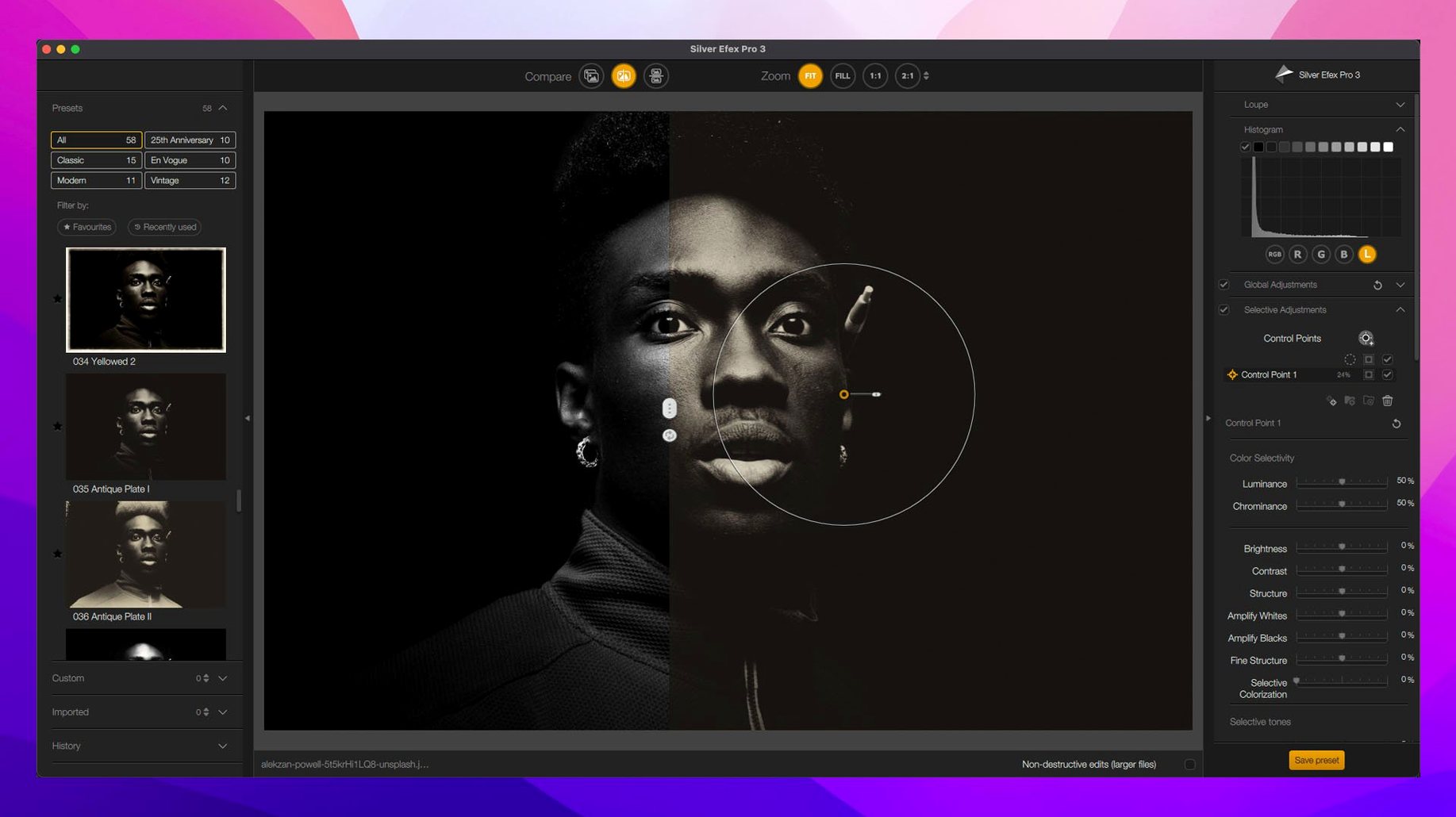
Another one: forgetting that Viveza control points affect a circular area by default, not the whole image. If you drop a control point on a face to brighten it and the background gets brighter too, you have not expanded the point’s radius correctly. Beginners either over-expand and affect too much, or under-expand and wonder why the adjustment is harsh. The fix is to watch the preview and resize the point until the fall-off looks natural.
And a common workflow error: opening a RAW file directly in Nik Collection from Lightroom without checking the exposure first. Nik plugins work on the rendered image, so if the RAW is underexposed, the plugin will try to brighten a dark file and introduce noise. Better to do a basic exposure and noise reduction in Lightroom or PhotoLab first, then send it to Nik for the creative edits.
Editing a rainy wedding with mixed light in the conservatory
I am editing a wedding set from a rainy October Saturday. The couple had a ceremony in a glass-roofed conservatory, so the light is mixed: warm overhead, cool from the windows, and the bride’s veil is a mess of blown highlights. I open Lightroom, pick the first frame of the ceremony, and send it to Viveza.
I drop a control point on the veil highlight and pull the brightness down by about two stops. Then I add a second control point on the groom’s jacket to push the shadows a little deeper. Viveza keeps everything local, so the background exposure stays as shot. I copy the control point setup, open the next four frames, and paste. Each one needs a small tweak to the point position because the couple moved between shots, but the heavy lifting is done.
For the first dance, the room is dark with a single spotlight. I send the shot to Color Efex and use the new Depth Mask to separate the couple from the background. I apply a warm tone to the couple and a cool, desaturated look to the background — the Color Grading tool handles that in one panel. The Preset Hover Preview lets me flick through a few looks before settling on something subtle. I add a slight Chromatic Shift to the edges for a lensy feel, and mask it off the faces with the AI Mask.
Later, I export the black and white shots through Silver Efex Pro. The split preview helps me decide how much structure to add to the dress detail without making it look crunchy. Sharpener Pro gets the final say on the 16-bit files that go to the album printer. The whole edit takes about two hours for a hundred final images, and most of that time is spent in Lightroom culling, not in Nik.
Start with one plugin and use Preset Hover Preview first
Start with one plugin, not all of them. Pick Color Efex or Silver Efex and spend an evening running through the presets with the Preset Hover Preview. You will learn which looks you like without the pressure of a real edit.
Learn the Mask Overlay shortcut early. When you are applying a mask in Color Efex, toggle the overlay on and off to see exactly where the effect lands. It is faster than guessing and undoing.
Use the copy and paste of local adjustments from the start. Even if you only have two similar shots, practice copying a control point setup from one to the other. It builds the habit, and when you have fifty shots from the same lighting setup, you will be glad you did.
Keep a reference image open. I always keep one edited photo from the set visible as I work on the next one. That way, the control point adjustments and colour grades stay consistent across the whole wedding set, and I do not drift into a different look halfway through the album.
Finally, do not install every plugin just because they are there. If you shoot mostly colour and rarely use film effects, leave Analog Efex and HDR Efex for later. The Nik Collection is most useful when you know exactly which tool to reach for, and that only comes from using a few of them deeply at first.
New this release
- Depth Masks and AI Masks for smarter selections
- New Color Grading tool inside Nik Color Efex
- Chromatic Shift, Glass Effect and Halation effects
- Preset Hover Preview to browse looks faster
Mac it needs
- macOS 13.3 or later
- Intel or Apple Silicon Mac
Questions I actually get
Does Nik Collection 9 work with Affinity Photo?
Yes, Nik Collection 9 integrates with Affinity, Photoshop and DxO PhotoLab as a plugin suite.
Installing on a Mac
- Open the downloaded package and follow the included installation instructions.
- Use the bundled activation steps to register the suite.
- Restart your host app (Photoshop, Affinity or PhotoLab) to see the plugins in the filters menu.
Notes from photographers
Sign in or create your account to leave a comment.
No notes from photographers yet. If you have used this on a real folder, say which camera and which Mac.
Next to it in Photoshop Plugins
All Photoshop Plugins picks
Imagenomic Portraiture
4.5 Build 4501

 Exposure X7
7.3.2
Exposure X7
7.3.2
