Get it for my Mac (398 MB)
 AppZapper
2.0.3
AppZapper
2.0.3

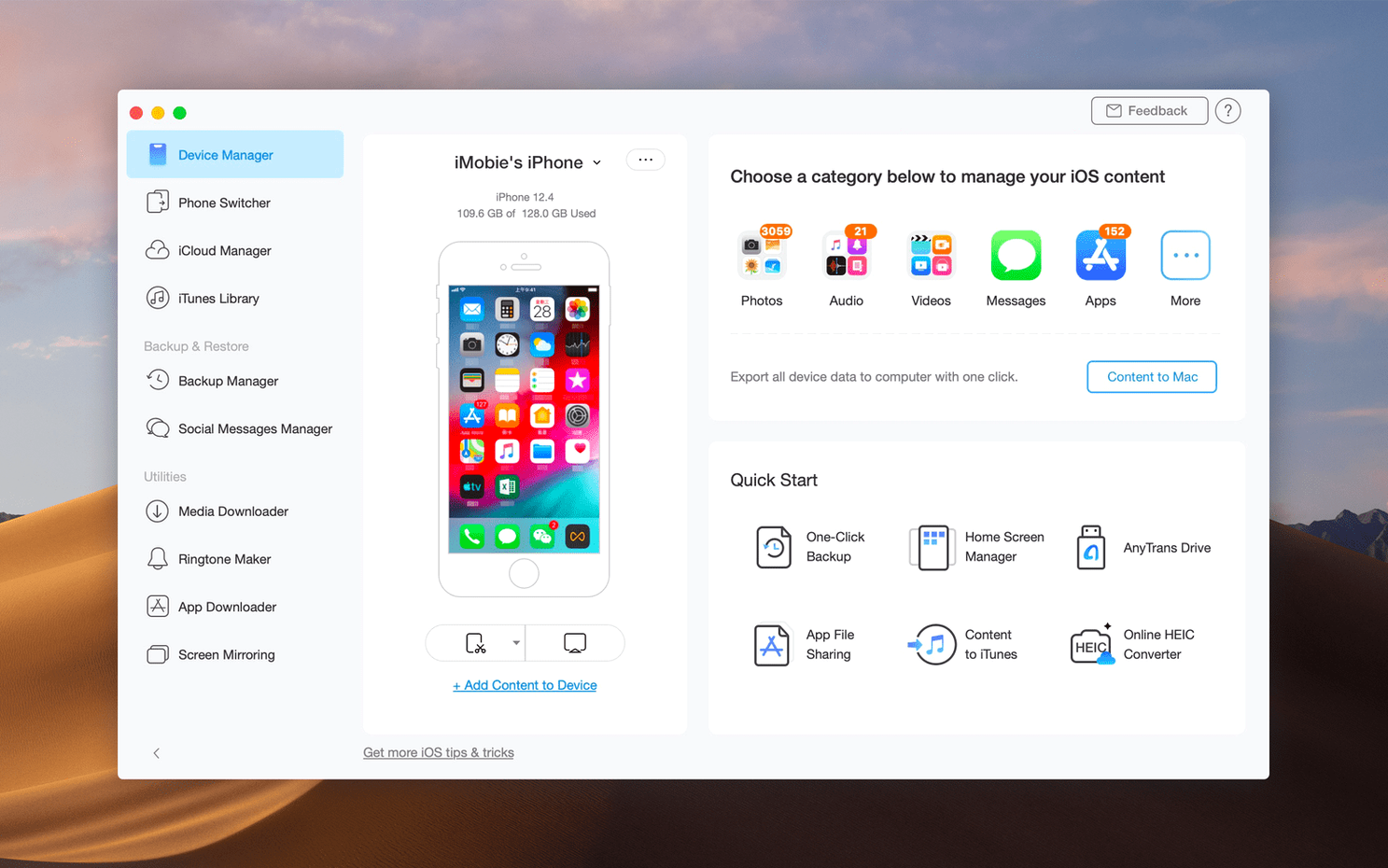
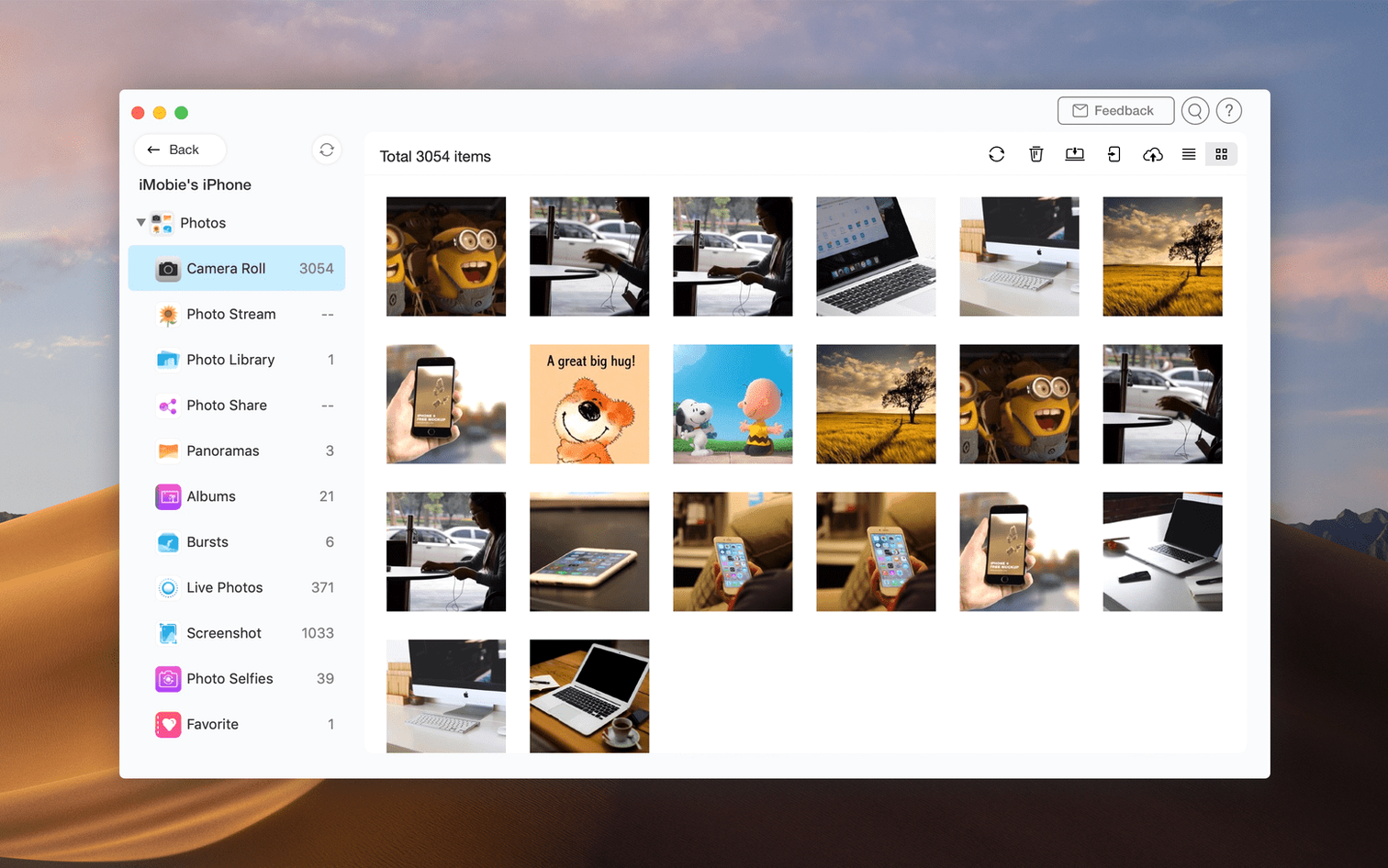
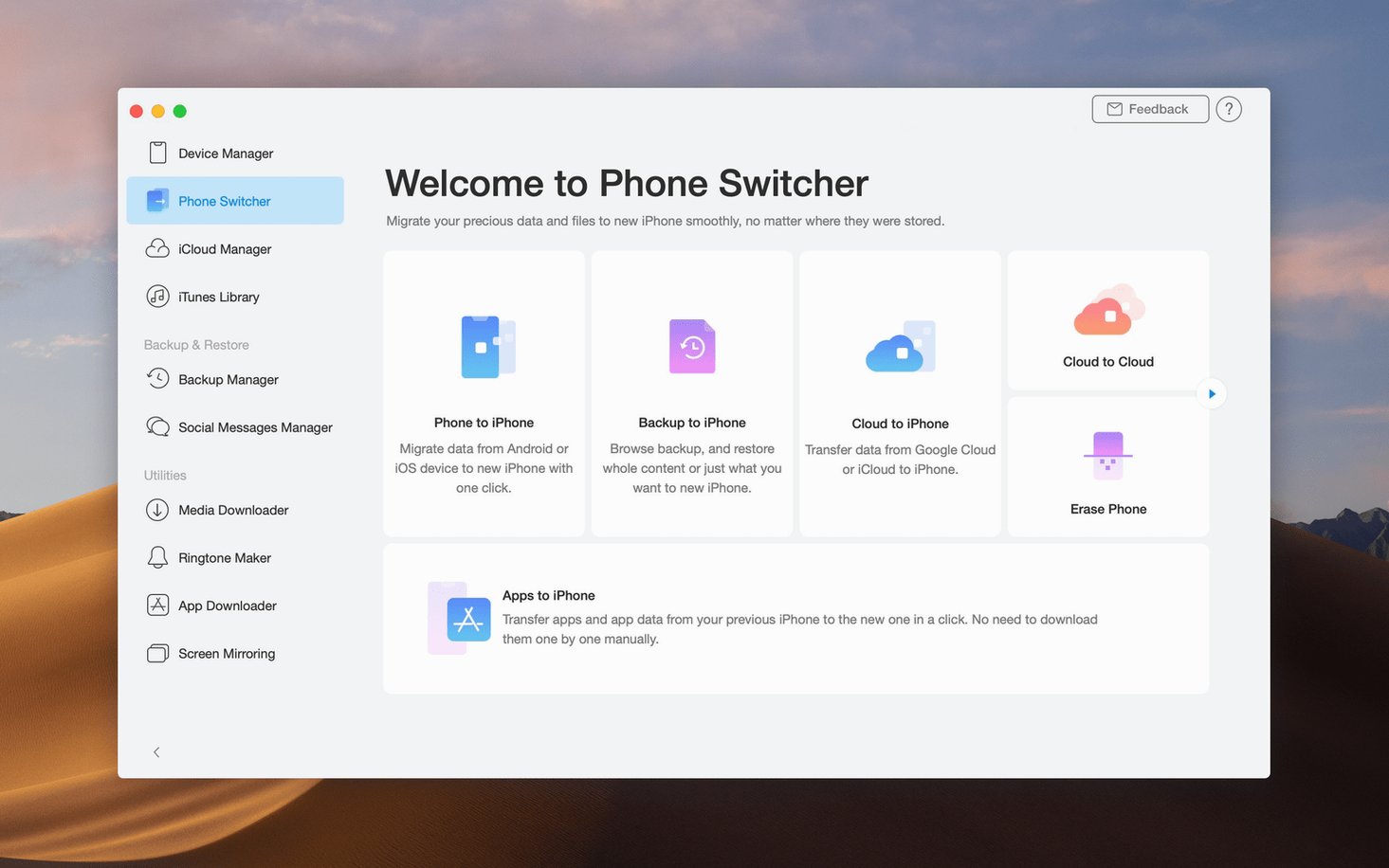
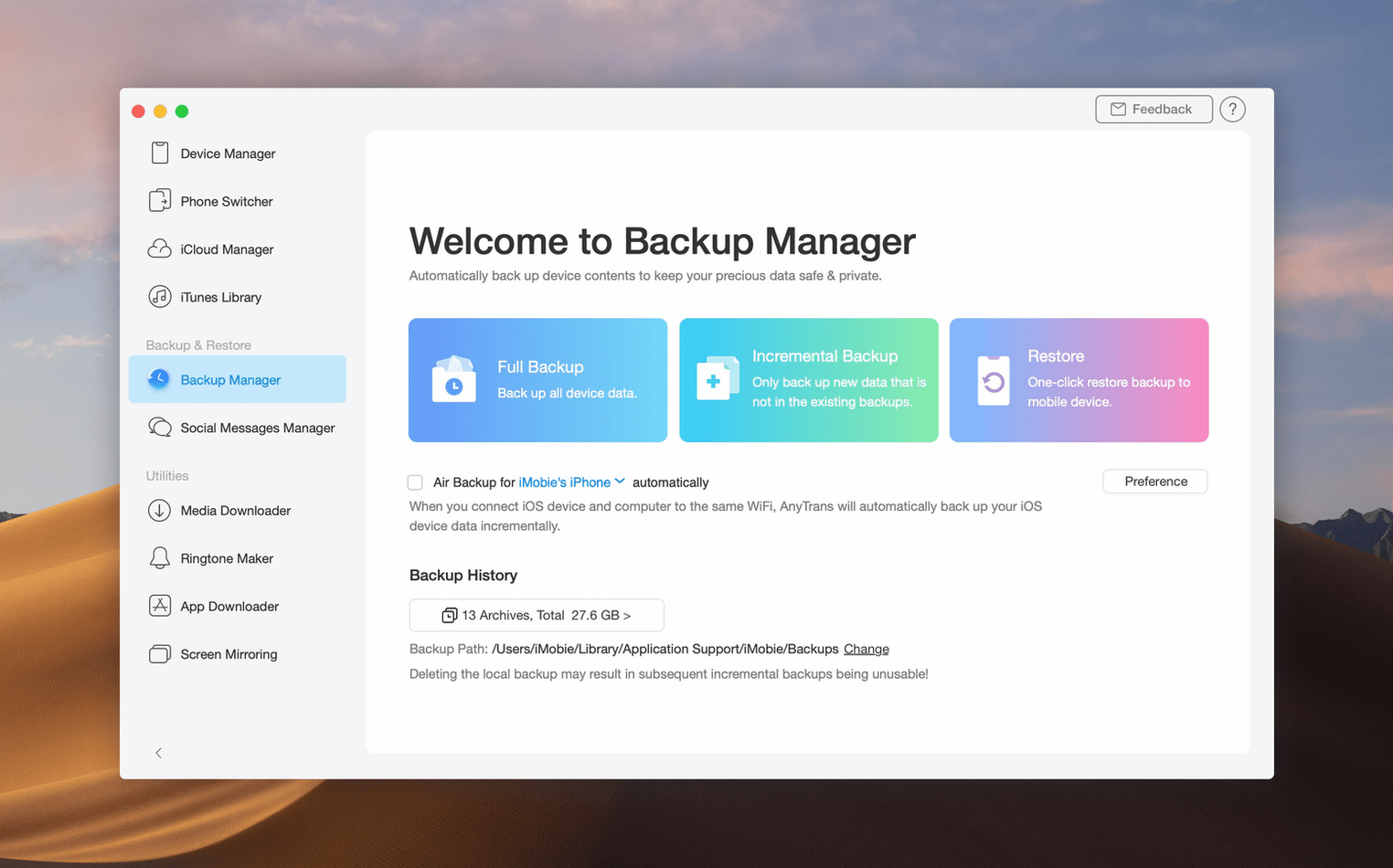
The current version of AnyTrans, 8.9.14, keeps the same solid focus on moving your iOS data where you need it, when you need it. No big new bells here, just the reliable tools that get the job done between iPhone, iPad, iPod, iTunes, and iCloud.
The headline trick is the one-click copy from iPad to Mac. Plug in via USB, pick your categories, and your photos, messages, or documents land on your desktop without wading through iTunes. You can also grab files straight out of iCloud and save them locally, which is handy when you want a backup that isn't floating in the cloud.
Moving to a new iPhone? AnyTrans shifts your stuff over from an old iOS device or even an Android phone. The device manager lets you choose exactly where each bit goes, so you aren't hunting for contacts later. It handles transfers between iOS devices too, which saves time if you manage more than one.
For anyone who finds iTunes a bit stiff for day-to-day file management, AnyTrans steps in as a practical replacement. It organises transfers by category, keeps USB connections stable, and works on Macs running High Sierra and later. English, German, Arabic, Spanish, Simplified Chinese, French, and Japanese are all covered in the interface.
AnyTrans has a few quiet touches that don't get much airtime but make a real difference when you're in the middle of a transfer. The media downloader, for instance, pulls audio and video from over 900 websites. That is not just for music — it works for podcasts, tutorials, and any clip you want to keep locally. You paste a link, pick the format, and the file lands in your library without extra software.
Another detail is how it handles content from an iTunes library. The same goes for iCloud accounts: you can shift content between them, which is useful if you are consolidating storage or switching Apple IDs.
The device manager also lets you pick a destination for each transfer before it starts. That sounds small, but it means you can send photos to a dedicated folder, messages to another, and music to your library in one go, rather than moving things around afterwards.
Most issues come down to the connection. AnyTrans uses USB to talk to your device, so if the Mac doesn't recognise the iPhone or iPad, the app won't see it either. First check that the cable is data-capable — some charging cables don't carry data. Then try a different port or restart both devices. If the app still shows nothing, make sure your iOS device is unlocked and has trusted the computer when the prompt appears.
Gatekeeper can also block the app on first launch because it is not signed by an Apple developer. The install instructions include a Terminal command to bypass it, which is straightforward: mount the disk image, run the command, press Enter, then drag the app to Applications. If you skip that step, the system may refuse to open AnyTrans. Repeating the process usually sorts it out.
Occasionally, a transfer stalls partway through. This often happens with large photo libraries or many files at once. Try moving fewer categories in a single session, or break the transfer into smaller batches. Restarting the app and reconnecting the device also helps.
The most common mistake is assuming AnyTrans replaces every function of iTunes or Finder. Beginners sometimes expect it to do everything, then get stuck when a system-level task fails.
Another is forgetting to unlock the iOS device before starting a transfer. If the screen is locked, the Mac sees the device but cannot read its data. The app may sit there waiting, and the user thinks it is broken. A quick tap on the iPhone or iPad fixes it.
People also overlook the category picker. When you plug in an iPad and click the one-click copy option, you can choose which data types to transfer. Selecting everything at once can overwhelm the connection, especially with large video files. Picking a few categories at a time keeps things moving smoothly.
Finally, some users try to transfer content from iCloud without signing into the correct account. AnyTrans can save iCloud files on a Mac, but it needs the right credentials. Double-checking the account in System Settings before starting saves a round of frustration.
Version 8.9.14, dated 20260323, is a maintenance release that keeps the app working on macOS 10.13 High Sierra and later. The core features — device-to-Mac copying, iCloud file saving, and media downloading — remain the same, but the build is updated to stay compatible with recent macOS updates on Intel Macs. There are no new interface overhauls or added workflows, just continued support for the tools that already exist.
For anyone using anytrans on a daily basis, the main change is that it still works. Software that manages iOS data can break when Apple updates its protocols, and iMobie has kept AnyTrans current without altering the layout or removing features. If you are running an older version, the 8.9.14 update is worth grabbing for compatibility alone.
Yes, it supports moving data from Android as well as from older iOS devices to a new iPhone.
No, you can transfer files through a direct USB connection to your Mac.
Sign in or create your account to leave a comment.
No notes from photographers yet. If you have used this on a real folder, say which camera and which Mac.