Get it for my Mac (14 MB)
 AlDente
1.39.4
AlDente
1.39.4
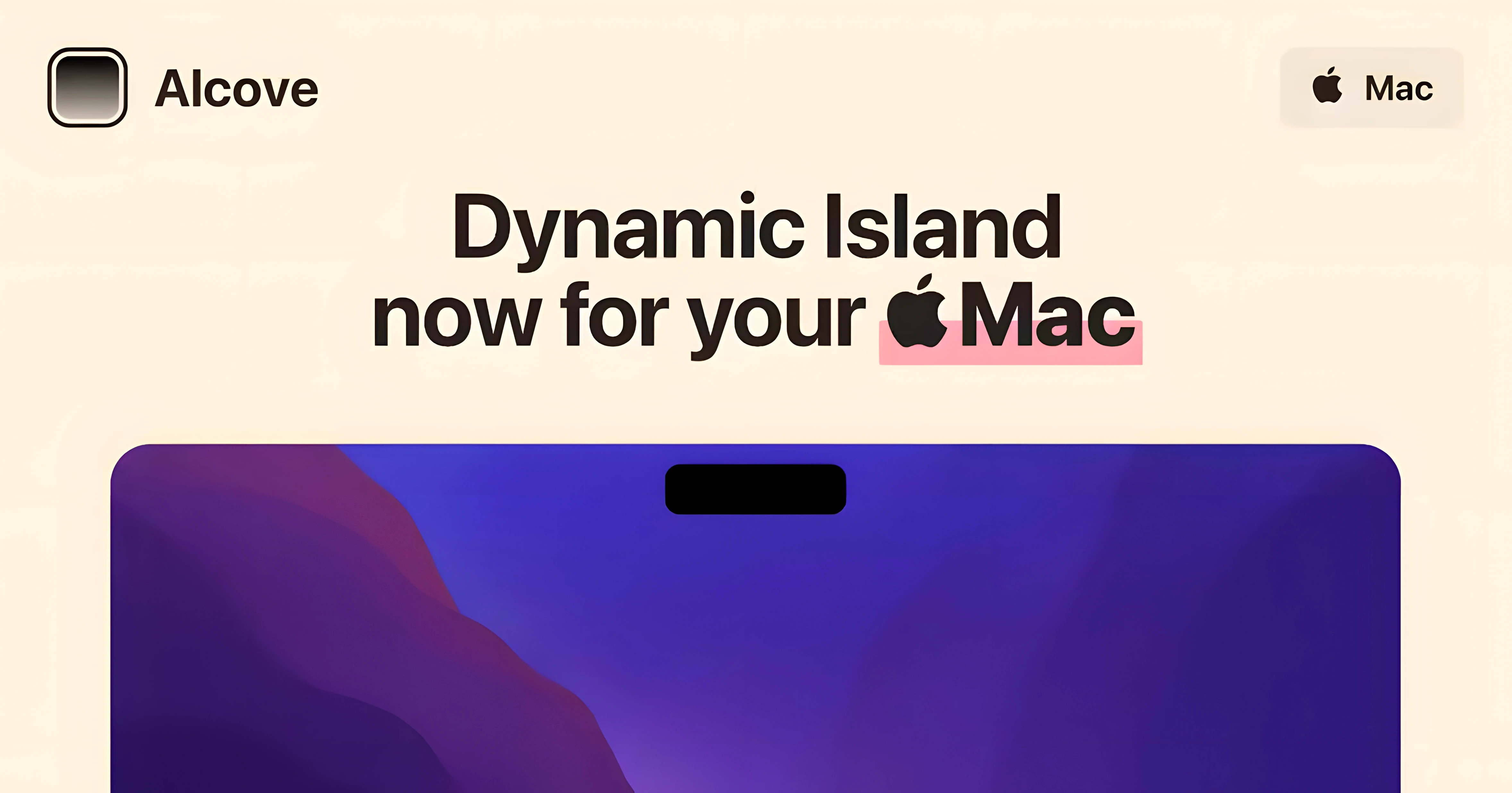
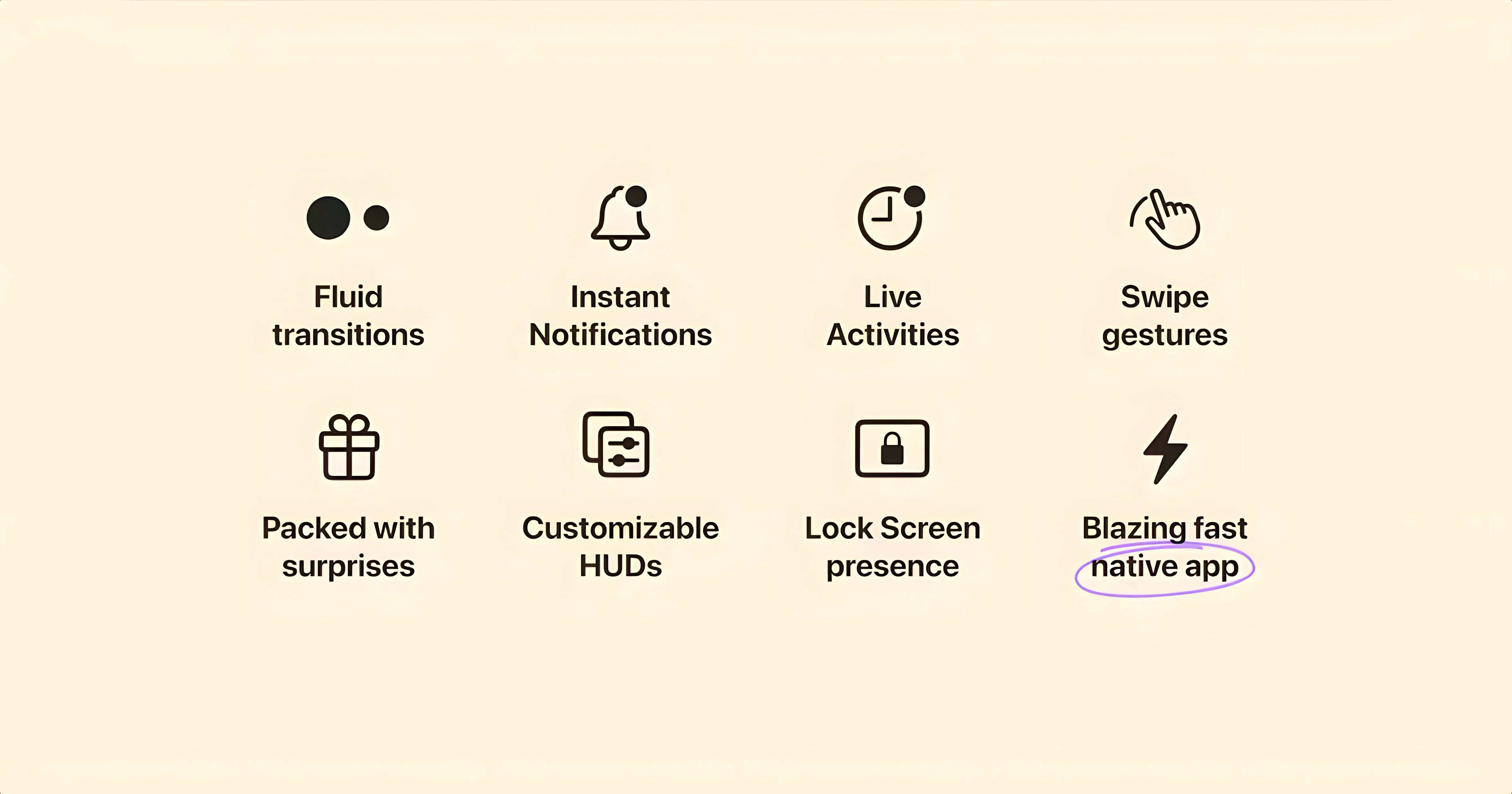
Alcove runs on any Mac with macOS 14 or later, whether it uses Intel or Apple Silicon. The app adds interactive controls to the notch area, styled after the Dynamic Island on recent iPhones. Stock system volume and brightness HUDs are replaced with custom ones that sit right in the notch, keeping your screen cleaner.
Alcove — the app itself, developed by Henrik Ruscon and launched in November 2024.
Dynamic Island-style actions — interactive pop-ups that appear around the notch for things like music playback, timers, and system controls.
Custom HUDs — the standard macOS volume and brightness overlays are swapped for smaller, notch-integrated versions.
Version 1.7.9 — the current release, which focuses on stability and compatibility with macOS 14. No new features in this update.
A few things come up often when someone first hears about Alcove, so here is the plain version of what to expect.
Does Alcove change how the notch works with other apps? It sits on top of the existing notch area and extends its behaviour, so apps that already handle the notch well — like menu bar managers or screen recorders that hide the notch — carry on as usual. The notch itself stays where it is; Alcove just makes it respond to events like media playback or a timer finishing. If you have an app that already adds widgets to the menu bar, there is no conflict because Alcove works in the notch space, not the menu bar.
Will it slow down an older Intel Mac? The app is lightweight by design. It runs on both ARM and Intel 64-bit Macs, and because it replaces system HUDs rather than layering extra processes on top of them, the overall feel is that it slots into macOS rather than weighing it down.
Can you turn it off without uninstalling? Yes. You can quit Alcove from the menu bar icon, and the notch goes back to its normal behaviour. The system volume and brightness HUDs return to their standard macOS appearance as soon as the app is not running. No need to dig into system preferences or delete anything.
What happens with notifications? Notifications that would normally appear as banners or alerts can show up inside the notch capsule instead, depending on how you set up the app. It keeps the top-right corner of the screen less cluttered, especially if you have a lot of incoming messages or calendar alerts during the day.
A few other apps try to do something with the notch or the menu bar, but each takes a different approach.
Bartender is the most well-known menu bar manager. It hides and reorders menu bar items, but it does not touch the notch or add interactive capsules. If you already use Bartender to clean up your menu bar, Alcove sits alongside it without stepping on its territory — one manages the icons on the right, the other manages the notch on the left side of the screen.
iGlance puts system stats like CPU and memory in the menu bar, but again it does not interact with the notch or replace the volume and brightness HUDs. For someone who wants both system monitoring and notch-based controls, the two apps serve different purposes and can run together.
Dynamic Island for Mac clones — there have been a few small utilities that mimic the iPhone's Dynamic Island on macOS. Most are either abandoned or limited to showing media info only. Alcove is actively maintained, has a clear developer behind it, and handles both notifications and system HUDs, not just music. That makes it a more complete take on the idea.
Alcove works with the standard macOS media playback controls, so any app that sends media info to the system — Music, Spotify, Safari video players, QuickTime Player — will trigger the capsule. You do not need to configure each app individually.
Notifications from apps like Messages, Calendar, Mail, and third-party messengers appear in the notch capsule as long as macOS is set to show them as banners. If you prefer the old notification style for certain apps, you can keep those separate and only let Alcove handle the rest.
Live Activities, which are more common on iOS but starting to appear on Mac through web apps and some native apps, also show up in the capsule. Timers, download progress, and sports scores are the typical examples, though the Mac ecosystem for Live Activities is still growing.
The custom volume and brightness HUDs replace the system overlays automatically. No extra step needed. If you use keyboard keys or the Touch Bar to change volume or brightness, the new HUD appears in the notch instead of the big grey box that macOS normally shows.
The version 1.7.9 release does not introduce new headline features, but a few details in how Alcove behaves are worth knowing about.
These are small touches, but they add up over a full day of work. The app does not try to reinvent the notch — it just makes it more useful for the things you already do.
No, Alcove requires macOS 14 or later. It won't install or run on older versions.
Sign in or create your account to leave a comment.
No notes from photographers yet. If you have used this on a real folder, say which camera and which Mac.