- Version
- 2.0.3 fix
- Developer
- Austin Sarner and Brian Ball
- Interface in
- English
- Licence on file
- K'ed by TNT team
- macOS it runs on
- OS X 10.9 or later
- Chip support
- Intel 64-bit
In the edit
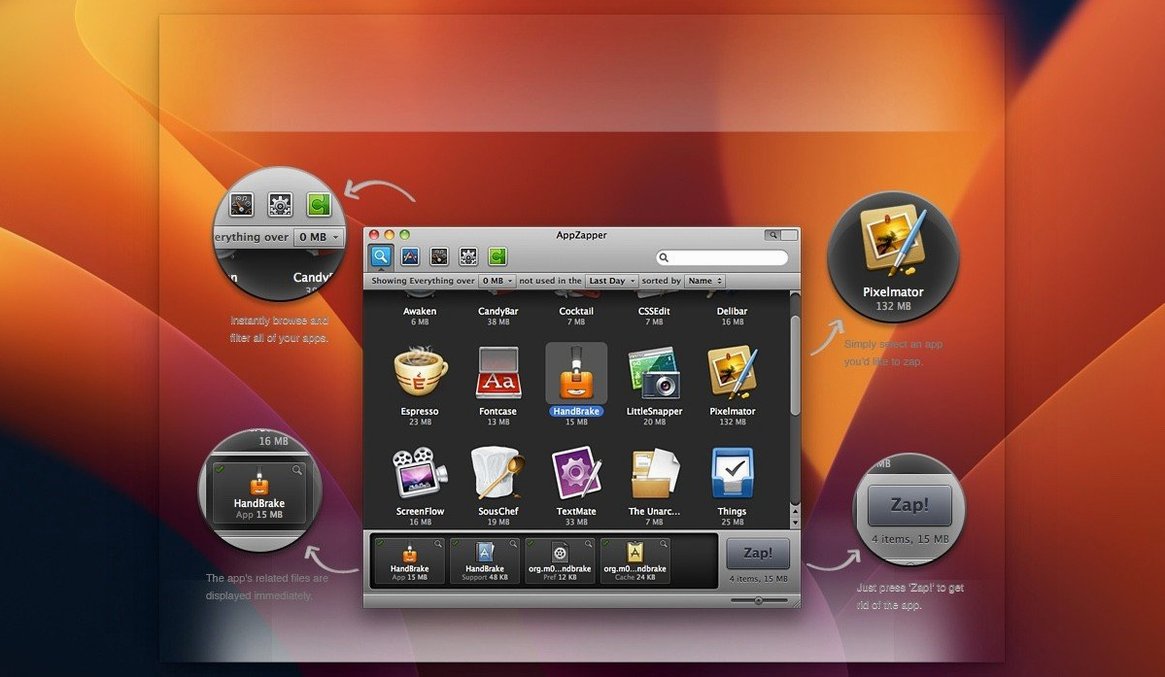
I know a few photographers who treat uninstalling like a chore you just ignore until the Mac starts feeling sluggish. AppZapper is for that moment. It finds the app and all the bits it left behind — preference files, caches, support folders — and shows them before you delete anything. You can uncheck what you want to keep, then send the lot to the Trash. If you change your mind, it’s still in the Trash, so nothing’s gone for good.
Here is how it works in practice:
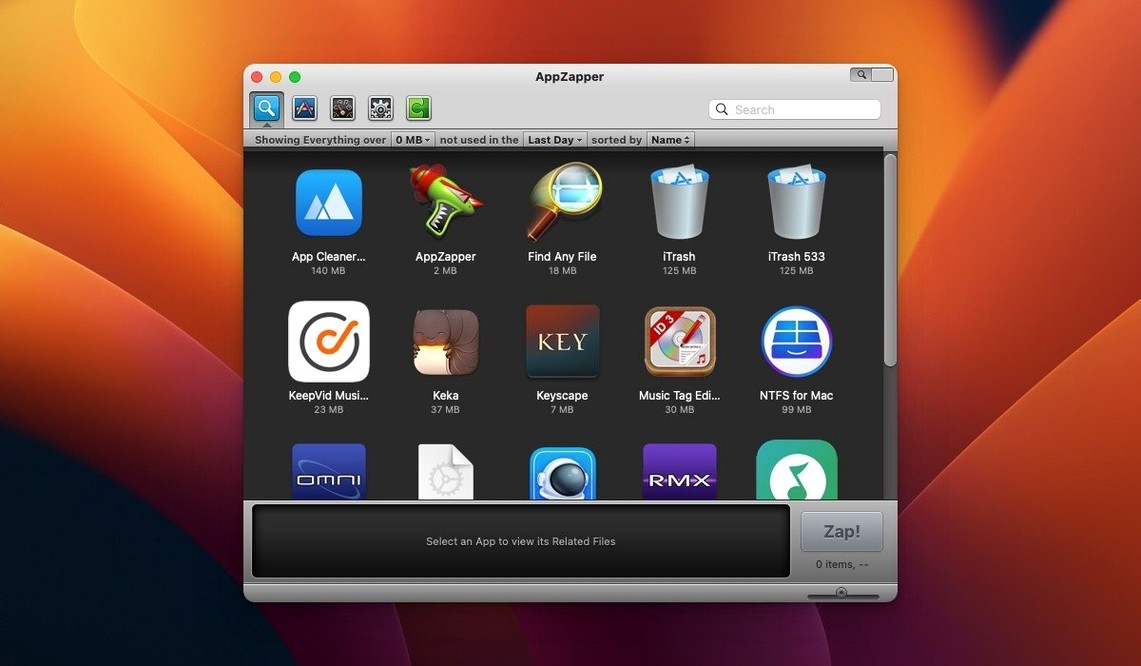
- Open AppZapper and drag an app from the Applications folder into its main window. Alternatively, use ZapGenie to browse installed apps and filter them by name or last-used date.
- AppZapper scans and lists every related file it found. Each item has a checkmark next to it.
- Uncheck anything you want to keep, then click Zap. The selected files move to the Trash.
Review before zapping to avoid second-guessing
Before you zap your first app, it is worth opening the preferences and making a couple of adjustments. The defaults work fine, but a small change now saves you from second-guessing later.
- Review before zapping. The list of related files appears every time, but the preference to require confirmation before deletion is worth checking. It adds a second prompt after you click Zap, giving you one more chance to catch something you meant to keep.
- Keep the Trash as a safety net. AppZapper sends files to the Trash rather than deleting them outright. If you prefer to bypass the Trash and erase immediately, that option is in the preferences too. I would keep the Trash setting on for the first few uses — you will appreciate it the first time you realise you still need that preference file.
- ZapGenie display order. The built-in browser for installed apps can sort by name or by date last used.
The grid view and other tucked-away workflow boosts
AppZapper does not advertise every feature in big buttons. A few details are tucked away in the interface or the release notes, and they make the workflow noticeably better once you know they are there.
- The grid view. The second version of AppZapper added a button in the upper-right corner of the window that switches the app list from a standard list to a grid with large icons. If you have a lot of apps and prefer to recognise them by icon rather than name, this view makes browsing faster. The grid arranges apps in rows and columns, so it feels more like Launchpad than a Finder list.
- Export an app and its files. Version 1.7.0 added the ability to export an app together with all its related files. This is useful if you want to archive an app before deleting it, or move it to another Mac without losing the settings and caches that make it behave the way you like.
- Authentication prompts for non-admin accounts. If you run your Mac under a standard user account, version 1.8.0 added an authentication prompt when AppZapper needs admin rights. You will be asked for an admin name and password rather than hitting a permission error.
- In-app updates. Version 1.6.0 added Sparkle integration, so AppZapper can check for updates from within the app. No need to visit a website to see if a newer version is out.
Runs on any 64-bit Intel Mac from Mavericks onward
AppZapper is built for 64-bit Intel Macs running OS X 10.9 or later. That means it will run on any Mac that still supports Mavericks and newer, up to the latest macOS versions that still support Intel hardware. If you are on an Apple Silicon Mac, AppZapper runs under Rosetta 2 — it is not a native Universal binary, but the translation layer handles it without fuss because the app is lightweight and does not push the processor hard.
The interface is in English only, so there is no language selector to worry about. The installer follows the classic Mac pattern: mount the disk image, run a Gatekeeper-friendly command in Terminal if needed, then drag the app to Applications. Once it is in place, you open it and start dragging apps into the window. No extra background processes, no login items added without asking.
The current build is version 2.0.3 fix, which is the one you will find in the package. The release history shows a steady set of additions — grid view, export, authentication, Sparkle — rather than a complete redesign every year. It is a mature tool that has settled into its workflow.
That is it. No background daemons, no launch agents scanning your drive unprompted. AppZapper does one thing and does it when you ask.
New this release
- Grid-style app browser with large icons added in version 2.0.
Mac it needs
- macOS: OS X 10.9 or later
- Architecture: Intel 64-bit
- Interface: English
Questions I actually get
Can I restore a file after I’ve zapped it?
Yes. AppZapper moves files to the Trash, so you can restore them from there until you empty it.
What happens if I’m not using an admin account?
Starting with version 1.8.0, AppZapper prompts for authentication when it needs permissions to delete system-level files.
Does AppZapper work on Apple Silicon Macs?
AppZapper 2.0.3 is Intel 64-bit and requires OS X 10.9 or later. It runs through Rosetta 2 on Apple Silicon machines.
Installing on a Mac
- Mount the disk image and run Open Gatekeeper friendly.
- Press Enter in Terminal when prompted to bypass Gatekeeper.
- Drag the app into the Applications folder.
- Open the app once copying finishes.
Notes from photographers
Sign in or create your account to leave a comment.
No notes from photographers yet. If you have used this on a real folder, say which camera and which Mac.

Similar apps
Next to it in Utilities
All Utilities picks