Get it for my Mac (16 MB)
 BetterTouchTool
6.726
BetterTouchTool
6.726
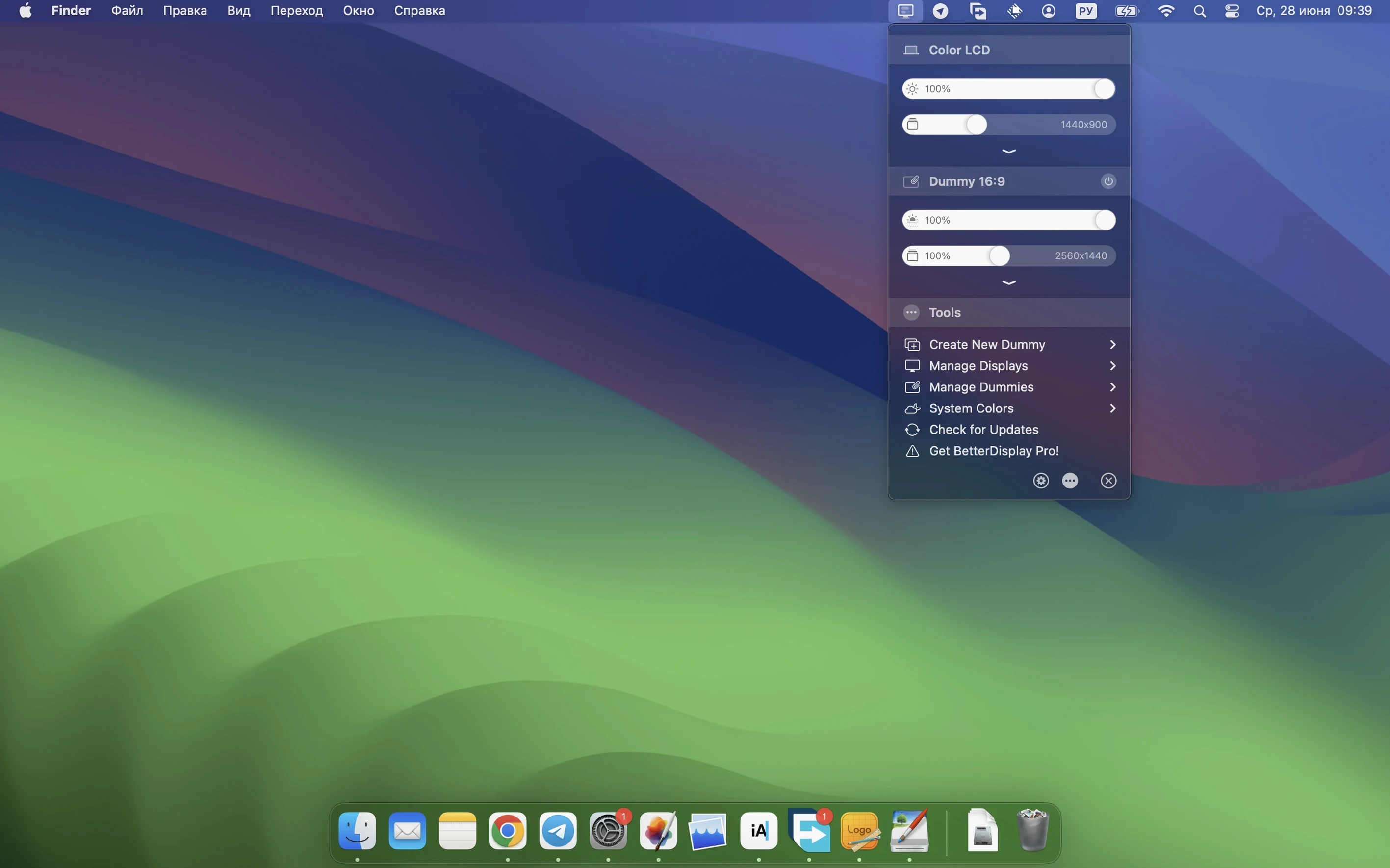
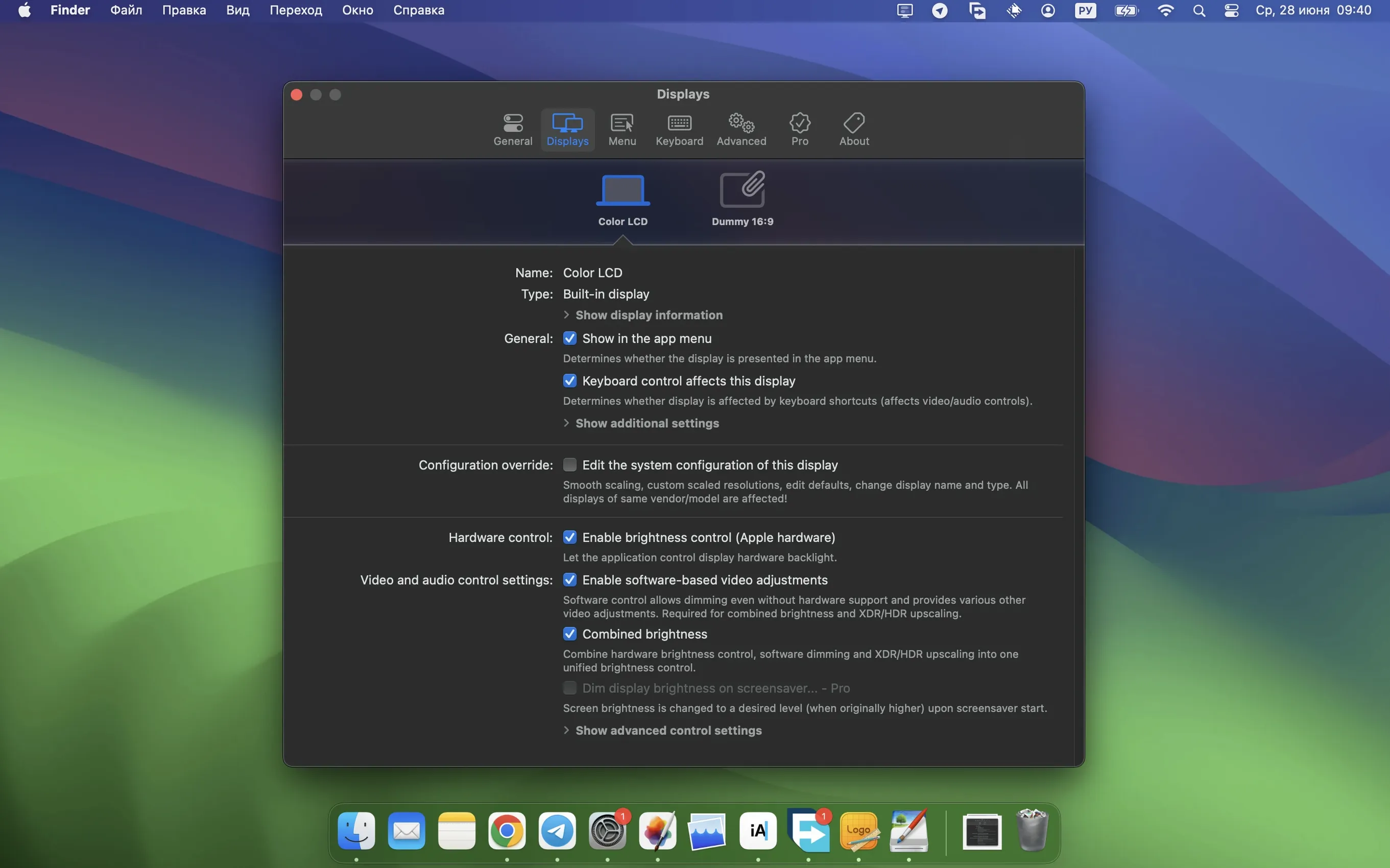
BetterDisplay Pro turns your Mac’s display handling into something you can actually control. Version 5.0.6 keeps the same core idea — scaling, brightness, colour and virtual displays — but tightens up the things that matter when you’re juggling multiple monitors on a shoot edit or a design review.
It sits in the menu bar and gives you DDC and HDMI-CEC control over brightness and colour, even on external displays that macOS normally leaves alone. You can create fully scalable screens, convert any display into a scaled one, and set up picture-in-picture windows for monitors. The virtual display feature is handy when you need a screen that doesn’t physically exist — useful for remote access or testing layouts. It works on both Apple Silicon and Intel Macs, and the latest release adds faster multi-display DDC control and stronger sharpening effects.
Photographers, video editors and anyone who works across multiple displays and wants consistent brightness and colour without reaching for hardware buttons. The stream video filter automation is a nice touch if you’re routing video through the Mac. It’s not a replacement for a hardware calibrator, but for everyday control — especially on mixed monitor setups — it saves time. The app speaks seventeen languages, so the interface can match your preference without fiddling.
You’ve got two different external displays — maybe a studio monitor and a portable USB-C screen — and they look nothing alike. Here’s how BetterDisplay Pro gets them to agree, start to finish.
Open the app from the menu bar and select your first display. Use the DDC controls to adjust brightness until both screens sit at roughly the same perceived level. If one display doesn’t support DDC, the app falls back on software-based brightness adjustment, so you’re not stuck with a monitor that stays painfully bright. Next, open the image adjustment panel and set white point and contrast to match. The custom 3D LUT support lets you load a calibration file if you’ve profiled the displays before, which speeds things up considerably.
For the second monitor, repeat the same steps. The faster multi-display DDC control in version 5.0.6 means switching between screens and applying changes feels immediate — no waiting for the app to poll each display one at a time. Once both are close, enable full black dimming on the darker of the two to bring shadow detail in line. The whole process takes a few minutes and you don’t need a hardware puck to get usable consistency.
BetterDisplay Pro runs on macOS 26 and later, and supports both Apple Silicon and 64-bit Intel Macs. There’s no activation step — you install it and it works. The app itself is lightweight, and the menu bar interface means it doesn’t dominate your screen real estate. Language support covers seventeen options, so the interface can be set to your preference from the start. The architecture support is broad, so whether you’re on an M-series Mac or an older Intel machine, you’re covered.
Thursday afternoon, and I’m reviewing a set of wedding portraits on a 27-inch 4K display with a laptop screen as a secondary reference. The main monitor is a few years old and its menu buttons are fiddly — I haven’t touched them in months because BetterDisplay Pro handles everything from the menu bar.
I open the app and check the DDC control panel. The brightness is where I left it, but the room light has shifted, so I nudge it down a couple of notches. The colour temperature needs a tweak too — the whites were reading a bit warm. I adjust that in the image settings panel and the change takes effect immediately. On the laptop screen, I enable the virtual display feature to create a third workspace for the file browser and email, keeping the main displays clean for the actual review.
Halfway through the edit, I notice the secondary display’s shadows look muddy. I open the advanced image adjustments and apply a sharpening boost — the stronger sharpening effects in 5.0.6 help here, pulling back some detail without introducing noise. I also enable stream video filter automation so that when I play back a slideshow for the couple, the app automatically applies a subtle colour filter that matches the look I’ve been building. It’s a small thing, but it means one less step before showing the work.
When I’m done, I close the laptop and the virtual display disappears on its own. The main monitor keeps its settings until I change them again. The session was controlled entirely from the menu bar, no hardware buttons touched, no digging into system preferences.
If you run a mixed setup — maybe a MacBook connected to a third-party monitor that macOS treats poorly — BetterDisplay Pro fills the gaps. Photographers who edit in changing light benefit from the quick brightness and colour adjustments. Video editors using external displays for grading will appreciate the 3D LUT support and the stream video filter automation. Anyone who uses remote access tools or screen-sharing will find the virtual display feature useful for creating extra workspaces that don’t require a physical screen.
It also suits users who prefer to keep their desk clean. Instead of reaching for monitor buttons or hunting through on-screen menus, you control everything from one menu bar icon. For Mac users with an Apple Silicon machine, the XDR/HDR brightness upscaling is a notable addition, though it’s not the main draw for most. The app works just as well on Intel Macs, so older machines aren’t left out. If you’ve ever wished your external display behaved more like a built-in Retina screen, this is the kind of tool that makes that happen.
Sign in or create your account to leave a comment.
No notes from photographers yet. If you have used this on a real folder, say which camera and which Mac.