Get it for my Mac (421 MB)
 Canopy
2 1.0
Canopy
2 1.0

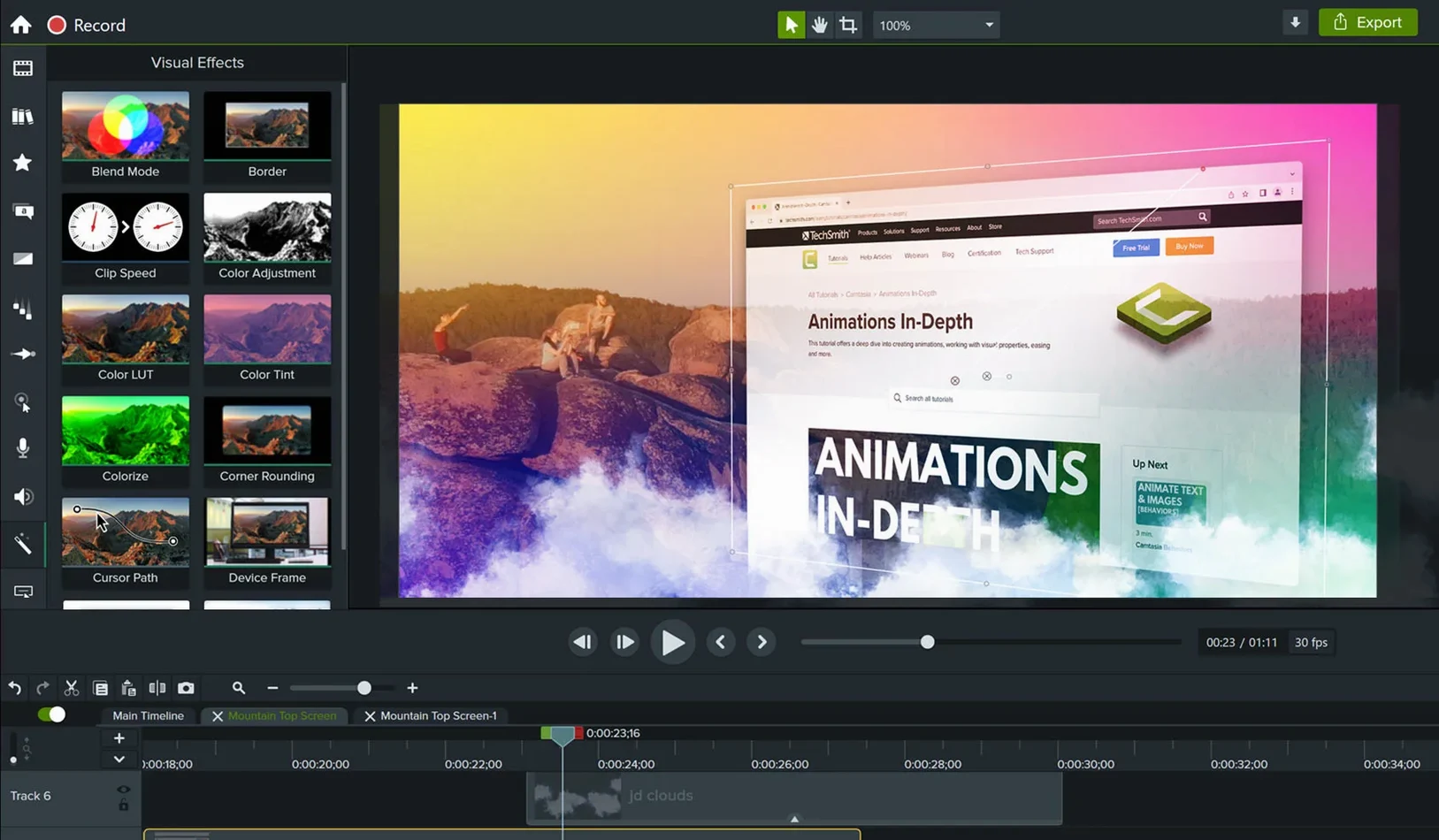
The latest Camtasia 2026.2.3 fixes a startup and export crash that some people ran into, plus the usual collection of smaller bug fixes and improvements. It means one less thing to worry about when you are in the middle of recording or rendering.
For anyone new to it, Camtasia is TechSmith's screen recording and video editing app for Mac and Windows. On the Mac side it records your screen, lets you drop in effects just by dragging them, and includes ready-made templates so you are not starting from a blank timeline every time. You can also bring PowerPoint slides straight into a project, which saves a step if you narrate over presentations. The interface is available in English, German, Spanish, Simplified Chinese, Portuguese, French and Japanese.
If you are looking at screen recording and editing on a Mac, there are a few familiar names that come up alongside Camtasia. I have spent time with all of them, and here is how they tend to stack up for the kind of work that needs both capture and a proper edit afterwards.
ScreenFlow is probably the closest competitor on macOS. It records the screen and does timeline-based editing, much like Camtasia. Where they differ is in the polish of the editing tools. ScreenFlow feels a bit more geared toward the solo creator who wants to trim, annotate and export quickly. Camtasia's drag-and-drop effects and template library are more generous out of the box, so if you regularly produce tutorials or course videos, you will spend less time building each one from scratch. ScreenFlow handles multi-track audio nicely, but Camtasia has the edge when you need to import PowerPoint and keep the slide animations intact.
OBS Studio is a completely different animal. It is free, open source and built for live streaming and recording. The recording quality is excellent, and you can set up scenes, sources and transitions in advance. But OBS is not a video editor. Once you stop recording, you need a separate app to trim, add callouts, zoom in or insert a title. Camtasia does the whole thing in one window. For a course creator or a software trainer who records a segment, edits it and exports it, that matters. You are not juggling two apps and wondering whether the timeline will match your recording settings.
QuickTime Player is built into every Mac. It records the screen or a selected area, and that is about it. No timeline, no effects, no templates. QuickTime is handy for a quick capture, but you will be importing the file into something else to make a finished video. Camtasia replaces that second step entirely.
For me, the comparison comes down to whether you edit more than you capture. If you do, Camtasia's effects library, template system and PowerPoint import make it the more complete package for a working week.
Let me walk through a real session I had last week, because it shows how the pieces fit together when you are not thinking about the tools anymore.
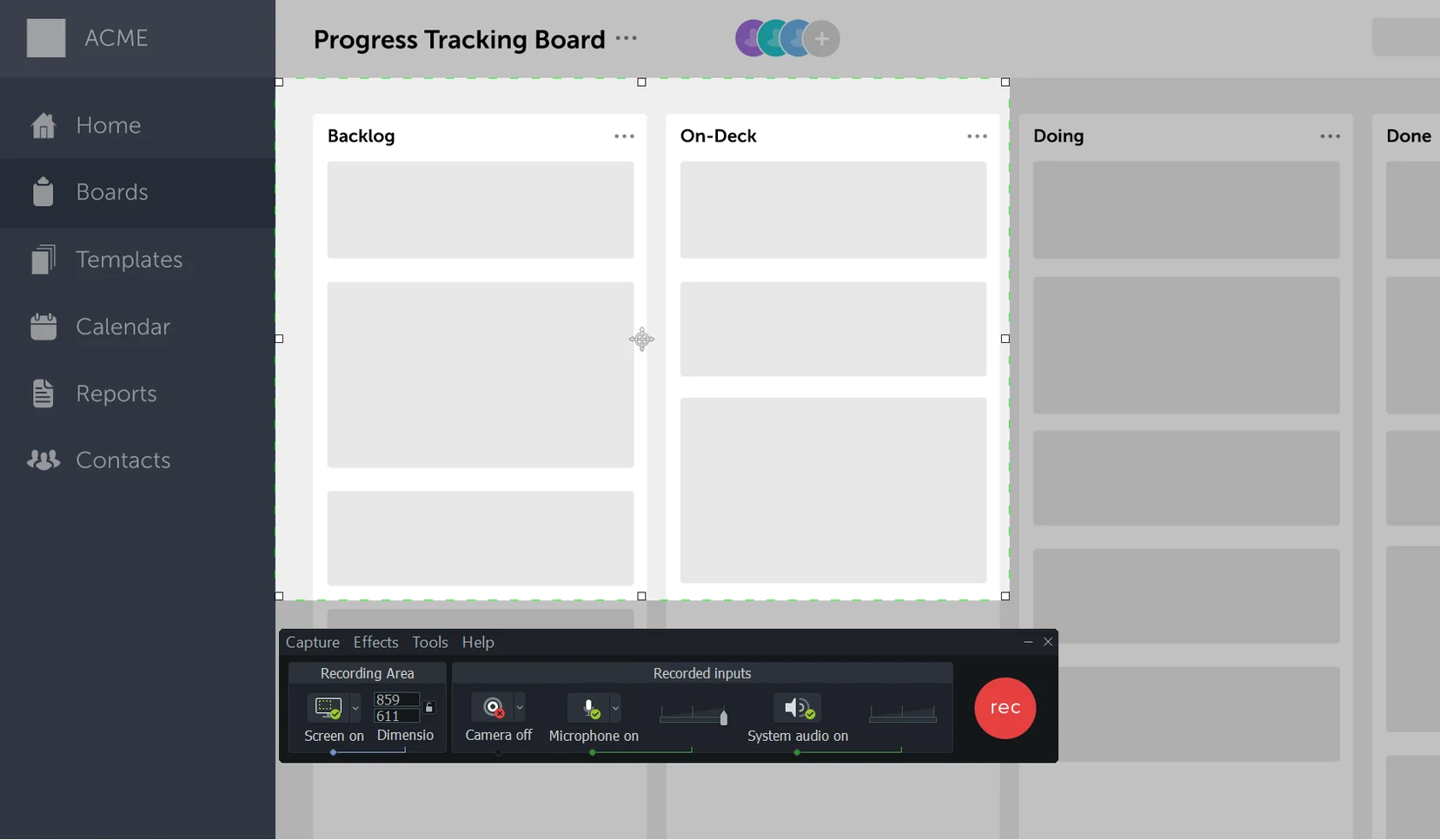
I needed to record a fifteen-minute software walkthrough for a client. I opened Camtasia and set up the recording area to capture a specific browser window rather than the whole screen. The recording controls are straightforward, so I hit record, narrated the steps as I went, and stopped when I was done. The video appeared on the timeline automatically, which saved me from hunting through folders to find the file.
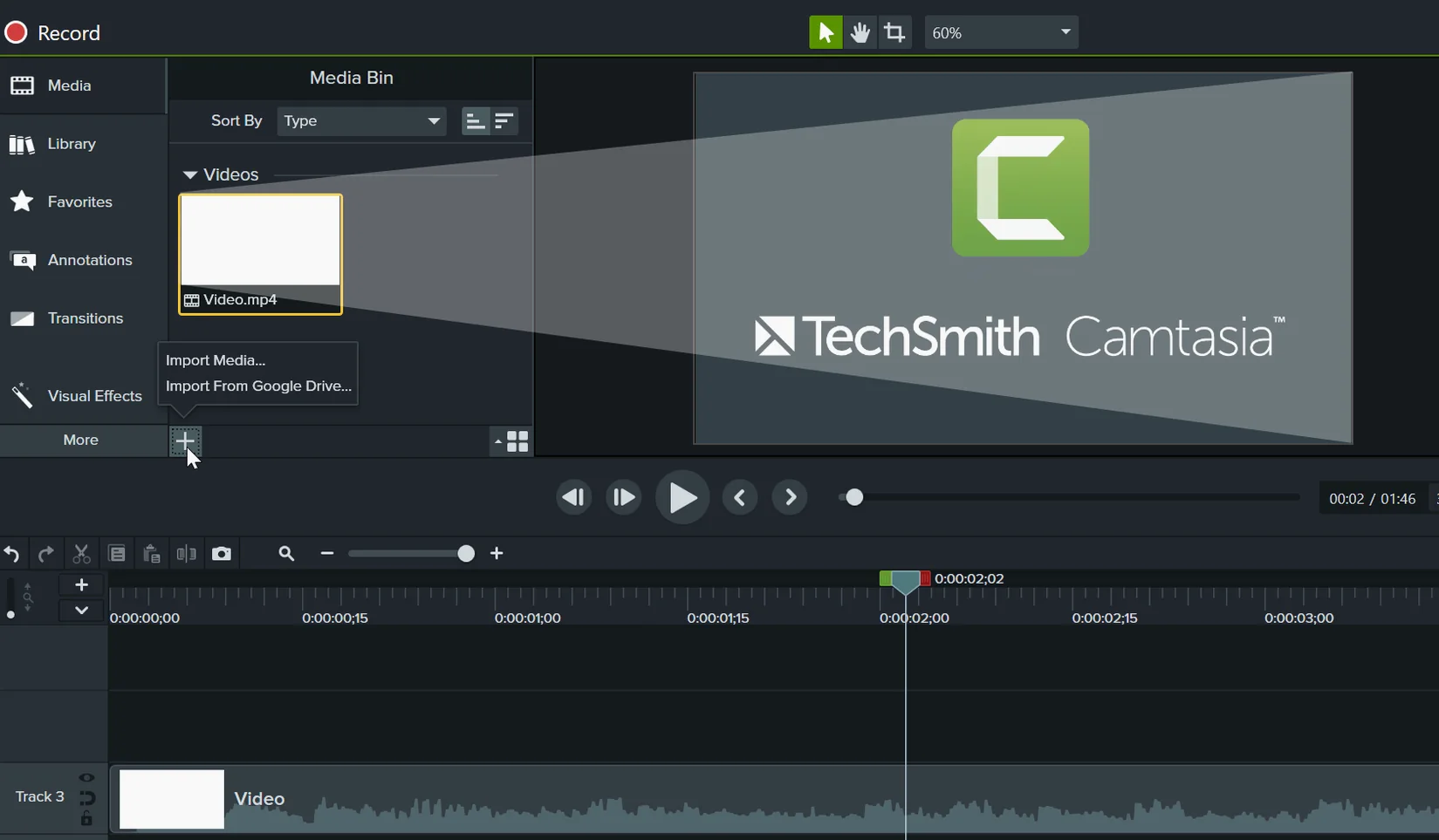
On the timeline, I trimmed the beginning and the end where I was fumbling with the mouse. I dragged a zoom effect from the library to highlight a couple of menu clicks. Then I added a simple lower-third title to show the section name. All of that took maybe three minutes because the effects are drag-and-drop and the preview updates instantly.
I imported a few existing video clips from earlier recordings and dropped them onto a separate track. Camtasia kept everything in sync without me needing to line up frames manually. For the outro, I picked one of the ready-made templates, replaced the placeholder text with the client's name, and resized the logo they sent. That template alone saved me about twenty minutes of building an outro from scratch.
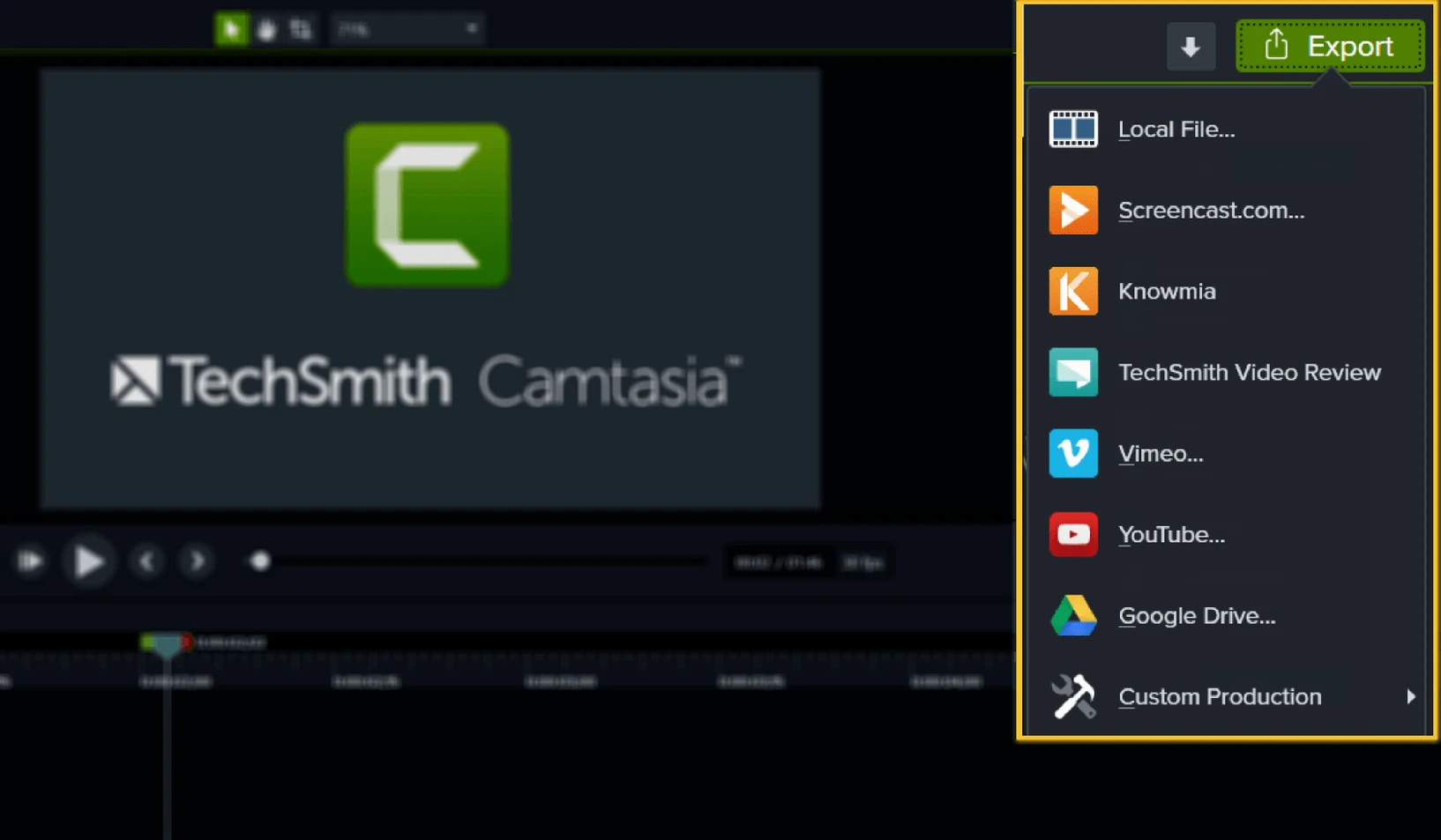
Finally, I exported the project. I chose the MP4 preset, checked that the resolution matched the original recording, and let it render. While it exported, I started setting up the next recording in a new project tab. That is a small thing, but it stops me from sitting around waiting.
The whole session, from opening the app to having the video file ready to send, took under an hour. Most of that time was the recording itself.
When you first open Camtasia, a few default settings are worth adjusting so the app behaves the way you actually work. I change these every time I set it up on a new Mac.
Camtasia 2026.2.3 runs on macOS 13 or later. It supports both Apple Silicon and Intel Macs, so it will work on any reasonably recent machine, whether it is an M-series Mac or an older Intel model.
The app is a standard Mac application. You install it by mounting the disk image and dragging it into the Applications folder. There is no complicated setup, no background service that starts at login. It sits in your Applications folder and opens when you need it.
The interface is available in seven languages, which is worth knowing if you work in a multilingual team or if English is not your first language. You can switch languages in the preferences without reinstalling the app.
If you are coming from an older version, the 2026.2.3 update is a maintenance release that fixes a crash on startup and export. It also includes the usual bug fixes and improvements that keep the app running consistently with the latest macOS updates. That is all it is. No new features, no redesign, just a stable version for the current season of work.
You need macOS 13 or later. The app runs on both Intel and Apple Silicon Macs.
Sign in or create your account to leave a comment.
No notes from photographers yet. If you have used this on a real folder, say which camera and which Mac.