Get it for my Mac (11 MB)
 Camtasia
2026.2.4
Camtasia
2026.2.4

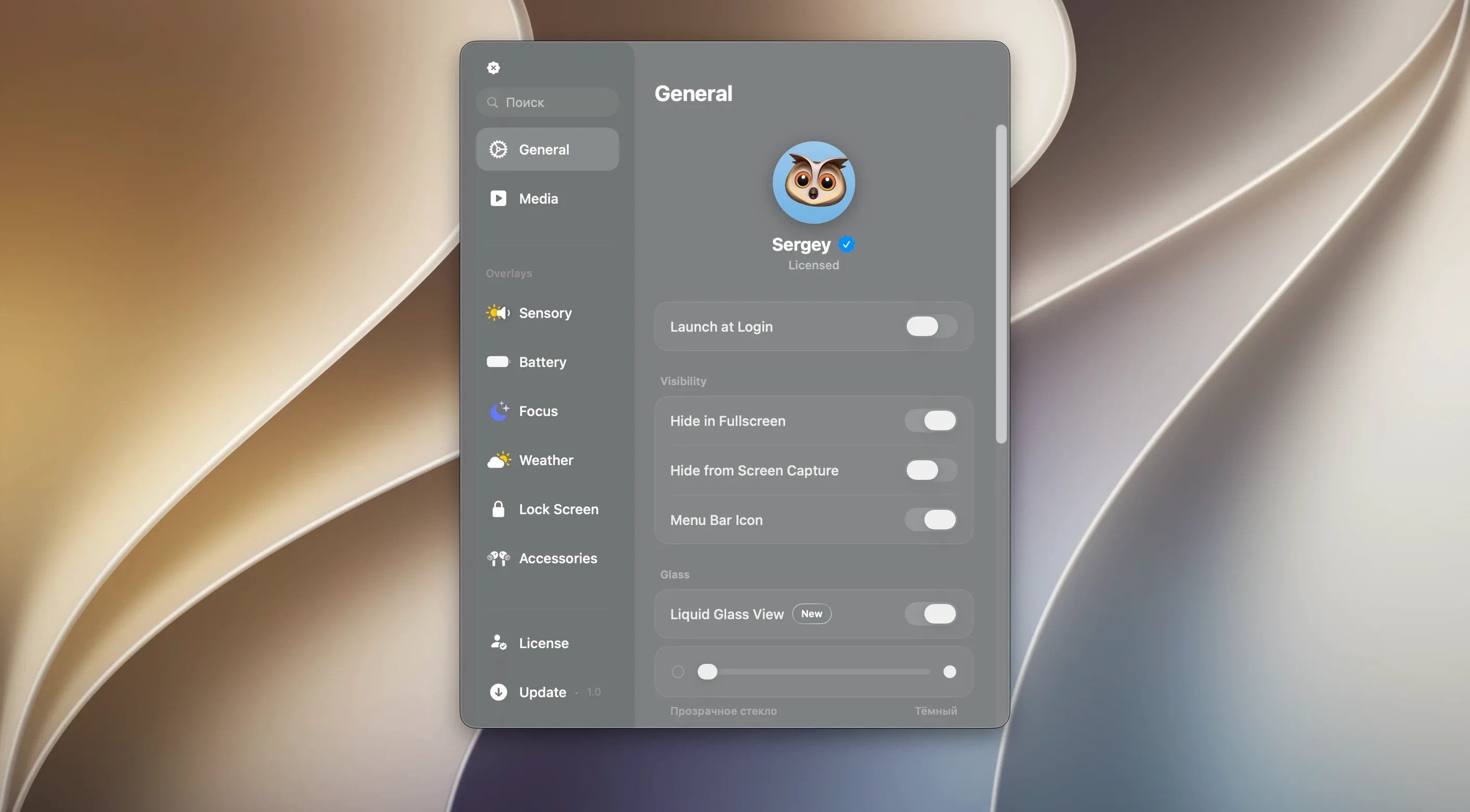
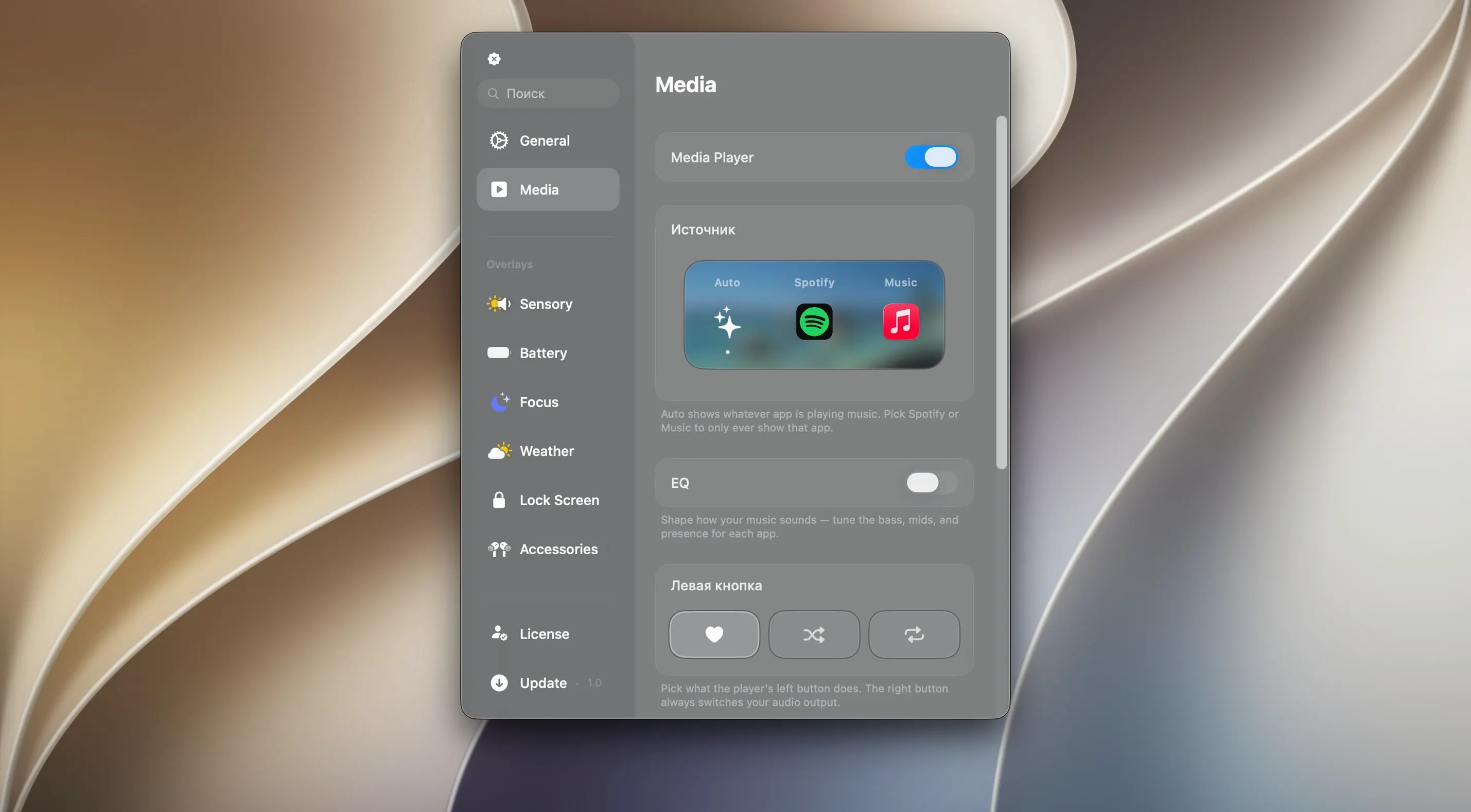
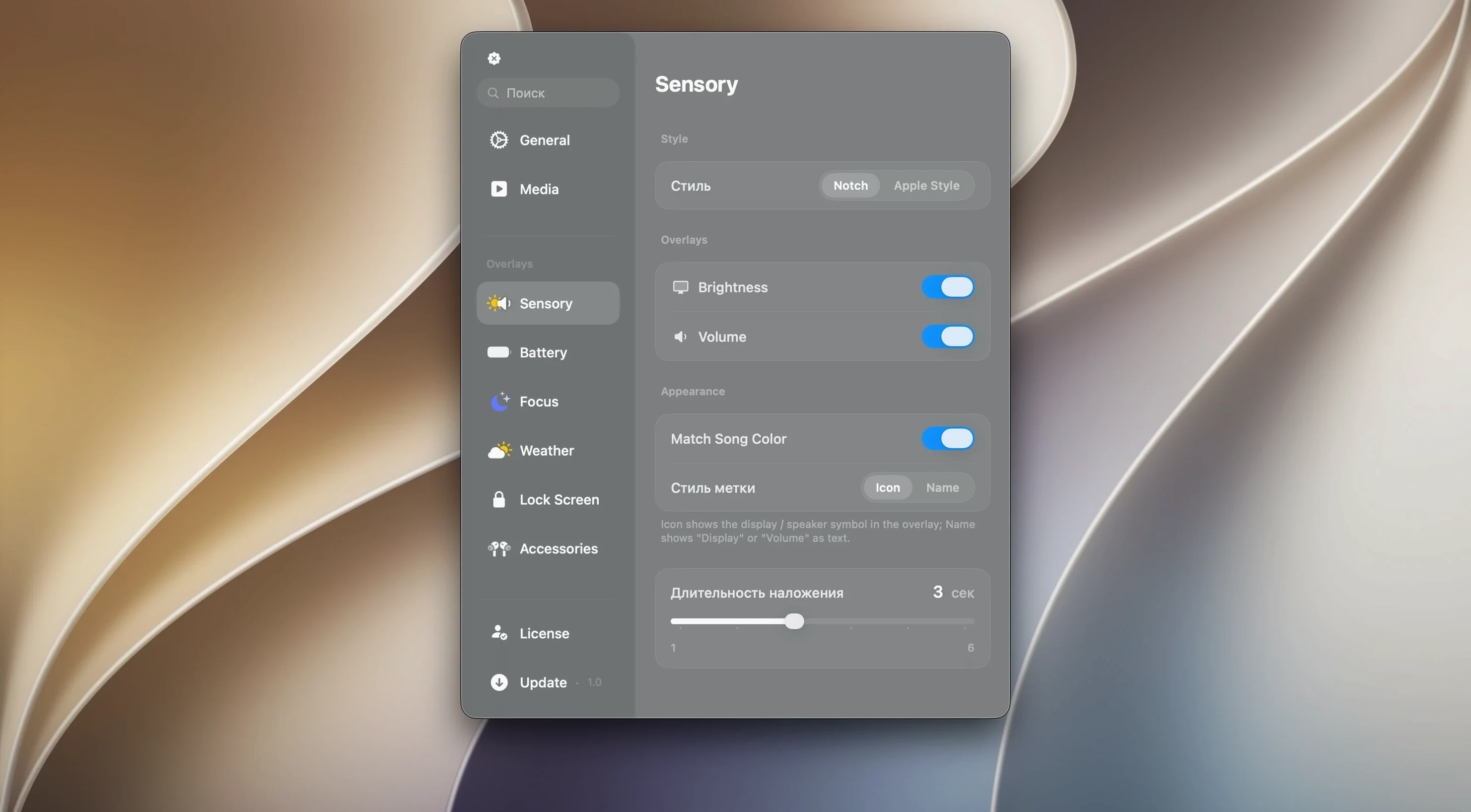
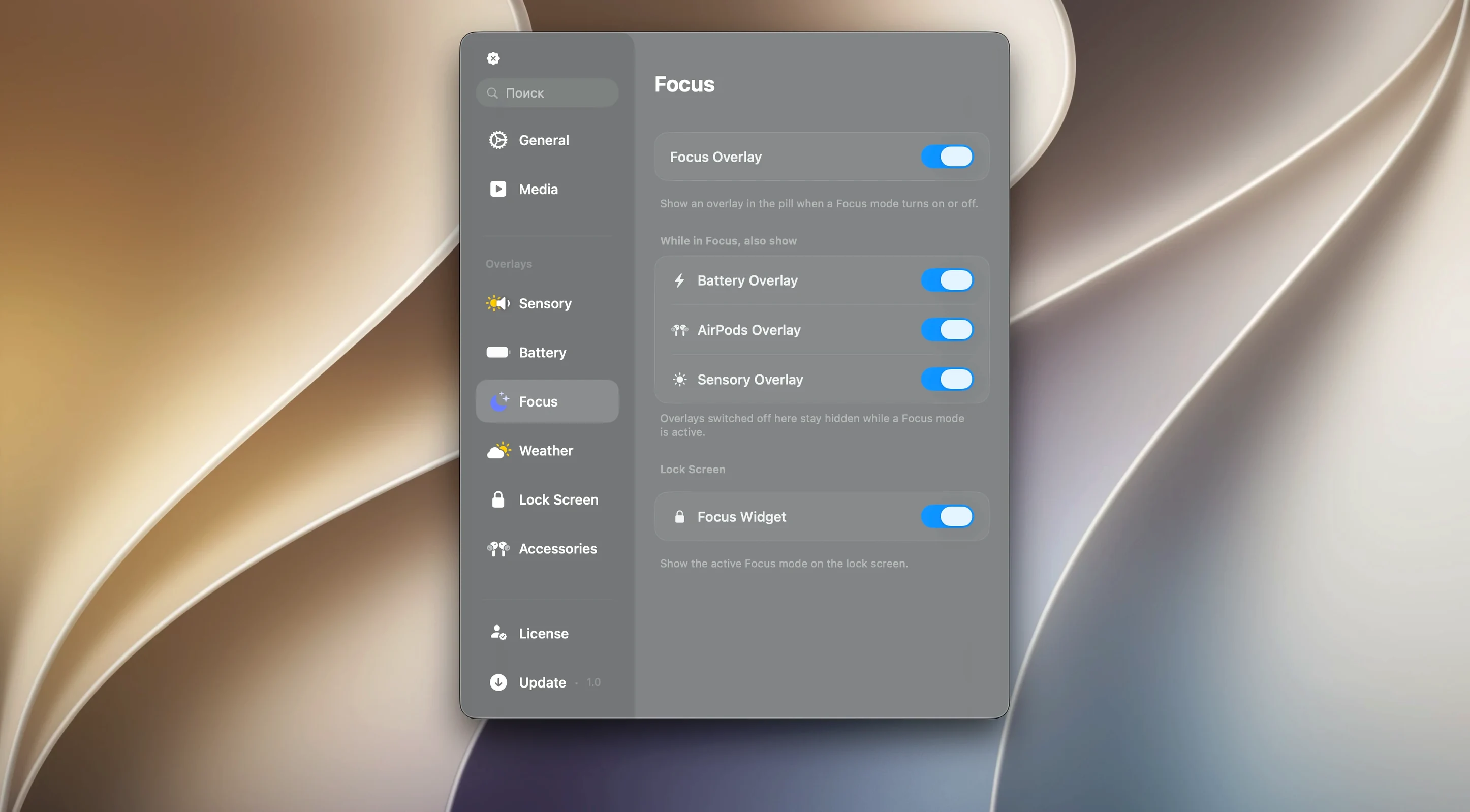
There's a gap between the rich information on an iPhone's Dynamic Island and what macOS shows you at a glance. Canopy tries to close it — it adds an interactive panel to your menu bar or notch that holds media controls, timers, live activities and notifications in one place.
Dynamic Island controls — a floating or menu-bar panel that shows what's playing, an active timer, or an incoming notification without opening a full window.
Music controls — play, pause, skip and see the current track from the same panel, no need to switch to Music or Spotify.
Timers and live activities — start a countdown or keep an eye on ongoing tasks; the panel updates in real time.
Notifications — incoming alerts appear in the Dynamic Island area so you don't miss them while working full-screen.
One of the first things people wonder is whether Canopy works on a Mac without a notch. It does. The app creates a floating widget at the top of the screen that behaves like the Dynamic Island, so you get the same interactive panel whether your display has a notch or not. The Liquid Glass effects carry across both setups, so the look is consistent.
Another common question is whether it gets in the way during full-screen work. Canopy sits at the very top of the screen, either in the notch area or as a floating element near the menu bar. It stays out of your main workspace but remains visible enough to glance at a timer or see what track is playing. If you're editing photos in full-screen mode, you can still see an incoming notification without switching apps.
The app is designed to be lightweight, running in the background and only updating its panel when something changes — a new song, a timer ticking down, a notification arriving. It doesn't poll constantly or sit there eating resources. For a working photographer who keeps Lightroom, Mail, Safari and a few other things open all day, Canopy adds very little overhead.
And yes, it works with Apple Silicon and Intel Macs equally. Version 2.1.0 supports both architectures, so whether you're on an M-series machine or an older Intel model, the experience is the same.
The most common mistake is expecting Canopy to replace the macOS menu bar entirely. It doesn't — it adds an interactive panel alongside the existing menu bar items. Once you understand that it's an addition rather than a replacement, it clicks into place.
Another mistake is ignoring the floating widget placement. On a Mac without a notch, the app creates a floating panel near the top of the screen. Some users drag it too far down or off-centre and wonder why it doesn't look right. The best position is centred just below the menu bar, where it feels natural and doesn't block anything.
Beginners also sometimes forget that Canopy is interactive. You can click on a notification to open the related app, tap a music control to skip a track, or check a timer's remaining time. It's not just a display — it responds to clicks and gestures. Once you start treating it like a control centre rather than a static indicator, it becomes much more useful.
A smaller but common thing: people install it, drag it to Applications, then try to launch it from the disk image instead of from Applications or Launchpad. The installer instructions are straightforward — open the disk image, drag the app to Applications, then launch from Launchpad. Doing it that way ensures the app is properly copied and ready to run.
Here's how Canopy helps you track that without checking your phone or watch.
Start a timer — open the Canopy panel from the menu bar or notch and start a 15-minute countdown. The timer appears in the panel and updates in real time.
Work normally — switch back to your camera tethering app or Lightroom. The timer stays visible at the top of the screen, ticking down. You don't need to keep a window open or remember to check a clock.
Get a visual cue — when the timer reaches zero, Canopy shows a notification in the Dynamic Island panel. You see it even if you're looking through the viewfinder or adjusting a light. No audible alarm needed, just a glance.
Reset and go again — tap the notification or open the panel to start another countdown for the next setup. The whole thing takes two seconds and never interrupts your flow.
This works for editing sessions too. Set a 45-minute timer for a batch of culling, then take a break. The panel keeps you honest without adding friction.
It's a Tuesday morning. I sit down at the Mac, open a few things — Mail, Safari, Lightroom Classic and Spotify. Canopy is already running from the last session, sitting quietly in the menu bar.
A client email comes in. Instead of a banner notification taking over the top-right corner of the screen, it appears inside the Canopy panel near the notch. I glance at it, see it's a quick question about timing, and reply without ever leaving Lightroom. The notification disappears after a few seconds, and the panel goes back to showing the current track from Spotify.
Mid-morning, I start editing a wedding gallery. I want to work in focused bursts, so I open the Canopy panel and start a 25-minute timer. The timer shows up in the panel, counting down. I don't think about it again until the panel changes — a subtle visual update tells me time's up. I stand up, stretch, grab a coffee. When I sit back down, the panel is clean again, ready for the next timer.
Later, while exporting a batch of final edits, I put on a playlist. The music controls in the Canopy panel let me skip tracks or pause without switching to Spotify. The export runs in the background, the panel shows the song title and artist, and I can keep browsing proofs in Safari without losing the thread.
By the end of the day, Canopy has handled a handful of notifications, a few timer sessions and constant music control — all from the same small panel at the top of the screen. It never demanded attention, never got in the way, and it saved me from reaching for my phone or clicking out of full-screen apps more times than I counted.
That's the idea. A small tool that stays out of your way but is always there when you need it.
Sign in or create your account to leave a comment.
No notes from photographers yet. If you have used this on a real folder, say which camera and which Mac.