
 Get it for my Mac (38 MB)




 MacCleaner Pro
4.0.4

- Version
- 8.3.0
- Developer
- IObit
- Interface in
- Russian, English, German, Danish, Spanish, Italian, Chinese (Traditional), Chinese (Simplified), Dutch, Portuguese, Turkish, French, Swedish, Japanese
- Licence on file
- K'ed by TNT team
- macOS it runs on
- macOS 11.5 or later
- Chip support
- Apple Silicon, Intel 64-bit
In the edit
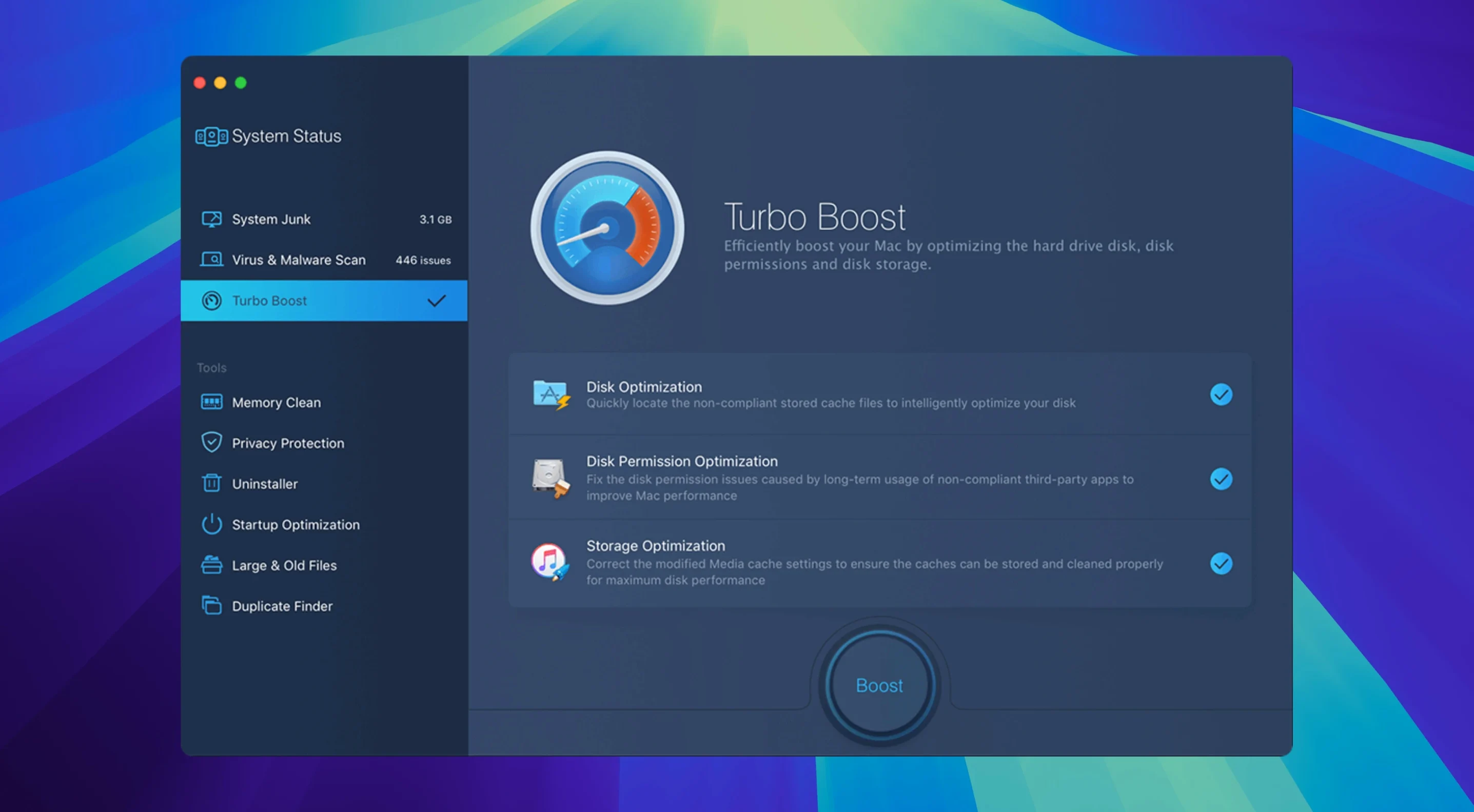
A Mac can slow down quietly. Temporary files pile up, malware slips in, and disk permissions drift out of shape. MacBooster 8 is the sort of utility you reach for when the spinning beachball appears more often than it should. It handles the three big jobs: clearing out junk, scanning for threats, and giving the hard disk a bit of a tune-up.
Junk cleanup covers twenty types of clutter — cache files, logs, old downloads, app leftovers — so there is usually something to reclaim. The malware removal runs alongside that, looking for adware and viruses without needing a separate security app. For older Macs or anyone who has never repaired disk permissions, that feature alone can fix strange behaviour.
Developed by IObit and built for both Apple Silicon and Intel Macs, MacBooster 8 feels like a one-stop shop for basic maintenance. It will not replace a deep system monitor, but for a quick spring clean, it gets the job done.
Runs on Big Sur and newer Macs, both Apple Silicon and Intel
MacBooster 8 requires macOS 11.5 or later, so it runs on everything from Big Sur upwards. It works on both Apple Silicon and Intel 64-bit Macs, which means the same installer covers the M-series machines and the older Intel ones still doing daily work. The app itself needs about 70 MB of free disk space, which is modest compared to the gigabytes it might help you recover.
The languages list is long — fourteen in total, including English, German, French, Spanish, Italian, Dutch, Portuguese, Turkish, Swedish, Danish, Russian, Japanese, and both Traditional and Simplified Chinese. If you work in a mixed-language office or prefer the interface in something other than English, that flexibility is already built in.
One thing worth noting: the install process involves a Gatekeeper bypass step. You mount the disk image, run a quick Terminal command to allow the app through, then drag it to Applications.
Let the first full scan create a baseline before making changes
When you first launch MacBooster 8, let it do a full scan before you change anything. That initial pass gives you a baseline of what is on the disk — junk files, duplicate photos, large old documents, anything that might be eating space. The one-click fix option is tempting, but take a moment to look through what it found. Sometimes you want to keep a cache or a log file, and the scan lets you review before cleaning.
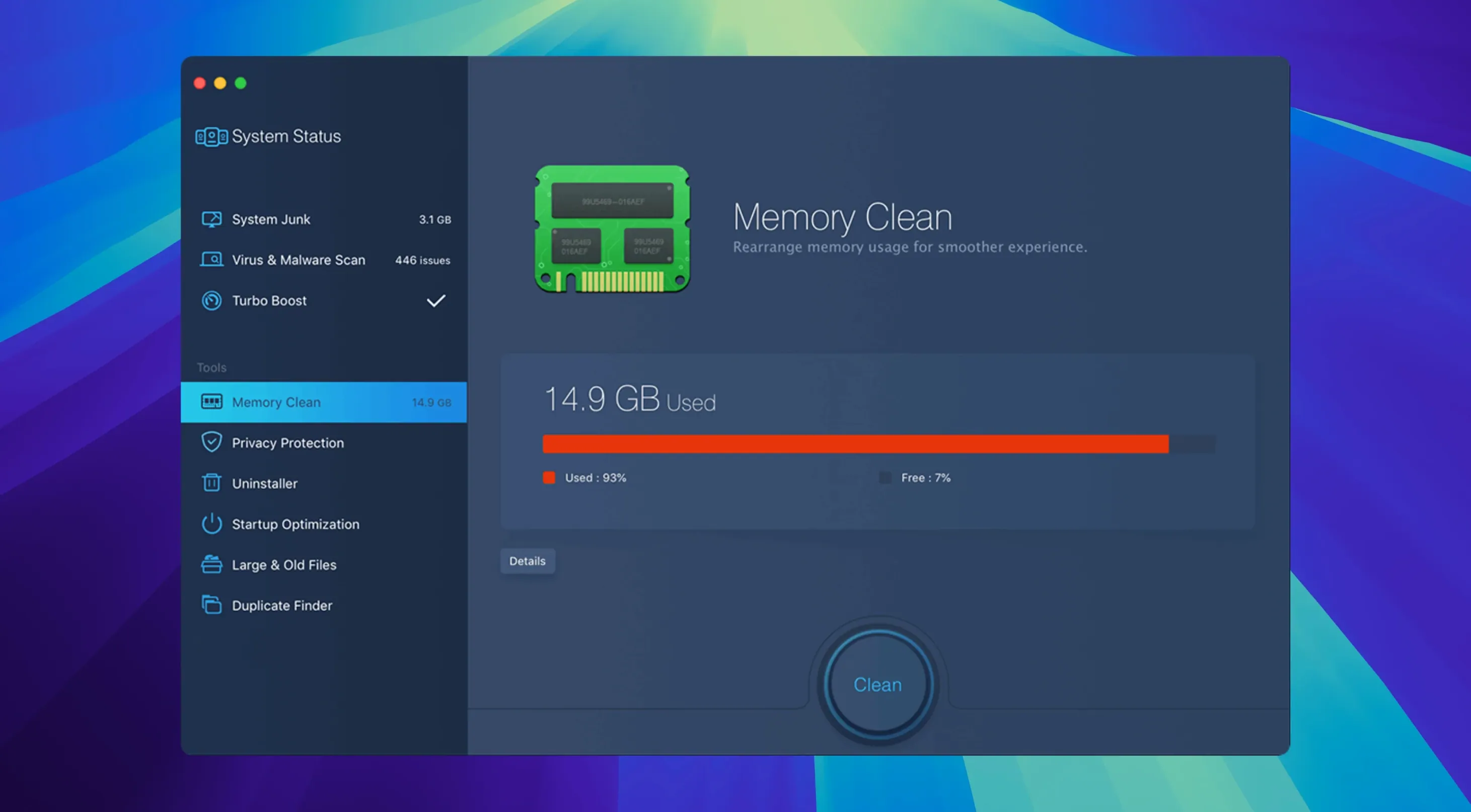
After the first clean, run the memory cleaner once. It clears out the inactive RAM that macOS tends to hold onto, and you will notice the difference if you have many browser tabs or design apps open at once. Do not run it every hour — once a day or after heavy editing sessions is enough.
If you have an older Mac that has never had its disk permissions checked, that repair tool is worth running early. It fixes the kind of odd permission errors that cause apps to behave strangely or refuse to save files. It is not something you need every week, but a first-time pass can resolve niggling issues you might have blamed on the hardware.
Regular malware definition updates keep the virus scan current
MacBooster 8.3.0 is the current build, and it refines the existing tools rather than adding a completely new dashboard. The malware definitions get updated regularly, so the virus scan stays relevant against newer adware and potentially unwanted programs. That is the main thing that changes between point releases — the threat database behind the scan engine.
For daily use, the biggest difference from earlier versions is how the junk scanner handles leftovers from modern apps. Containers, sandboxed data, and the clutter that Electron-based apps leave behind are all part of the twenty types of junk it cleans. If you updated from an older MacBooster version, you will notice it catches more of those small files that add up over a season of work.
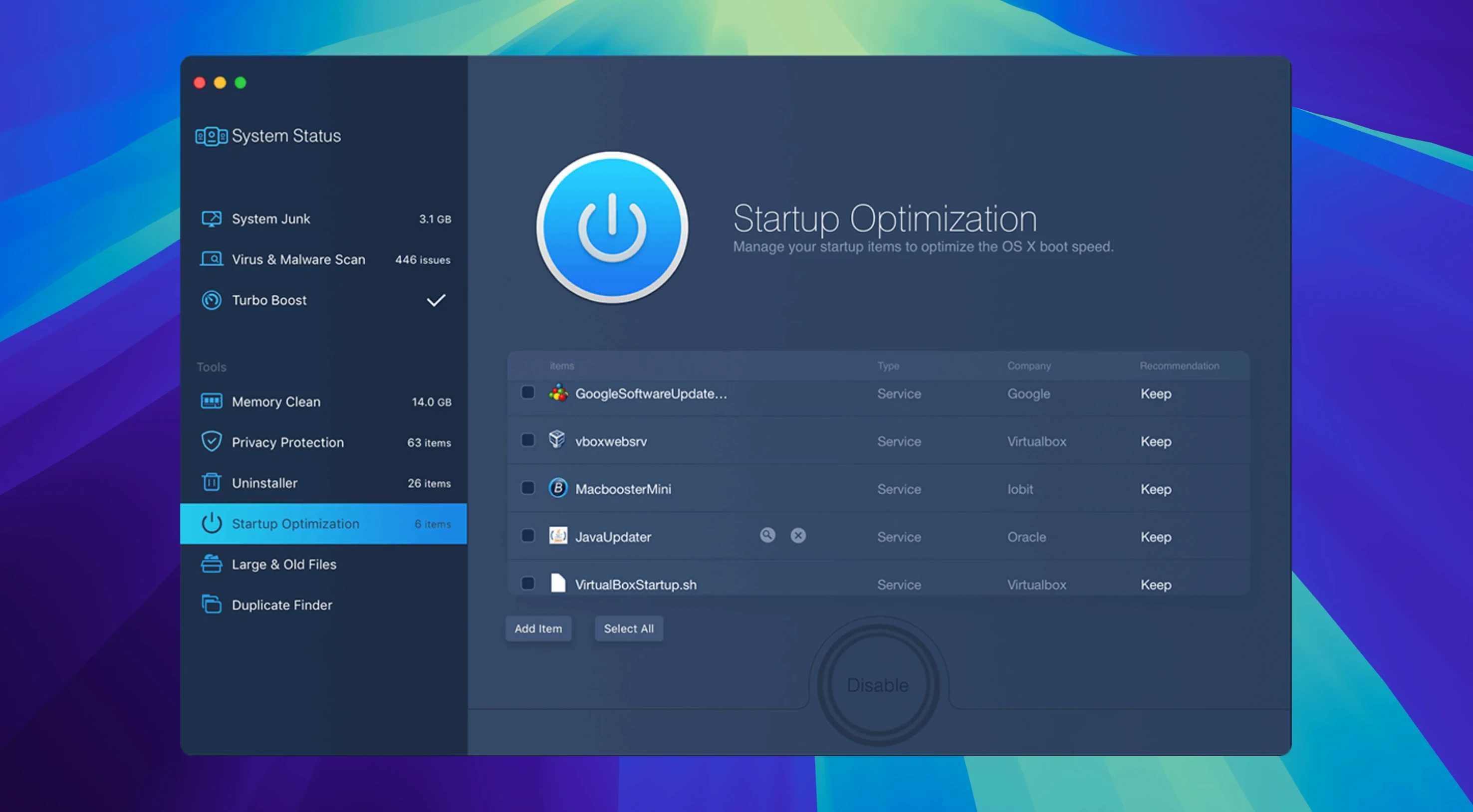
The startup item manager also works more cleanly now. You can see what launches when your Mac boots and disable anything that slows down the login process. That is useful if you have accumulated helper apps from old installers.
Set scan exclusions to protect active project files from cleanup
Head to the preferences and set the scan to exclude folders you know you want to keep untouched. If you store active project files on the desktop, you do not want the junk cleaner to sweep through them accidentally. The exclude list is simple to manage and saves you from recovering deleted cache files later.
Turn on the memory cleaner's automatic mode if you tend to forget about system maintenance. It runs in the background and clears inactive RAM when the usage gets high. For a wedding photographer who moves between Lightroom, Photoshop, and a browser all day, that background clean keeps things moving without manual intervention.
Set the language to your preference early — the interface switches cleanly between the fourteen available options, and it is easier to navigate the tools in your own language from day one.
The duplicate finder and large file remover are worth configuring with a minimum file size. That makes the first scan practical rather than overwhelming.
Mac it needs
- macOS 11.5 or later
- Apple Silicon or Intel 64-bit Mac
- 70+ MB of free disk space
Questions I actually get
Does MacBooster 8 work on Apple Silicon Macs?
Yes, MacBooster 8 runs on both Apple Silicon and Intel 64-bit Macs, as long as you have macOS 11.5 or later.
What kinds of junk can MacBooster 8 clean?
It cleans twenty types of junk files, including system caches, app leftovers, logs and temporary files.
Installing on a Mac
- Mount the disk image and open it — Gatekeeper may prompt you, but that is fine.
- Open Terminal and press Enter to bypass Gatekeeper for this app.
- Drag MacBooster to your Applications folder.
- Launch the app and you are ready to go.
Notes from photographers
Sign in or create your account to leave a comment.
No notes from photographers yet. If you have used this on a real folder, say which camera and which Mac.
