Get it for my Mac (20 MB)
 Mountain Duck
5.3.2
Mountain Duck
5.3.2

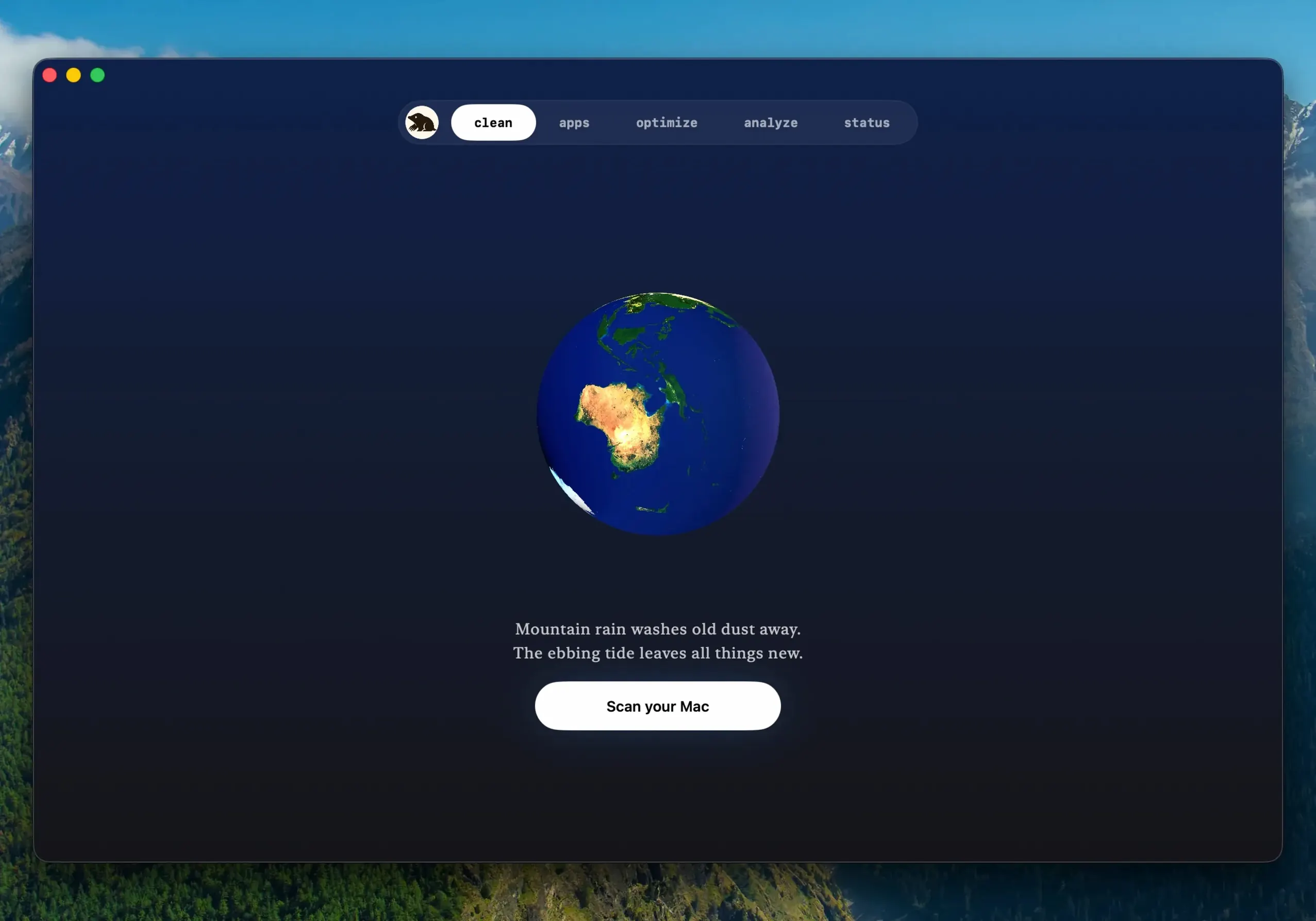
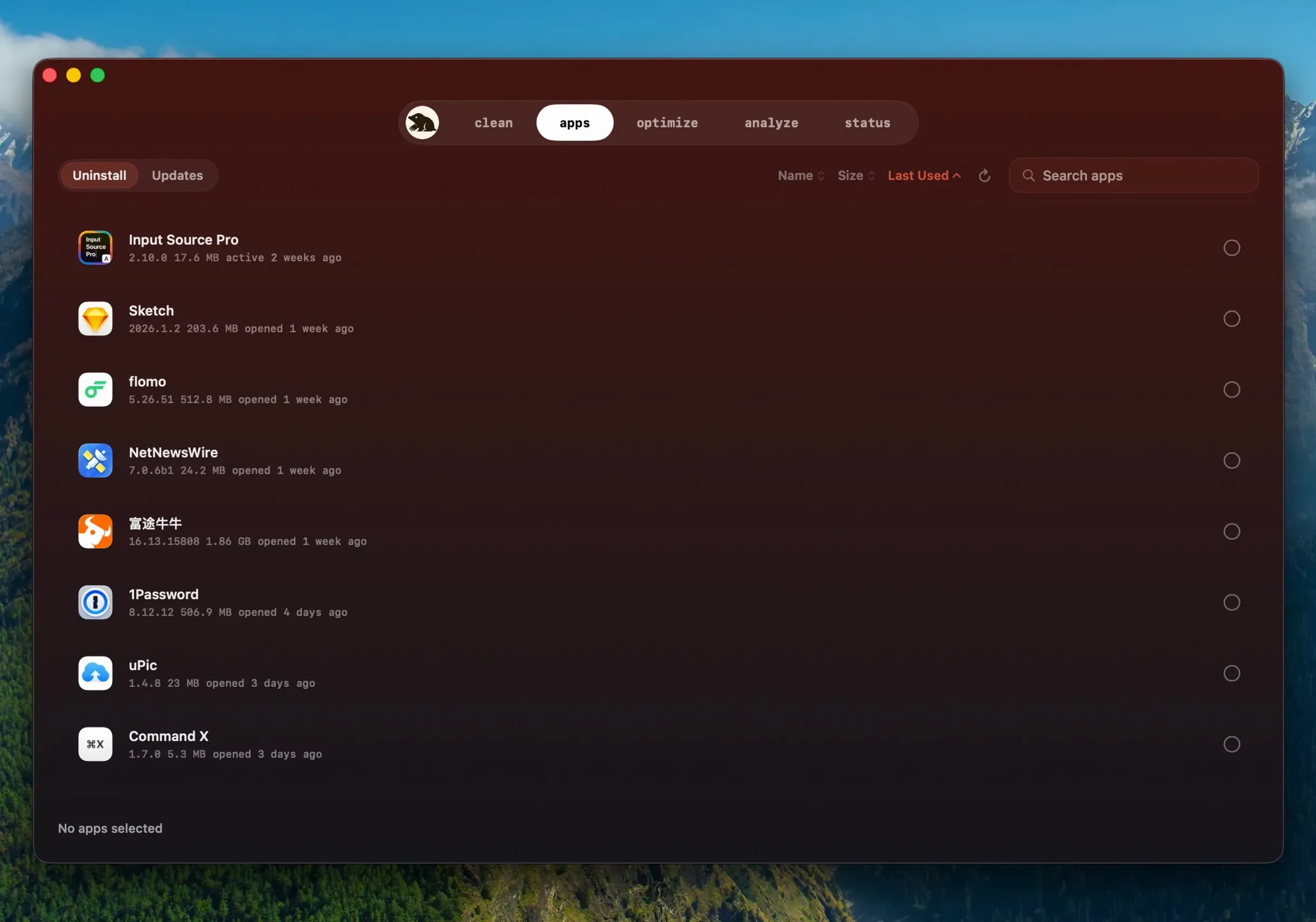
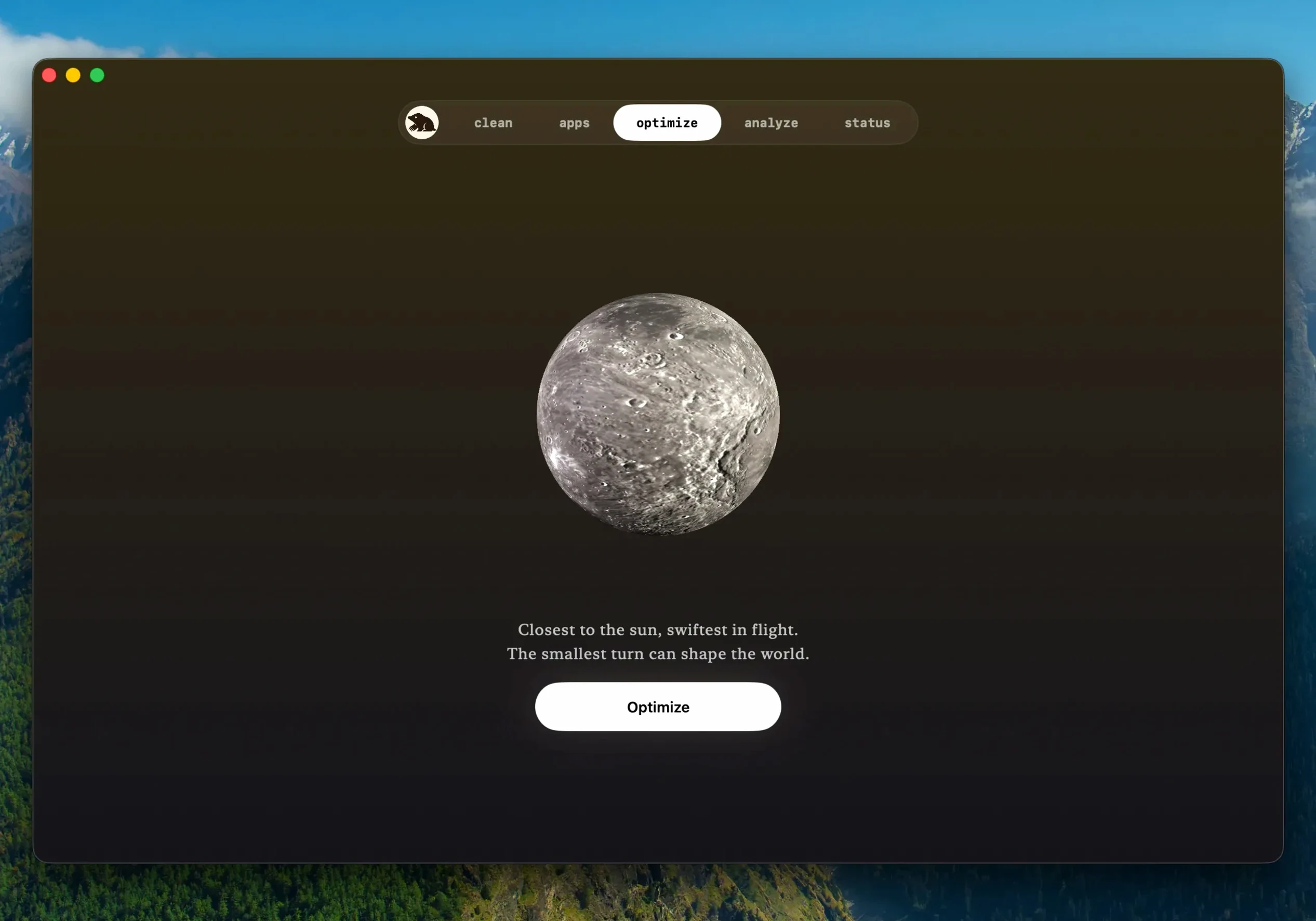
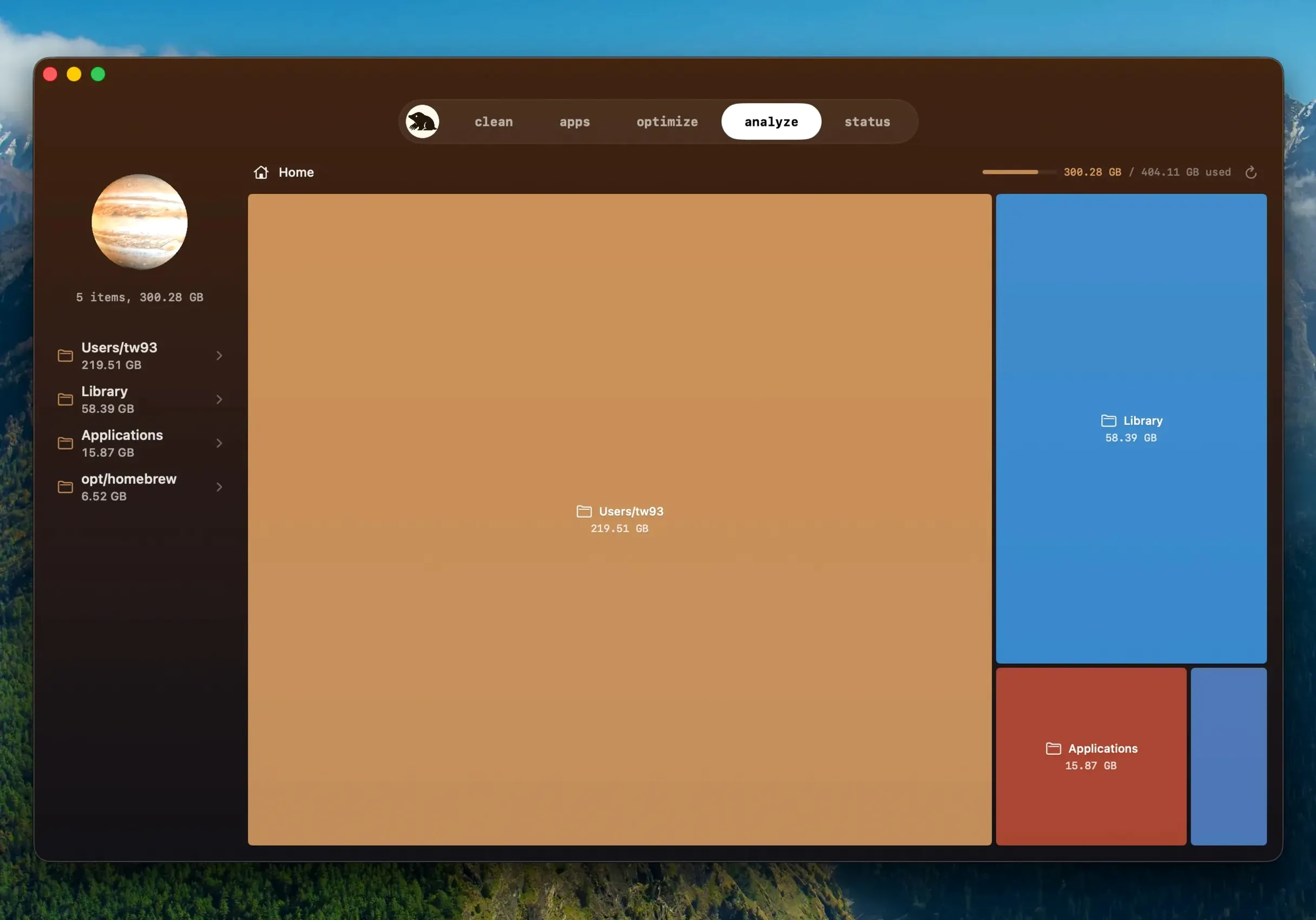
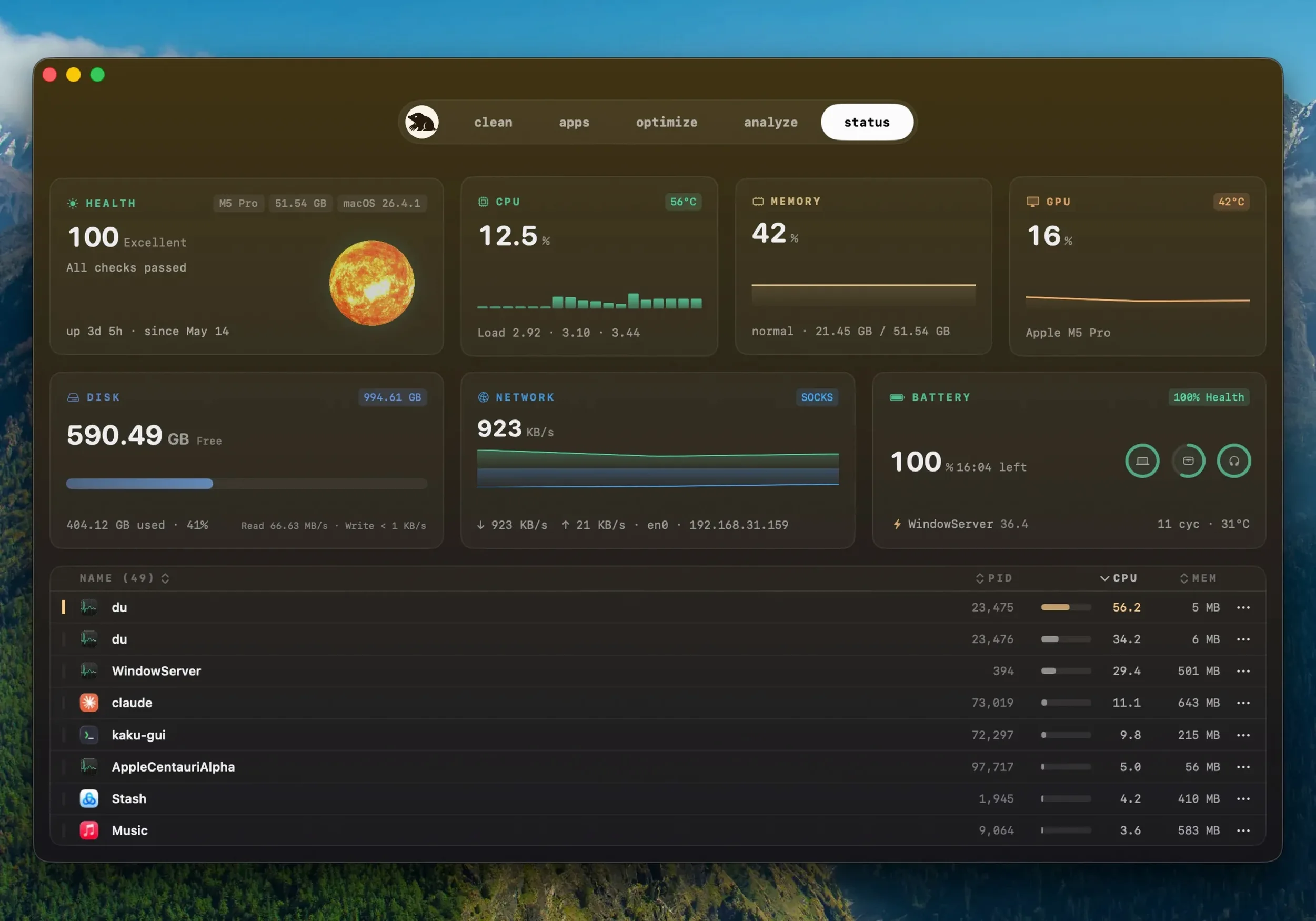
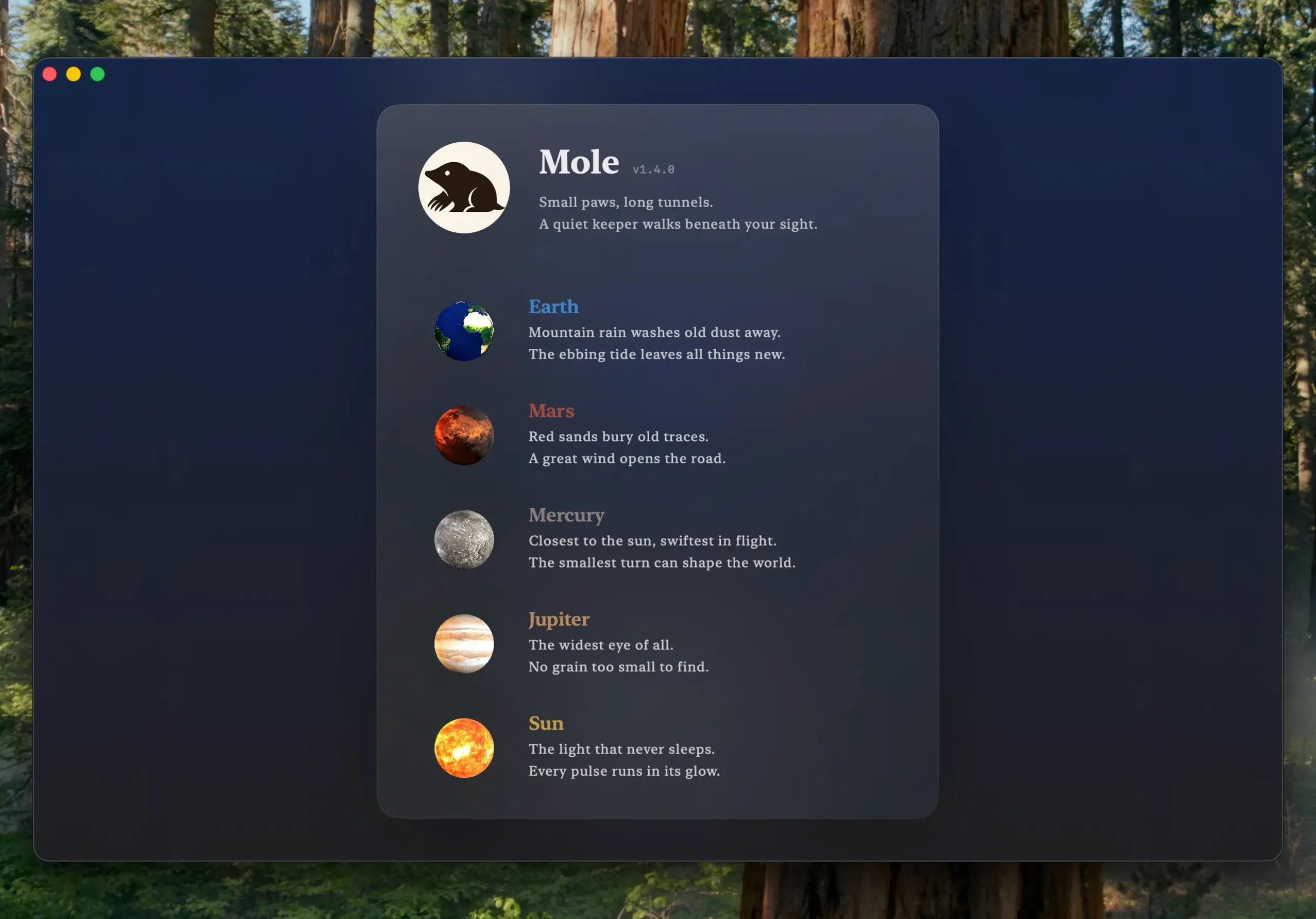
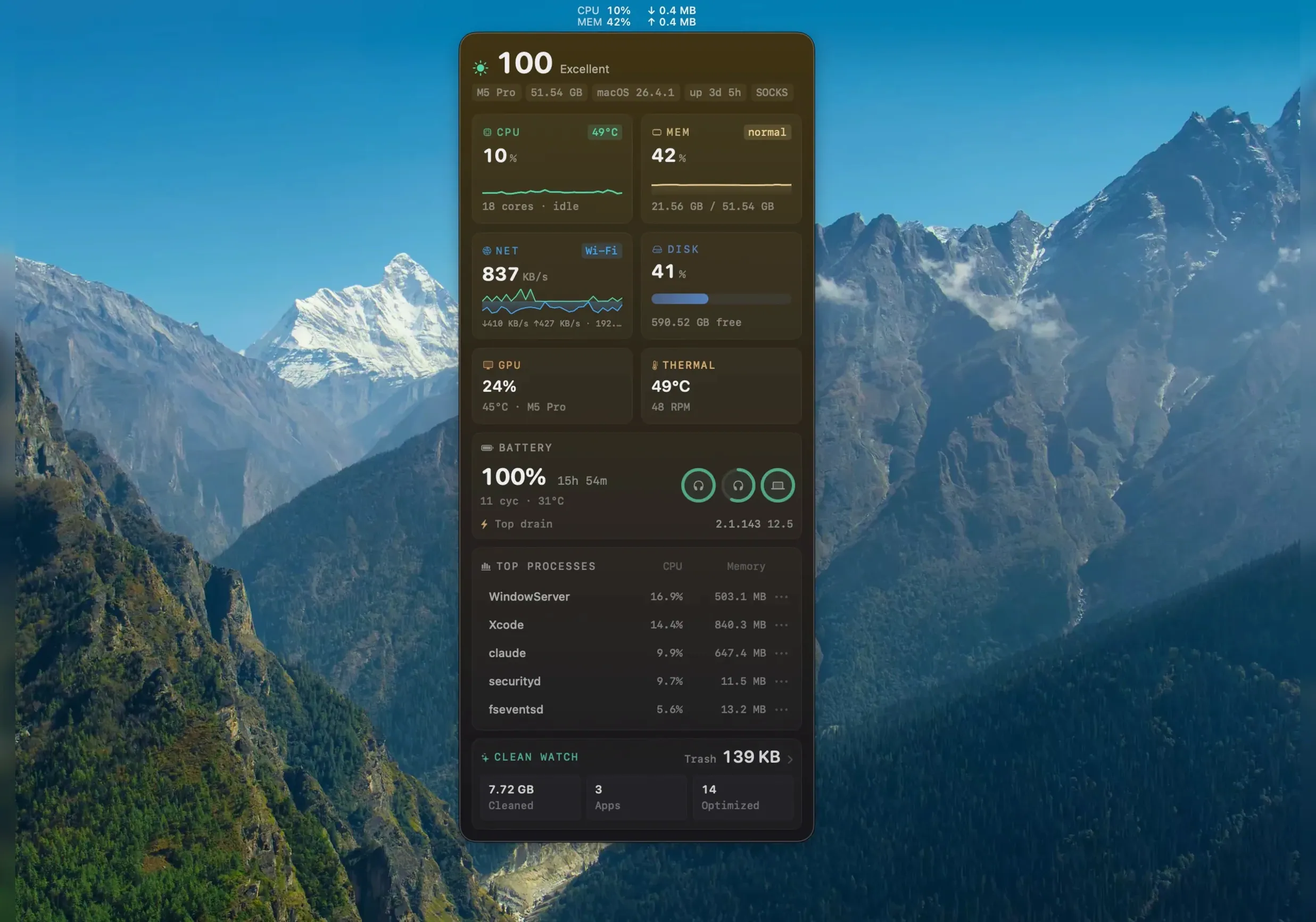
Photographers who shoot all day end up with a Mac that's quietly drowning in caches, logs and temporary files. Mole is the kind of tool you open when the edit starts stuttering and you want to know what's actually taking up space. It lists files and their sizes before you commit to cleaning, so there's no guesswork about what disappears.
Mole needs macOS 14 or later and supports both Apple Silicon and Intel Macs. Full disk access is supported for deeper cleaning, and the interface speaks nine languages including English, German, Spanish and Japanese. For a working photographer, it's the difference between hunting through Library folders and just getting back to the edit.
Most photographers I talk to have the same worry: will this thing delete something I actually need? Mole shows you a list of files and their sizes before anything gets removed, so you get to confirm every action. Nothing disappears until you say so. The scanning happens on your machine, and file contents and browsing history stay local — they don't go anywhere near the network. If you're working with client raws or finished galleries, that matters.
Another common question is whether Mole works alongside other cleaning tools. It does. It targets caches, logs, temporary files, application leftovers and Dock startup items, so it's not duplicating everything a disk utility does. And because it's a single-purpose app maintained by one developer, updates tend to be focused rather than bloated.
People also ask about the CLI companion. The Mac app is a separate download from the free command-line project by the same developer. You don't need the CLI to use Mole, and having the Mac app installed doesn't interfere with it either way.
After you drag Mole into Applications and launch it, take a minute to grant full disk access if you plan to do deep scans. The app will prompt you when it needs it, but getting it out of the way early means fewer interruptions when you're in the middle of cleaning. Head to System Settings > Privacy & Security > Full Disk Access and add Mole from there.
It's a quick way to see if something is pegging the processor while you're waiting for a batch export to finish. If you prefer a cleaner menu bar, you can close that panel and only open it when you're troubleshooting.
The tree map view for disk analysis is worth a look early on. It gives you a visual breakdown of what's eating space, which is often more useful than a flat list when you're trying to decide what to clear before a big shoot.
The most frequent hiccup people hit is forgetting to grant full disk access. Mole will scan and clean some files without it, but the deep scan won't run properly. If you notice the app isn't finding as much as expected, check that full disk access is enabled in System Settings.
Another snag: the app's software update feature for apps downloaded from websites won't work if the original app was installed outside the Applications folder or if permissions got changed. Mole 1.14.0 reuses a finished download instead of fetching it again, which helps, but the source app needs to be in a standard location for the update to find it. If an update fails, move the app to Applications and try again.
Some users report that the system status panel shows data that seems high right after launch. That's normal — the sensors take a moment to settle. Let it run for a minute before you make any decisions based on the numbers. And if you ever suspect Mole skipped something it should have caught, the app errs on the side of caution and skips suspicious items. That's by design, not a bug.
For those migrating from an older version, the app handles a newer build of the same version automatically. You don't need to uninstall first. Just download the latest disk image and drag the new copy over the old one in Applications.
No. Scanning and cleaning are performed locally by default, and file contents and browsing history are not uploaded to the network.
Sign in or create your account to leave a comment.
No notes from photographers yet. If you have used this on a real folder, say which camera and which Mac.