Get it for my Mac (187 MB)
 MouseBoost Pro
5.3.0
MouseBoost Pro
5.3.0

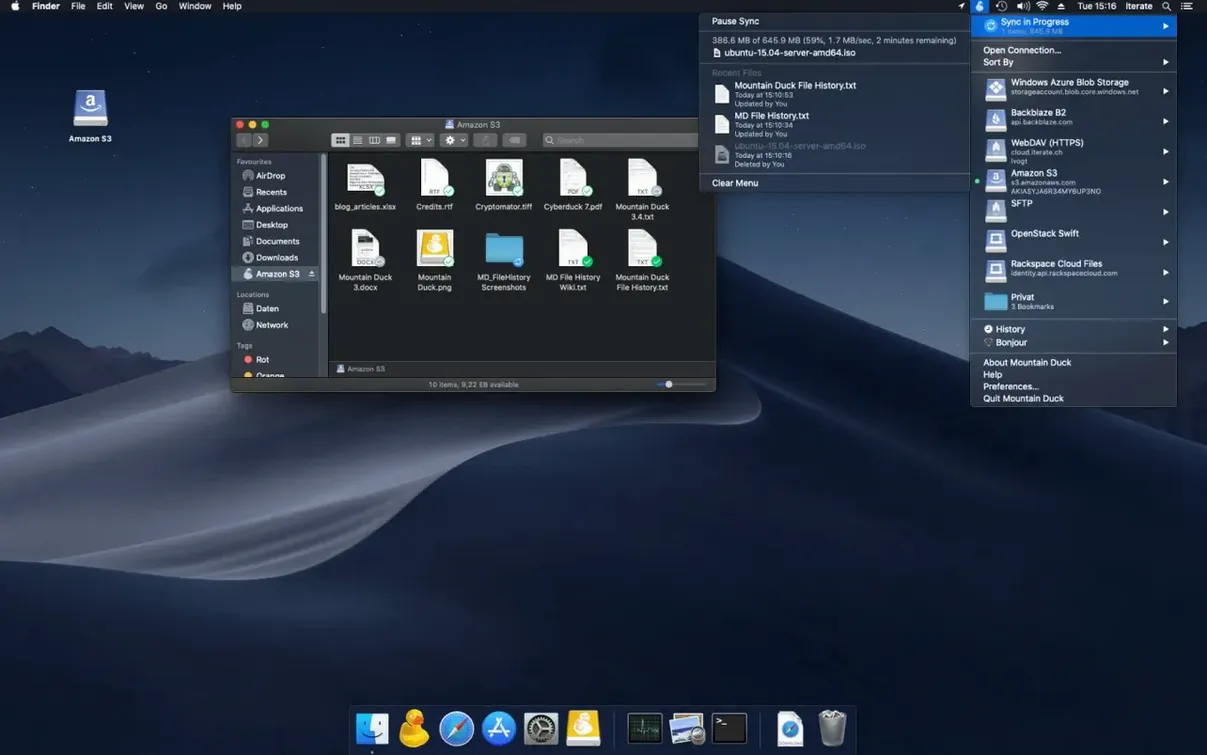
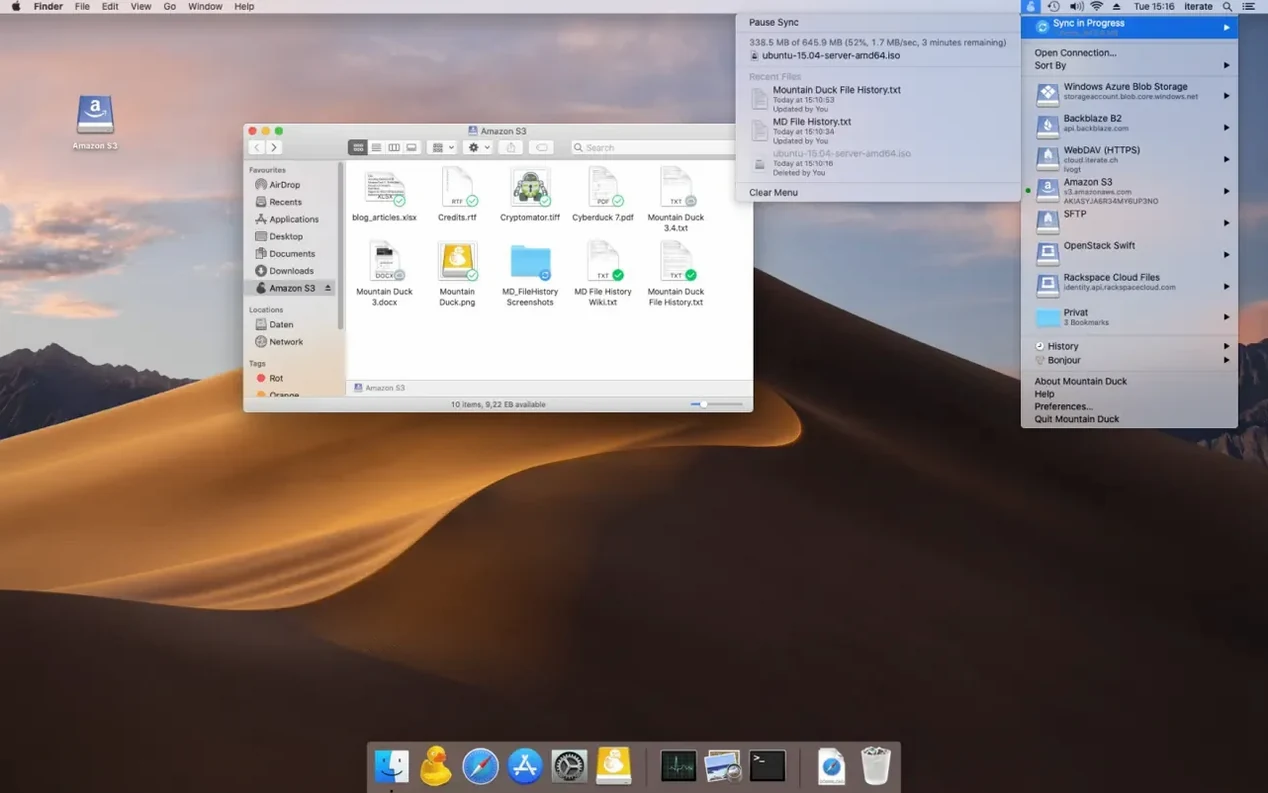
You already know the Finder. That folder you open a hundred times a day, where you drag, drop, rename and delete without thinking. Mountain Duck turns your remote storage — FTP, SFTP, WebDAV, S3, Google Drive, Dropbox — into exactly that: a disk that lives in the Finder sidebar. No extra app window, no syncing folder, just a drive you treat like any other.
Open Mountain Duck and click the + button to add a connection. Pick the type of storage you use — S3, Google Drive, or a plain old SMB share — and enter your credentials. The volume mounts in Finder within seconds. Open a file straight from there, edit it in your usual app, and save. Mountain Duck handles the upload in the background when a connection is available.
Yes. Because the remote storage appears as a normal disk, you can open a RAW file from it with Capture One, edit a document in Pages, or preview a PDF in Quick Look. No extra import step. When you open a file, Mountain Duck uses Smart Synchronization to download it locally so the app you use sees a real file, not a placeholder.
If you use Cryptomator-compatible storage, Mountain Duck supports encryption at rest. Your bookmarks are shared with Cyberduck if you have it installed, so you don’t have to set up the same connections twice. Version 5 also handles SMB connections, which makes it handy for mounting a NAS drive alongside your cloud volumes.
Some features don't show up in the marketing copy but save you time when you're in the middle of something. One of them is the way Mountain Duck handles offline files. You can mark specific folders to stay stored locally — useful if you know you'll need a project folder on the train or at a shoot location with patchy signal. The rest of the remote volume stays cached on demand, so you're not downloading everything on the off chance you might need it.
Another detail I like: the disk image installs the app in the Applications folder, and after that it's in Launchpad like anything else. No background daemon that needs its own control panel, no separate sync engine. It just sits in the menu bar and waits.
If you use both Mountain Duck and Cyberduck, bookmarks are shared between them. Set up a connection once and it appears in both apps. That might not sound like much, but when you manage a dozen servers across different clients, it saves a round of clicking through menus.
Say you have a client who sends deliverables to an S3 bucket. Here is how that might look with Mountain Duck.
No extra upload step, no dragging finished files into a browser tab. It works the same way whether you are on a fast office connection or tethered from a café.
This app is for anyone who works with remote storage but doesn't want to learn a new interface for every service. If you manage a web server and need to pull down a log file or edit a config file, the Finder mount means you can use BBEdit or any text editor you already have. If you run a studio and store client proofs on Google Drive, the team can browse them in Finder instead of opening the web interface.
People who juggle multiple cloud accounts — a personal Dropbox, a work Google Drive, a client's S3 bucket — will appreciate having them all in one sidebar. And because it supports SMB, you can mount your office NAS next to a Backblaze B2 bucket and treat them the same way. It works on both Apple Silicon and Intel Macs running macOS 13 or later, so it covers most recent Macs without fuss.
For a mountain duck mac setup, that means one less app window cluttering the screen. Mountain Duck lets you mount remote servers as local drives, ideal for users needing seamless cloud access. It is worth a look if you spend any time moving files between local and remote storage.
Yes, the app runs natively on both Apple Silicon and Intel Macs. It requires macOS 13 or later.
Open the downloaded disk image, drag the app to the Applications folder, then launch it from Launchpad after the copy finishes.
Sign in or create your account to leave a comment.
No notes from photographers yet. If you have used this on a real folder, say which camera and which Mac.