Get it for my Mac (2 GB)
 Arturia Efx AMBIENT
1.0.0
Arturia Efx AMBIENT
1.0.0

- Version
- 5.12.6
- Developer
- Arturia
- Interface in
- English
- Licence on file
- K'ed by LOST
- macOS it runs on
- macOS 11 or later
- Chip support
- Apple Silicon, Intel 64-bit
In the edit
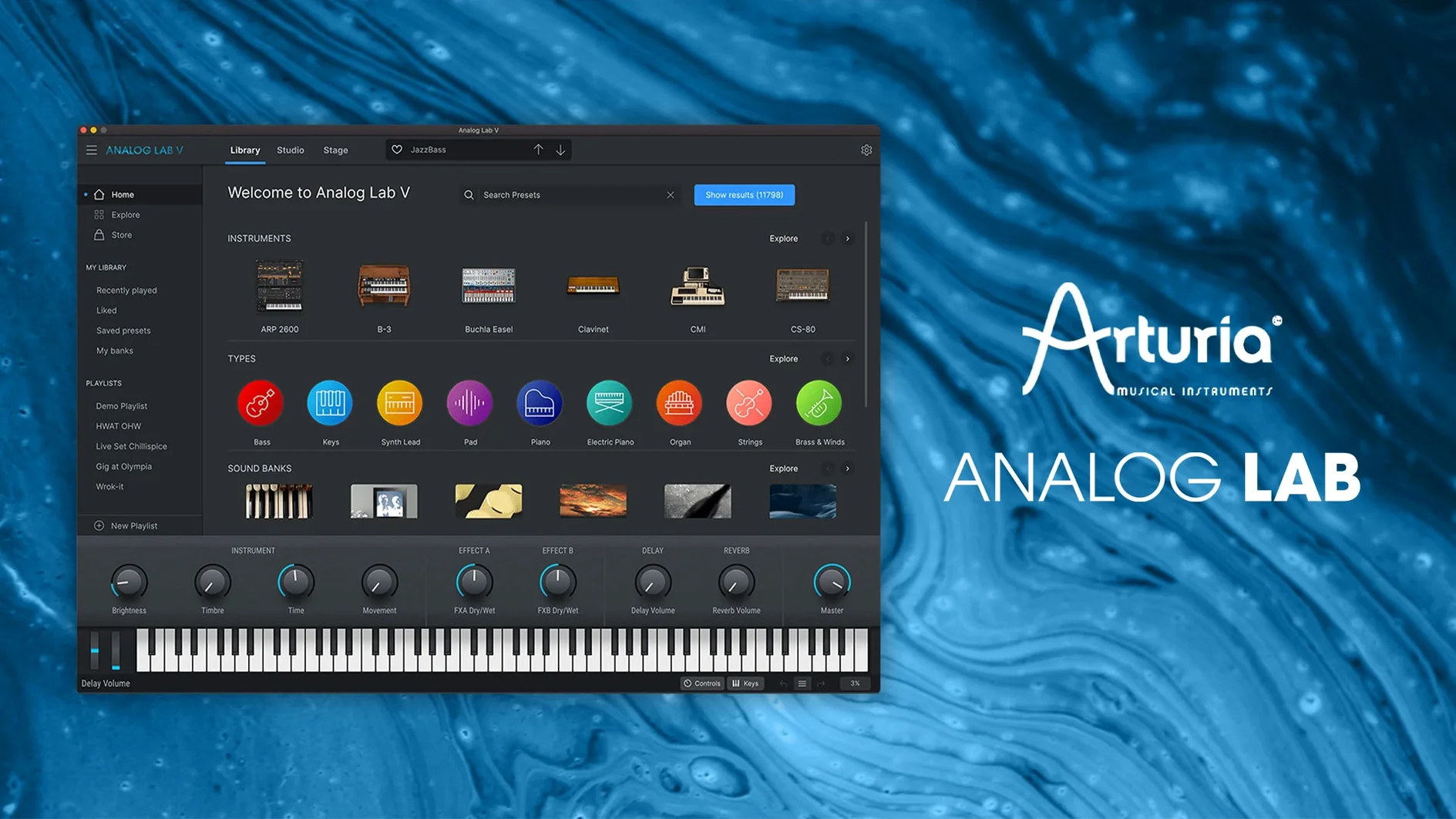
If you’ve spent time scrolling through endless preset menus, you know the friction of finding the right sound when inspiration’s already fading. Analog Lab V (now called Analog Lab Pro, though the plugin keeps the original name) pulls together thousands of presets from Arturia’s instrument collection into one browser. Instead of loading a separate plugin for each synth, you stay in a single window, filter by type or character, and move on.
Access to iconic synthesizer and keyboard sounds with an intelligent filter
- Access to iconic synthesizer and keyboard sounds from dozens of Arturia instruments
- An intelligent filter to narrow presets by style, genre or timbre
- Works inside your existing projects without changing the sound engine
Sits quietly in your DAW and gets you to a usable sound fast
For a photographer or video editor who also produces music, this is the kind of tool that sits quietly in your DAW and does one thing well: get you to a usable sound fast. It runs on macOS 11 and later, works on both Intel and Apple Silicon, and integrates as a standard plugin. No extra launcher, no separate app to juggle.
Plugin not showing up after installation and how to fix it
A few things tend to trip people up when they first get Analog Lab V running. The most frequent one is the plugin not showing up in the DAW after installation. Arturia’s installer places the components in the standard system folders, but some DAWs need a manual rescan. Open your plugin manager, trigger a rescan, and restart the DAW if it still doesn’t appear. On older macOS versions, checking that the VST2 or AU folder isn’t blocked by system permissions can help — a quick look in System Settings under Privacy & Security usually clears it.
Another snag: the standalone app launches but doesn’t produce sound. This is almost always an audio output assignment. Open the standalone’s audio settings and pick your interface or built‑in output. It defaults to the system device, but if you’ve got a USB interface plugged in after launch, it might not switch automatically.
Some users report that the intelligent filter seems slow or unresponsive on older Intel Macs. The browser indexes a large preset library, and the first scan after a fresh install can take a few seconds. Let it finish before you start tweaking. After that, the filter responds quickly. If it still lags, closing other plugin windows and giving the system a moment helps — it’s a one‑time thing per session.
Finally, if you’re using it with an external MIDI keyboard and the keys don’t respond, check that the keyboard is sending on the same MIDI channel that Analog Lab V is listening to. The plugin usually listens on all channels by default, but some controllers send on a specific channel only. A quick look in the MIDI settings confirms it.
Analog Lab V works as a central hub without separate instrument installs
One question that comes up often: “Do I need to install all the Arturia instruments separately?” No. Analog Lab V works as a central hub. It includes the preset library and the playback engine for all the instruments, so you don’t need to install each synth or keyboard individually. The presets are there, ready to browse and play. If you later add a V Collection license, the plugin can open the full instrument views, but that’s an extra step — not a requirement.
Another common one: “Can I use it on two Macs?” The activation method for this version doesn’t tie you to a single machine. Install it on a laptop for live gigs and a desktop for studio work. Just run the installer on each and you’re good.
People also ask if it works with Logic Pro, Ableton Live, Pro Tools, Cubase and similar DAWs. Yes — it supports Audio Units, AAX, VST2 and VST3, so it fits just about any host on macOS. The same plugin file works across all of them; you don’t need separate installers per DAW.
And a practical one: “Does it replace my existing synth plugins?” It doesn’t replace them. It sits alongside them. You use Analog Lab V when you want to browse and play presets from Arturia’s library without loading a separate plugin for each instrument. Your existing synths and samplers stay exactly as they are.
Differs from Komplete Kontrol by focusing on Arturia's preset library
There are a few other preset browsers and instrument hosts on macOS, but they approach the problem differently. Native Instruments Komplete Kontrol does something similar — it browses presets from Native Instruments and third‑party libraries, and it maps controls to NI keyboards. The big difference is that Komplete Kontrol leans heavily on hardware integration. If you don’t have an NI keyboard, you lose some of the convenience. Analog Lab V works just as well with any MIDI controller or with mouse and keyboard. It doesn’t assume you own a specific piece of hardware.
Spectrasonics Omnisphere is another heavy hitter. It’s a synthesiser first and a preset browser second. The sound design possibilities are deeper, but the browser is tied to Omnisphere’s own engine. Analog Lab V is lighter in scope — it doesn’t try to be a synthesiser; it’s a preset player. For someone who wants to flip through sounds quickly without diving into synthesis, it’s a simpler fit.
Then there’s UVI Workstation. It’s a free host for UVI sound libraries, and it handles a lot of the same browsing and layering. But the preset library isn’t as curated as Arturia’s — you build it from whatever UVI libraries you own. Analog Lab V comes with a fixed, high‑quality library of iconic synth and keyboard sounds, which means you don’t spend time hunting for good presets. They’re already there.
Each of these tools has its place. Analog Lab V’s strength is that it gives you a focused, curated sound library with a filter that actually helps you find things, and it works on both Intel and Apple Silicon Macs without extra configuration.
Version 5.12.0 focused on stability and reliable project switching
Version 5.12.0 (6227) didn’t overhaul the interface or add a new instrument. Instead, it focused on stability and compatibility. For everyday use, the most noticeable change is that the plugin behaves more reliably when you switch between projects in your DAW. The previous version sometimes lost its preset assignment when you bounced between sessions; that’s been cleaned up.
Another change: the browser’s filter now handles large preset lists more consistently. If you regularly work with the full library — thousands of presets — you’ll notice that scrolling and selecting feels the same whether you’re on an Intel Mac or Apple Silicon. No stutter, no delay after the initial scan.
There’s also a fix for a MIDI learn issue that affected some controllers. If you’d mapped a hardware knob to a filter cutoff and it stopped responding after a few minutes, that’s sorted. The mapping stays active for the session.
None of these changes are flashy. They’re the kind of polish that matters when you’re in the middle of a session and everything just works. If you were on an earlier version, updating to 5.12.0 is straightforward — run the installer over the existing installation and the new build replaces the old files.
A workflow for finding and layering a pad sound
Let’s walk through a real task: you need a warm pad for a verse section, and you want to layer it with a subtle lead that cuts through the mix. Here’s how it plays out in Analog Lab V.
Open the plugin in your DAW or launch the standalone app. The browser shows the full preset library. Click the filter button and set the type to “Pad” — the intelligent filter narrows the list to pad sounds only. From there, use the character tags: choose “Warm” and “Analog” to get that classic, slightly saturated tone. Scroll through the results. You’ll hear a handful of presets from instruments like the Mini V, the Jun‑6 V and the Solina V. Pick one that sits well in the low‑mid range.
Now, for the lead layer, duplicate the track or open a second instance of Analog Lab V. Filter by “Lead” and then by “Bright” or “Cutting”. This time, pick a sound from the CS‑80 V or the Matrix‑12 V — something with presence. Adjust the volume of the lead layer so it sits above the pad without overpowering it.
If you want to tweak the sound, use the macro controls on the plugin’s main panel. The cut‑off, resonance and envelope controls are right there. Turn down the filter cut‑off on the pad to make it softer, and nudge the resonance up on the lead to add a bit of edge. No need to open the full instrument view unless you want deeper editing.
Once you’re happy, save the two layers as a channel strip preset in your DAW. Next time you need a warm pad with a bright lead, it’s one click away. The whole process, from opening the plugin to having a layered sound ready, takes a couple of minutes — and you never left the Analog Lab V window.
Mac it needs
- macOS 11.0 or later
- Intel or Apple Silicon
- English interface language
Questions I actually get
Is Analog Lab V the same as Analog Lab Pro?
The software and plugin still use the Analog Lab V name, but the product is now called Analog Lab Pro. Functionally it remains the same browser for Arturia presets.
Installing on a Mac
- Run the installer package.
- Follow the on-screen instructions.
- Authorise the plugin if prompted by Arturia Software Center.
Notes from photographers
Sign in or create your account to leave a comment.
No notes from photographers yet. If you have used this on a real folder, say which camera and which Mac.