- Version
- 12.1.28 (OCR)
- Developer
- Wondershare Technology
- Interface in
- Russian, English, German, Arabic, Spanish, Italian, Chinese (Simplified), Dutch, Portuguese, French, Japanese
- Licence on file
- K'ed by TNT team
- macOS it runs on
- macOS 11 or later
- Chip support
- Intel 64-bit
In the edit
The current build of PDFelement Pro, version 12.1.28, brings OCR into the main package — no separate module needed. If you work with scanned documents or image-based PDFs on a Mac, that alone makes the upgrade worth a look.
OCR turns scanned PDFs and images into searchable text
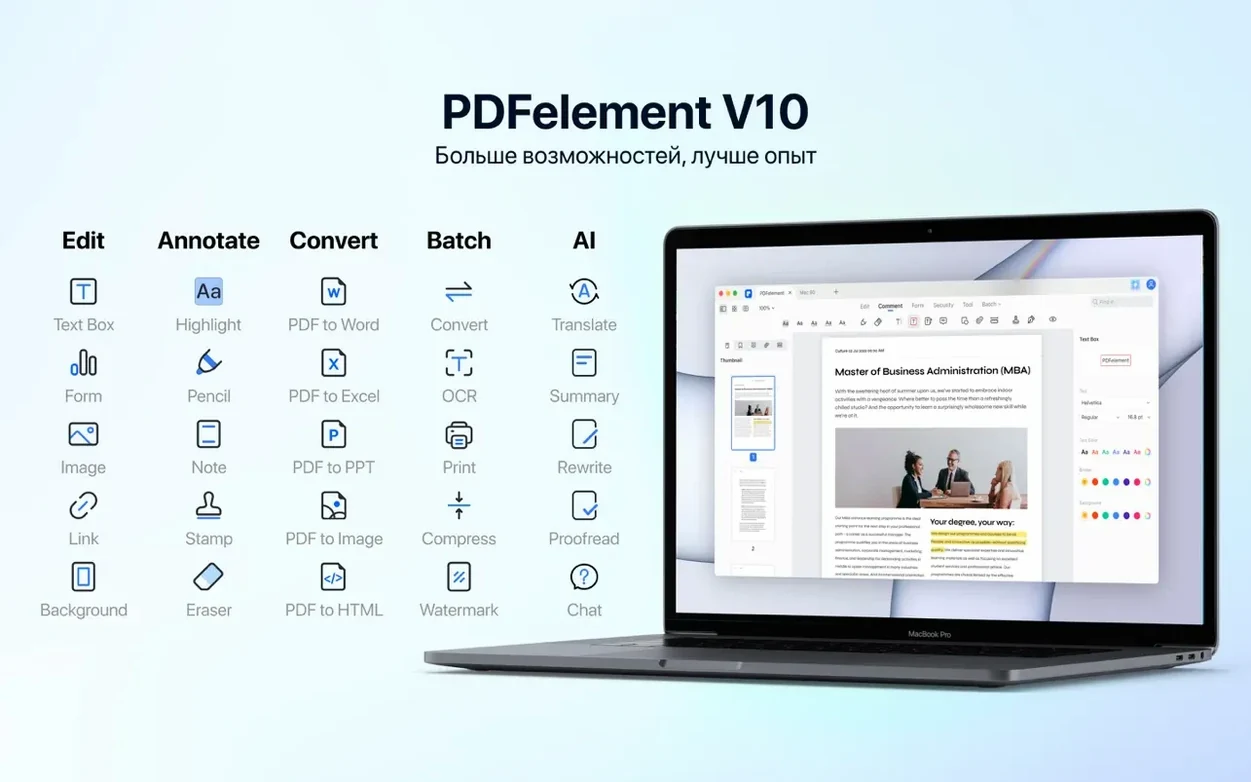
- Editing scanned PDFs and images — OCR turns them into selectable, searchable text.
- Batch processing: apply the same action to multiple files in one go.
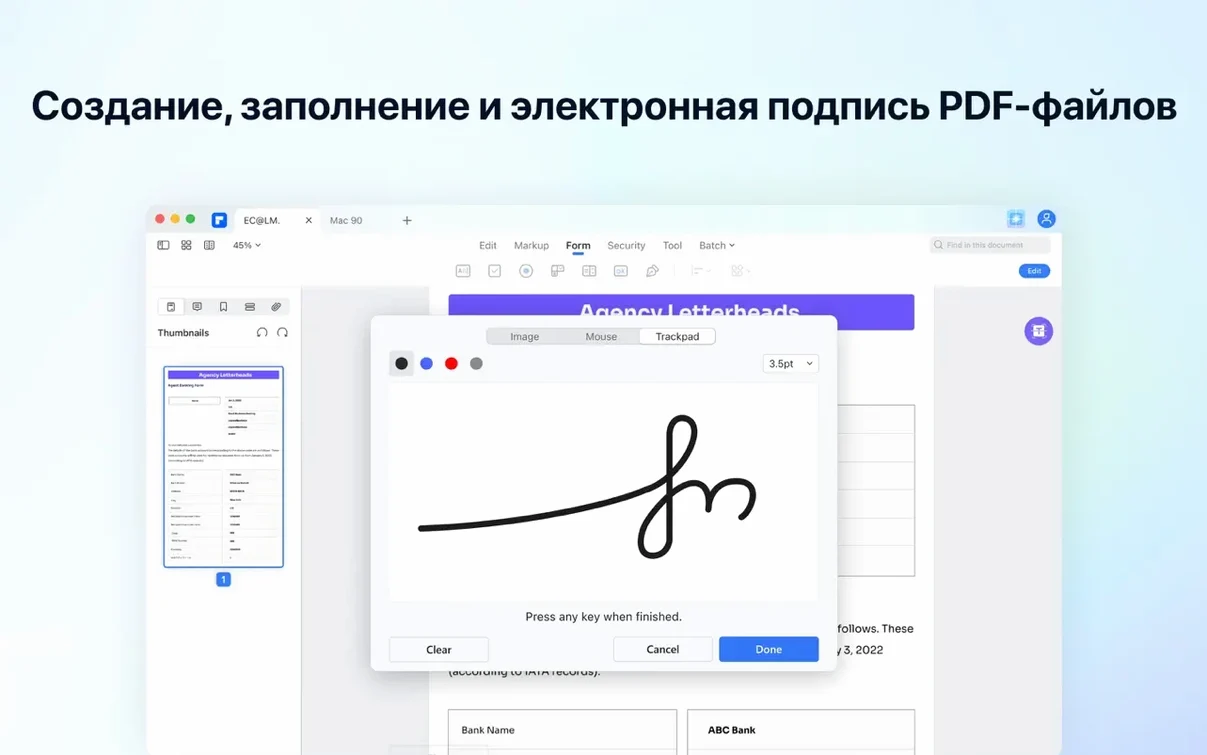
- Adding digital signatures, filling forms, and redacting sensitive content.
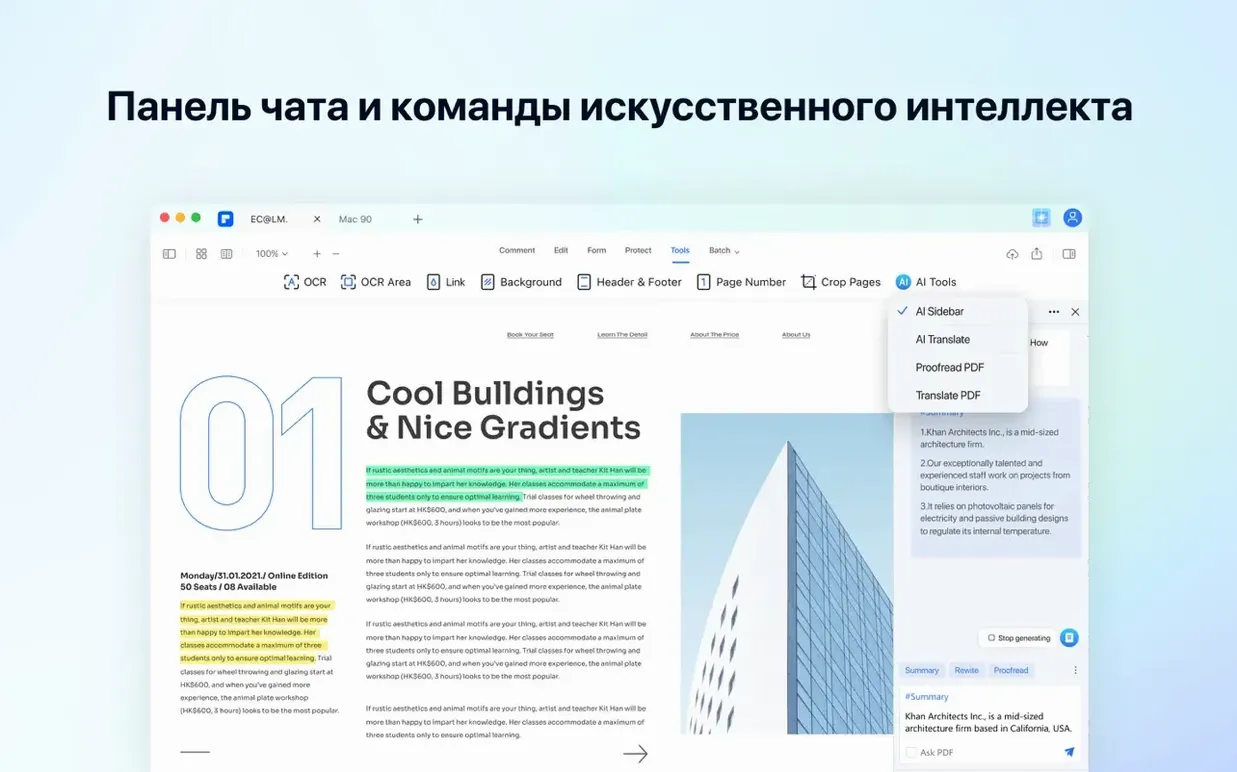
- Using AI for summarising, translating, or explaining sections of a document.
Runs on Intel Macs with macOS 11 or later
- Runs on Intel Macs with macOS 11 or later.
- Built-in AI tools cover reading, summarising, translation, and asking questions about the document.
- Includes PDF/A support and Bates numbering for professional and legal use.
- Interface available in English, German, French, Spanish, Japanese, and several other languages.
Spend ten minutes on these settings before opening your first document
Once you have PDFelement Pro mounted and moved into Applications, it is worth spending ten minutes on a few settings before you open your first document. The default layout works fine for most tasks, but a couple of changes early on save clicks later.
- Set the OCR language. If you work with documents in more than one language, go into the OCR settings and add the languages you actually use. The tool supports 29 languages, so having only English ticked means it will miss text in German or French scans.
- Choose your default conversion format. PDFelement can export to Word, Excel, PowerPoint, image files, and plain text among others. Pick the one you reach for most often — for most photographers and office workers that is Word or RTF — and set it as the default in the conversion preferences.
- Enable batch mode for repetitive tasks. If you regularly redact the same kind of information, apply Bates numbering, or convert entire folders of PDFs, open the batch processing panel and save a preset. That preset stays available for the next time you need it.
- Check the AI tool panel. The built-in AI features for summarising, translating, and asking questions about the document are turned on by default. If you do not use them, you can disable the panel from the view menu to keep the interface cleaner.
How a London estate agent handles ten to fifteen property listings a week
Consider a London estate agent who handles ten to fifteen property listings a week. Each listing arrives as a collection of scanned tenant agreements, floor plans, and energy performance certificates — most of them in PDF form, many of them signed by hand or printed from a scanner.
Without OCR, those documents are essentially images. The agent cannot search for a tenant's name, cannot copy an address into an email, and cannot edit a typo in a lease summary. With PDFelement Pro, the workflow changes: open the scanned agreement, run OCR, and the text becomes selectable within seconds. From there, the agent can redact the tenant's bank details before sharing the document with a landlord, add a digital signature to the final page, and export the whole thing as a PDF/A for long-term storage.
The batch tool matters here too. When a portfolio of six properties needs the same Bates numbering applied before submission to a solicitor, the agent can drop all six files into the batch panel, set the numbering format once, and let the software handle the rest. No need to open each file individually.
Change OCR output type to editable text for smoother reformatting
Beyond the initial setup, a few preferences make day-to-day use noticeably smoother.
- OCR output type. By default, PDFelement may produce searchable text overlays on the original scanned image. If you prefer an editable text layer that you can reformat, switch the OCR output to "editable text" in the OCR settings. That way, the recognised text behaves like any other text in the document.
- Form auto-detection. The software can detect form fields in a scanned PDF and make them fillable automatically. If you work with standardised forms — tenancy agreements, consent forms, invoices — turn this on so PDFelement creates the fields for you rather than you placing them manually.
- Compression preferences for large files. Photographers and architects often deal with image-heavy PDFs. In the conversion settings, you can choose how much compression to apply when exporting to a smaller file size. Medium compression usually keeps text readable and images clear while cutting the file size by a noticeable margin.
- Signature appearance. If you sign documents regularly, take a minute to capture a clean version of your handwritten signature using the built-in signature tool. It saves drawing it fresh each time and looks more professional than a typed name.
Office workers handling contracts, invoices, and forms every day
PDFelement Pro is a broad tool, but it shines brightest for a few specific kinds of Mac users.
Office workers and administrators who handle contracts, invoices, and internal forms every day will use the form creation and digital signature features more than anything else. The ability to create a fillable PDF from a scanned paper form — buttons, checkboxes, drop-down lists included — means no more printing, filling in by hand, and scanning back. Everything stays digital.
Students and academics working with journal articles, lecture slides, and research papers benefit most from the OCR and annotation tools. A scanned chapter from a library archive becomes searchable, so finding a specific citation or quote takes seconds instead of minutes. The AI summariser helps when you need a quick overview of a dense paper before deciding whether to read the full text.
Legal and property professionals who deal with Bates numbering, redaction, and PDF/A archiving will find the batch processing and compliance features essential. Redacting sensitive information across a folder of documents in one pass is the kind of time saver that pays for itself in the first week.
Photographers and designers who deliver final proofs, contracts, and usage licences as PDFs will appreciate the conversion and compression options. Sending a multi-page portfolio as a single PDF with consistent image quality and a manageable file size is straightforward once the export presets are dialled in.
If your daily work touches PDFs in more than one way — editing, signing, converting, archiving — PDFelement Pro covers the ground without needing a separate tool for each step.
New this release
- OCR is now included in this build — no separate add-on required.
Mac it needs
- macOS 11 or later
- Intel processor
Questions I actually get
Does PDFelement Pro include OCR?
Yes, the current version (12.1.28) includes OCR for recognising text in scanned PDFs and images.
Installing on a Mac
- Mount the disk image and run Open Gatekeeper friendly.
- Press Enter in Terminal to bypass Gatekeeper.
- Drag the app to the Applications folder.
- Open the app from Applications when it is ready.
Notes from photographers
Sign in or create your account to leave a comment.
No notes from photographers yet. If you have used this on a real folder, say which camera and which Mac.