Get it for my Mac (452 MB)
 Photomator
3.4.15
Photomator
3.4.15

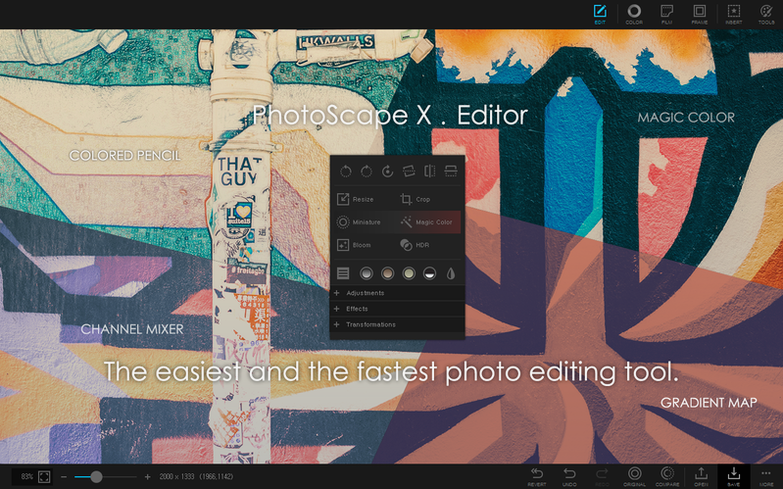
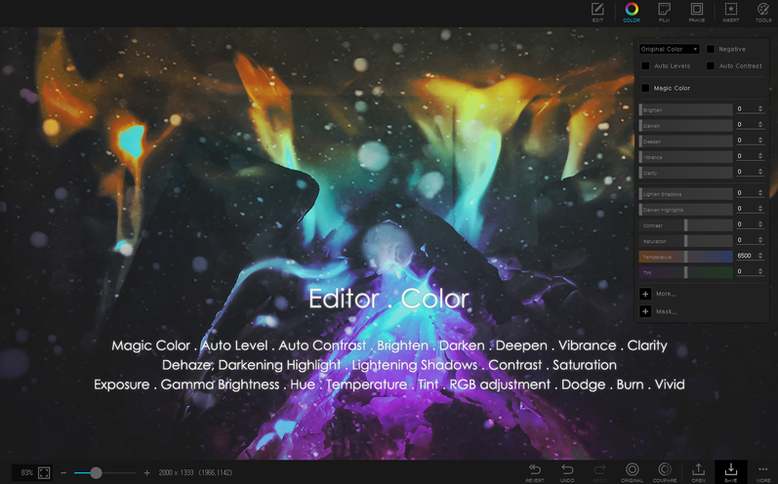
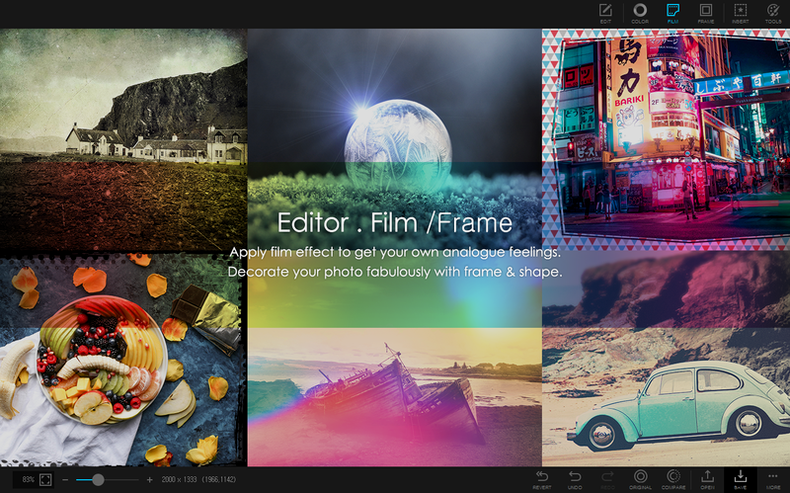
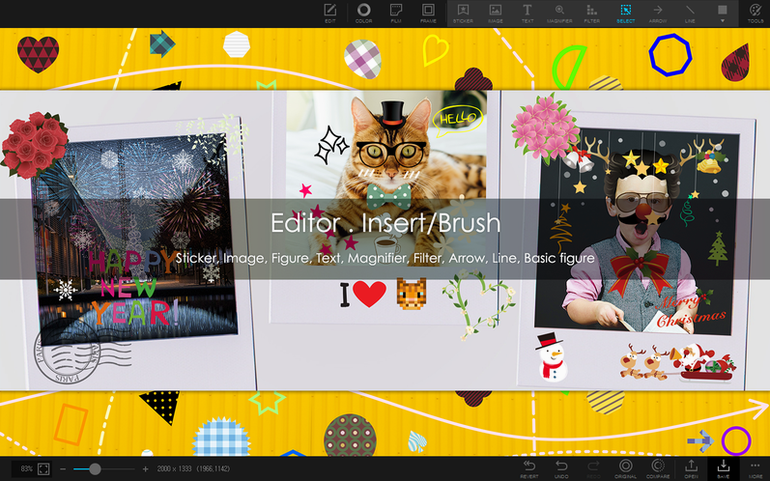
You’ve just come back from a wedding with a memory card full of RAWs and a handful of candid phone shots that need a quick colour tweak before you send them to the couple. PhotoScape X is the kind of tool you open when you want to get through that mix fast without jumping between five different apps.
The editor covers the essentials: exposure, curves, colour balance, and a magic eraser that handles background removal with lasso and brush refinements. You can split a photo into tiles, drop in one of the 1000+ stickers or 240+ figures, and save the result as a layered file or a flat export.
Batch conversion, resizing, and renaming are all there, and they work on folders of images without opening each one. If you need to turn a sequence of frames into an animated GIF, the GIF tool does that in a few clicks.
The browser handles photo, video, and audio files with loupe view, fullscreen, star ratings, flags, lossless rotation, and metadata. It also grabs screenshots and saves them straight into your working folder. Version 4.3 is a fix release — nothing flashy, just the current build running steadily on macOS 13 and Apple Silicon.
I know a friend who runs Instagram content for a small brand. Every Monday morning she gets a folder of product shots from the photographer, a few behind-the-scenes clips from the team, and a screenshot of a competitor’s post that she wants to reference. She opens PhotoScape X and works through it in one sitting: the browser flags the keepers with a star, the editor tweaks exposure and crops each product shot to the same square ratio, and the GIF tool turns a short video clip into a looping story asset. The colour picker grabs a hex code from the competitor screenshot so she can match the palette.
If you have just installed it, here are a few things worth knowing early on.
The current build is marked as a fix release. That means the developer focused on stability rather than new features, which is exactly what you want during a busy season. If you were on an earlier version, you will notice that common tasks like batch renaming and the red eye tool behave more predictably. Nothing in the interface has moved around, so you do not lose muscle memory.
PhotoScape X sits alongside the built-in macOS tools without stepping on their toes. Quick Look still handles your previews, and the Finder still organises your files. What PhotoScape X adds is the ability to edit, batch process, and create collages without leaving one window. You can drag images straight from the Finder into the editor or the collage tool. The screenshot feature is a good alternative to the system shortcut if you want more control over file naming and destination folders. And if you use a Mac with a trackpad, the loupe view in the browser works well with pinch gestures for a quick closer look at details.
Sign in or create your account to leave a comment.
No notes from photographers yet. If you have used this on a real folder, say which camera and which Mac.