Get it for my Mac (40 MB)
 Pixelmator Pro
4.3
Pixelmator Pro
4.3

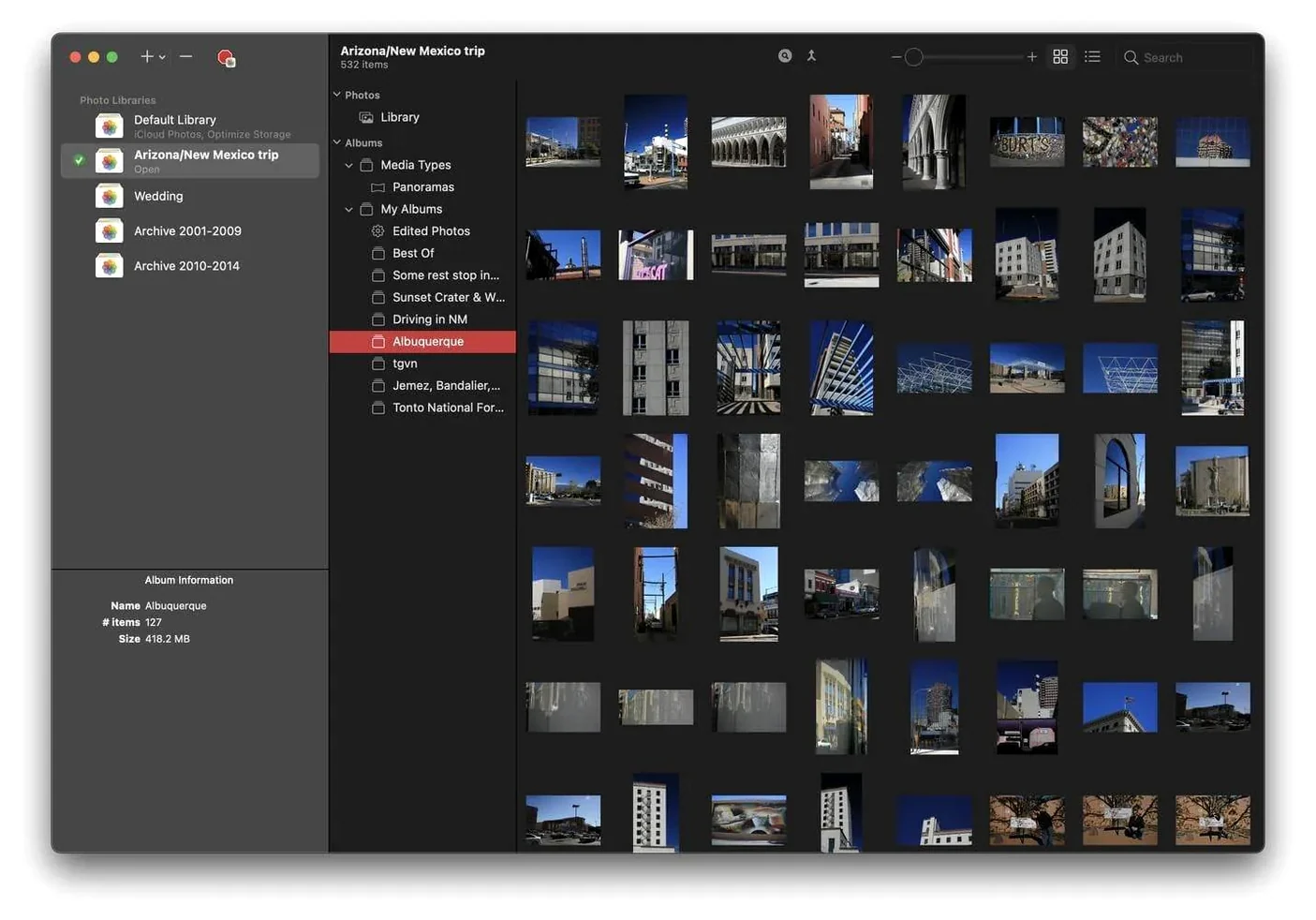
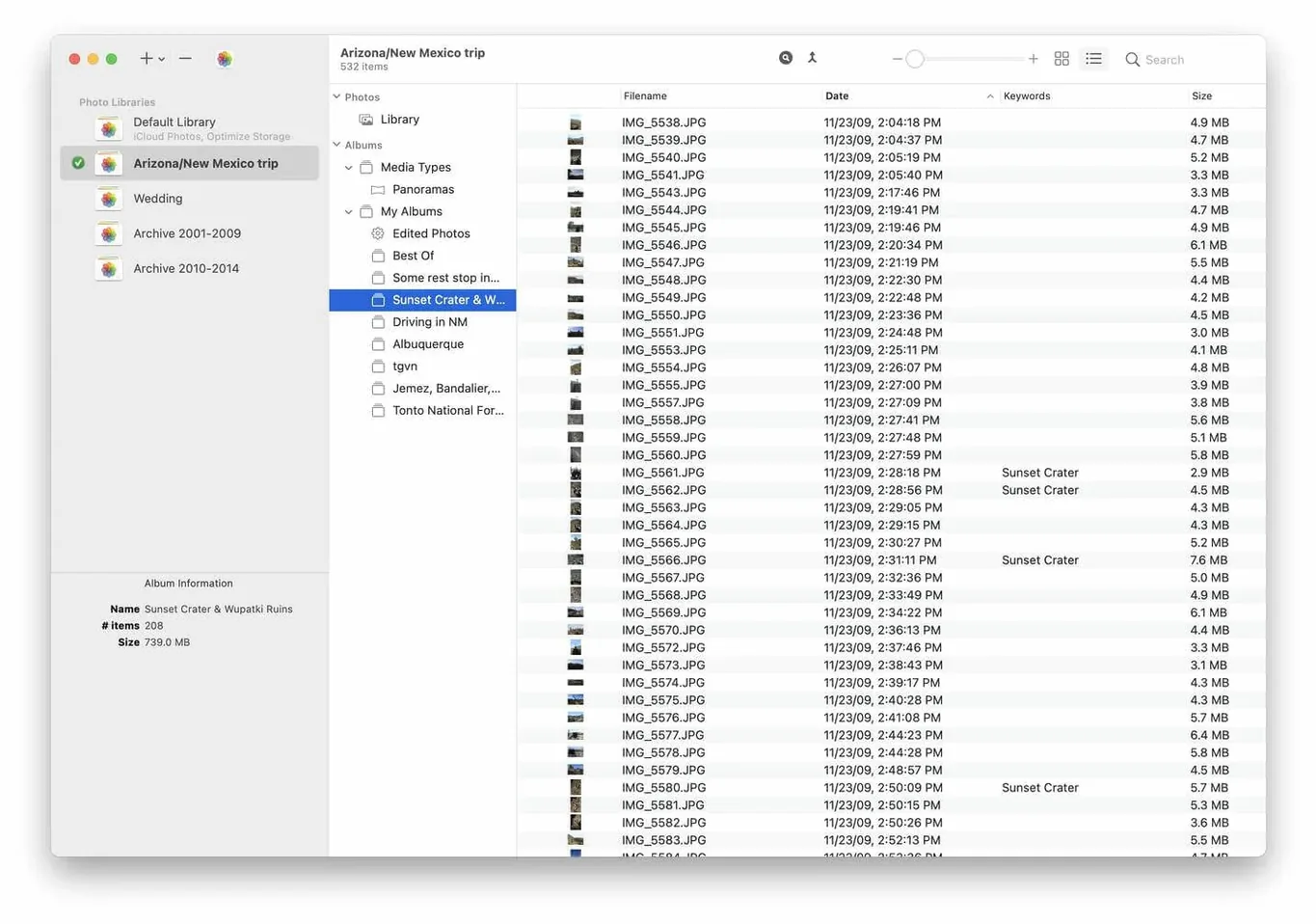
PowerPhotos 3 is for the photographer who keeps more than one Photos library — maybe a separate one for each season, or a master archive and a working copy. Instead of holding Option on launch and guessing which library holds a particular shot, you can browse every library from inside PowerPhotos, switch between them quickly, and search across all of them at once.
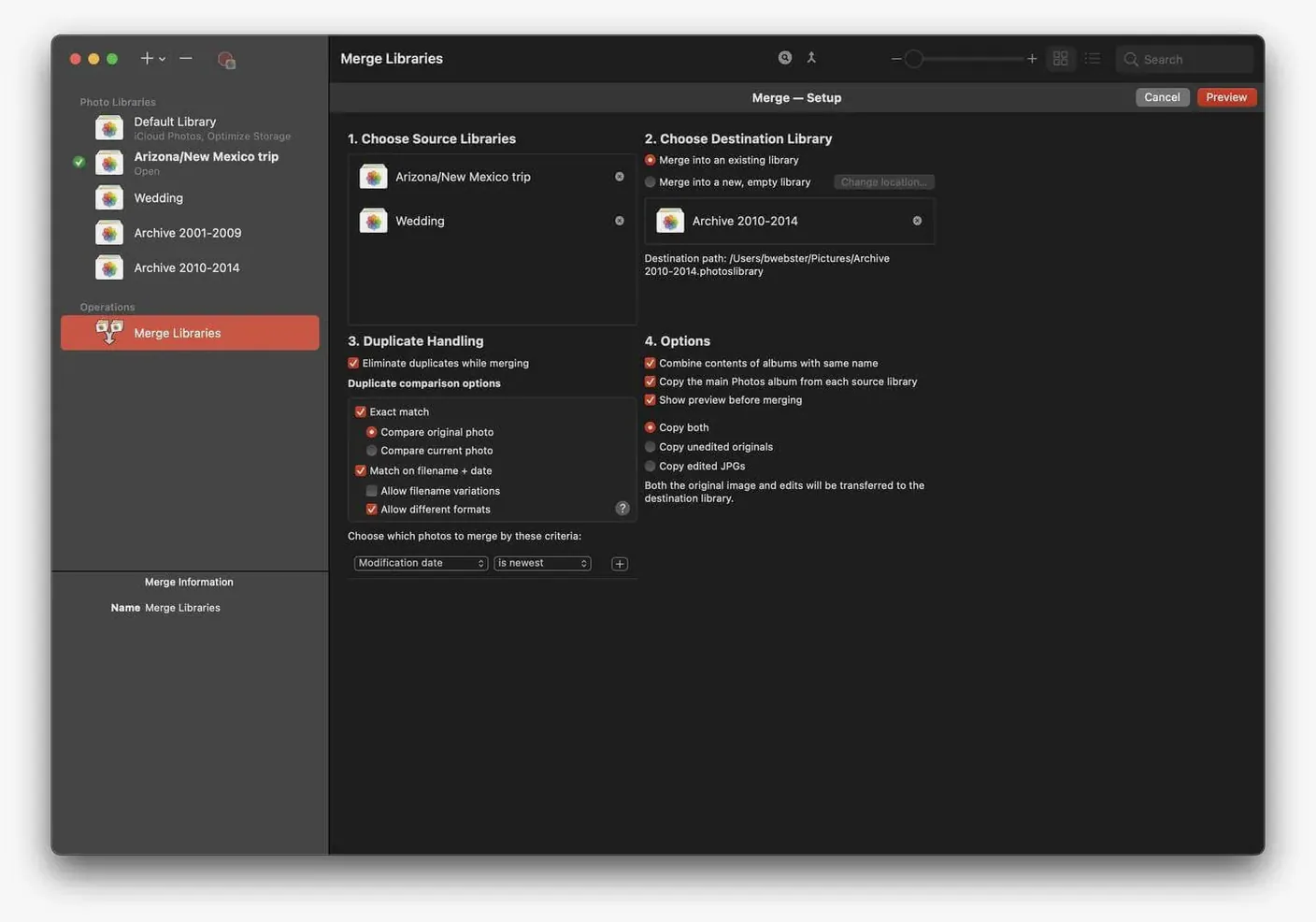
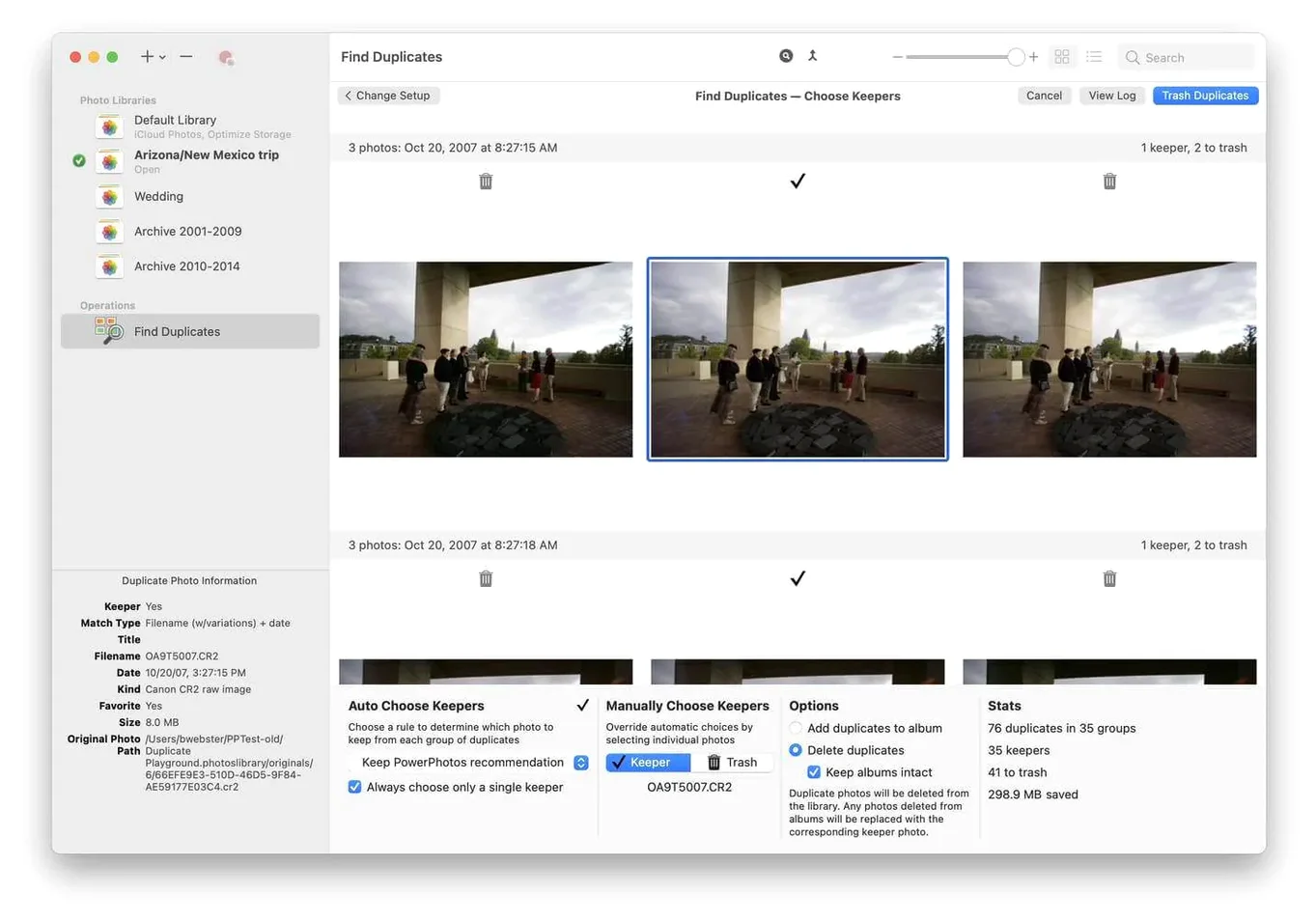
The duplicate analysis is the tool you reach for when you have been importing fast and know there are copies piling up. PowerPhotos scans a library, finds identical or near-identical photos, and lets you review before deleting. It works with the built-in Photos app, so you are not moving images out of their ecosystem. You can open a library without Photos launching, browse its contents, and move or copy photos between libraries when you need to consolidate.
PowerPhotos runs natively on both Apple Silicon and Intel 64-bit Macs, which matters when you are working with big libraries on an M-series machine. It requires macOS 14 or later, so it fits the current macOS lineup without compromise. The interface stays clean and English-only, which is fine for most working photographers in the UK and US. For anyone juggling multiple libraries through a busy season, it fills a gap the Photos app leaves open.
A few features in PowerPhotos 3 do not get the spotlight, but they save time once you know they are there. The library switcher, for instance, lets you jump between libraries without quitting and reopening Photos. That alone cuts out a lot of Option-clicking. The browse view inside PowerPhotos is also useful: you can scroll through a library's thumbnails, see albums and folders, and open individual photos without launching Photos at all. If you just need to check whether a particular shot exists in an archive library, that saves a full app launch.
The search bar works across all libraries you have added, so you can type a date range, a keyword, or a filename and see results from every library in one list. That is handy when you know you took a photo two years ago but cannot remember which library it ended up in. PowerPhotos also shows library sizes and photo counts at a glance, which helps you decide which libraries are worth merging and which ones can stay separate.
Say you shoot a full wedding season and keep each year in its own library to keep iCloud from filling up. Come January, you need to pull together a portfolio from the last twelve months. Instead of opening each library one by one in Photos and exporting selects, you open PowerPhotos, add all four libraries, and search by your favourite client names or dates. You can browse the highlights from each wedding without switching libraries. When you find the images you want, you copy them into a new portfolio library, all from inside PowerPhotos. The duplicate checker runs once at the end to catch any shots you imported twice by accident. That whole workflow replaces an afternoon of library hopping with about an hour of focused work.
One thing people hit is that PowerPhotos works with the built-in Photos app libraries, not with folders of images on your drive. If you have loose files outside Photos, you need to import them into a library first. Another snag: when you delete duplicates from within PowerPhotos, the app removes them from the Photos library, so be sure you have reviewed the side-by-side comparison before confirming. There is no undo once Photos syncs the change.
If you see a library that will not load, check that it is not currently open in Photos. PowerPhotos needs exclusive access to read the library database. Close Photos, then try again. For large libraries, the duplicate scan can take a while — that is normal, as it is comparing every photo against every other. You can let it run in the background and come back when it finishes. And if you are migrating from an older Mac, make sure the library format is compatible with macOS 14; PowerPhotos requires the current Photos database structure, so libraries from very old versions of iPhoto may need converting in Photos first.
One last tip: if you use iCloud Photos, separating libraries with PowerPhotos can reduce your cloud storage usage, but only if you turn off iCloud Photos for the secondary libraries. Otherwise, they will still upload to iCloud. The app helps you manage that, but it is worth checking your iCloud settings after you move photos out of the main library.
Yes, PowerPhotos can open and manage libraries on external drives, as long as the drive is mounted before you launch the app.
PowerPhotos is a library management and organisation tool. It does not edit photos — edits still happen inside the Photos app.
Yes, PowerPhotos lets you search across all your libraries simultaneously, which saves time when you cannot remember which library holds a specific photo.
Tip: Keep the disk image handy until you have confirmed the app opens correctly.
Sign in or create your account to leave a comment.
No notes from photographers yet. If you have used this on a real folder, say which camera and which Mac.