Get it for my Mac (70 MB)
 4K YouTube to MP3
26.3.5
4K YouTube to MP3
26.3.5

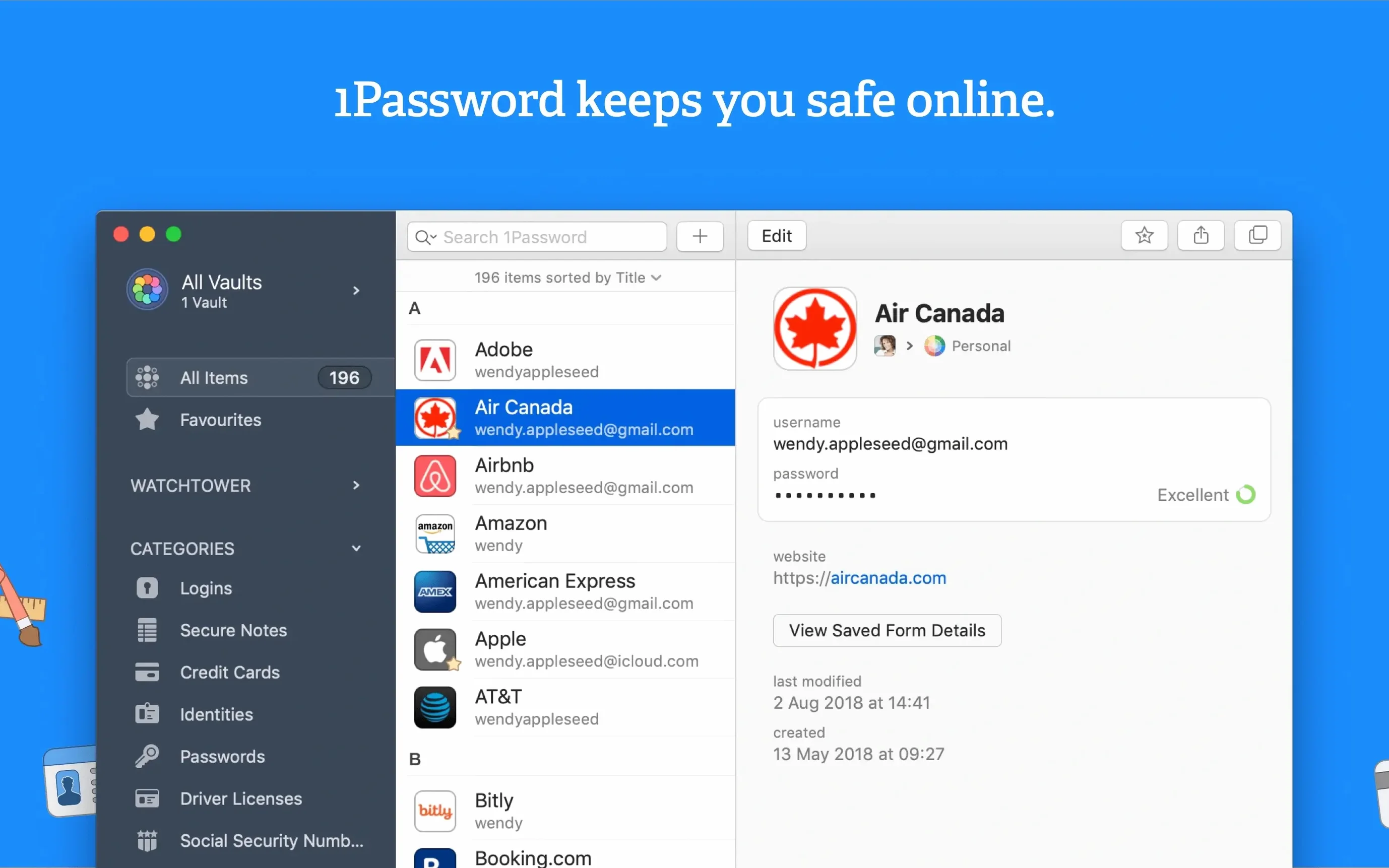
Watchtower is the feature that made me stick with 1Password. It scans your saved logins and flags sites still on unencrypted HTTP or missing two-factor authentication. For someone who manages dozens of client portals, payment dashboards, and cloud storage accounts, that one report saves a lot of manual checking.
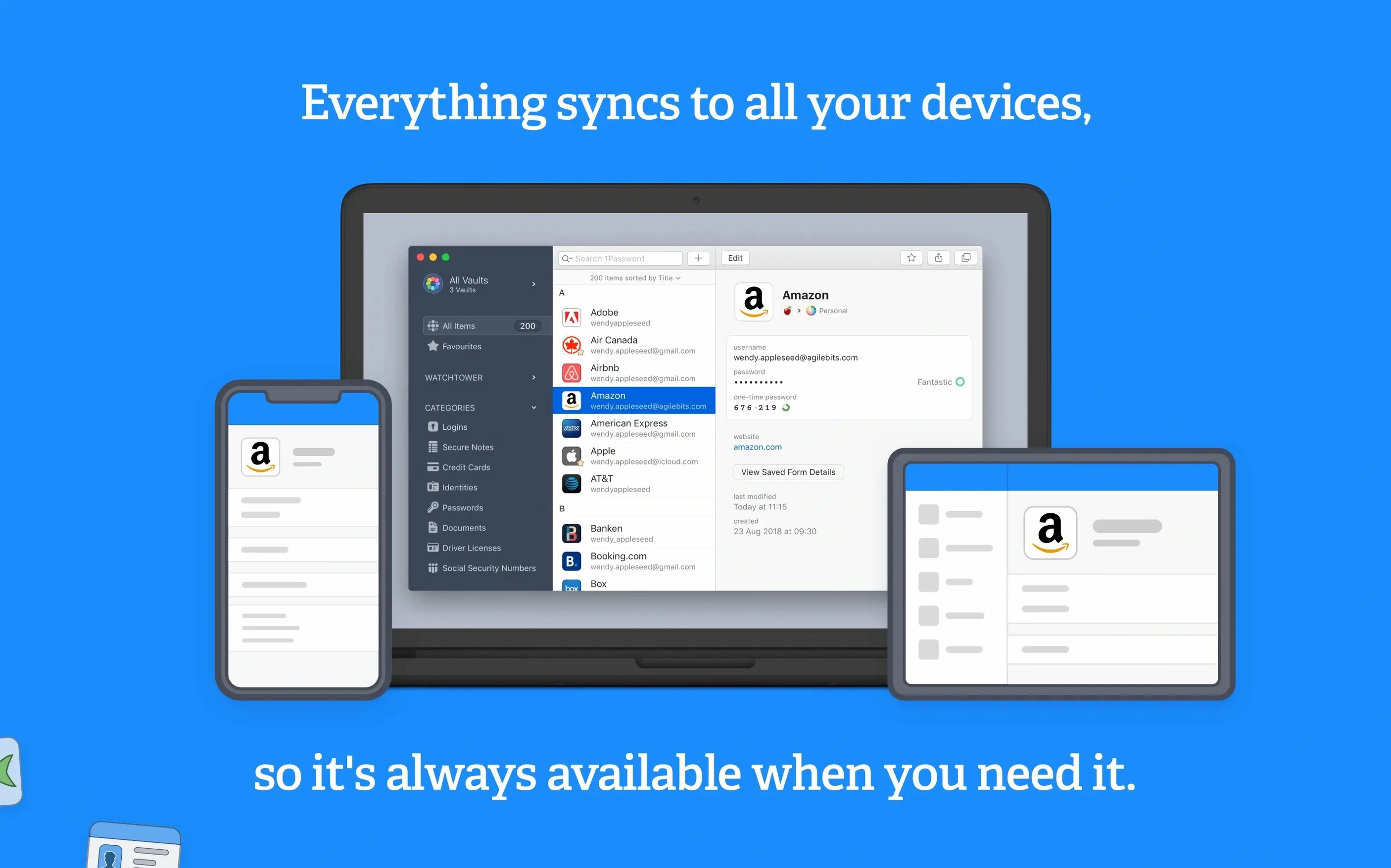
Beyond the basics, 1Password stores usernames, passwords, and financial data in a single vault that syncs across devices. The Intel 64-bit build runs fine on older Macs, and the app saves credentials when you sign into apps and websites, so you build a library of logins without extra effort.
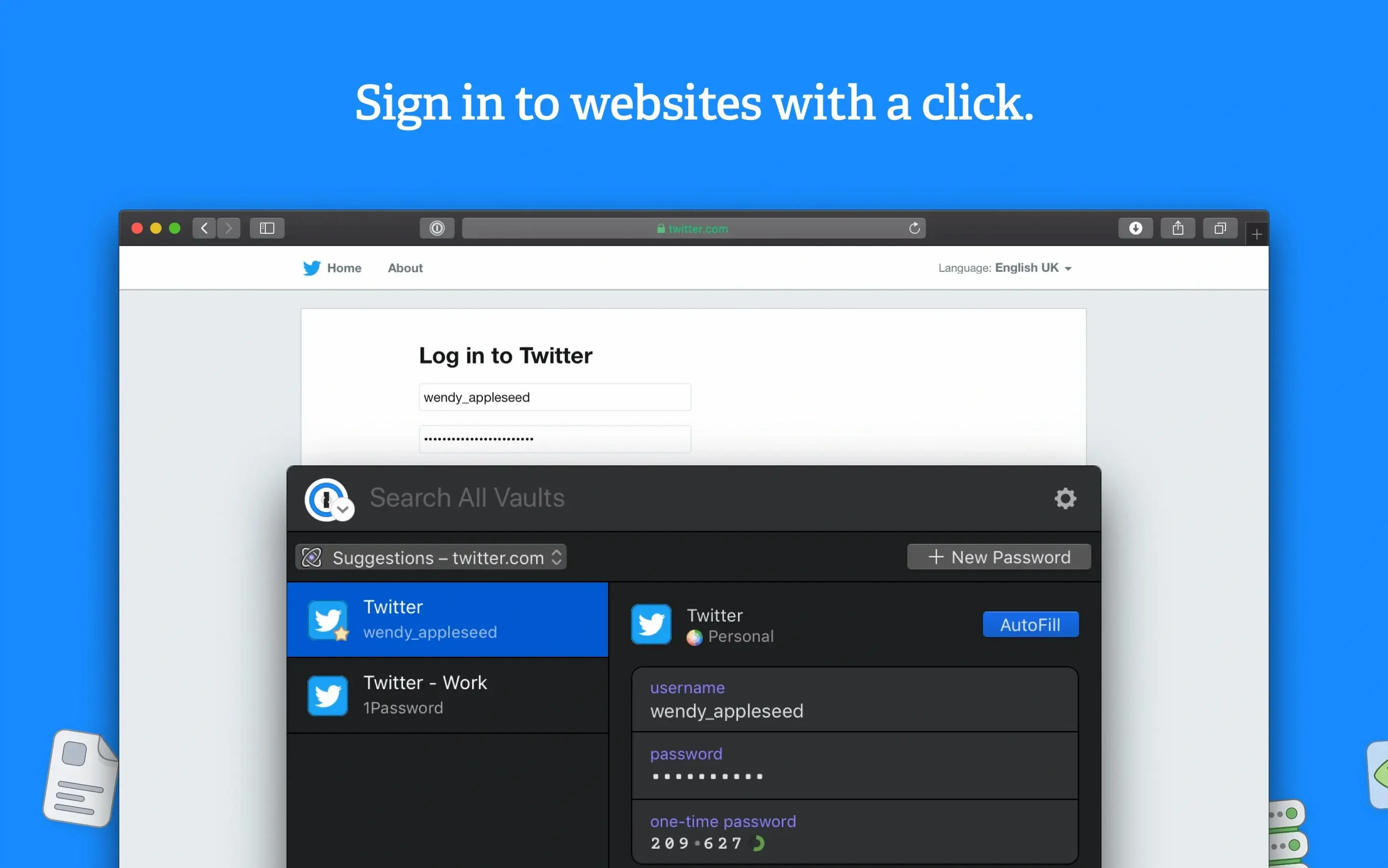
The browser extension is where most of the daily interaction happens. It works with Safari, Chrome, Firefox, and other common browsers, so the workflow stays the same whether you are logging into a client's gallery proofing system or your email provider. The extension reads from the same vault as the main app, so changes made in one place appear in the other instantly.
On macOS, the app also integrates with the system's autofill service. Once you enable it in 1Password's settings, Safari and other apps can suggest credentials from your vault without needing a separate extension. That matters when you are in a native app like Mail or Messages and need to grab a password without switching windows.
For photographers and creative professionals, the secure notes feature is useful for storing Wi-Fi credentials at venues, router admin passwords, and serial numbers for software licences. I keep a secure note for each piece of kit I own — camera body serial, lens IDs, and the login details for the manufacturer's support portal. It is searchable from the same search bar you use for passwords, so finding a lens serial during a gear insurance renewal takes two seconds.
The vault won't sync. This usually happens when the sync folder path changes or when the vault file is on a network drive that went offline. Check that the sync location is still accessible and that the file is not set to read-only. If you use a local folder sync, make sure the folder exists and has the right permissions.
Duplicate items keep appearing. The duplicate finder is good, but it only catches exact matches. If you have two entries for the same site with slightly different usernames or URLs, they will not be flagged. The fix is to search for the site name manually and merge the entries yourself. Select the items you want to combine, right-click, and choose the merge option.
The browser extension stops responding. Restarting the browser often clears this. If it does not, check that the 1Password desktop app is running in the background — the extension needs the main app to talk to the vault. You can also try disabling and re-enabling the extension in the browser's extension manager.
Watchtower flags a site that is actually secure. This happens when a site uses HTTPS but the saved URL in your vault still starts with HTTP. Edit the login item and change the URL to the HTTPS version. Watchtower will update the next time it runs.
Version 7.9.4, the current build, focuses on polish rather than new features. The release notes page for Mac updates lists a handful of stability improvements and fixes for edge cases in the browser extension. In practice, that means fewer instances where the extension fails to recognise a login field on a newly redesigned website.
Support materials from AgileBits describe improvements to how the app handles credit card autofill — something that matters when you are booking flights or buying gear online. The process is more consistent across different checkout forms now, with fewer fields left blank after autofill.
The app continues to support the same set of languages it has for a while, covering over twenty languages including English, Russian, German, French, Spanish, and Japanese. For photographers working with international clients or editing in a non-English environment, that keeps the interface readable without switching system languages.
Sarah shoots weddings across the UK and manages a team of three second shooters. She keeps client galleries in Pixieset, edits in Capture One, and stores contracts in Dropbox. Before she started using 1Password, she was saving passwords in a plain text file on her desktop — a habit she knew was risky but could not find time to fix.
Now her vault holds logins for every platform she touches: Pixieset admin, Capture One licence portal, Dropbox business account, the cloud backup service, her website CMS, and the venue Wi-Fi passwords she collects during pre-wedding visits. The Watchtower report caught two sites that were still using HTTP — one was her own website's admin panel, which she had never noticed because the public side uses HTTPS. She also found three passwords she had reused across different services and changed them to unique ones.
When she is on location and a second shooter needs the Wi-Fi password at a venue, she shares the login from the secure note without typing it out. The one-click form filling in the browser saves her a few seconds per login during the booking rush in January, when she is confirming dates and sending contracts to five couples in a single evening.
Yes, 1Password includes a duplicate item finder that helps you merge or delete repeated entries, keeping your vault organised without losing anything.
It does. Watchtower reports which sites you use that don’t offer two-factor authentication, so you can decide whether to enable it or switch services.
Sign in or create your account to leave a comment.
No notes from photographers yet. If you have used this on a real folder, say which camera and which Mac.