Get it for my Mac (3 MB)
 A Better Finder Attributes
7.53
A Better Finder Attributes
7.53

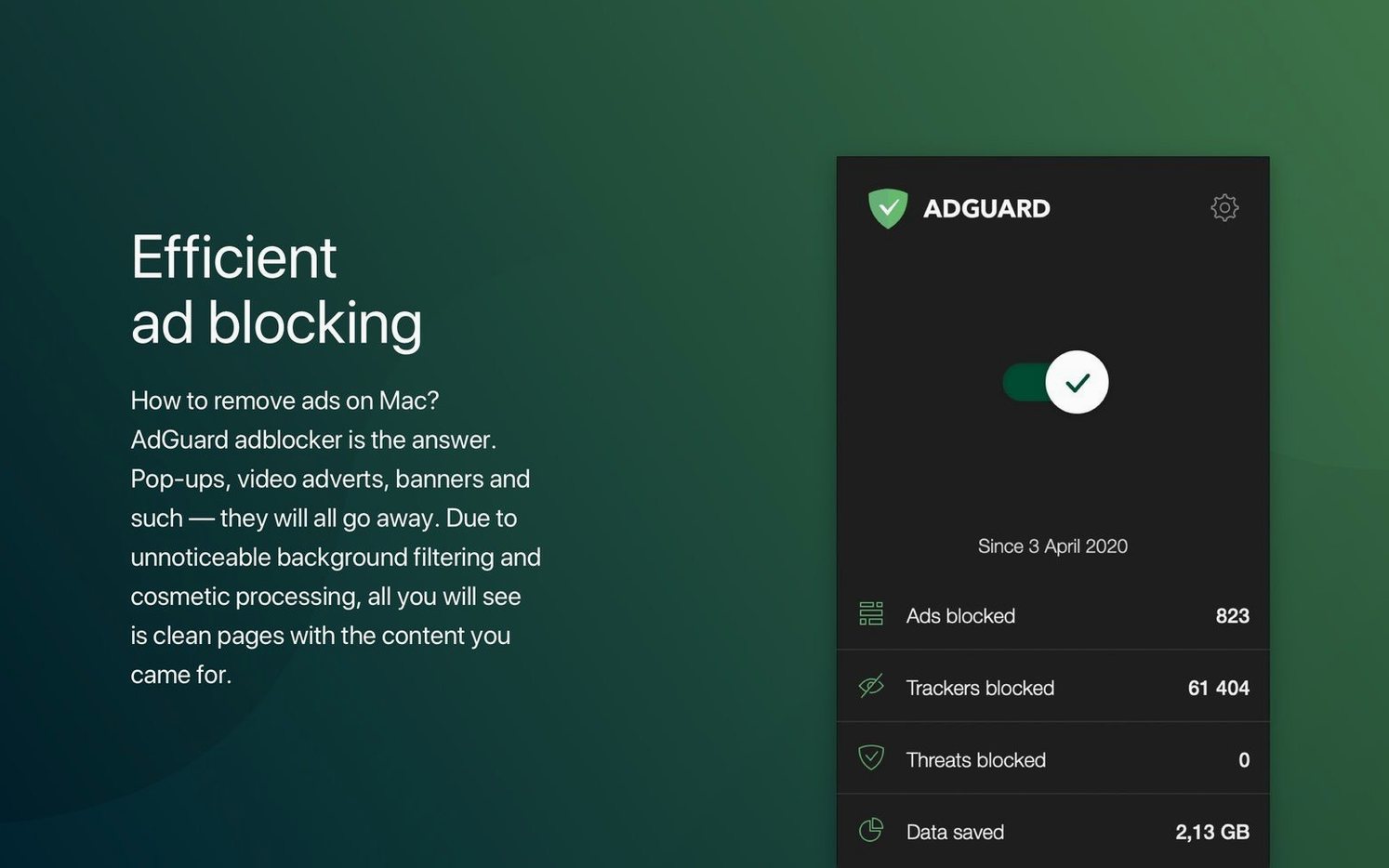
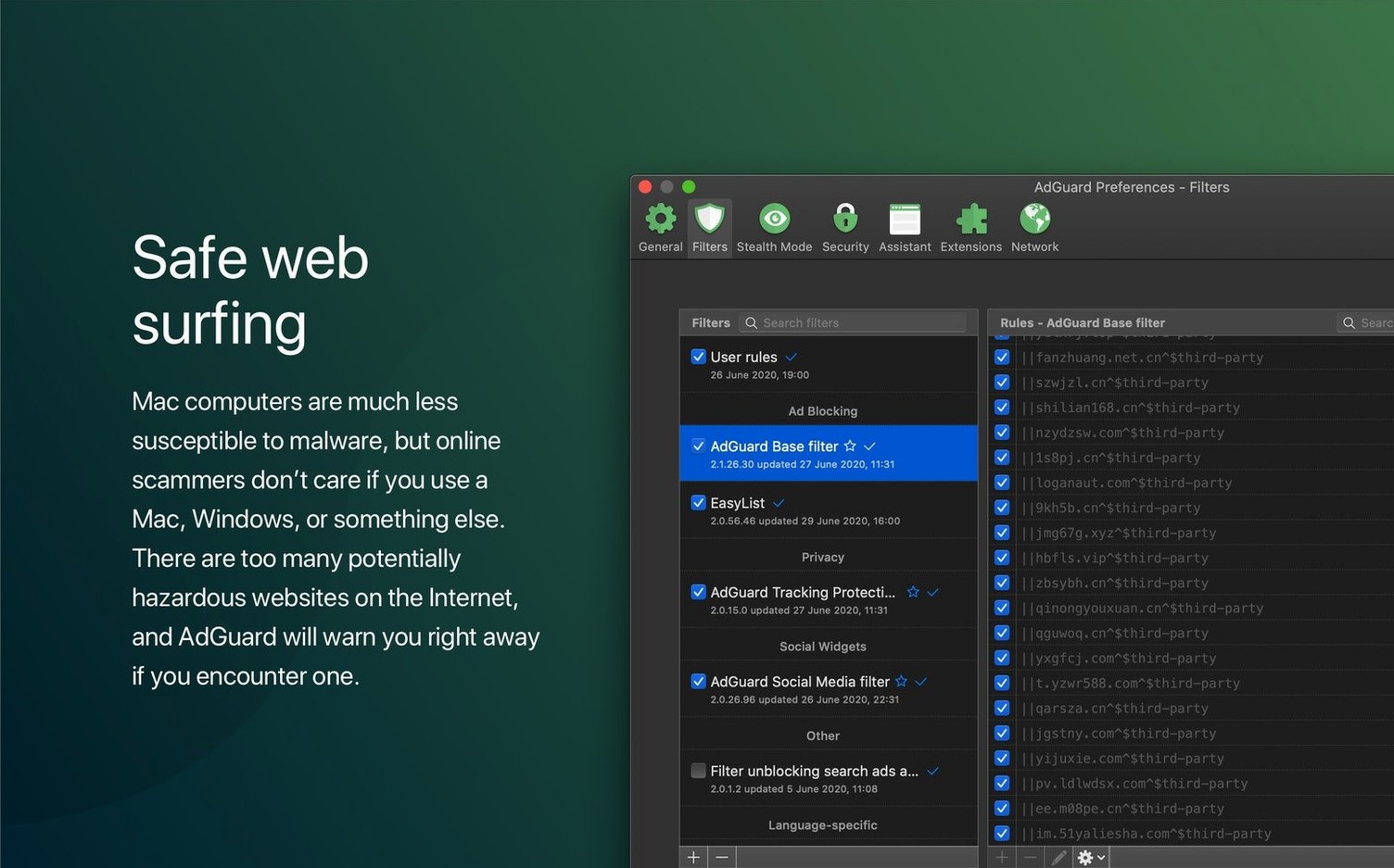
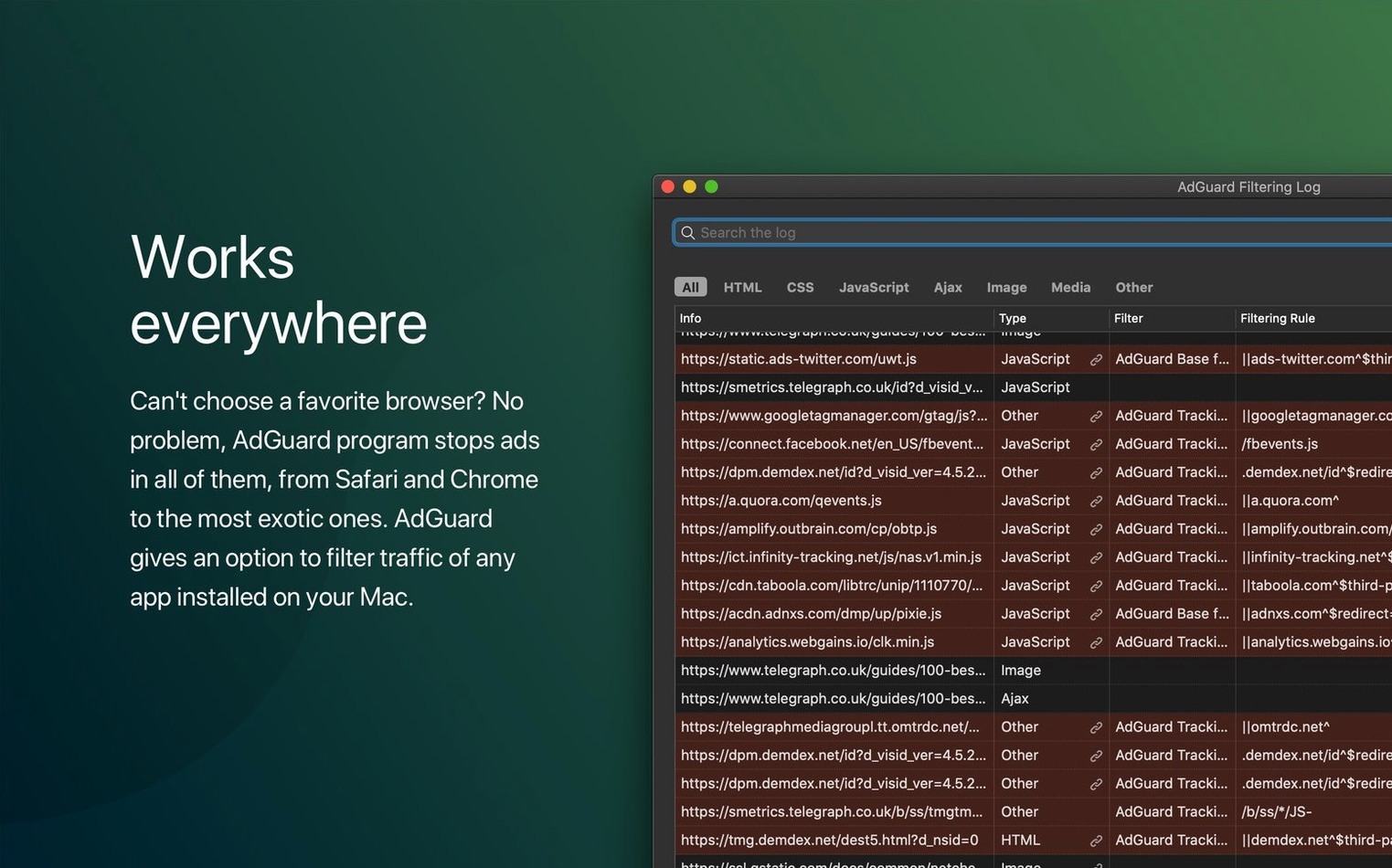
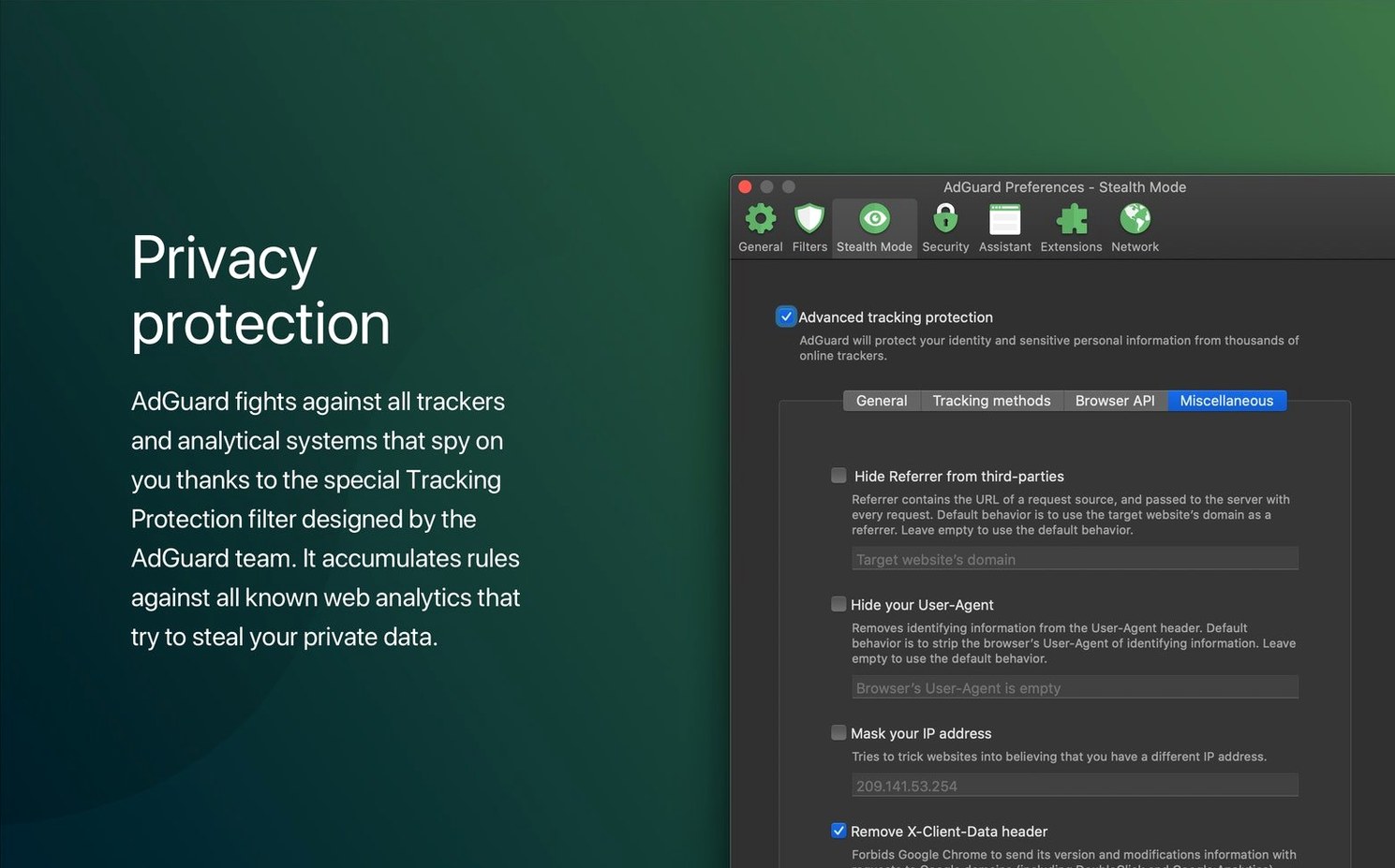
AdGuard for Mac filters traffic in every browser and application, not just Safari. It supports Apple Silicon and Intel 64-bit Macs, and works from macOS 10.15 Catalina onward.
Version 2.18 adds support for three AI-powered browsers, includes updated system requirements and improves overall stability. The interface is available in over twenty languages including English, Russian, German, Spanish, Chinese and Arabic.
Imagine a freelance designer who juggles research, client emails and cloud-based design tools across a dozen open tabs. Before AdGuard for Mac, each site loads with its usual clutter — auto-playing videos, newsletter pop-ups, tracking scripts that slow everything down. With the system-level blocker running, those elements never appear. The designer can flick between a research-heavy article, a Figma board and a Slack call without the machine bogging down. The same filter catches trackers in the email client and the design app itself, not just the browser windows. For someone who works in multiple apps all day, that system-wide coverage makes the difference between a smooth session and a frustrating one.
The most common mistake is assuming AdGuard for Mac only works in one browser. Because it installs as a system service, people sometimes disable it in their preferred browser’s extension settings, not realising that the main app handles filtering for everything. Another slip-up happens during the first few days: users see a page that looks broken and assume the blocker caused it, then disable the whole application. In most cases, a quick check of the filtering log shows a single rule that can be turned off for that site instead. Beginners also tend to ignore the manual blocking tool. When an ad slips through, it’s easy to right-click and hide it permanently, but many don’t try that step and just live with the occasional annoyance.
For anyone who already runs AdGuard for Mac, the update is straightforward and preserves all existing filters and custom rules. If you’re setting it up for the first time, version 2.18 gives you the most current experience without needing to hunt for older builds.
Spend the first hour browsing your usual sites and apps. If you notice a page that behaves oddly, open the filtering log and look for the rule that might be causing it. You can disable just that rule rather than pausing the whole blocker. That way, the protection stays on for everything else.
Take a moment to explore the manual blocking feature. When you spot an ad that isn’t caught automatically, use the tool to hide it. The app learns from that action and applies the rule from then on. Over the first week, this habit builds a personalised filter set that matches the sites you actually visit.
Keep an eye on the statistics panel. It shows how many trackers and ads have been blocked since installation. For most people, seeing those numbers climb reinforces that the app is working quietly in the background. It also helps you notice if filtering ever stops unexpectedly.
Finally, if you switch between work and personal browsing profiles, check that AdGuard for Mac runs under both. Because it filters at the system level, it should cover all accounts on the same machine without extra setup, but a quick test on each user account confirms it.
Sign in or create your account to leave a comment.
No notes from photographers yet. If you have used this on a real folder, say which camera and which Mac.