
 Get it for my Mac (247 MB)






 1Password
7.9.4

- Version
- 26.3.5
- Developer
- OpenMedia LLC
- Interface in
- Russian, English, Spanish, Italian, Chinese (Traditional), Chinese (Simplified), Korean, Dutch, Polish, Portuguese, Turkish, Finnish, French, Czech, Swedish, Japanese
- Licence on file
- K'ed by TNT team
- macOS it runs on
- macOS 12 or later
- Chip support
- Intel 64-bit
In the edit
4K Video Downloader Plus supports subtitles as separate SRT files or embedded in the video, and it handles 3D videos too. Here are three tasks to try first if you are new to the app.
Download a single video
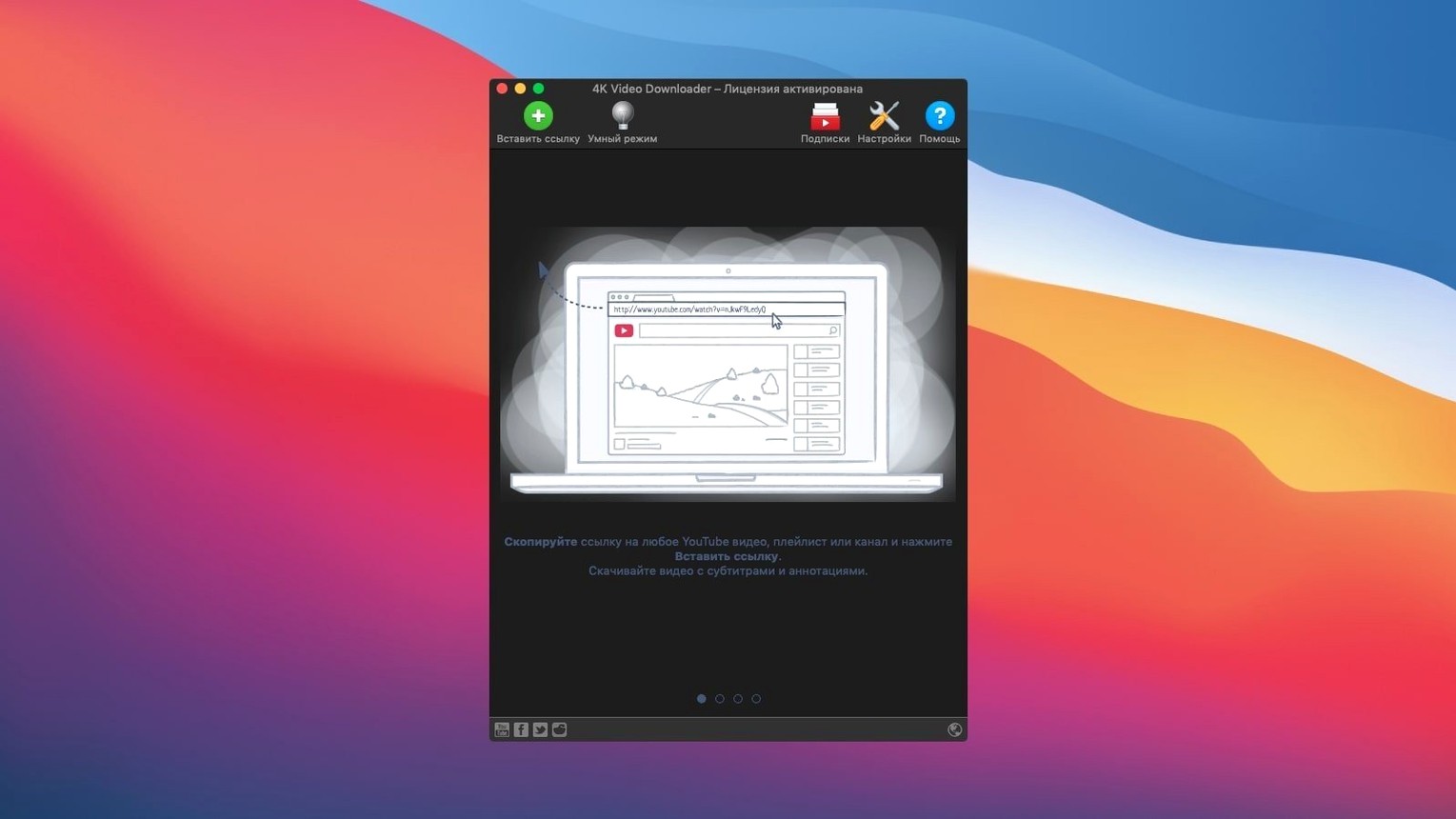
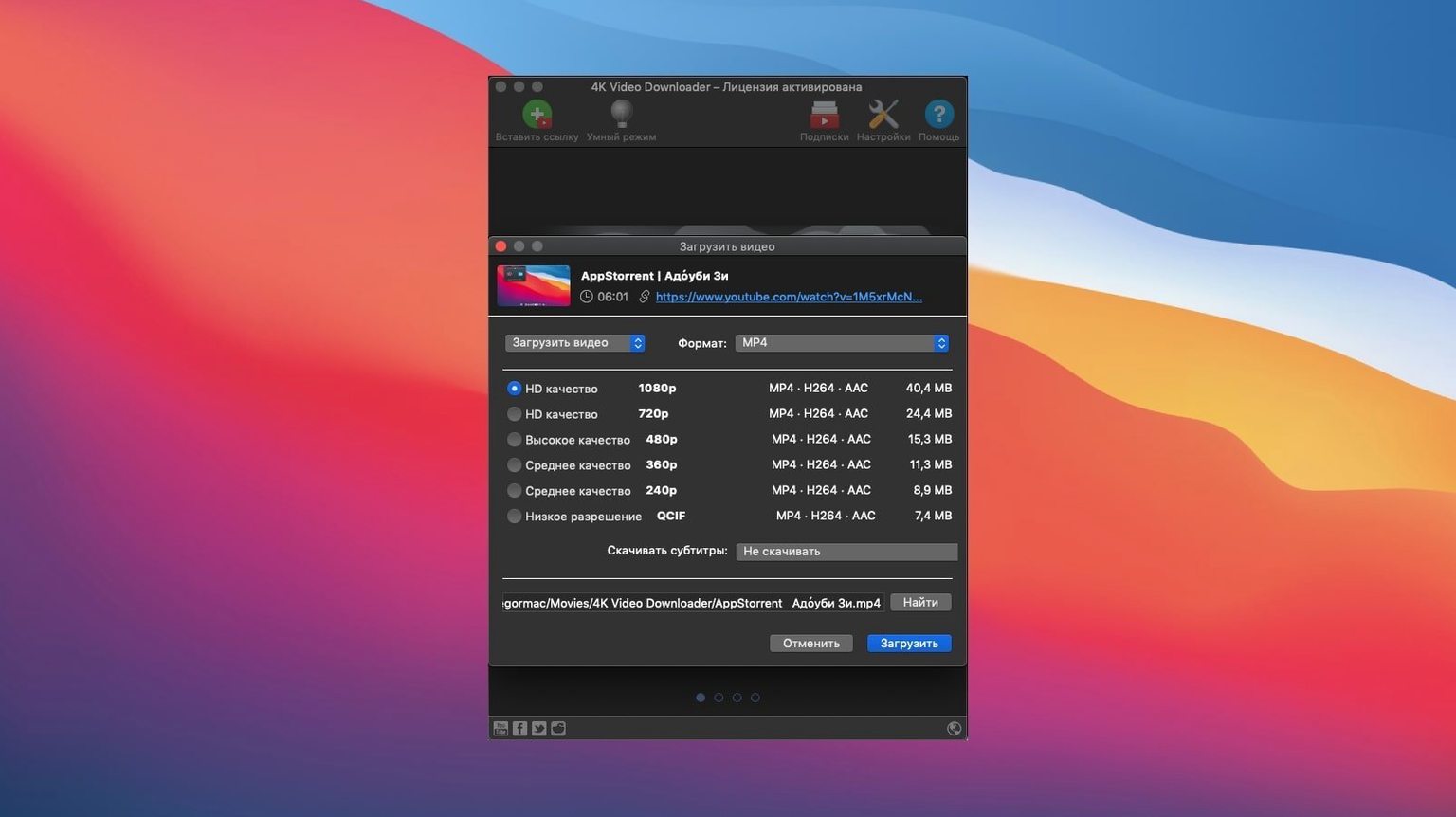
Copy the link from your browser, open the app, and paste it in. Choose the format, quality, and whether you want subtitles. The download starts in a few clicks.
Grab an entire playlist
Paste a playlist link and the app will list every video. Tick the ones you want or grab the whole set. It can also create an M3U file so you keep the playlist structure.
Set up smart mode
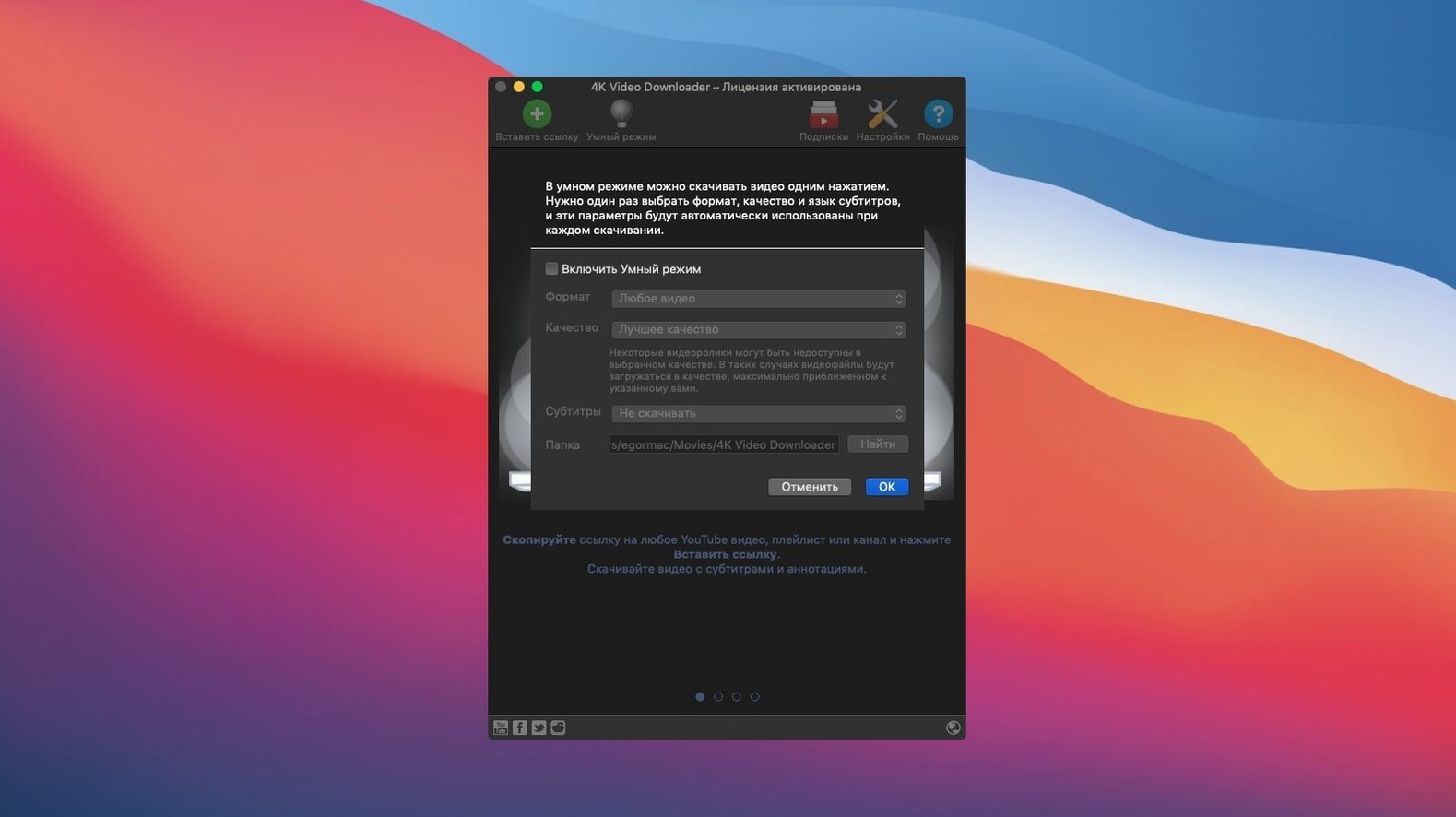
Open the preferences and turn on Smart Mode. Pick your usual quality, format, and subtitle choice once. Every future download will use those settings without asking.
A fresh install works fine, but these two tweaks save time
A fresh install of 4K Video Downloader works fine out of the box, but a couple of tweaks save time from the first download. Head to the preferences and look for the destination folder. By default files land in the Downloads folder, which gets messy fast if you grab a few videos a day. Set a dedicated folder inside Movies or a project folder instead. The app remembers it until you change it again.
The other one to switch early is the subtitle language. If you mostly watch English content, set English as the default in the subtitle tab. That way you do not have to pick it every time. For anyone working with foreign language clips, keeping the original language and adding English as a second track is a good shout. The app handles both without fuss.
Smart Mode is worth revisiting after the first few downloads too. You might start with MP4 at 1080p and later realise MKV suits your archive better. Change it once in Smart Mode and every new download follows suit. No need to remember which format you picked last time.
Downie is the closest rival—here's how they differ
There are a few other downloaders on Mac, and each has its own angle. Downie is probably the closest rival. It has a clean interface and supports a wide range of sites, similar to 4K Video Downloader. Where Downie leans on simplicity and a one-click paste approach, 4K Video Downloader gives you more control over format and subtitle handling before the download starts. If you often grab playlists or channels, the M3U export in 4K Video Downloader is something Downie does not offer in the same way.
Another option is YTD Video Downloader. It covers the basics and supports a fair number of sites, but the interface feels older and the format choices are more limited. 4K Video Downloader handles 4K and 3D content more directly, and the subtitle support is stronger. YTD works fine for a quick grab, but if you need consistent quality and format control across many downloads, the extra options in 4K Video Downloader make a difference.
Then there is the browser extension route. Extensions like Video DownloadHelper work inside Firefox or Chrome and are convenient for one-off clips. But they depend on the browser being open and can struggle with playlists or embedded videos. 4K Video Downloader runs as its own app, so it keeps downloading even if you close the browser, and the clipboard link feature means you can queue up videos while browsing and let the app work through them later.
When the app won't pick up a pasted link
One of the most frequent issues is the app not picking up a link after you paste it. Usually the fix is simple: make sure the link is the full URL from the address bar, not a shortened or shared link. Shortened links often redirect and the app cannot follow them. If it still does not work, try copying the link again from the browser and using the Paste Url button rather than the menu.
Another common one is downloads stopping halfway or failing. This usually happens with very long playlists or large files. The best approach is to break the playlist into smaller chunks. Download ten or fifteen videos at a time instead of the whole channel at once. The app handles smaller batches more reliably, and you can queue the next batch while the first one finishes.
Some people find that the app does not show the quality options they expect, especially for 4K content. This can happen if the video itself was uploaded in a lower resolution. Check the original video page to see what resolutions are available. If the source only has 720p, the app cannot invent higher quality. Also make sure you have selected the right output format, because some formats have resolution limits.
Subtitle files sometimes download out of sync or with the wrong language label. If that happens, check the subtitle settings in preferences and confirm the default language matches the video content. For videos with multiple subtitle tracks, the app lists them all, so pick the right one before downloading. If the timing is off, it is usually a problem with the source rather than the app, but re-downloading with a different language option can sometimes fix it.
Better support for site updates keeps the workflow the same
Version 26.3.5 keeps the core workflow the same, which is good news for anyone who does not want to relearn the interface. The main change is better support for site updates. YouTube and other platforms tweak their code regularly, and older versions of downloaders stop working when that happens. The latest build handles those changes under the hood, so links that stopped working in earlier versions should work again.
The clipboard monitoring also feels more reliable. In previous versions, you sometimes had to paste the link manually even when the clipboard feature was on. That has been tightened up, so pasting a link triggers the download window more consistently. It is a small change, but it saves a click every time you grab a new video.
Format support remains the same: MP4, MKV, M4A, MP3, FLV, and 3G. No new formats were added, but the existing ones are handled well. The app still supports Vimeo, SoundCloud, Flickr, Facebook, DailyMotion, and Instagram alongside YouTube, and the list has not changed in this version.
Opening a finished file directly from the app
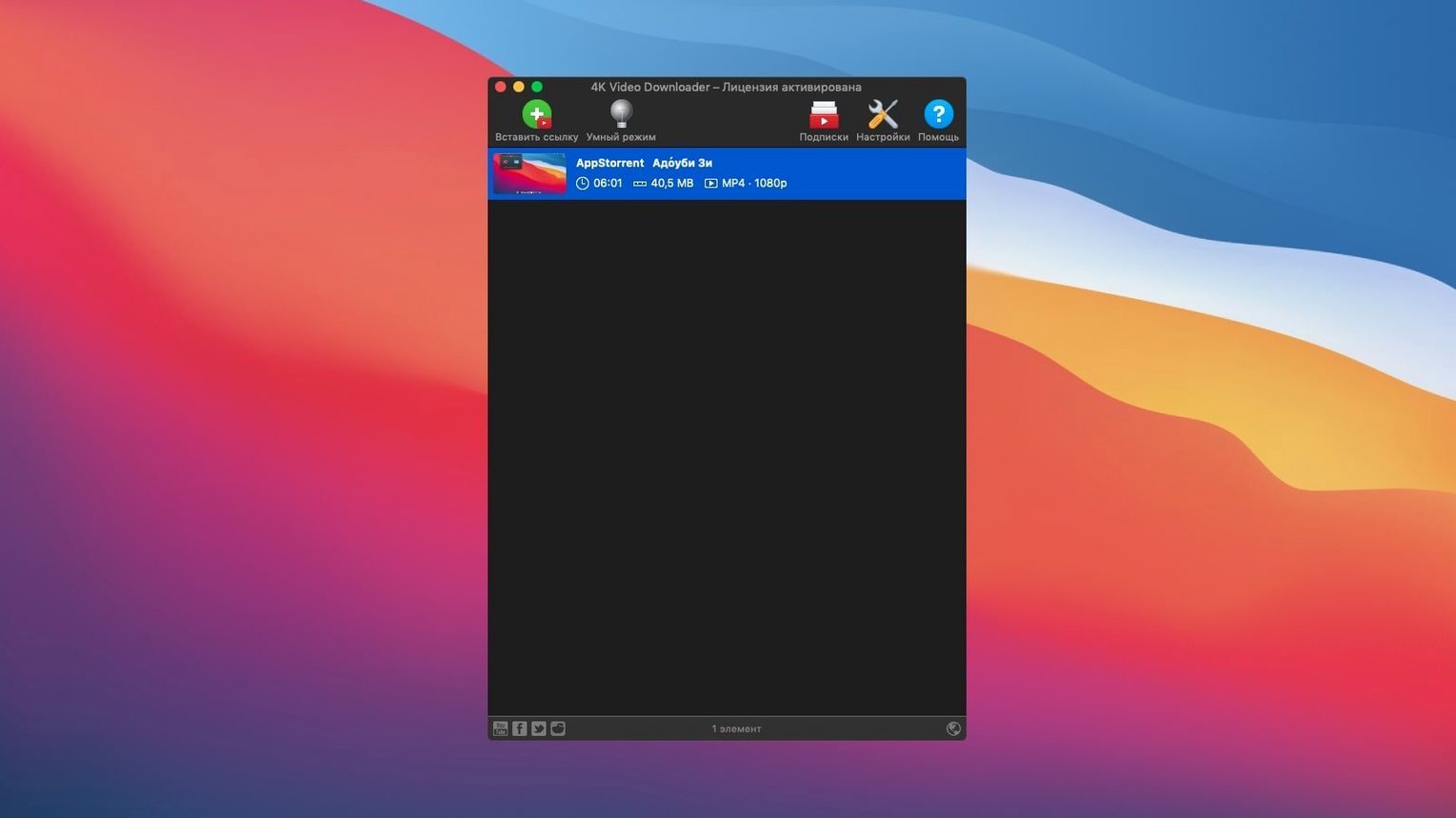
4K Video Downloader works well with the Mac file system and a few common workflows. Once a download finishes, you can open the file directly from the app by clicking the magnifying glass icon next to the completed item. That reveals the file in Finder, which is handy when you want to move it to a project folder or rename it.
The app also plays nicely with media players like VLC and IINA. Since it downloads standard formats, you can open the files in any player without conversion. If you keep a media library in apps like Plex or Infuse, you can set the download destination to a folder that those apps watch. New videos appear in your library automatically after the download completes.
For anyone using automation tools like Hazel or Keyboard Maestro, the consistent file naming and folder structure make it easy to build rules. You can sort downloads by date, source site, or format without touching the app itself. The M3U file export is useful for playlist management too. If you use a player that supports M3U playlists, you can keep your downloaded channels organised and accessible from one file.
macOS features like Quick Look work on the downloaded files, so you can preview a video without opening a player. The app does not interfere with the system media keys or notifications, so you can keep working while downloads run in the background. It sits quietly in the dock and only pops up when you paste a new link or a download finishes.
For photographers and video editors, the ability to download reference clips or music tracks directly to a project folder is useful. You can keep everything in one place without switching between the browser and Finder. The app does not process or convert the files after download, so the quality stays exactly as it was online. That matters when you are pulling reference footage for editing or grabbing audio samples for a mix.
If you use a yt downloader 4k free tool to grab high-resolution clips for offline review, the app fits into that workflow without extra steps. The 4k video downloader plus mac version handles the same formats and sites, so moving between the two is straightforward. The clipboard link feature means you can queue up videos while browsing and let the app work through them later, which is useful when you are researching a project and want to save everything for later.
For anyone who keeps an archive of online content, the app supports 4k torrenting sites style organisation by letting you name files before download and choose the destination folder each time. The consistent format output means you can build a library that is easy to search and play across different devices.
Mac it needs
- macOS 12 or later
- Intel 64-bit processor
Installing on a Mac
- Mount the disk image and run it with Open Gatekeeper friendly.
- Press Enter in Terminal to bypass Gatekeeper.
- Drag the app to the Applications folder.
- Launch the app from Applications.
Notes from photographers
Sign in or create your account to leave a comment.
No notes from photographers yet. If you have used this on a real folder, say which camera and which Mac.
