
 Get it for my Mac (47 MB)
 AnyTrans for iOS
8.9.14

- Version
- 10.0
- Developer
- Nektony
- Interface in
- Russian, English, German, Spanish, Italian, Chinese (Traditional), Chinese (Simplified), Ukrainian, French, Japanese
- Licence on file
- Not required
- macOS it runs on
- macOS 12 or later
- Chip support
- Apple Silicon, Intel 64-bit
In the edit
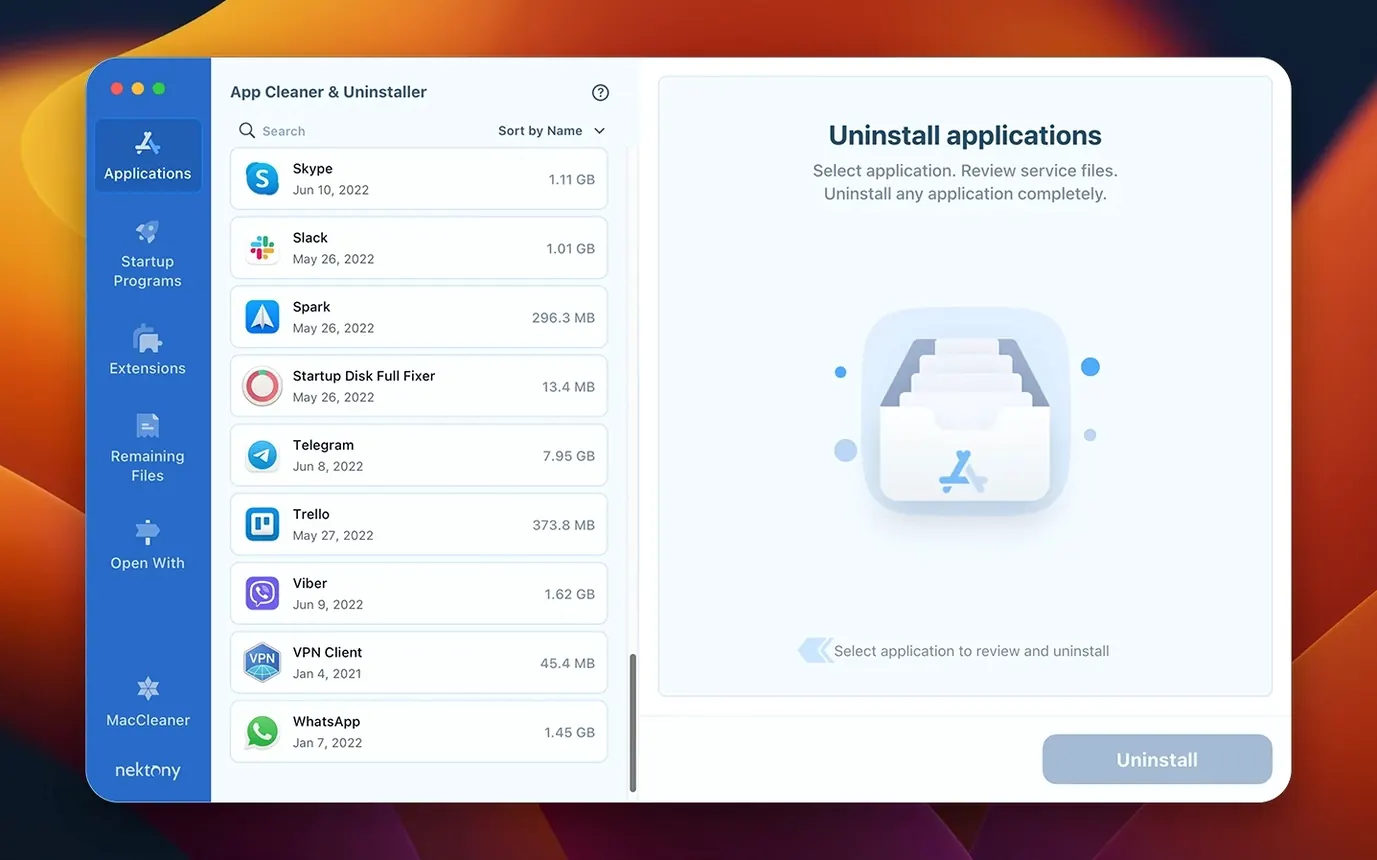
If you already use something like CleanMyMac to keep your drive tidy, App Cleaner & Uninstaller is the more surgical tool for when you actually want an app gone — completely. Version 10.0 adds a few deeper features that make it worth a look for anyone who manages a loaded Mac.
- Complete removal of applications. Drag an app in and it hunts down the preference files, caches and support folders that normally stay behind. Also finds leftovers from apps you dragged to the Trash weeks ago.
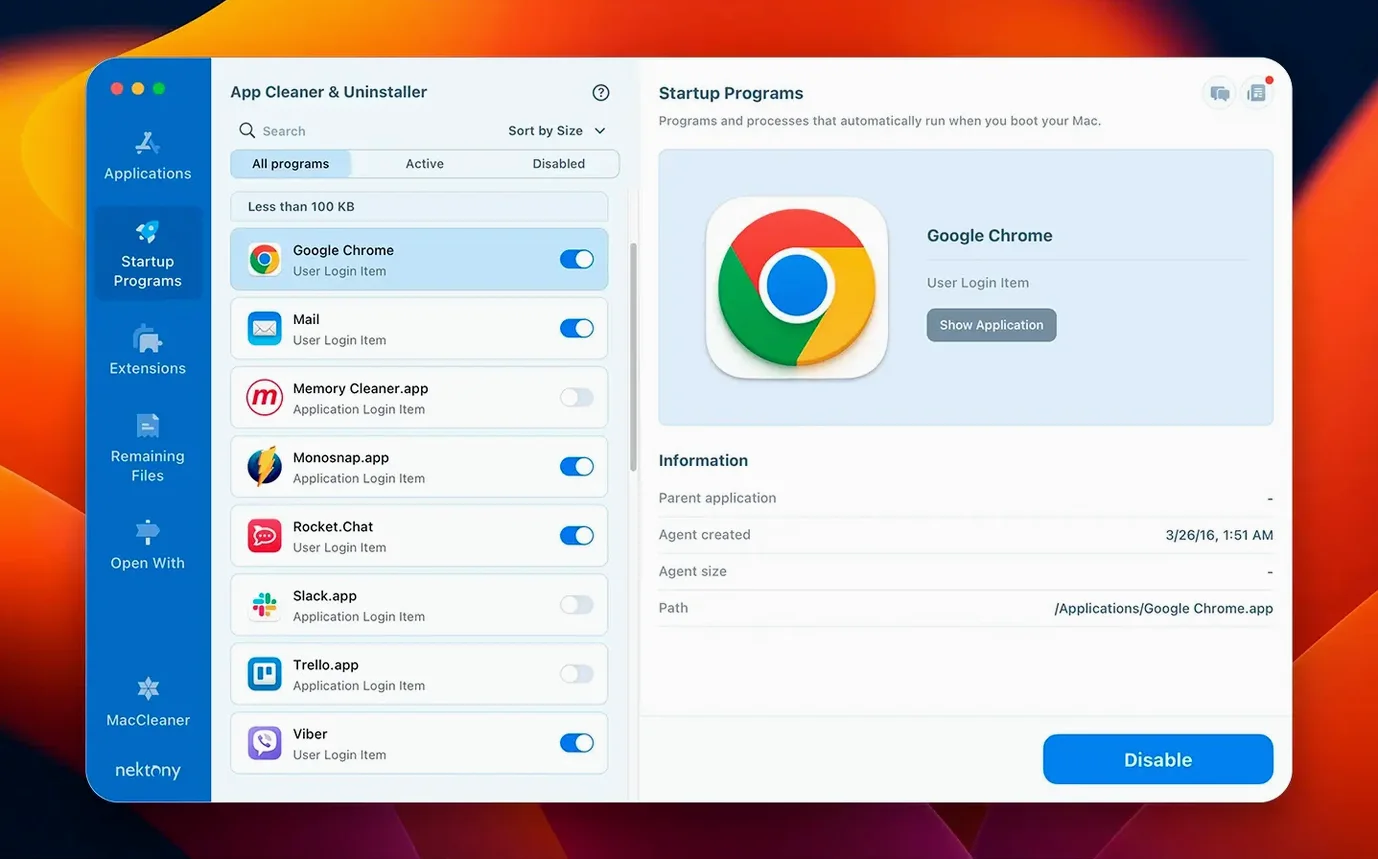
- Startup manager. See every item that launches when your Mac boots and disable the ones you don't need — handy when a trialware keeps adding itself.
- Network access tab (new in 10.0). Lists which apps have network permissions and lets you revoke them without digging into System Settings.
- Incompatible applications filter. Flags apps that won't run on your current macOS version, so you know what to update or remove before an OS upgrade.
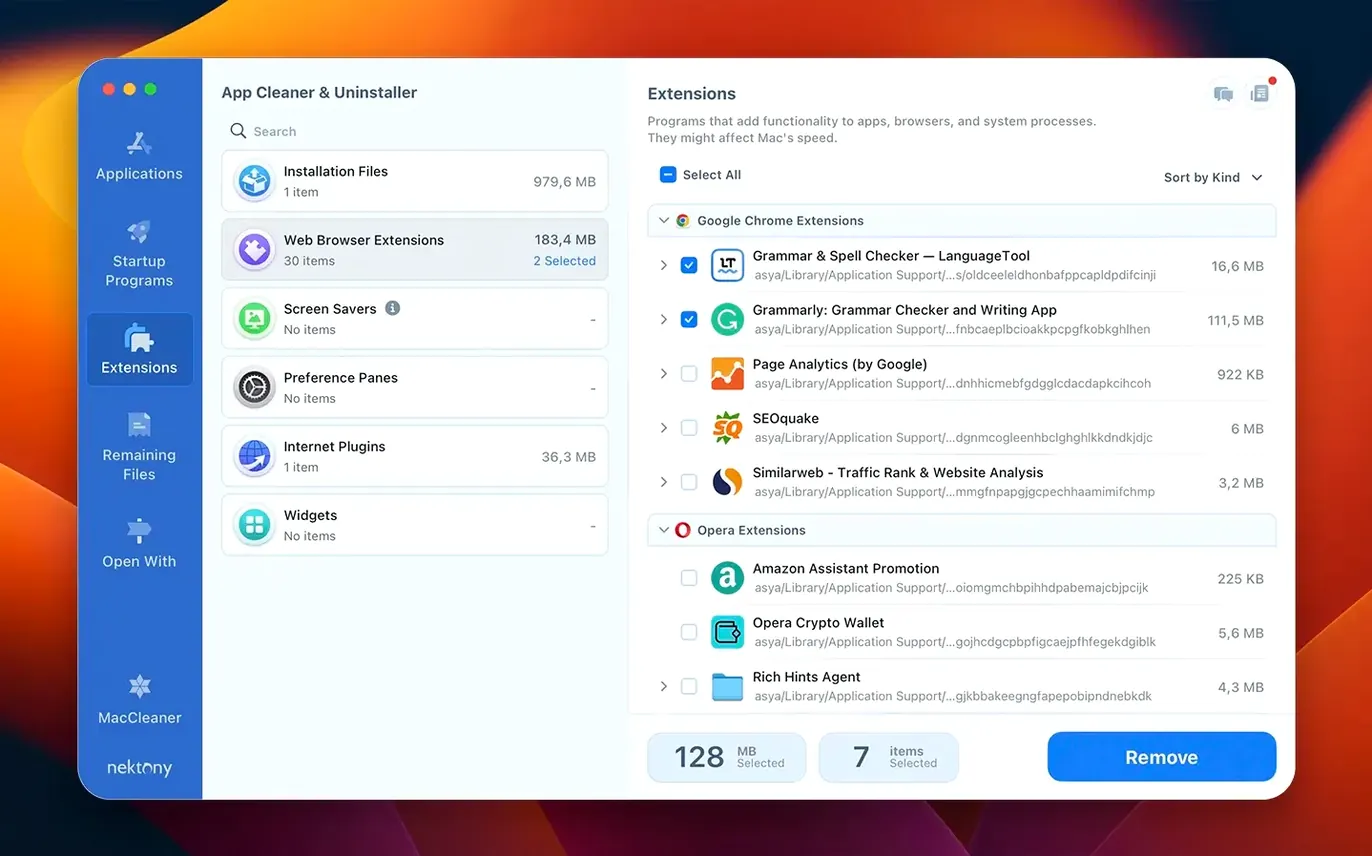
- Expanded updates database. Now covers Safari extensions and Homebrew command-line tools, not just standard Mac apps.
- Redesigned menu bar app. Includes network traffic control, so you can monitor and block connections from the menu bar.
The AI Summary, Privacy Audit and Security Check are also present, but for a working photographer the real value is in the cleanup and startup tools that keep a busy editing machine running smoothly.
If dragging an app finds nothing, check it isn't still running
The first time you run App Cleaner & Uninstaller, a couple of things might catch you off guard. If you drag an app into the window and it doesn't seem to find anything, check that the app isn't still running in the background — some utilities and menu bar apps keep a process alive even after you close their window. Quit the app fully (check the menu bar icon too) and try again.
Another one I see: you remove an app, but its icon stays in Launchpad. That's not the app itself, it's a cached placeholder. The uninstaller clears the files, but Launchpad sometimes holds onto the icon until you restart or rebuild the Launchpad database. A quick reboot usually sorts it.
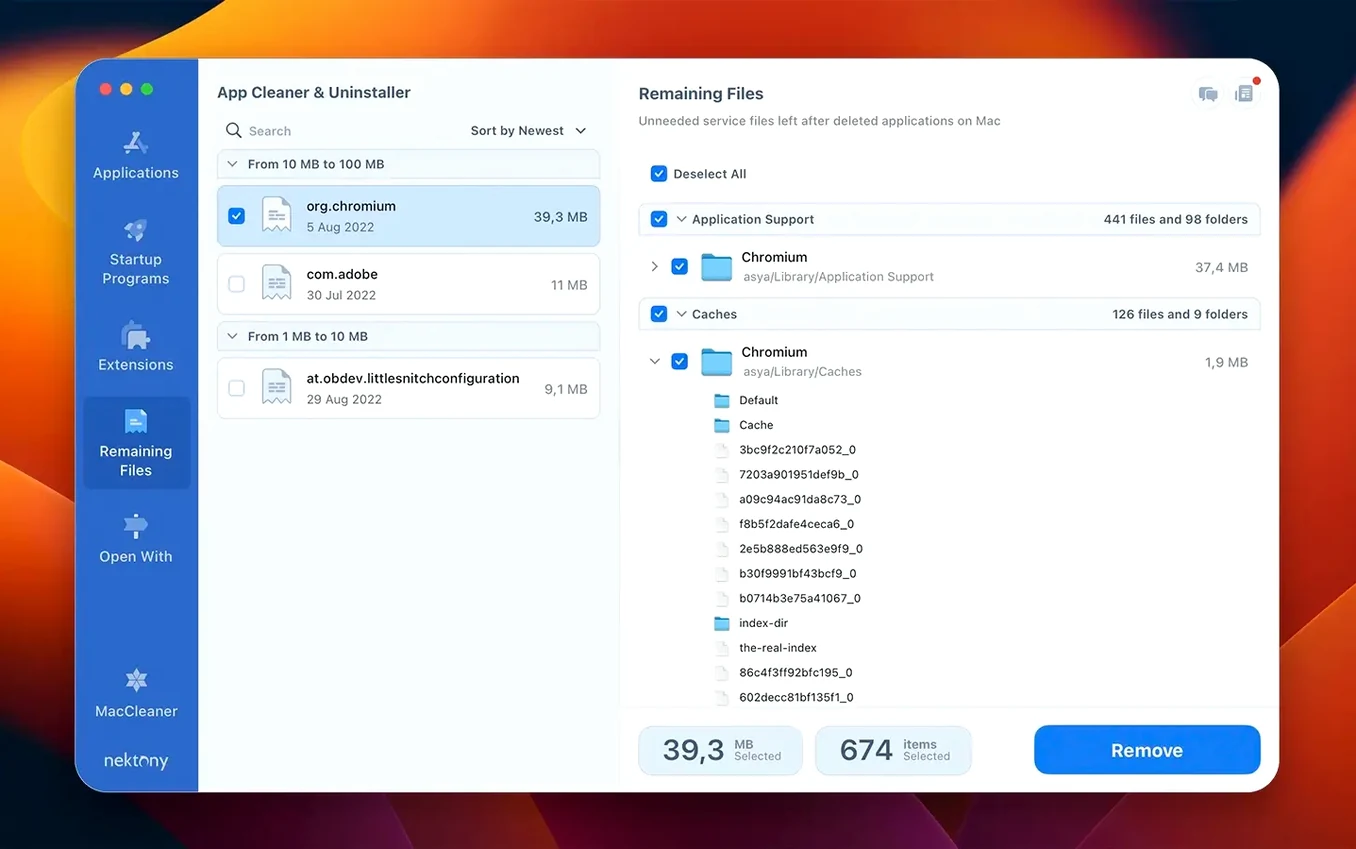
If you're using the leftover finder and it shows files from an app you deleted months ago, the tool is working correctly — those are orphaned preference files and caches. You can select them and remove them in one go. Just be careful not to delete files that belong to apps you still use. The tool labels each file with its parent app name, so you can check before hitting remove.
The network access tab makes blocking app connections one-click easy
The network access tab is the addition I notice most often. Before, if I wanted to stop an app from phoning home, I had to open System Settings, find the network panel, scroll through a list and toggle it off. The menu bar app now shows network traffic too, which is handy if you're testing whether an app still connects after you've blocked it.
The updates database growing to include Safari extensions and Homebrew command-line tools means fewer manual checks. If you use Homebrew regularly, you'll see update notifications for those tools alongside your regular Mac apps, so you don't have to remember to run brew update separately.
The incompatible applications filter is a quiet lifesaver before a macOS upgrade. Instead of guessing which of your older photography utilities will break, you get a list of apps that won't work on the newer system. I'd run this before jumping to a new macOS version, not after.
Start with the leftover finder to clear files from already-deleted apps
Start with the leftover finder before you uninstall anything new. It scans for files from apps you already deleted manually, and clearing those first gives you a clean baseline. Then move to the main uninstaller for anything you want to remove going forward.
Take a few minutes to go through the startup items list. Most Macs accumulate launch agents and login items that you don't need — old updaters, helper tools, trialware that re-enables itself. Disable anything you don't recognise. You can always re-enable it later if something breaks.
Use the incompatible applications filter once, screenshot the list, and keep it somewhere. When the next macOS version lands, you'll already know what needs updating before you install it.
If you manage multiple Macs — a studio machine and a laptop, say — the app's language options mean you can set the interface to whichever language you're comfortable with and hand it to a colleague who prefers another. It supports nine languages, so it's easy to switch.
Checks developer websites so you know when direct-download apps update
It checks developer websites too, so you get notified when a direct-download app has a new version.
The Privacy Audit and Security Check are bundled in, but they work independently of the uninstaller. You can run them from the main window without removing anything. They scan for apps with microphone, camera or accessibility access, which is good for a quick privacy review after installing something new.
The AI Summary feature gives you a plain-english breakdown of what an app does and what permissions it has. It's not something you'd use daily, but when you inherit a machine or install a utility you're unsure about, it saves you opening System Settings to check each permission manually.
New this release
- Network access tab added
- Menu bar app redesigned with network traffic control
- Updates database expanded to include Safari extensions and Homebrew command-line tools
- Incompatible applications filter added
Mac it needs
- macOS 12 or later
- Apple Silicon or Intel processor
Questions I actually get
Does App Cleaner & Uninstaller support Apple Silicon Macs?
Yes, it runs on both Apple Silicon and Intel Macs with macOS 12 or later.
Can I remove apps that were already moved to the Trash?
Yes, the tool finds leftover files from applications that were previously moved to the Trash and lets you remove them.
What languages is the interface available in?
English, Russian, German, Spanish, Italian, Chinese (Traditional and Simplified), Ukrainian, French and Japanese.
Installing on a Mac
- Open the downloaded disk image.
- Drag the app into the Applications folder.
- Launch the app from Launchpad after copying finishes.
Notes from photographers
Sign in or create your account to leave a comment.
No notes from photographers yet. If you have used this on a real folder, say which camera and which Mac.
Similar apps
Next to it in Utilities
All Utilities picks
AnyTrans for iOS
8.9.14
 AppZapper
2.0.3
 AmpliTube
5.8.2
 AlDente
1.39.4
 Alcove
1.7.9
 Airfoil
5.13.0
 Airflow
3.3.10
 AirBuddy
3.0
