Get it for my Mac (68 MB)
 Cocktail Sequoia Edition
18.7.1
Cocktail Sequoia Edition
18.7.1
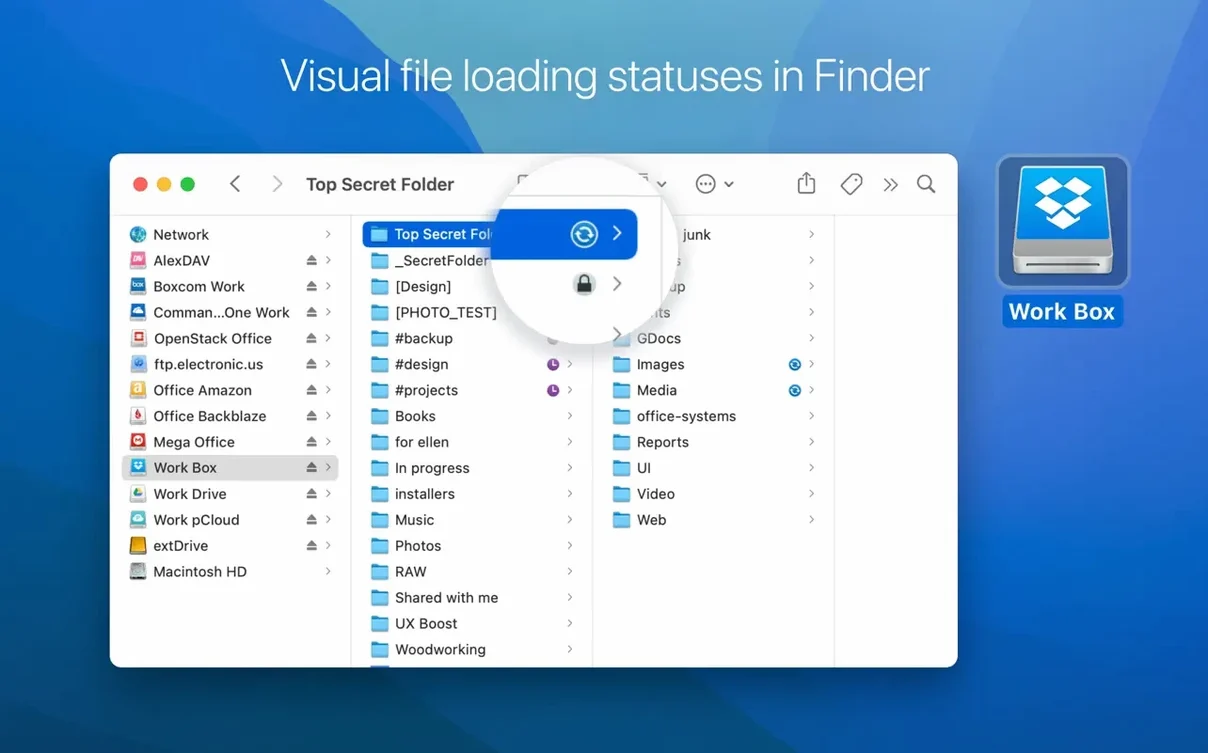
One thing that comes up a lot is whether CloudMounter downloads everything to your Mac. It doesn't. The files stay on the remote server until you open them, which means you don't need to worry about your local disk filling up with a whole Google Drive or Dropbox you only dip into now and then. The app streams the data when you need it, and the progress icons in Finder tell you when a transfer is happening or finished.
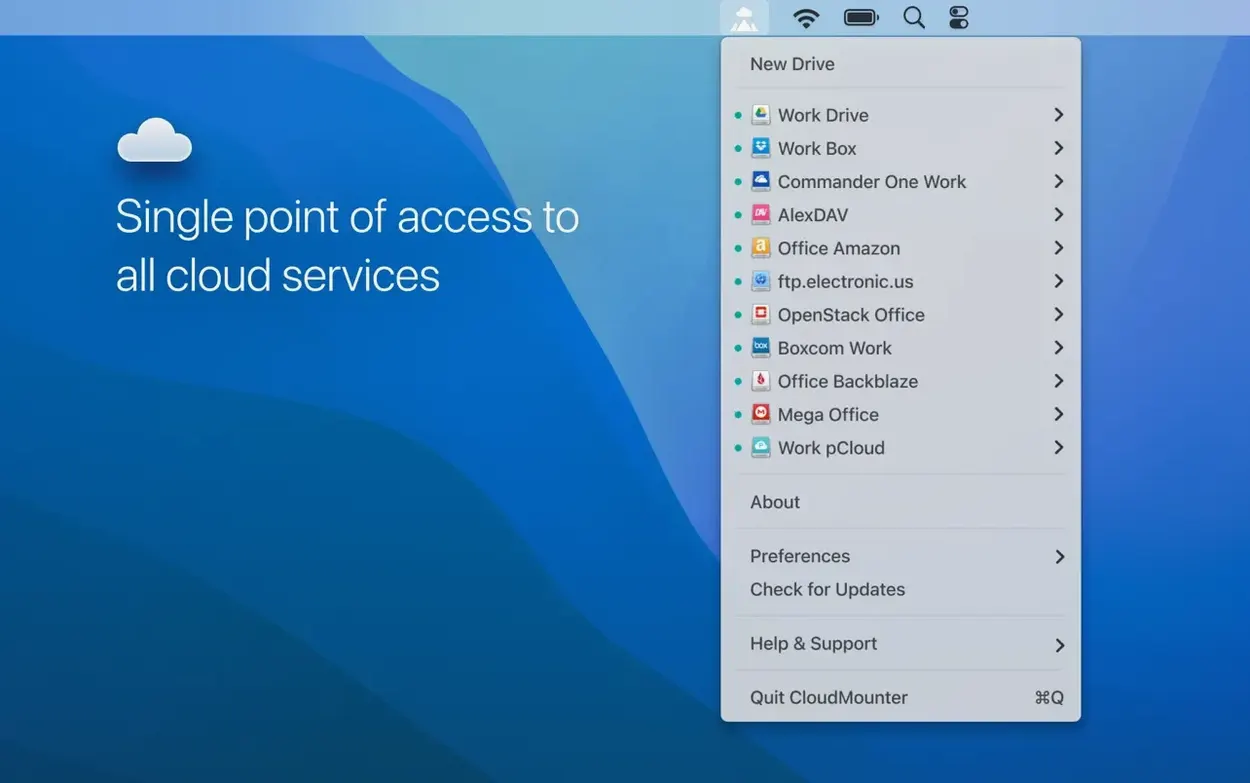
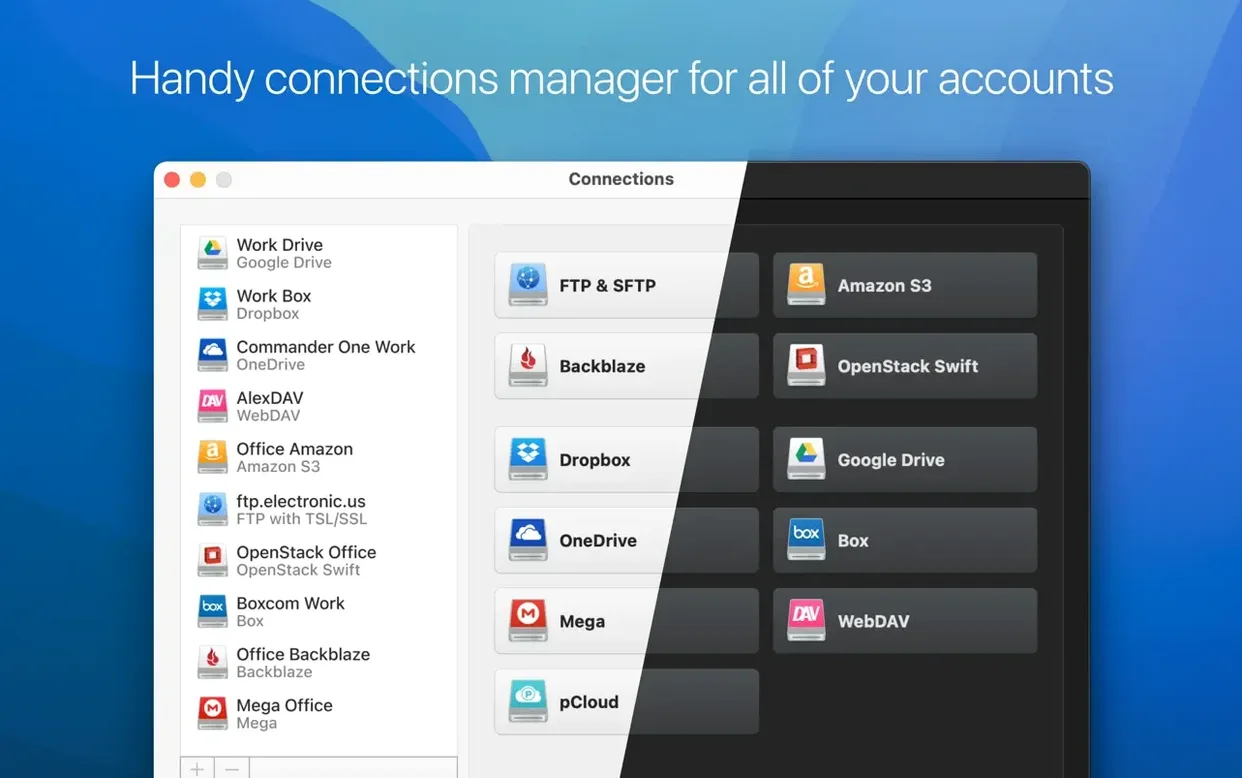
Another common question is about multiple accounts. Yes, you can connect several Google Drives, several OneDrive accounts, or mix and match whatever you like. Each one appears as its own drive in the sidebar, so you can jump between them without logging out and back in. If you manage personal and work storage on the same service, that alone saves a lot of switching.
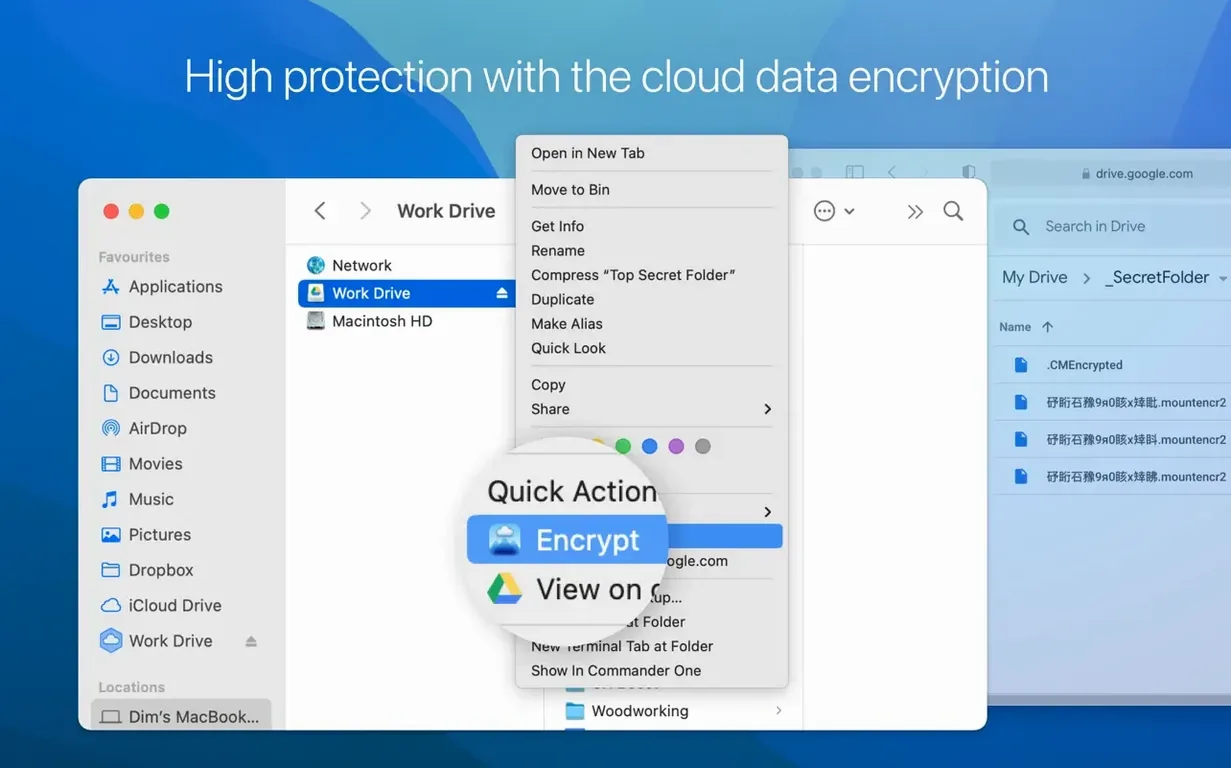
People also wonder about encryption. CloudMounter uses AES-256 to encrypt your data before it leaves the Mac, so even if someone gets hold of your cloud files, they can't read them without the key. It's optional, but worth turning on for anything sensitive you'd rather not leave exposed on a server somewhere.
And yes, it works with the Finder sidebar, Quick Look and Spotlight. You mount the drive, and macOS treats it like any other volume. Open files with your regular apps, save changes back to the cloud, drag and drop between services — it all behaves the way you'd expect.
The status icons on each mounted drive are one of those details you don't notice until they save you a headache. A little badge shows when a file is uploading, downloading, moving or updating, so you can see at a glance whether something is still in transit before you close your laptop.
CloudMounter also remembers your connection settings between restarts. Mount a drive once, and it reconnects automatically when you open the app again. No re-entering passwords or re-authorising accounts every time you reboot. That's the kind of thing that makes a tool feel like it's working with you rather than against you.
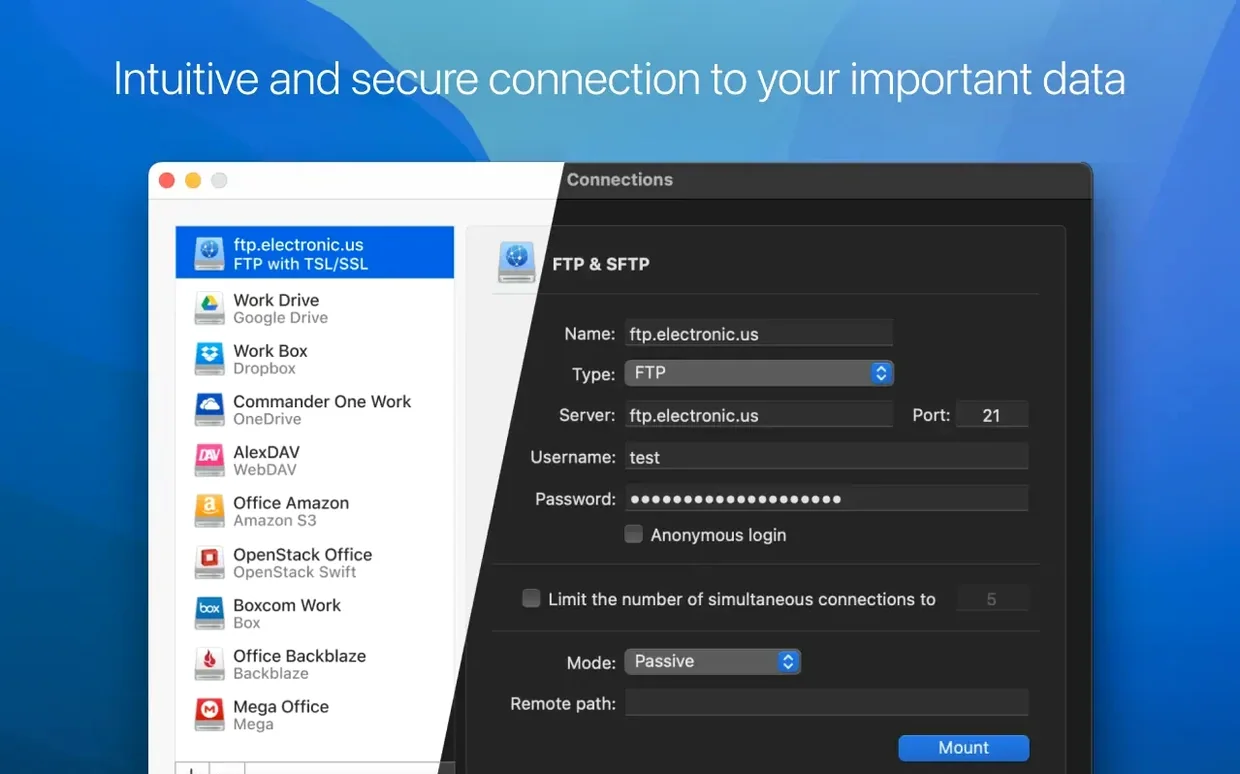
The app supports a wide range of protocols beyond the usual cloud storage names. WebDAV, OpenStack Swift and Backblaze B2 are all there, which matters if you work with less common setups or self-hosted storage. And with interface languages in Russian, English, German, Spanish, Italian, Chinese, Korean, Portuguese, French, Czech and Japanese, it's comfortable for a lot of users right out of the box.
Start with one account. Mount your most-used cloud drive first and get a feel for how it behaves in Finder before adding the rest. That way you understand the workflow — opening a file, saving changes, watching the upload complete — before you fill the sidebar with a dozen drives.
If you use FTP or SFTP connections regularly, set those up early. The improved large-file uploads in version 4.18 make a real difference when you're moving photos, videos or archives. And the fix for download cancellation on SFTP means you can stop a transfer without worrying about leftover or corrupted files.
Keep an eye on the cache volume setting. If you change where cached files are stored, the app now handles file downloads properly — something that was fixed in this release. It's worth checking that your cache location points to a drive with enough room, especially if you work with big files.
Try the encryption feature on a test folder first. Enable AES-256 for one connection, upload a few files, then download them on another machine to confirm you can access them with the key. Once you're confident it works as expected, you can enable it for everything that matters.
Because CloudMounter mounts storage as local drives, it works with almost anything on your Mac. Open a RAW file from a mounted OneDrive in Capture One or Lightroom, edit it, save it — the changes go straight back to the cloud. No extra sync step, no manual upload. For wedding photographers, that means you can pull selects from a client's Dropbox, process them and send the finals back without leaving your editing app.
The same applies to design tools. Sketch, Figma (when working with local files), Affinity Photo, Pixelmator Pro — they all see the mounted drive as a regular volume. Save assets directly to a team's shared storage or pull in a font from a WebDAV server without downloading it first.
Finder features like Quick Look work natively. Select a file on a mounted drive, hit the space bar, and you get a preview. Rename files, move them between folders, use tags — it's all there. Spotlight searches index the mounted content too, so you can find files across multiple cloud accounts with a single search.
If you use multiple Macs, the setup is straightforward. Install CloudMounter on each machine, connect the same accounts, and every computer sees the same cloud storage in Finder. No need to sync a local folder between devices when the files live in the cloud anyway.
And for anyone who's ever searched for cloudmounter macos or wondered about alternatives like cloudmounter crack or cloudmounter activation code — the app works as intended without any of that. Mount, browse, work. It's a simple proposition that holds up well in a busy workflow.
It works with Google Drive, Dropbox, Amazon S3, OneDrive, FTP, SFTP, FTPS, OpenStack Swift, Box, Backblaze B2, MEGA and WebDAV.
No, it mounts the remote storage as a local drive so you can browse and edit files directly without downloading everything first.
It needs macOS 10.14 or later and runs on 64-bit Intel Macs.
Sign in or create your account to leave a comment.
No notes from photographers yet. If you have used this on a real folder, say which camera and which Mac.