
 Get it for my Mac (30 MB)






 iDownerGo
10.15.0
- Version
- 4.6.0
- Developer
- Macroplant
- Interface in
- English
- Licence on file
- K'ed by TNT team
- macOS it runs on
- OS X 10.10 or later
- Chip support
- Intel 64-bit
In the edit
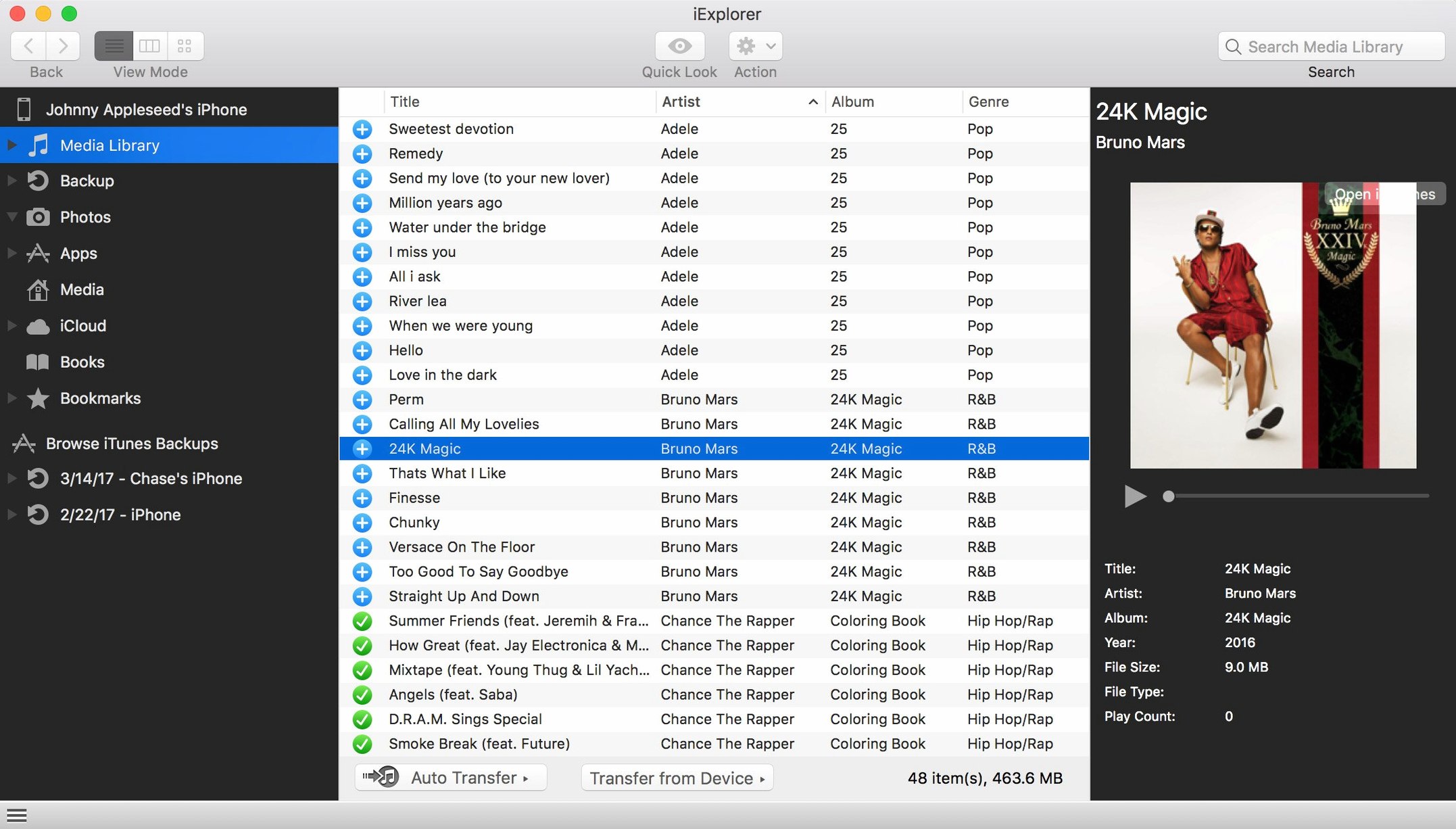
iExplorer is a Mac utility that lets you browse and transfer data from iPhone, iPad, and iPod devices without relying on iTunes for file management.
| Detail | Info |
|---|---|
| Version | 4.6.0 |
| Release date | 14 October 2022 |
| Interface language | English |
| macOS support | 10.10 and later, Intel 64-bit |
| Other requirements | iTunes |
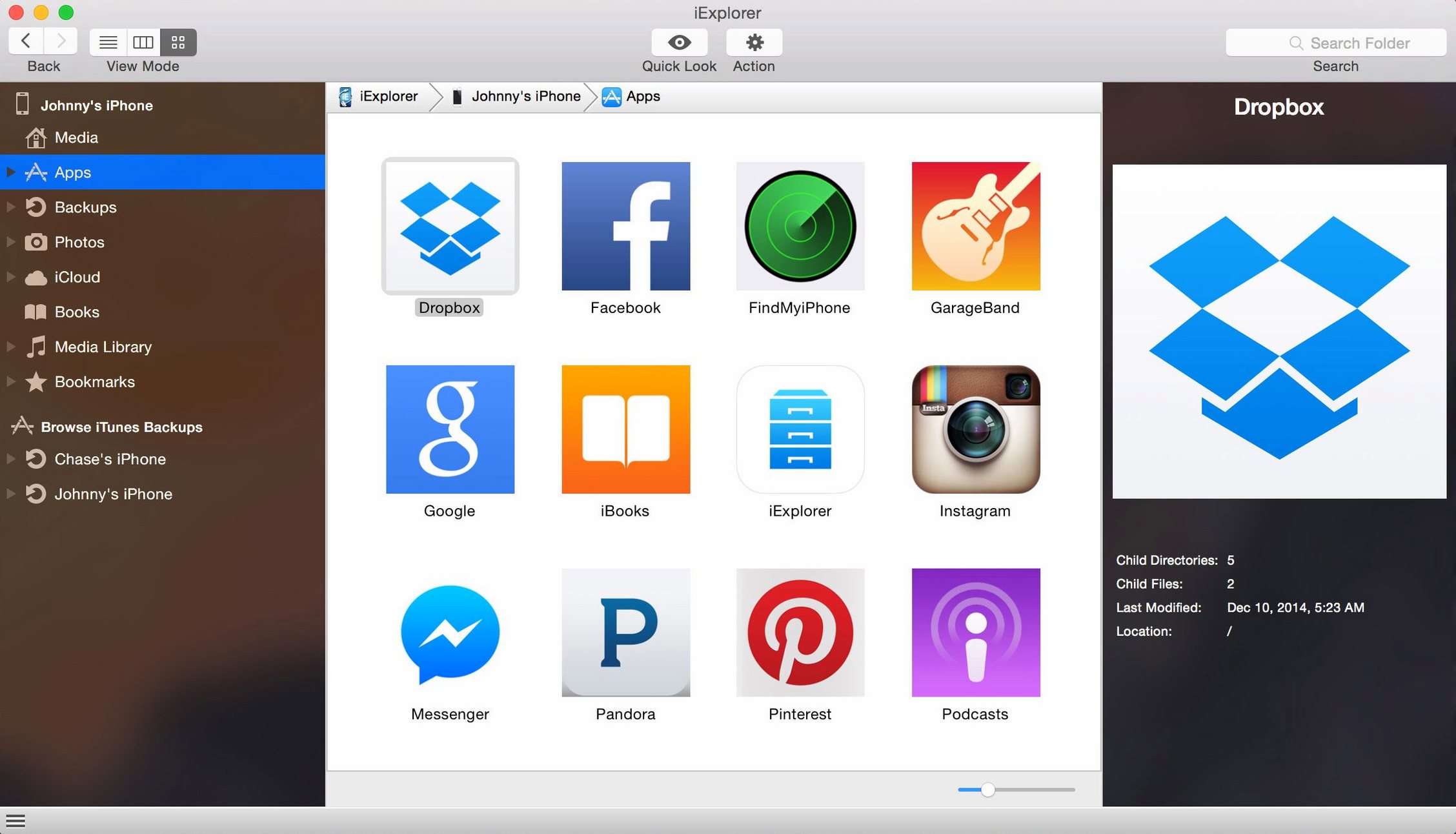
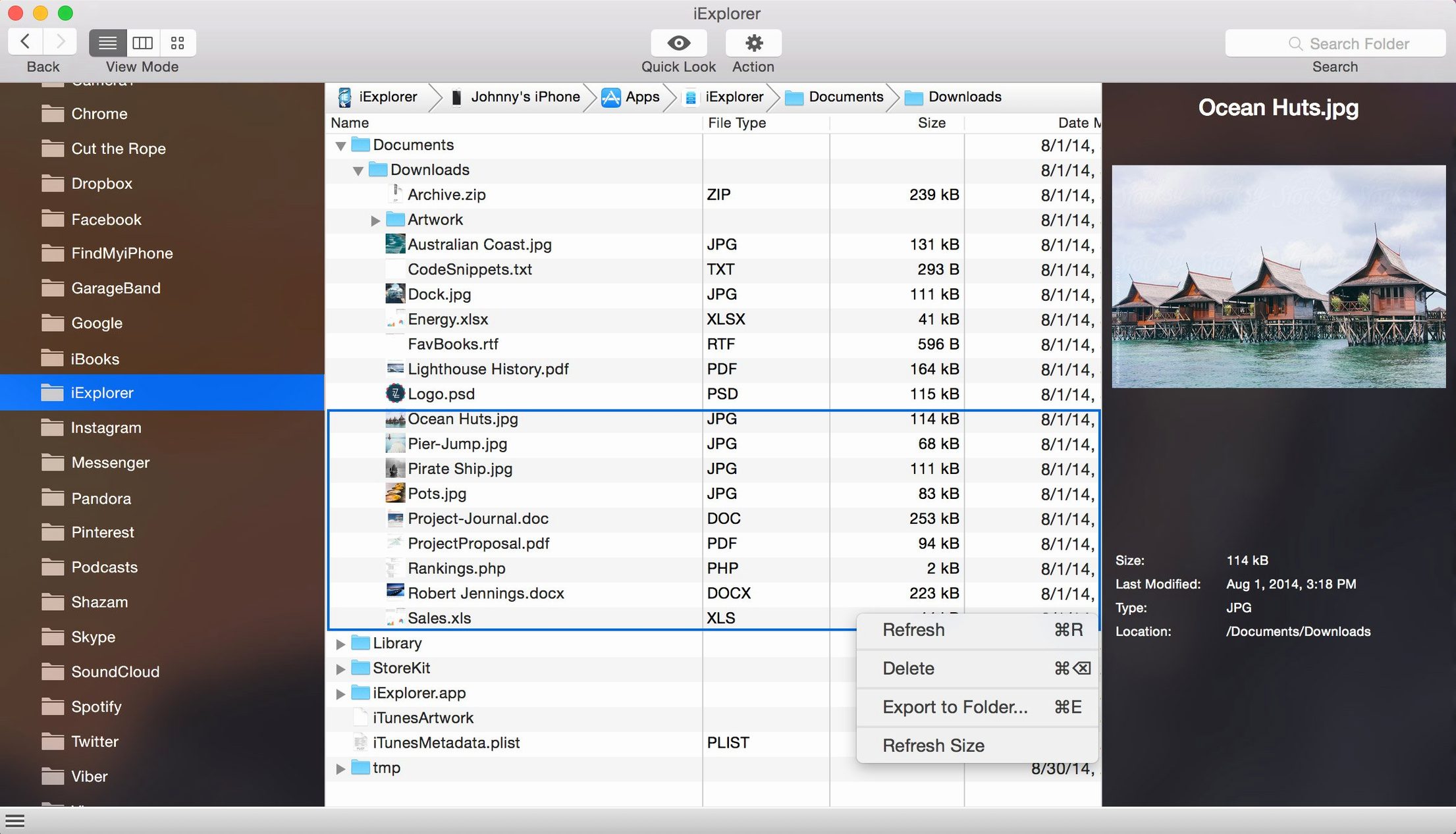
Here’s a realistic task: you’ve just finished a wedding shoot on your iPhone, and you need the photos on your MacBook Pro for editing. Open iExplorer, plug in the phone, and the device appears as a browsable drive. You can drag whole folders of photos to your desktop, or dive deeper into app data to grab files from your editing apps. It also gives you access to iCloud storage, so you can pull down documents stored in the cloud. No need to sync or manage playlists through iTunes — just copy what you need and get back to work.
iOS 16 compatibility arrived in October 2022
The 4.6.0 update arrived in October 2022 with a single headline change: iOS 16 compatibility. For a working photographer, that matters more than it sounds. Every September when Apple ships a new iOS, third-party utilities either work or they don’t. iExplorer 4.6.0 made sure the device browsing, backup access and file transfer still functioned after the update. No new bells, just the confidence that the tool you rely on won’t throw an error when you plug in a phone running the latest OS. If you’re the kind of person who updates iOS on release day, this version saves you from waiting around for a fix.
PhoneView leans toward messages, iExplorer toward photos
There are a few other ways to get files off an iPhone without iTunes. PhoneView has been around for years and offers similar backup browsing, but its interface feels more geared toward archiving messages and call logs than dragging photos out in bulk. iExplorer’s device-as-disk approach is simpler for the photo workflow. iMazing is probably the closest competitor — it handles backups, app data and media transfers with a polished interface. Where iExplorer wins is in speed of access: mount the device, see the folders, grab the files. iMazing leans more into backup management and device-to-device migration, which is useful but can feel like overkill when all you need is a folder of RAW files. Syncios also does file transfer, but its interface is less refined on Mac and it sometimes struggles with app-specific data. For a straight-up file browser that treats your iPhone like an external drive, iExplorer stays the most direct option.
Wedding photographers who shoot on iPhone as a secondary camera
Wedding and event photographers are the obvious fit — anyone who shoots on an iPhone as a secondary camera or for quick behind-the-scenes grabs. But it also suits videographers who record clips on an iPad and need them on the desktop fast without AirDrop playing up. Another group is the backup-conscious user: if you keep old iPhones and iPads around as archive devices, iExplorer lets you browse their backups and pull out specific messages, notes or contacts without restoring the whole thing. And if you manage devices for family members — say, a parent who fills their phone with photos and never syncs — it’s a quick way to clear space by dragging the camera roll to a Mac folder. The common thread is that you want control over your device’s file system without learning iTunes’ quirks.
Pulling phone shots from a Saturday wedding reception
Let’s say it’s a Saturday evening after a full day of shooting. You’ve got a hundred-odd RAW frames on a Sony A7 III, but the couple also sent over a few dozen phone shots from the reception via AirDrop during the day. Those are still on your iPhone. You plug the phone into the Mac, open iExplorer, and the device appears in the sidebar. Clicking on it shows the usual folders: Photos, Music, Apps, Backups. You open Photos and see the camera roll sorted by date. You select the reception shots, drag them to a folder called “Phone_Shots” on your desktop. That takes about thirty seconds.
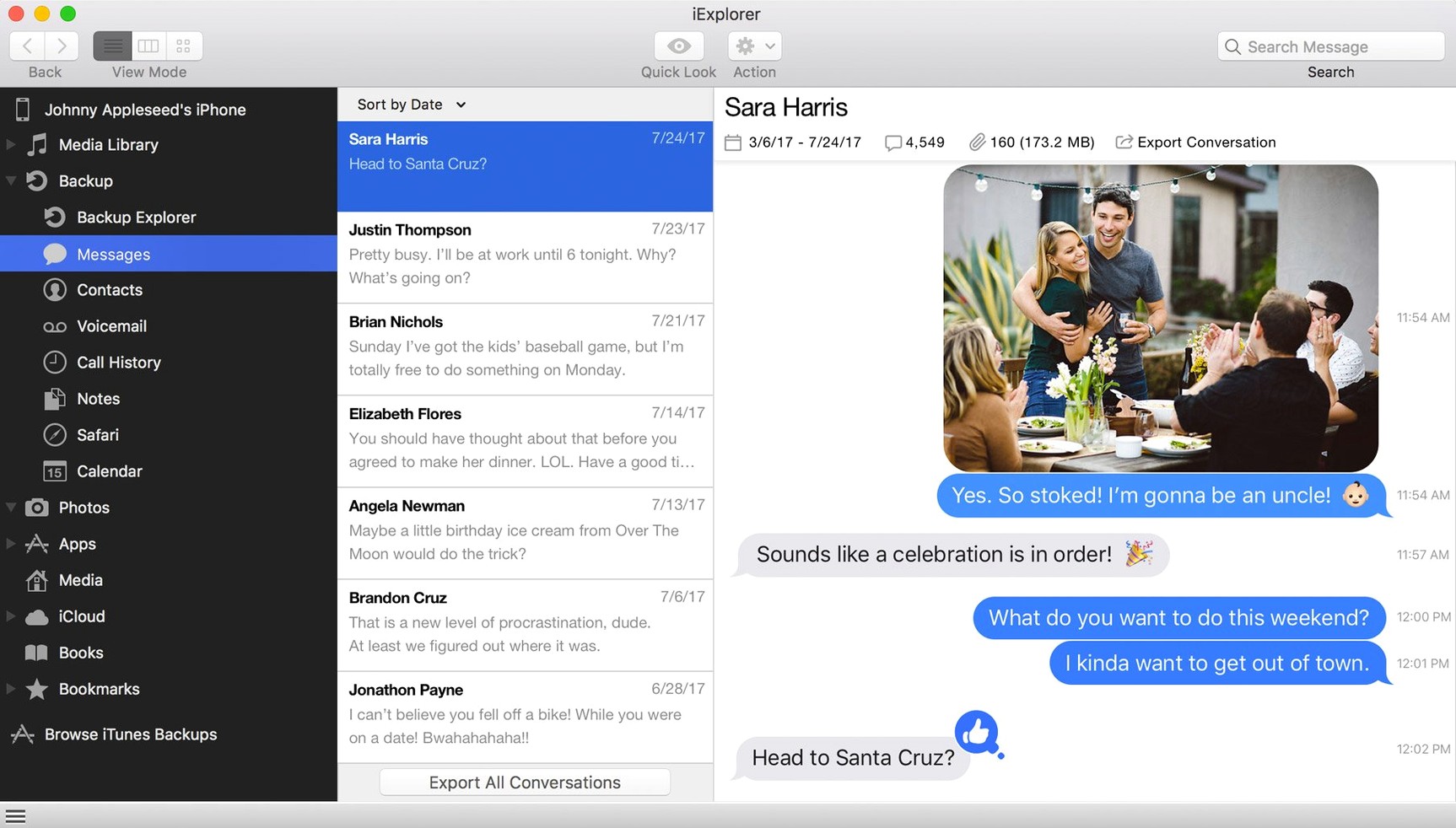
Next, the couple mentioned they want a short video clip that was recorded on the iPad the best man used. You plug that iPad in, and iExplorer shows its app data. You find the video inside the Files app container, drag it out. No renaming, no import library, no waiting for sync. Then you remember you need the bride’s contact number from an old iPhone backup stored on the external drive. You open iExplorer’s backup browser, locate the backup, export the contacts as a vCard. All of it done without touching iTunes except for the initial authorisation. The whole session is under ten minutes, and you’re back in Lightroom before the kettle boils.
New this release
- iOS 16 compatibility improvement
Mac it needs
- macOS 10.10 or later
- Intel 64-bit architecture
- iTunes installed
Questions I actually get
Can iExplorer transfer text messages from an iPhone to a Mac?
Yes, iExplorer can browse and transfer text messages from your iPhone, iPad, or iPod to your Mac.
Does iExplorer work with iOS 16?
Version 4.6.0 includes improvements for iOS 16 compatibility, so it should work with devices running that version.
Installing on a Mac
- Mount the disk image and open it — Gatekeeper will ask for approval.
- Press Enter in Terminal to bypass Gatekeeper.
- Drag the app to your Applications folder.
- Launch iExplorer once the copy finishes.
Notes from photographers
Sign in or create your account to leave a comment.
No notes from photographers yet. If you have used this on a real folder, say which camera and which Mac.
