Get it for my Mac (928 MB)
 iZotope Insight
2.4.0
iZotope Insight
2.4.0
- Version
- 5.2.0
- Developer
- iZotope
- Interface in
- English
- Licence on file
- K'ed by TEAM HCiSO
- macOS it runs on
- macOS 13.4 or later
- Chip support
- Apple Silicon, Intel 64-bit
In the edit
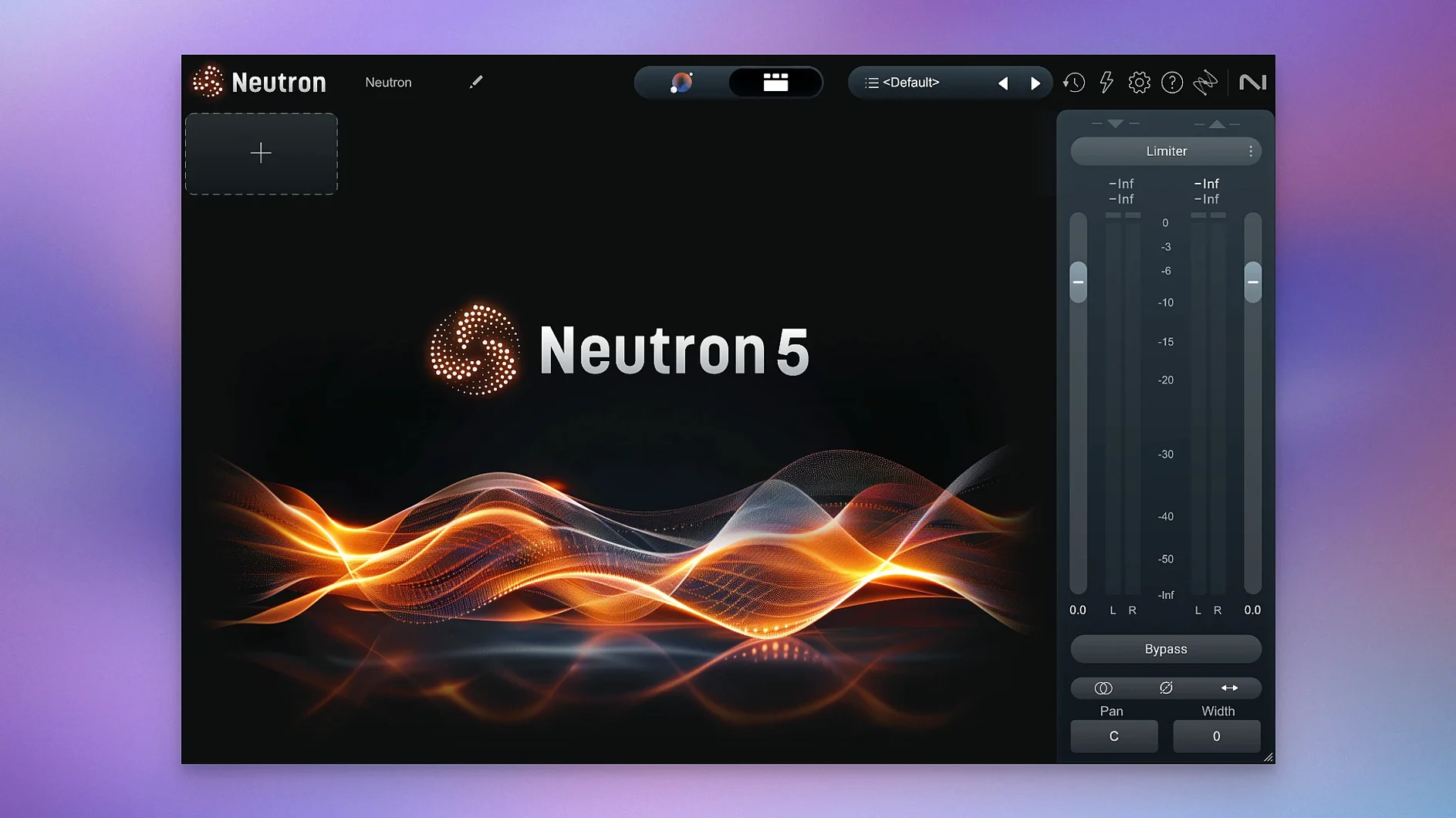
If you already know the sound of iZotope’s RX for repair, Neutron is the creative side of the family — a mixing suite that watches what you do and offers a hand. Version 5.2.0 bundles eight plugins into one interface, with AI assistance that actually listens before suggesting moves. It is the kind of tool that works alongside your ears, not instead of them.
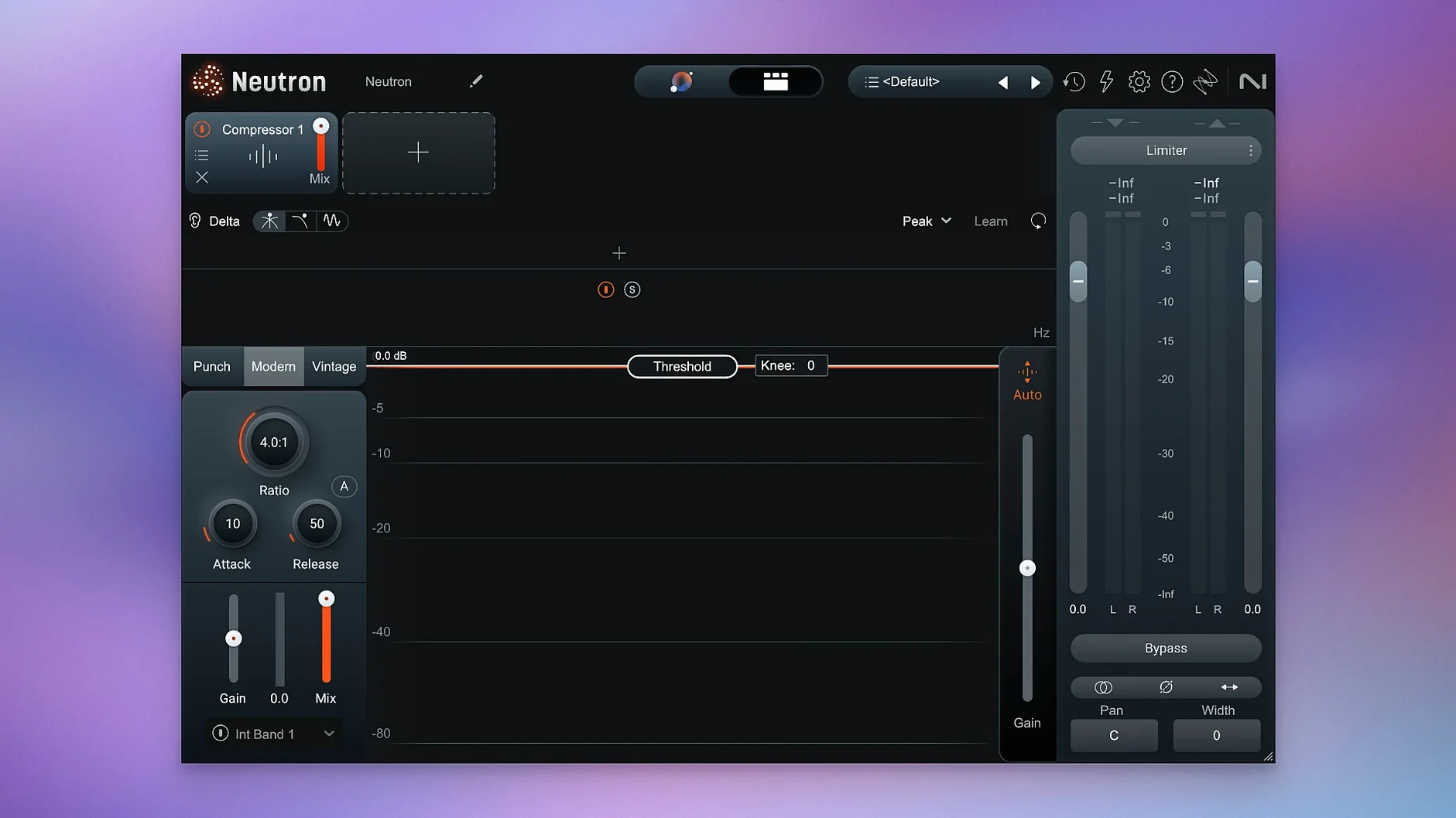
- Mix Assistant — listens to your track, analyses it against professional instrument profiles or a custom reference, then sets up a starting point for levels, EQ and compression. You take it from there.
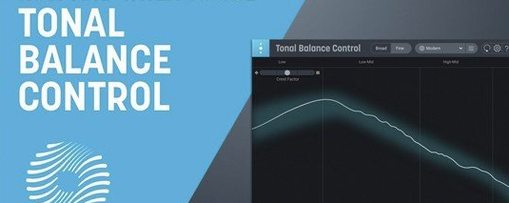
- Masking module — spots frequencies where two instruments are fighting for the same space and suggests cuts. Handy when the low end gets crowded.
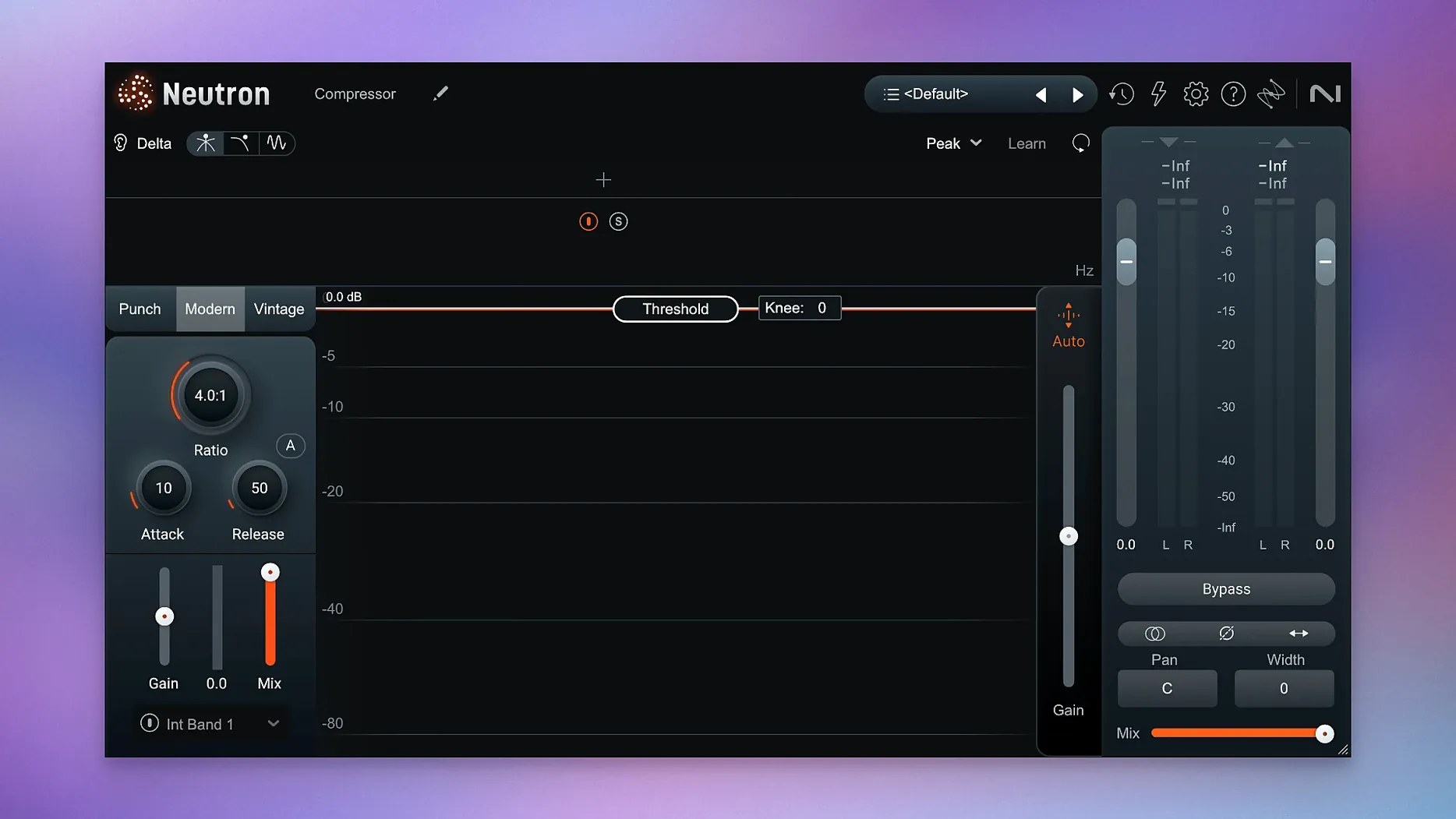
- Punch Mode — controls and visualises the impact of a transient, so you can dial in attack without guessing.
- Delta Buttons — on every module, solo the part of the signal you are changing. Hear exactly what the EQ or compressor is adding or removing.
- Updated interface — cleaner metering, better visuals in Assistant View, less time hunting for controls.
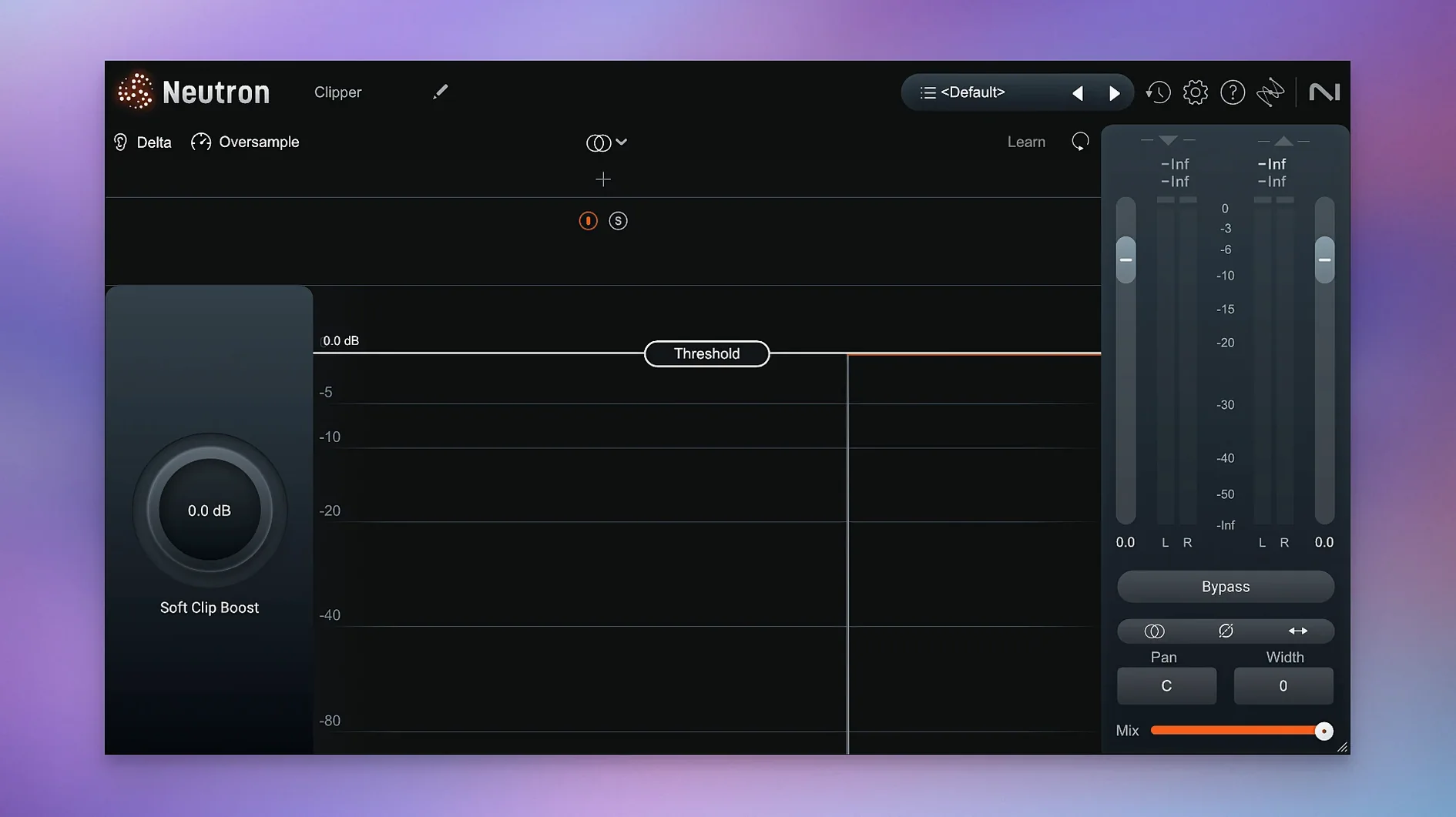
Neutron is one mothership plugin with ten component modules inside, so you can load the full suite on a bus or just the EQ on a single track. It runs on macOS 13.4 and later, Intel and Apple Silicon.
Neutron works only as a plugin, not standalone
One thing that comes up a lot is whether Neutron works as a standalone app. It does not. It is a plugin, so you need a DAW that supports VST3, AU, or AAX. Any modern DAW will do — Logic Pro, Ableton Live, Pro Tools, Cubase, Reaper. If your DAW loads third-party plugins, you are set.
Another common question is whether the Mix Assistant replaces your own judgment. It does not. It gives you a starting point based on what it hears, but you are the one who decides if that starting point works. Think of it as a second opinion that shows up fast, not a mix-by-numbers solution. The Masking module works the same way — it flags the problem frequencies, but you choose whether to cut them, and by how much.
Some people ask if version 5.2.0 works alongside older Neutron versions. It does not share a licensing conflict, but it is generally cleaner to only keep one version installed to avoid confusion in your plugin list. The installer will handle the location, just point it to your usual plugin folder.
People also wonder about the 10 component modules. The full suite loads as one plugin, but you can load individual modules (EQ, compressor, exciter, and so on) as separate plugins on individual tracks. That is how most users work — load the full Neutron on a mix bus, then grab just the EQ or compressor for a snare track.
And yes, it works in surround. Version 5.2.0 specifically fixed iLok authorisation not functioning in surround instances, so surround users are covered now.
Run Mix Assistant on a track you already mixed
First, install it and immediately open a session you have mixed yourself before. Load Neutron on a bus or a track you know well and run the Mix Assistant. Listen to what it suggests, then bypass it and A/B against your original. This tells you more about the tool than any tutorial can — you will hear where the Assistant thinks you need work.
Second, spend ten minutes with the Delta Buttons. On every module there is a button that lets you solo only the change the module is making. Solo the EQ and you hear exactly what frequencies you are boosting or cutting. Solo the compressor and you hear only the gain reduction. This is one of the fastest ways to train your ears, especially if you are newer to mixing.
Third, use the Masking module on a track that has a bass and a kick competing. Let it find the clash, then decide if you agree. The visualisation makes it obvious — two peaks sitting on top of each other — and you can adjust from there. Do not just accept the suggestion, understand why it was made.
Fourth, save a few presets for common situations. If you often mix rock vocals or acoustic guitars, dial in a starting point with the Assistant, tweak it, then save it as a preset. Next session you can load that preset and adjust from there. It saves time without skipping the listening part.
Don't let Mix Assistant make your final mix decisions
The biggest mistake is letting the Mix Assistant do everything and walking away. The Assistant sets levels, EQ and compression based on what it hears, but it does not know your taste. A starting point is fine. A final mix is not. Always go in and adjust.
Another mistake is overusing the Masking module. It flags every frequency clash it finds. If you cut every suggestion, you end up with a thin, hollow mix. The goal is not to remove all masking, it is to decide which clashes actually hurt the mix. Some overlapping frequencies give a track body. Trust your ears first.
Beginners also tend to load the full Neutron suite on every track. That is heavy on CPU and often unnecessary. A vocal might only need the EQ and compressor modules, not the whole suite. Load individual modules where you can, and save the full suite for buses or groups.
People also ignore the Punch Mode controls because they look simple. Punch Mode is not just a visual toy — it shows you the transient shape and lets you control how much attack comes through. If your drums sound flat, this is often the fix. Spend a few minutes with it on a kick or snare track.
Finally, some users skip reading the install instructions because they assume it is drag-and-drop. The package includes activation notes, and Neutron 5.2.0 uses iLok authorisation. Follow the included steps. It takes two minutes and saves a support ticket.
Set your instrument profile in Assistant View first
Open Neutron on a track and find the Assistant View. The first thing to do is set your instrument profile. If you are mixing a vocal, select the vocal profile. If you have a custom reference track you like the sound of, load that instead. The Assistant uses this profile to shape its suggestions, so a wrong profile means a wrong starting point.
Next, check the metering display. The interface in version 5.2.0 is cleaner, but you can adjust what the meters show — peak, RMS, or both. If you are used to working with RMS levels for perceived loudness, switch that on. If you need to watch peaks for headroom, keep it on peak. Having both visible is useful for bus work.
Delta Buttons are off by default on each module. Turn them on briefly when you are adjusting something you are not sure about. Do not leave them on permanently — you will only hear the effect, not the full signal, which makes it hard to judge the overall mix.
If you work in surround, check that your session is set up correctly before loading Neutron. The 5.2.0 fix addressed iLok authorisation in surround instances, but the plugin itself needs to see a surround bus to enable those modes. Set your DAW to a surround configuration first.
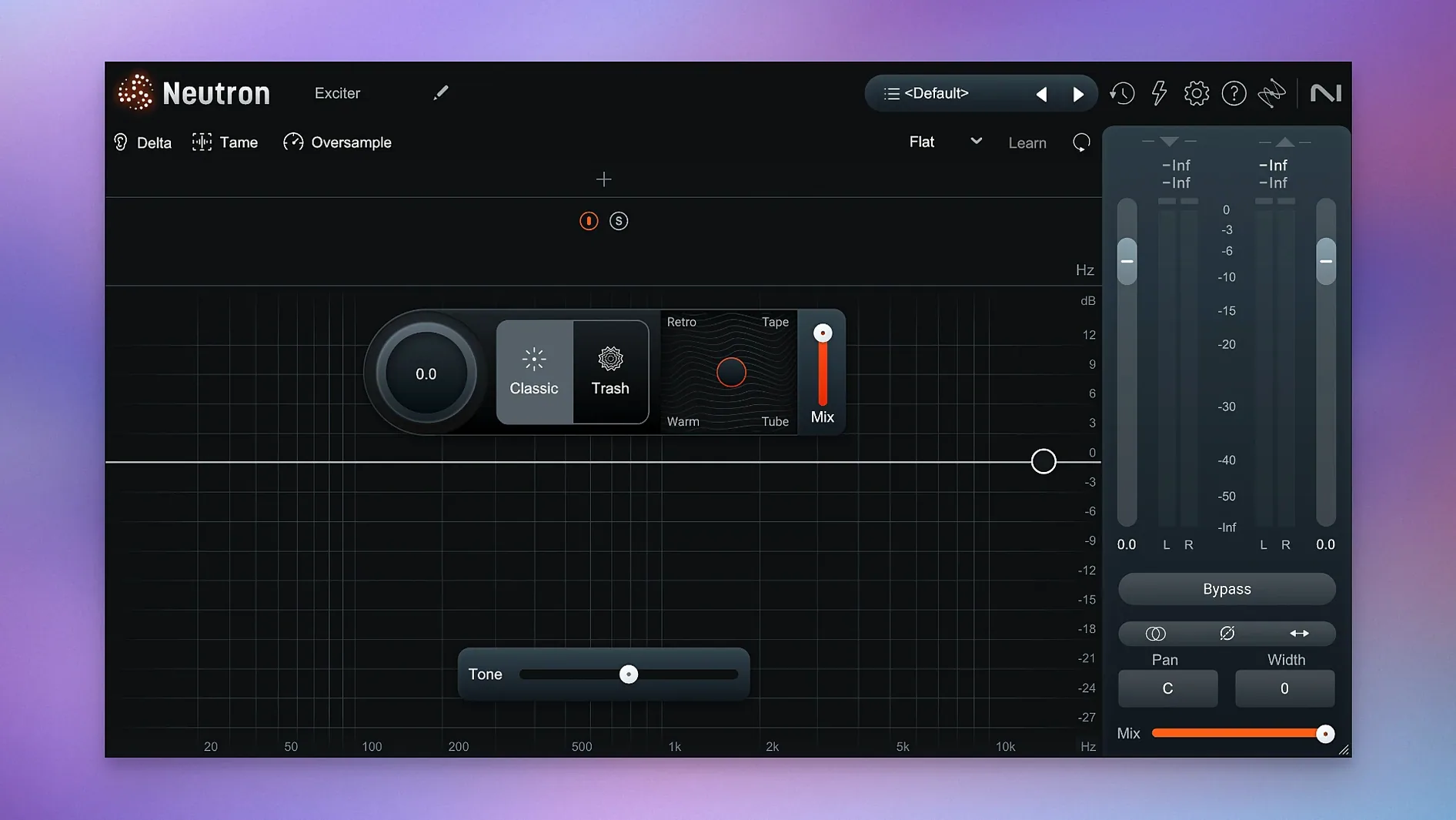
And lastly, look at the Trash Mode if you want distortion. It is not on by default. When you want something gritty or lo-fi, this is where you find it. It pairs well with the Punch Mode on drums for aggressive, defined transients.
New this release
- Fixed iLok authorisation not working in surround instances of Neutron 5.
- Updated supported macOS versions.
Mac it needs
- macOS 13.4 or later
- Intel or Apple Silicon processor
Questions I actually get
What macOS versions does Neutron 5 support?
Neutron 5 is compatible with macOS 13.4 and later, on both Intel and Apple Silicon Macs.
Installing on a Mac
- Download and unzip the package.
- Follow the install and activation instructions included in the package.
- Tip: make sure your system meets the macOS 13.4 requirement before starting.
Notes from photographers
Sign in or create your account to leave a comment.
No notes from photographers yet. If you have used this on a real folder, say which camera and which Mac.