Get it for my Mac (900 MB)
 Ableton Live
12.4.7
Ableton Live
12.4.7

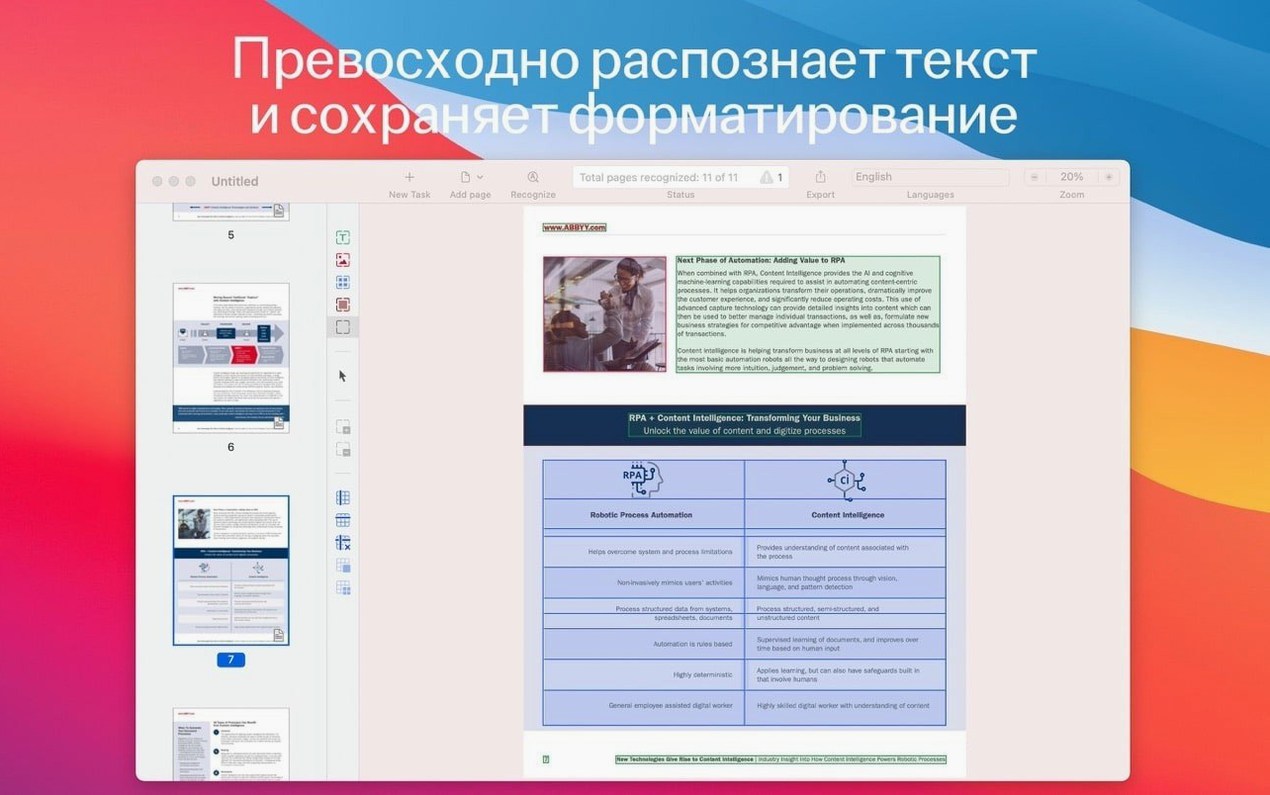
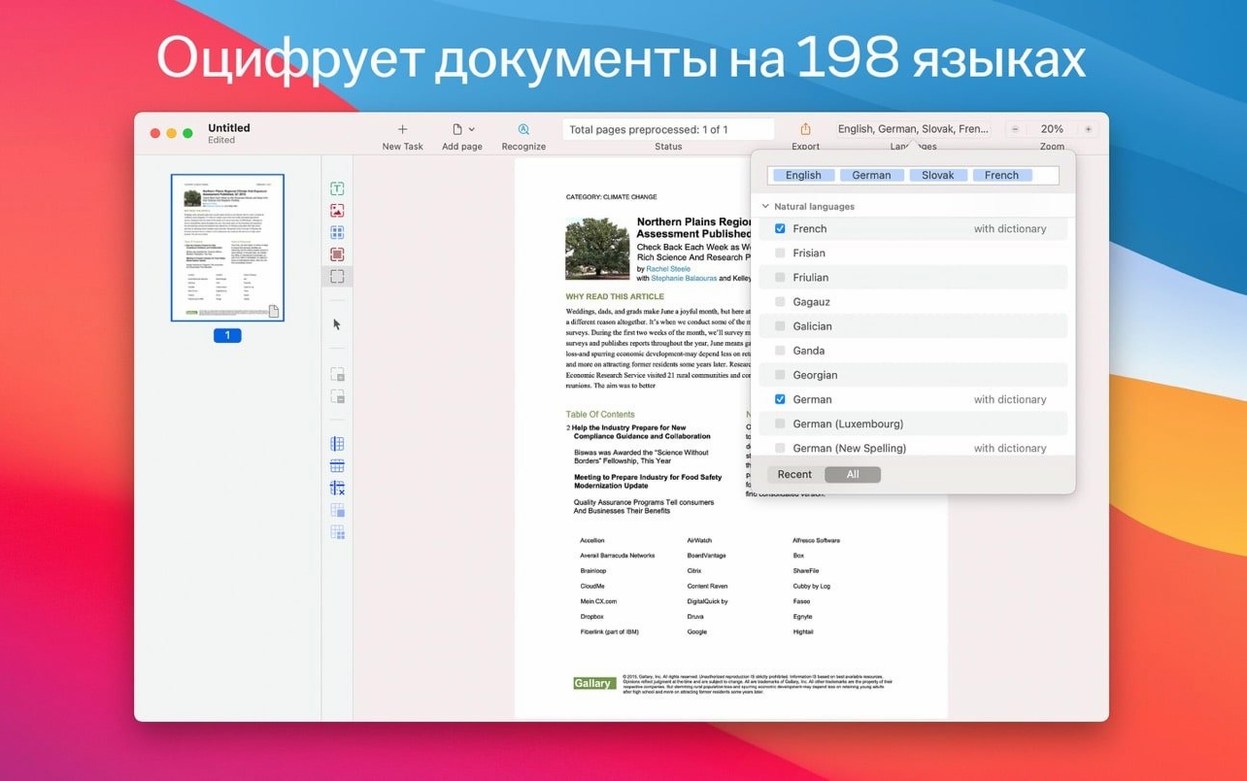
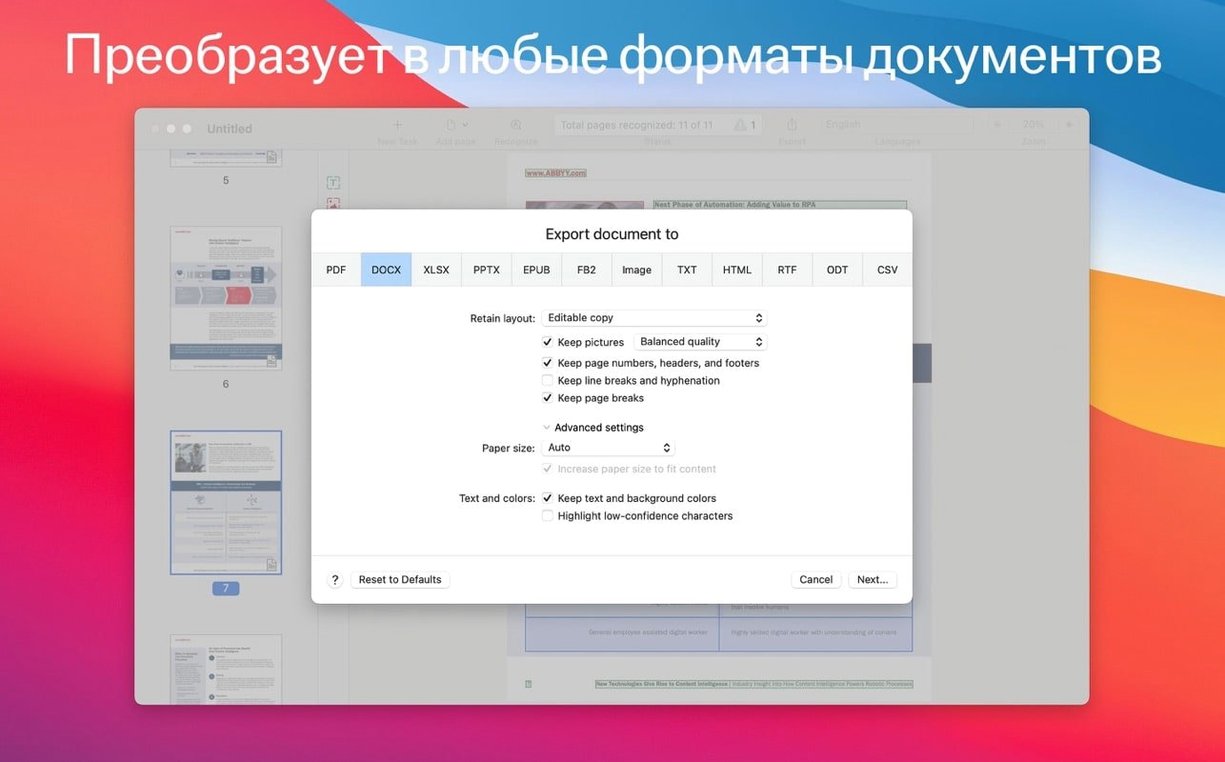
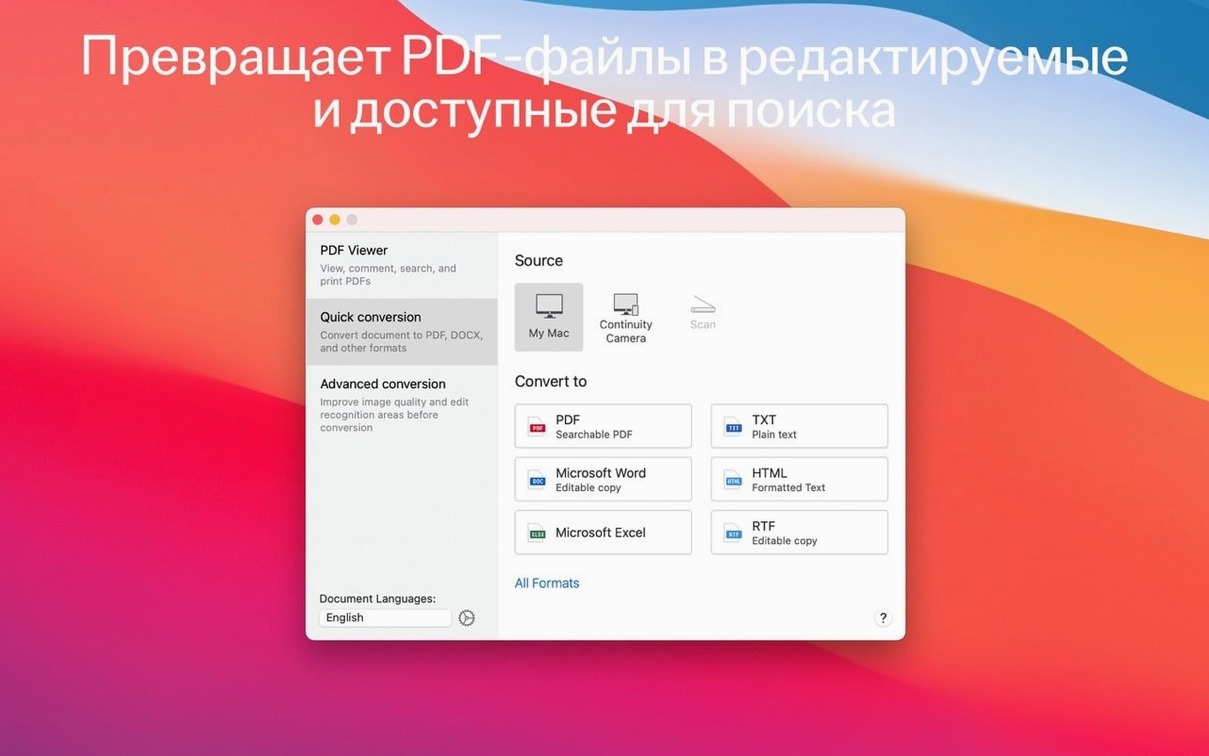
ABBYY FineReader PDF is a Mac OCR and PDF conversion app that does the heavy lifting when you need text out of a scan, a photo, or a PDF that won't cooperate. For someone who processes receipts, contracts, or archive pages between wedding shoots, it's the difference between retyping and actually working.
| Detail | Value |
|---|---|
| Version | 15.2.14 |
| Developer | ABBYY |
| macOS support | 11 and later, Intel |
| Interface languages | English, Russian, German, Italian, French, Simplified Chinese |
| Recognition languages | 198 |
| Export formats | DOCX, XLSX, RTF, ODT and more |
What makes it useful beyond the basics is the PDF viewer and OCR editor modes that let you check and tweak recognition on the fly. You can pull text fragments for citation or translation, and the app handles images captured from an iPhone or iPad just as well as a flatbed scan. Dark mode is there for late-night edits, and with 198 recognition languages it rarely chokes on multilingual documents. Convert to DOCX, XLSX, or RTF and keep moving.
ABBYY FineReader PDF works well out of the box, but a few adjustments make it feel like your own. Head into the preferences and set your default output format first. If you mostly send documents to clients as Word files, make DOCX the standard so you skip the format picker every time.
Turn on automatic language detection if you regularly handle mixed-language documents. The app supports 198 recognition languages, so it can figure out what it's looking at without you telling it every time. For documents you know are monolingual, set the language manually instead — it speeds up the recognition pass.
Check the export settings for PDF/A and PDF/UA. If you archive documents long-term, PDF/A is worth making the default. For accessibility compliance, PDF/UA matters more. Decide which one fits your workflow and set it once. The password protection toggle is also in there if you send sensitive PDFs straight from the app.
One small thing: enable Continuity Camera in the import settings. That way you can scan a page with your iPhone and have it appear in FineReader without plugging in a cable. It saves a step when you're moving between devices.
Sarah works at a small law firm in Manchester. Her days are a stack of printed correspondence, scanned contracts, and the occasional handwritten note from a barrister. Before FineReader, she retyped every quote, clause, and signature block by hand.
Now she drops the scans into the app, runs OCR, and exports to DOCX. The text comes through clean enough that she only corrects the odd hyphenated word or a footnote number. For a 40-page contract that used to take an afternoon, she's done in under an hour. The built-in PDF viewer means she can check the original against the recognised text without switching windows. When a partner asks for a specific clause quoted in an email, she copies it straight from the editor rather than retyping it. It's not glamorous work, but it's the kind of task where a minute saved per page adds up fast.
Anyone who handles documents as part of their job will find a use for FineReader, but some groups lean on it harder than others. Legal professionals are the obvious fit — contracts, affidavits, and discovery documents come as scans more often than you'd think. Being able to search, copy, and edit those files without retyping changes how you work.
Academic researchers and translators benefit from the language support. If your sources arrive in German, French, or Russian and you need them in English, the app preserves the structure while giving you editable text. Students dealing with scanned journal articles can search them for keywords instead of skimming every page.
Small business owners and freelancers who handle invoices, receipts, and signed agreements will appreciate not keeping a filing cabinet. Convert paper to searchable PDFs, archive them, and find what you need later. The app runs on Intel Macs with macOS 11 or later, so it covers a wide range of machines — even older models that don't see new software anymore.
Photographers and designers who work with text-heavy documents also fit here. If you receive a client brief as a low-res PDF or a photo of a whiteboard, FineReader pulls the text out so you can paste it into your notes or project files.
Picture a Wednesday afternoon. You've just returned from a meeting with a handwritten brief and a stack of printed references. You sit down at your Mac, open ABBYY FineReader PDF, and start.
First, you lay the handwritten pages on your desk and photograph them with your phone. The app's Continuity Camera support brings them straight into the import window. You select all three images, set the recognition language to English, and let the app run its OCR pass. The text appears in the editor window, and you scan through it — a few words need correcting where the handwriting was rushed, but the structure is intact.
Next come the printed references. They're a mix of English and German, so you switch the language detection to automatic and import them as a batch. The app recognises the documents, separates the languages correctly, and presents the text in the OCR editor. You scroll through each page, checking that tables and headers survived the conversion. They did. You export the whole set as a single searchable PDF, ready to archive.
Finally, you open a PDF that a client sent — it's a scan of a signed agreement, and you need to quote a specific clause in an email. You load it in FineReader's PDF viewer, select the relevant paragraph, and copy it to your clipboard. The formatting carries over cleanly. You paste it into your email, attach the original PDF for reference, and send it off.
On a good day, that's a task that used to take twice as long with a manual approach. The app stays open in the background while you move on to other work, ready for the next document that lands on your desk.
Yes, you can bring in previously captured images from your iPhone or iPad and run OCR on them directly in the app.
Sign in or create your account to leave a comment.
No notes from photographers yet. If you have used this on a real folder, say which camera and which Mac.