Get it for my Mac (5 GB)
 ABBYY FineReader PDF
15.2.14
ABBYY FineReader PDF
15.2.14

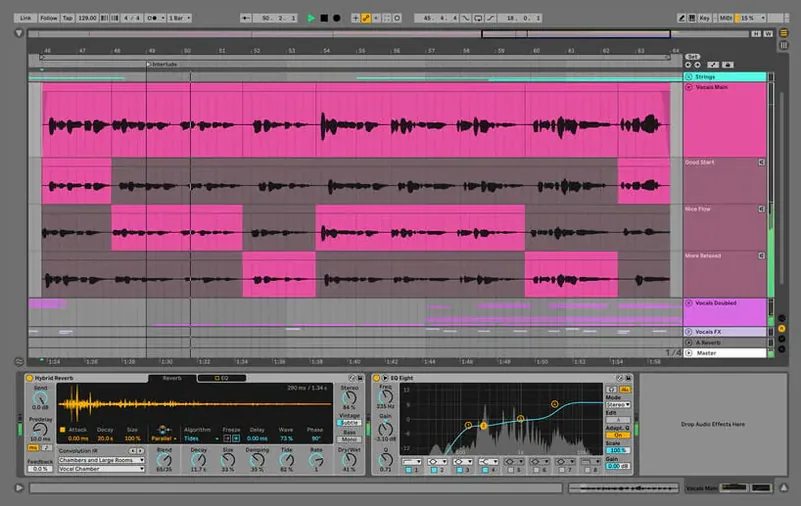
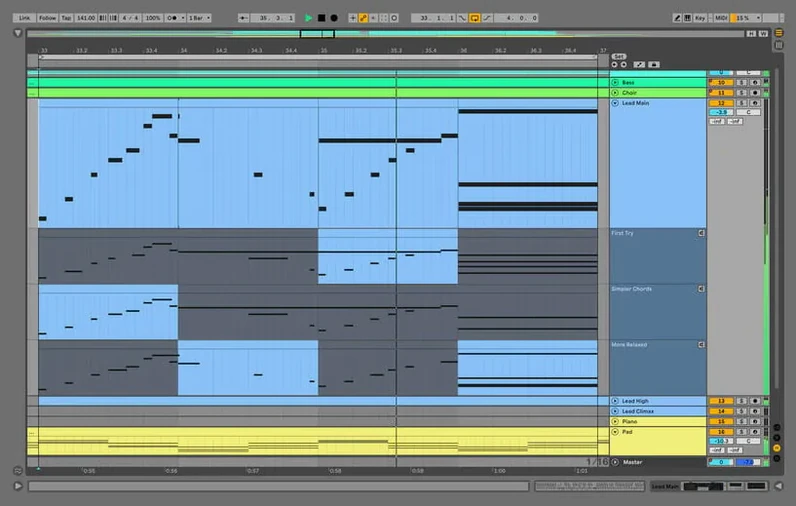
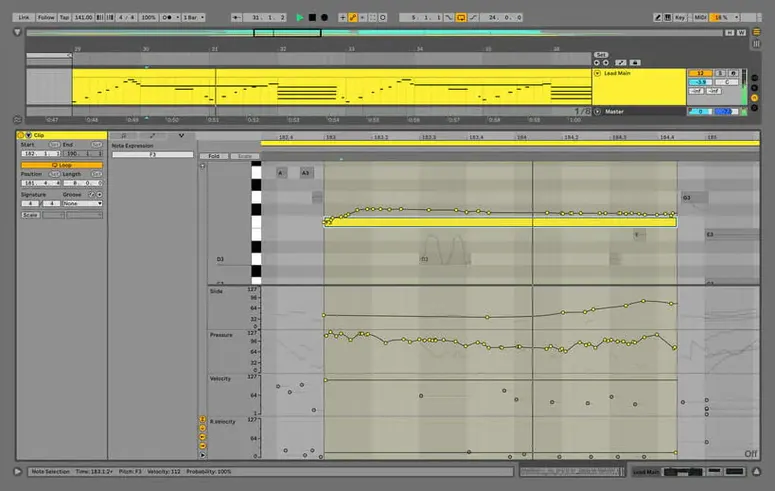
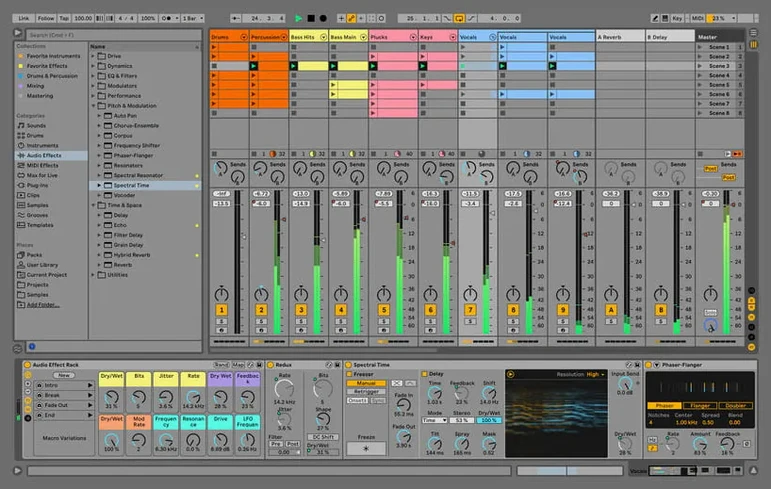
Live 12.4.6 can handle over a hundred audio tracks without flinching, and the fix in this release means those big Sets with Beats Warp Mode won’t hang during renders. For a newcomer, the sheer depth can feel like too much, so here are three places to start.
Drop a loop into Session View, click the clip slot, and start twisting Warp markers or the Groove Pool. Live is built to let you swap ideas without stopping the music.
Drag any drum sound from the browser into a Drum Rack. Each pad can hold its own chain of effects, and you can record finger-drumming straight in.
Switch to Arrangement View, arm a track, and hit record. Once you have a take, consolidate it (Cmd-J) to lock the warp and edit cleanly — that’s where the 12.4.6 fix matters most.
Live works well with other audio tools on your Mac. You can route audio between Live and apps like Logic Pro or MainStage using the IAC Driver built into macOS — set it up in Audio MIDI Setup, and Live will see it as an external input or output. This is useful if you want to sketch an idea in Live’s Session View and then mix it in another DAW, or run soft synths from a host while Live handles arrangement.
The browser in Live reads your Mac’s file system directly, so any samples, loops, or presets you keep in organised folders show up without importing. Drag from Finder into Live’s browser sidebar to add a shortcut, and everything stays where you left it. If you use iCloud to sync sample libraries between machines, Live picks them up as long as the files are downloaded locally — no special setup needed.
Live also plays nicely with Audio Units plugins. Drop any AU synth or effect into a track, and it appears in the plugin browser alongside Live’s own devices. If you have Kontakt, Serum, or other instruments installed, they show up automatically after a quick rescan from the Preferences menu.
One thing that trips people up is the audio crackling or dropping out during playback. This usually happens because the buffer size is too small for the current project. Open Live’s Preferences, go to the Audio tab, and raise the buffer size from 128 to 256 or 512 samples. It adds a little latency, but the playback stays clean. If you’re recording, drop it back down.
Another frequent issue: Live doesn’t see your external audio interface. Check that the interface is plugged in and powered on before you launch Live. If it still doesn’t appear, go to Audio MIDI Setup on your Mac and confirm the device is recognised there. Sometimes a simple restart of both the interface and Live sorts it out.
The Warp engine can also cause unexpected pitch shifts if you drop a loop in and the tempo doesn’t match. Make sure the clip’s original tempo is set correctly in the Clip View. Live usually guesses right, but with odd-length samples or live recordings, you might need to tap it in manually or adjust the Warp markers so the transients line up.
The most common one is jumping straight into Arrangement View without touching Session View. Session View is where Live’s flexibility really lives — you can try out different clip combinations, loop sections, and build a performance before you commit anything to a timeline. If you only work in Arrangement View, you miss the part that makes Live different from other DAWs.
Another beginner habit is overloading the Master track with effects. It’s tempting to slap a limiter, a compressor, and an EQ on the master bus right away, but that makes it hard to hear what individual tracks are doing. Keep the master clean while you arrange, then add processing at the end.
People also forget to save regularly. Live has an auto-save tool called AbletonAutoSave that runs alongside the app and saves your project at a set interval. It starts and quits with Live, and you can control it from the menu bar. Let it do the work so a crash doesn’t cost you an afternoon of tweaking.
Compared to Logic Pro, Live is more immediate for sketching ideas. Logic’s strength is its deep editing and mixing tools, but its workflow leans toward traditional linear arrangement. Live’s Session View gives you a non-linear space where you can trigger clips freely, which suits electronic music and live sets. Both handle large track counts well, but Live’s warp engine and time-stretching are more hands-on and visible.
Against FL Studio, Live feels more structured for performance. FL Studio’s Pattern-based workflow is great for loop creation, but its Arrangement View can be less intuitive when you want to move whole sections around. Live’s Session to Arrangement recording — where you play clips in real time and capture the performance as an arrangement — is a natural way to build a track from improvisation. FL Studio has its own strengths in step sequencing and piano roll editing, but Live’s clip automation and modulation system give you more control over movement in a track.
Bitwig Studio is probably the closest competitor in spirit. Both apps share a modular approach to devices and a strong focus on live performance. Bitwig’s modulation system is deeper in some ways, with per-parameter modulators that can be connected freely. Live’s advantage is its ecosystem: Max for Live devices, a larger library of instruments and effects, and a bigger community for sharing racks and presets. If you want a tool that works out of the box with a huge sound library and a well-tested workflow, Live is the safer choice.
Yes, it supports both Apple Silicon and Intel 64-bit Macs.
Ableton Live 12.4.6 requires macOS 12 or later.
The interface is available in English, German, Spanish, Italian, French, and Japanese.
Sign in or create your account to leave a comment.
No notes from photographers yet. If you have used this on a real folder, say which camera and which Mac.