Get it for my Mac (582 MB)
 AI Transcription
2.16
AI Transcription
2.16

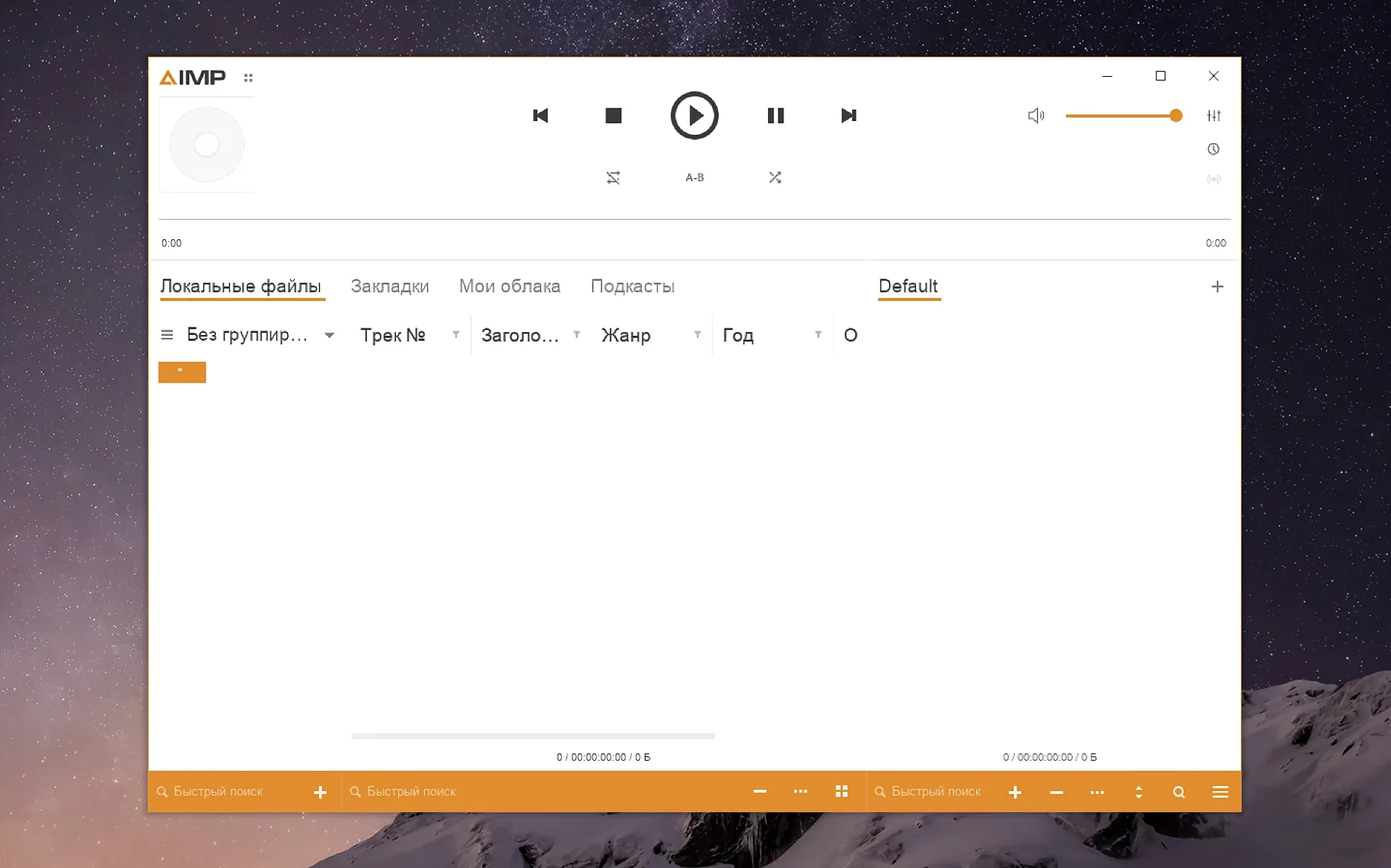
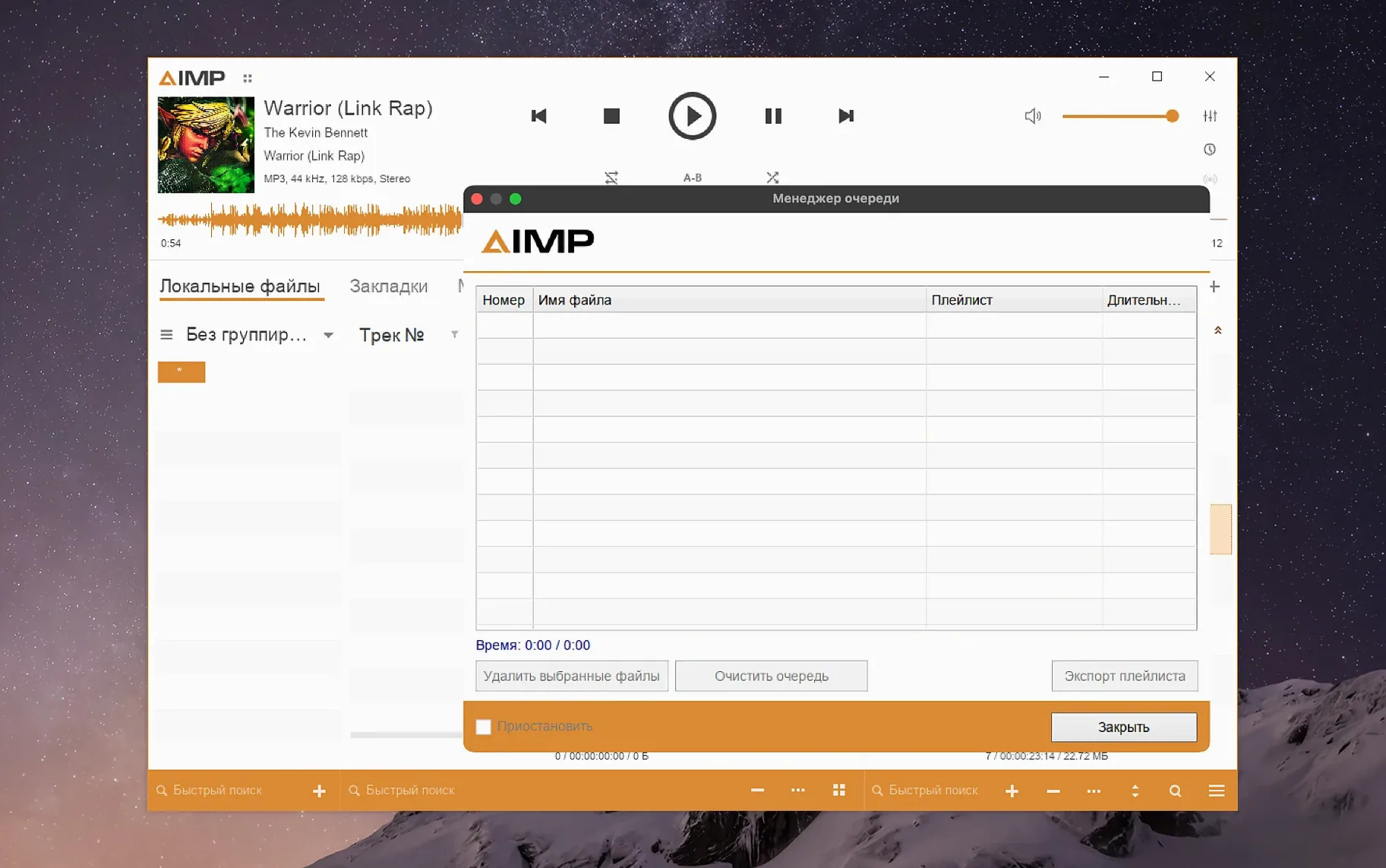
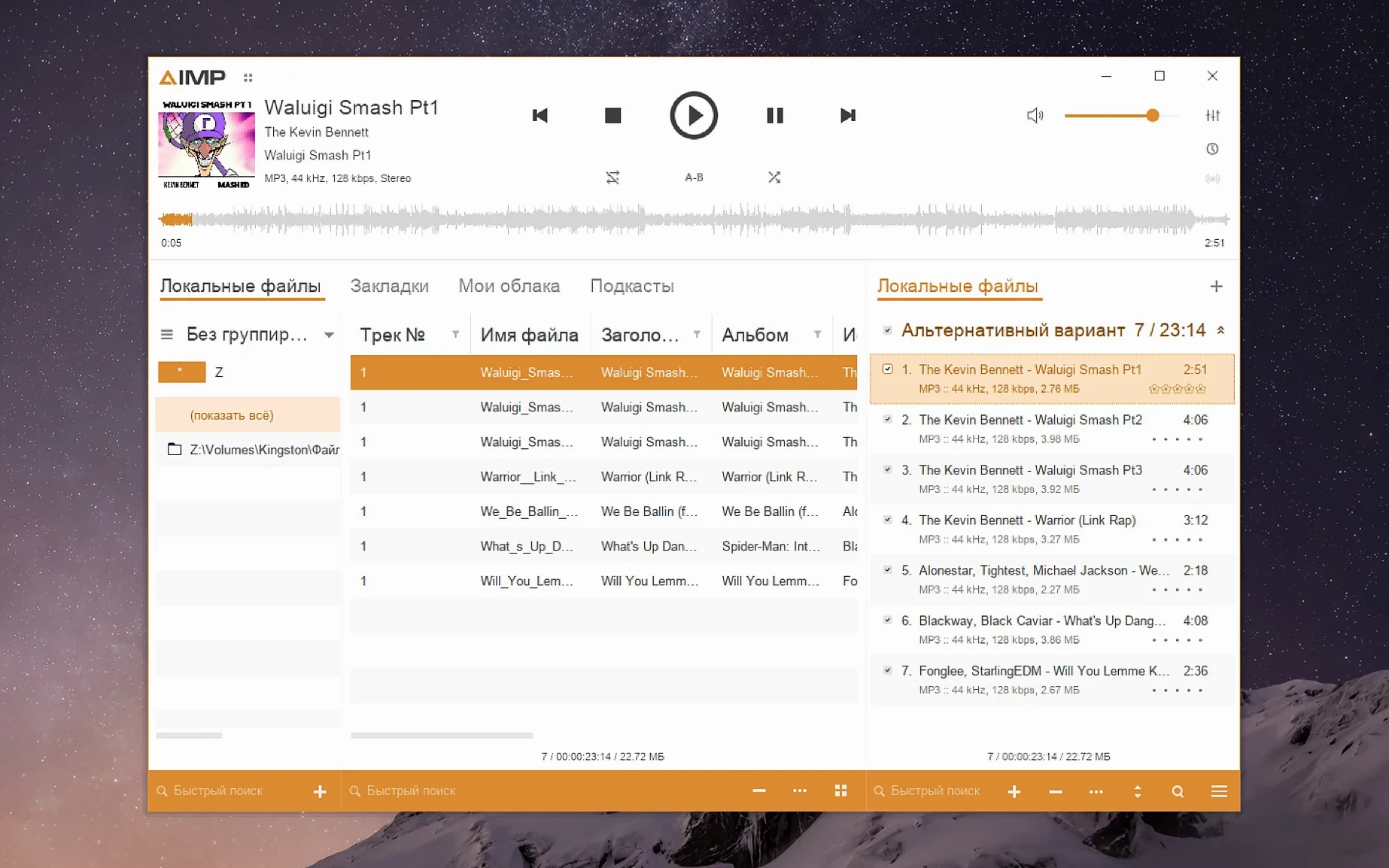
AIMP supports over 30 interface languages, from English and Russian to Finnish and Traditional Chinese, so you can set it up in the language you prefer.
AIMP for macOS is built with Wineskin, a compatibility layer that lets Windows software run on a Mac. It requires macOS 11 or later and works on Apple Silicon Macs. Intel Macs are not listed as supported for this build.
The player handles most common audio formats out of the box. The Monkey's Audio codec was updated to version 11.08 in this release, which improves support for lossless files.
Version 5.40.2675 fixes a crash-report issue and a bug where changing the sampling frequency left filled buffers unflushed. Localisations were updated across the board, and waveform calculation speed was improved. The conflict between libVorbis and external add-ons has also been fixed.
Because this version of AIMP runs through Wineskin, a few things are worth knowing before you get going. The install steps are straightforward — open the disk image, drag the app to your Applications folder and launch it from Launchpad. If you get an error on first launch, there's a Fix file inside the disk image that sorts it out. That's usually all it takes.
If you find the interface a bit small on your display, you can adjust it. Within the app's package contents, navigate to Contents and launch KegworksConfig. Next, launch Config Utility (winecfg), navigate to the Graphics tab, then adjust the screen resolution to a setting from 122 up to 144. Apply the change and restart the app. It's a one-time tweak that makes a noticeable difference on higher-resolution screens.
If you manage a large music library across multiple drives, AIMP's tag editor and playlist manager are the reason to keep it around. The latest build fixed an issue where the playlist manager marked content as modified after changing the playing track in active storage, so that workflow is cleaner now. The tag editor also no longer raises a parser error for an unnamed MP4 field, which matters if you deal with a lot of tagged files from different sources.
Anyone who works with lossless audio will appreciate the updated Monkey's Audio codec. And if you switch between sample rates often — say you have a mix of 44.1 kHz and 96 kHz files — the fix for flushed buffers after a sampling frequency change means playback stays consistent without glitches.
For users who prefer a multilingual interface, AIMP has you covered. The list runs to twenty-three languages, including Arabic, Korean, Swedish and both Simplified and Traditional Chinese. Localisations were updated in this build, so menus and dialogs read naturally in whichever language you pick.
AIMP for macOS doesn't integrate with the system in the same way a native app does, but it works alongside your existing audio tools without fuss. You can drag files from Finder straight into the playlist window, and the tag editor handles metadata that other apps on your Mac can read. If you use a third-party plugin that relies on libVorbis, the conflict that existed in earlier versions has been fixed in this release.
Because it's a Wineskin build, AIMP sits in its own environment — it won't interfere with your macOS audio settings or other media players. You can run it alongside Music or VLC, each handling different parts of your collection. The waveform calculation speed improvement means visualising tracks feels more responsive, which is handy when you're browsing a long playlist.
For aimp macbook users, this version is a solid choice if you want a feature-rich player without the overhead of a full Windows virtual machine. It's also worth a look if you've been searching for an aimp for mac or aimp for macos that keeps the same interface and functionality as the Windows original.
Sign in or create your account to leave a comment.
No notes from photographers yet. If you have used this on a real folder, say which camera and which Mac.