Get it for my Mac (322 MB)



 Depth Scanner
1.15.6
Depth Scanner
1.15.6
- Version
- 5.6.10 [MAS]
- Developer
- algoriddim GmbH
- Interface in
- English, German, Spanish, Italian, French, Japanese
- Licence on file
- K'ed by TNT team
- macOS it runs on
- macOS 10.15 or later
- Chip support
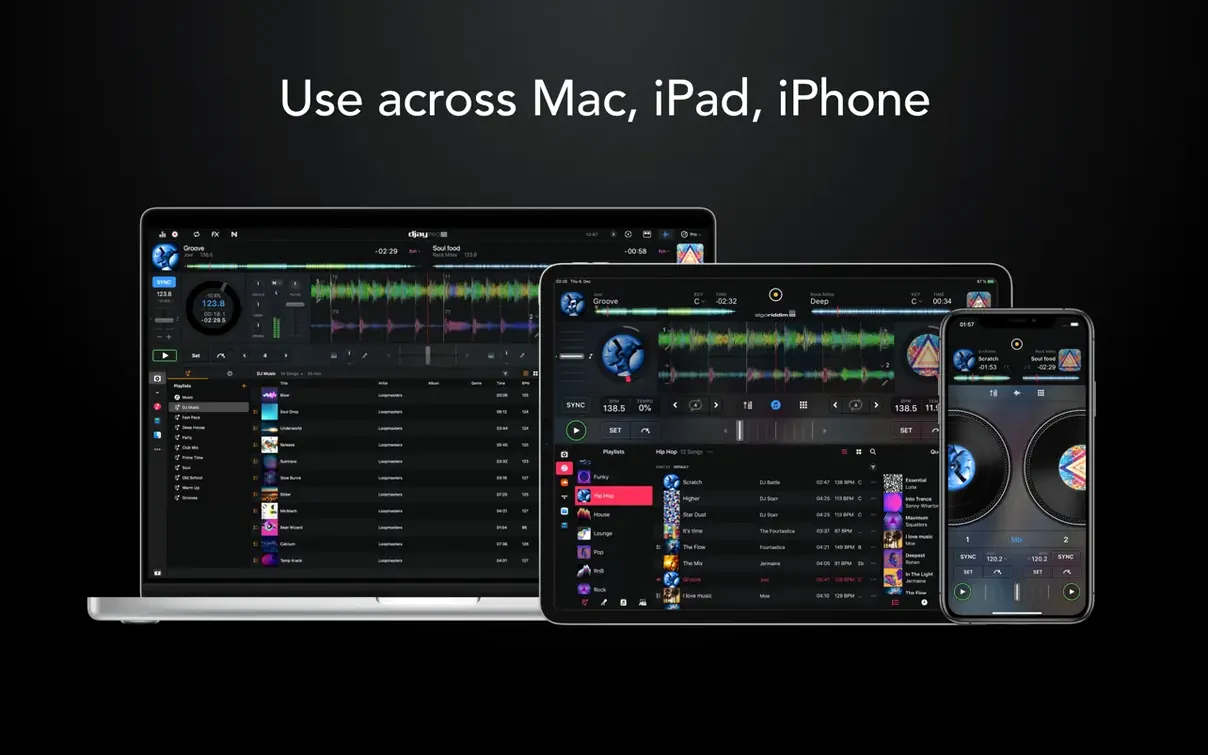
- Apple Silicon, Intel 64-bit
In the edit
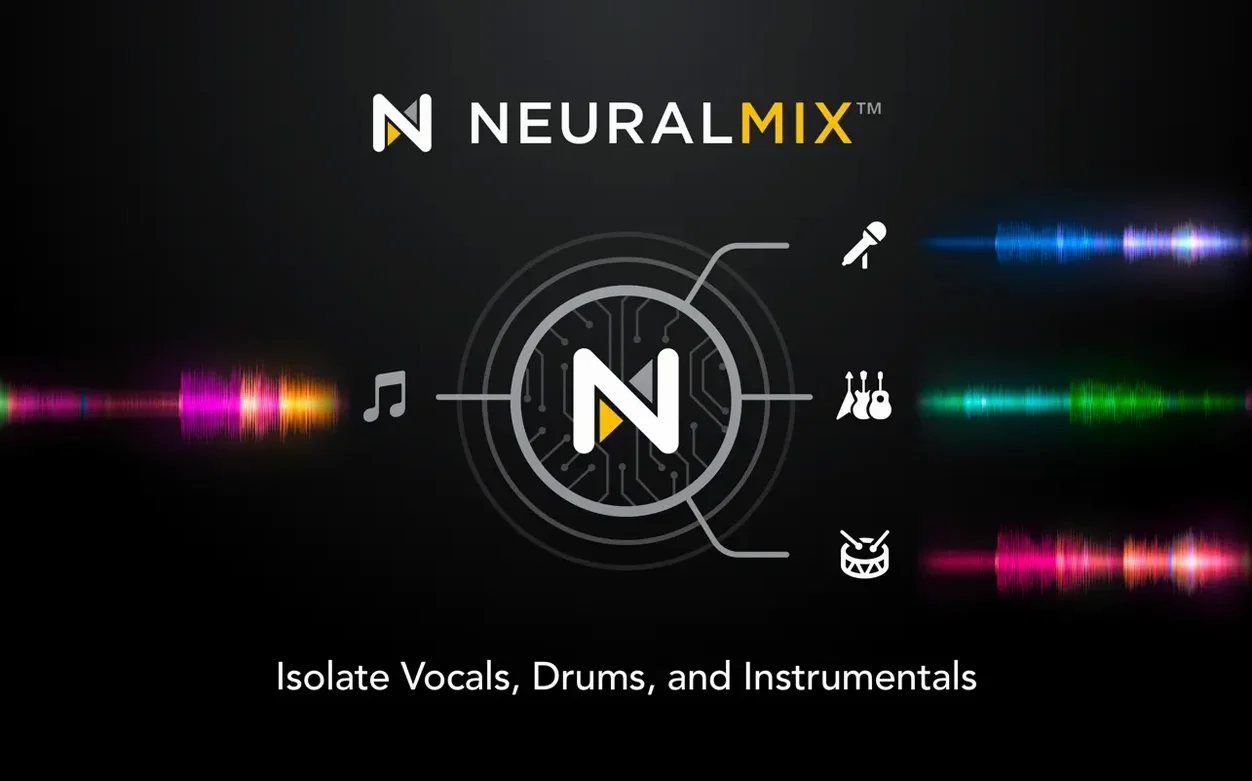
Neural Mix is the feature that makes you stop and listen. djay Pro separates vocals, drums, bass and harmonic elements in real time, so you can drop a cappella tracks over an instrumental or pull a bassline out of a 1970s funk record. For a wedding photographer who sometimes plays music between sets, it turns a laptop into something closer to a live instrument.
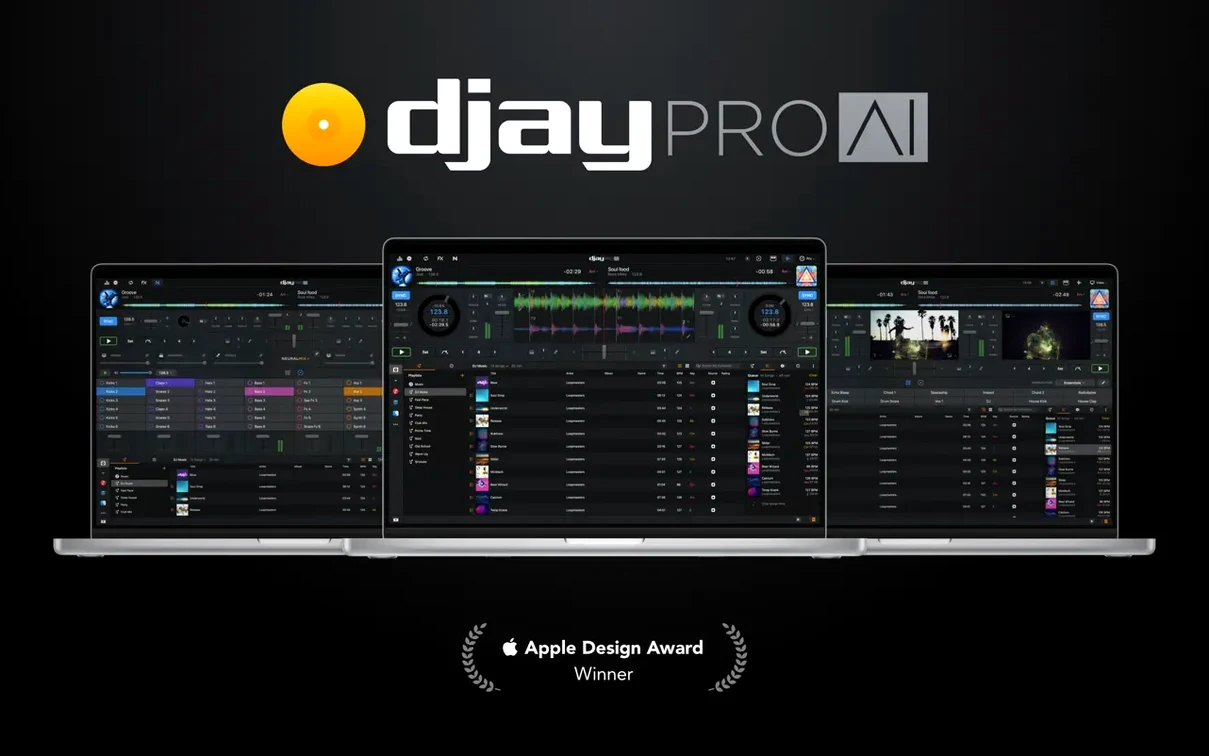
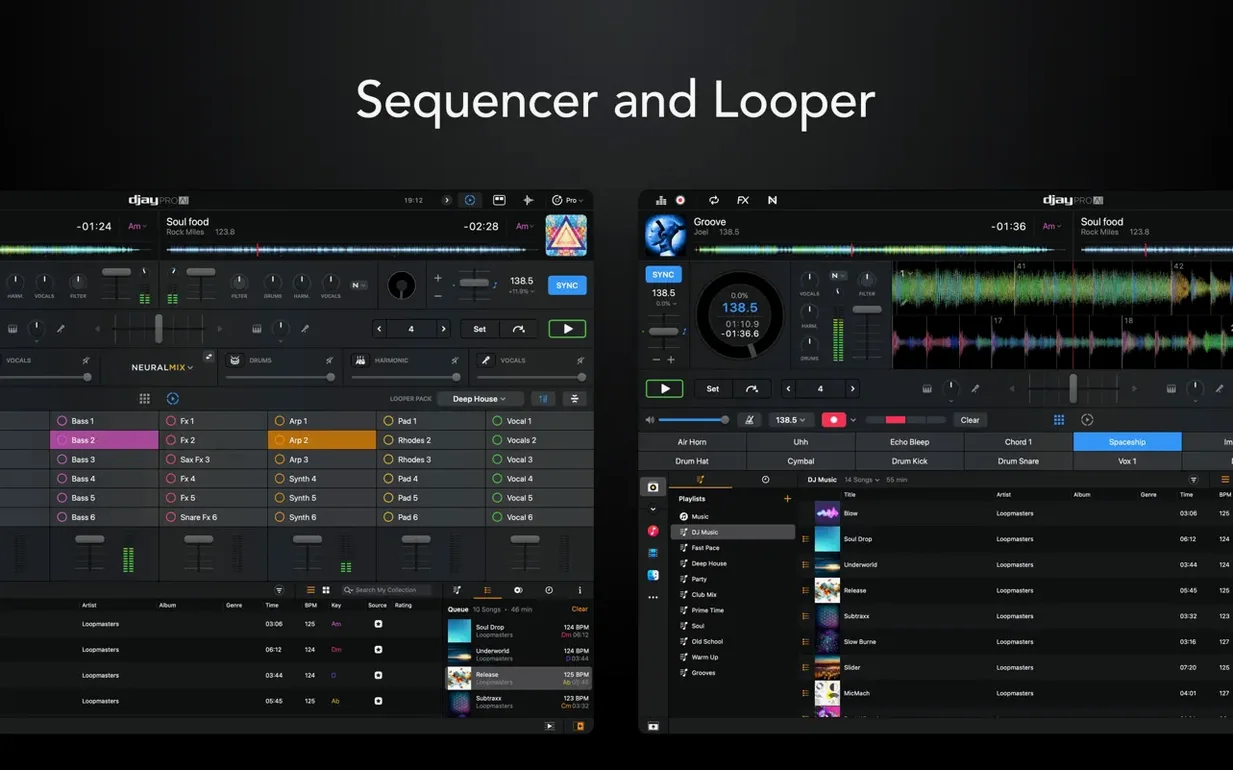
Four-deck mixing, a beat sequencer, and CDJ support out of the box
Four-deck mixing, a beat sequencer, high-definition waveforms and support for more than 100 MIDI controllers are all in the box. The Mac version (macOS 10.15 and later, Intel and Apple Silicon) handles hardware integration with CDJs and controllers, and version 5.6.9 adds RANE System One support plus MIDI actions to change beat jump duration.
Playlist improvements and new MIDI actions for beat jump duration
The latest update improves media library playlist presentation on CDJs and adds MIDI actions for beat jump duration. If you use hardware, that alone is worth the update.
Let djay Pro scan your music library and build waveform overviews first
The first thing to do is let djay Pro scan your music library. It indexes by folder, so point it at your main music location and give it time to build the waveform overviews. While that runs, open the preferences and check your audio output device — built-in speakers work for practice, but a proper interface or external sound card gives you separate headphone cueing, which is essential once you start mixing in earnest.
If you plan to use a controller, plug it in before launching the app. djay Pro recognises most hardware automatically, and version 5.6.9 has notably better support for motorised controllers, especially with 45 RPM records and cue point behaviour during scratching. Map a few basic controls first: play/pause, volume faders, filter knobs. You can always add more later.
Spend ten minutes with the Neural Mix feature on a track you know well. Solo the drums, then the bass, then the vocals. Hear how clean the separation is. That understanding pays off when you start building live edits.
A night at a house party in Hackney
Sarah is a part-time DJ who runs a monthly night at a small bar in Hackney. She uses a MacBook Pro with a two-channel controller and a separate audio interface. Her sets move between disco, house and the odd curveball track she found on Bandcamp that morning.
On a recent Friday, the bar was busier than expected and the playlist she had prepared felt too safe by track three. She pulled up a disco instrumental on deck one, used Neural Mix to isolate the bassline, and looped eight bars. On deck two she loaded an a cappella from a completely different record — a soul vocal that ran at a slightly different tempo. djay Pro's beat grid snapped them together after a quick tap on the tempo adjust. The transition was rough for two bars, then locked in. People danced harder. Sarah saved that mix as a preset and used it twice more before the night ended.
For her, the app's real value is that it lets her respond to the room without leaving the two-deck setup she knows. She does not use four decks or the sequencer often, but knowing they are there means she can expand her set without buying new hardware.
Load a track, read the high-definition waveform, and plan your energy
You sit down with a loose idea of the energy you want. Open djay Pro, load a track onto deck one and let the waveform draw across the screen. The high-definition view shows you where the drops and breaks sit, so you can plan your first transition before you press play.
While deck one plays, browse your library on the other side of the screen. You can search by artist, genre or BPM range. Find a track that works in key and tempo, drag it onto deck two, and cue it at the first beat of a phrase. The waveform on deck two turns yellow to show it is cued and ready.
Fade the bass of deck one using the filter, bring deck two's volume up slowly, and let the tracks overlap for sixteen bars. Once the new track is settled, pull the crossfader across and kill deck one's volume. That is a basic mix, and it takes about thirty seconds once you are comfortable.
Now add a layer. Enable the looper on deck one's outgoing section — four beats of the drum fill, say — and let that repeat while you bring deck two in over the top. Then disable the loop and let deck two run. The looper stores up to 48 loops per track, so you can mark sections you want to return to later in the set.
If you use a controller, assign one of the performance pads to trigger an effect — a filter sweep or a delay — and hit it at the end of a phrase. That small gesture makes a mix sound intentional rather than accidental.
Building a remix from two tracks in Neural Mix
This workflow works for anyone who wants to create a live remix without pre-production. Choose a track with a strong instrumental section and load it onto deck one. Activate Neural Mix and mute everything except the drums. You now have a drum loop that stays in time because the beat grid is already locked.
On deck two, load a vocal-heavy track. Solo the vocal stem. Adjust the tempo of deck two to match deck one — djay Pro can sync automatically or you can nudge it manually. Bring the vocal in over the drum loop from deck one. The two stems should sit together cleanly because the original tracks share a similar key range.
Add a bassline. On deck one, unmute the bass stem and mute the drums. You now have a vocal and a bassline playing over a drum loop from the other track. If the bass feels too busy, use the filter to roll off the low end slightly. If the vocal arrives early, adjust the cue point to move it back a beat.
Record the result using the app's built-in recording feature. You can export the mix as a single file and drop it into a playlist for later sets. The whole process takes about four minutes once you know the tracks.
Mobile DJs with a laptop and controller get the most from hardware integration
Mobile DJs who carry a laptop and a controller benefit immediately. The hardware integration is broad enough that you can plug into most club setups without reconfiguring, and the four-deck layout means you can prepare the next track while two are playing. The video mixing option also helps if you play at venues with screens.
Bedroom producers and remixers who work with stems will find the Neural Mix feature changes how they approach a track. Being able to separate components in real time means you can experiment with combinations that would otherwise require a DAW and a lot of offline rendering.
DJs who play eclectic sets with wide tempo ranges also gain something. The beat grid handles most material well, and the automix mode works as a fallback when you need a break or want to let the software handle transitions while you gauge the room. The sequencer adds another layer for those who want to build beats on top of existing tracks without carrying a drum machine.
Mac users with older Intel machines are not left out — the app runs on both architectures, and the real-time stem separation is handled efficiently enough that a 2019 MacBook Pro can keep up with a four-deck mix and effects. Newer Apple Silicon machines simply run cooler and quieter, which matters during long sessions.
New this release
- Added RANE System One integration with native display support.
- Added MIDI actions to change beat jump duration.
- Improved media library playlist presentation on CDJs.
Mac it needs
- macOS 10.15 or later
- Intel or Apple Silicon
Questions I actually get
Does djay Pro work on Apple Silicon Macs?
Yes, djay Pro runs natively on both Intel and Apple Silicon Macs, as long as you're on macOS 10.15 or later.
Do I need a MIDI controller to use djay Pro?
No, you can mix with the keyboard and trackpad, but the app supports more than 100 MIDI controllers if you want physical faders and jog wheels.
Installing on a Mac
- Mount the disk image and run Open Gatekeeper friendly.
- Press Enter in the Terminal window to bypass Gatekeeper.
- Drag the app into the Applications folder.
- Disable SIP if required.
Notes from photographers
Sign in or create your account to leave a comment.
No notes from photographers yet. If you have used this on a real folder, say which camera and which Mac.