Get it for my Mac (320 MB)
 EndNote
2025.4
EndNote
2025.4
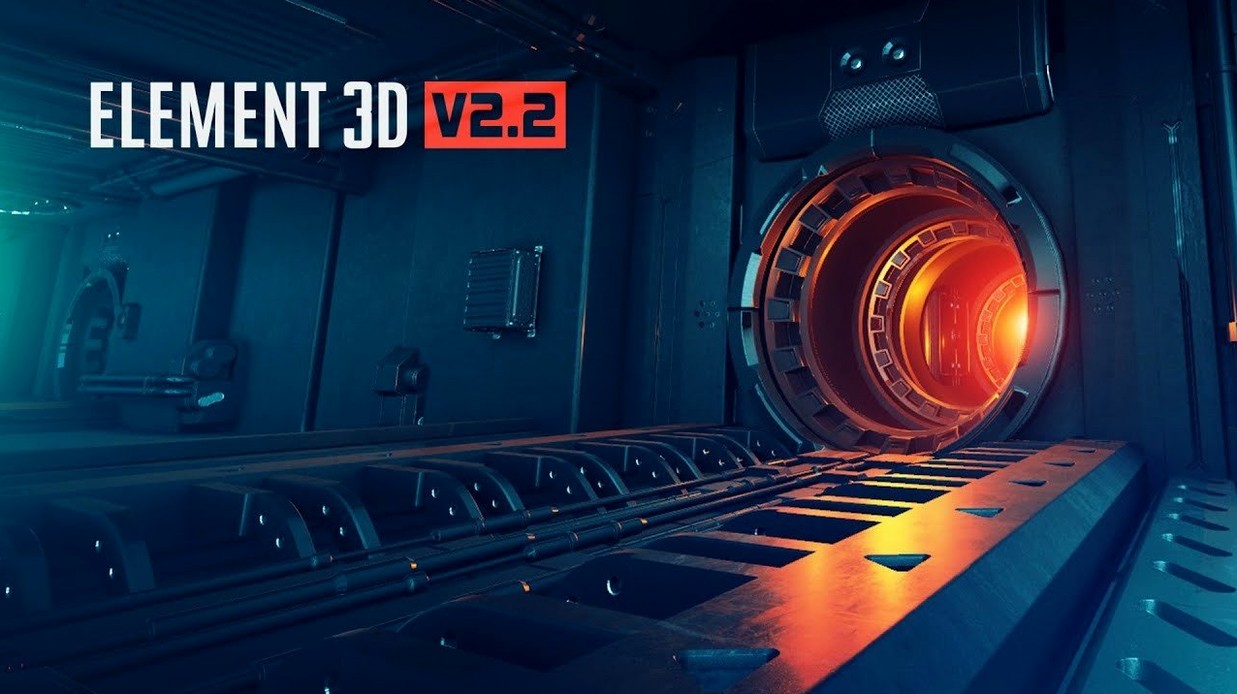
Version 2.2.3 of Element 3D for Mac brings a fresh update to Video Copilot’s object-based particle plug-in. It’s built around a fast OpenGL 3D rendering engine that works inside Adobe After Effects, so you can import OBJ files and start building 3D scenes without leaving your timeline. The plug-in handles five independent 3D groups, letting you clone, manipulate and distribute objects through a particle array system — handy for motion design and visual effects work where you need depth without the weight of a full 3D app.
The 3D Object Groups control gives you replicator settings and lets you specify which models appear in each group. Everything runs on Intel Macs, and the interface is in English. If you’ve been working with After Effects and want a straightforward way to add 3D objects and particle effects, this is the plug-in that’s been doing it for years. The current version keeps that core workflow intact while updating the engine and particle controls.
Installation follows the included instructions in the package — just run the installer and activate as directed. No extra steps, no fuss. Element 3D remains one of those tools that sits in your effects panel through busy seasons, ready when a client wants something that pops off the screen.
A fair few motion designers wonder whether Element 3D works alongside their existing After Effects setup without conflicts. The plug-in sits in the effects panel like any other Video Copilot tool, so it won’t interfere with built-in features or third-party plug-ins you already have. Because it uses its own OpenGL engine, it handles the 3D rendering separately from After Effects’ native ray-traced or Cinema 4D renderer. That means you can keep your usual workflow and drop Element 3D in when a project calls for object-based particles or imported OBJ models.
Another common question is about the OBJ import itself. People ask if they can bring in models from Cinema 4D, Blender or SketchUp and keep the textures. The plug-in reads standard OBJ files with material references, so textures you’ve assigned in your modelling app carry over into After Effects. You do need to make sure your OBJ is triangulated and that texture maps sit in a folder the plug-in can reach — a small organisational step that saves hunting for missing files later.
Some users also ask whether Element 3D replaces a dedicated 3D application. It doesn’t, and it isn’t meant to. You still build or source your models elsewhere. What it does well is let you animate, clone and light those models inside After Effects, which cuts out the back-and-forth between apps. For motion graphics that need 3D depth but don’t justify a full Cinema 4D or Maya pipeline, it’s a solid middle ground.
Start with a simple OBJ — a cube or a sphere — and play with the five 3D groups. Assign the same model to different groups, then tweak the replicator settings in each one. You’ll see quickly how the particle array system distributes objects in space and how groups interact with lights and camera moves inside After Effects. It’s a low-pressure way to learn the controls before bringing in a client’s logo or product model.
Keep your texture maps inside the same project folder as your OBJ files. Element 3D looks for relative paths, so if you move the project later, everything stays linked. A folder structure like project > models > textures is simple and works every time.
When you start using the particle replicator, begin with a low count — maybe 20 to 50 particles — and increase as you get comfortable. That way you can see how the plug-in distributes clones without overwhelming the viewport. Once you’ve dialled in the spacing and rotation, bump up the count for the final render.
Use the 3D Object Groups control to separate foreground elements from background ones. Put your hero object in one group with finer detail, and secondary objects in another group with simpler geometry. It makes lighting and depth-of-field easier to manage inside After Effects without extra passes.
Motion graphics artists who work in After Effects every day are the obvious fit. If you regularly add text, logos or abstract shapes to videos and want them to feel dimensional, Element 3D gives you that without learning a separate 3D package. The plug-in stays inside your timeline, so you keep the same keyframes, expressions and render queue you already know.
Visual effects artists doing compositing work also benefit. When you need a 3D object — a piece of debris, a hologram, a floating UI element — that matches the lighting and camera of a live-action plate, you can import the OBJ, match the angle in After Effects and render it directly. No round-tripping through Cinema 4D or Blender, no re-exporting passes.
Freelancers and small studios who don’t have a dedicated 3D artist on staff find Element 3D especially useful. One person can model a simple object in a free app, bring it into After Effects and animate it with the same tools they use for everything else. It keeps the pipeline short and the project moving.
Element 3D vs. Trapcode Particular. Both are After Effects plug-ins from the same developer family, but they serve different needs. Particular is a particle generator — great for organic effects like fire, smoke, sparkles and swarms. Element 3D is object-based: you import actual 3D models and clone them with a particle array. If you need glowing dots floating across screen, reach for Particular. If you need a hundred copies of a 3D gear rotating in sync, Element 3D is the one.
Element 3D vs. Zaxwerks 3D Invigorator. Invigorator lets you extrude vector shapes and text into 3D inside After Effects, and it handles bevels and materials well. Where Element 3D pulls ahead is the particle system and the ability to import external OBJ files. Invigorator is stronger for logo reveals and text treatments straight from Illustrator. Element 3D is better when you want to bring in models from Cinema 4D or Blender and animate them with replicator controls.
Element 3D vs. C4D Lite (included with After Effects). C4D Lite gives you a full 3D workspace with modelling, animation and rendering — but you have to work inside Cinema 4D’s interface and then bring the result into After Effects. Element 3D keeps you inside the After Effects environment the whole time. For quick jobs or artists who prefer not to switch apps, the plug-in workflow is faster. For complex scenes with advanced materials and global illumination, C4D Lite has the edge. Most users keep both around.
Element 3D can import OBJ files into Adobe After Effects for use in 3D scenes.
Sign in or create your account to leave a comment.
No notes from photographers yet. If you have used this on a real folder, say which camera and which Mac.