Get it for my Mac (145 MB)
 iZotope Ozone
12.1.0
iZotope Ozone
12.1.0

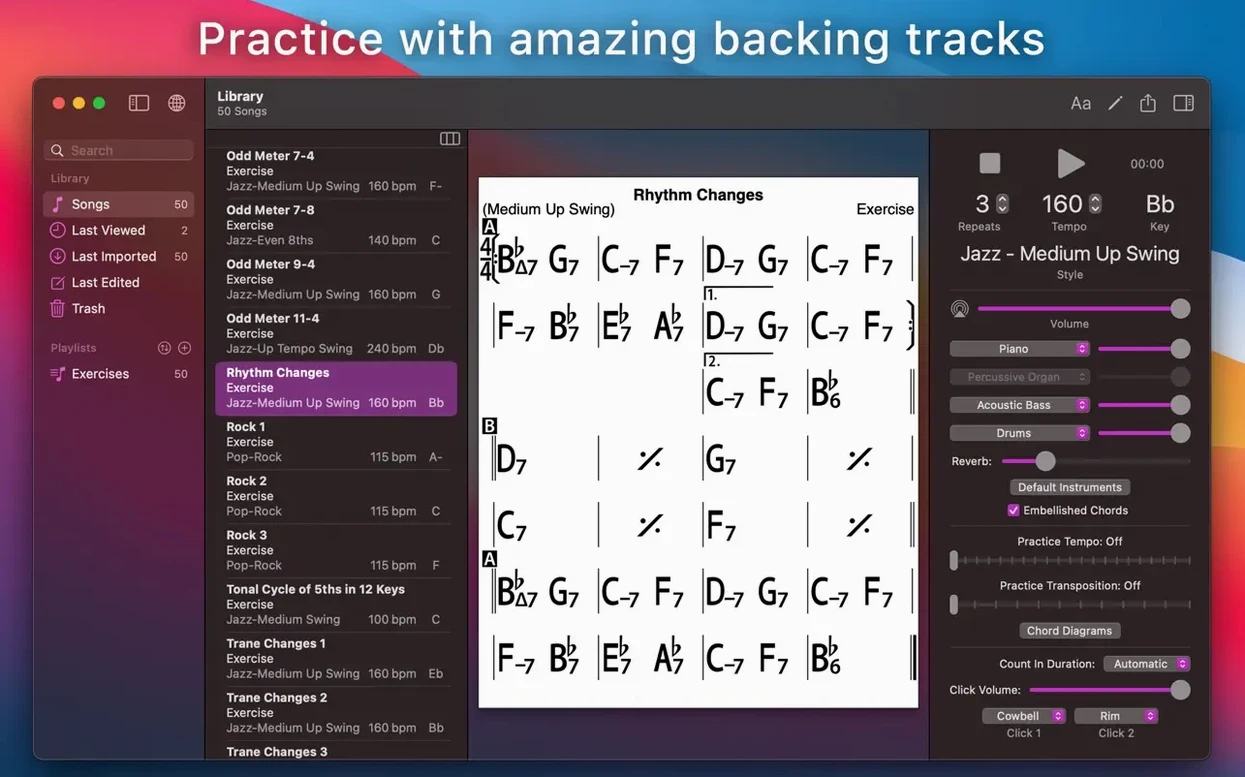
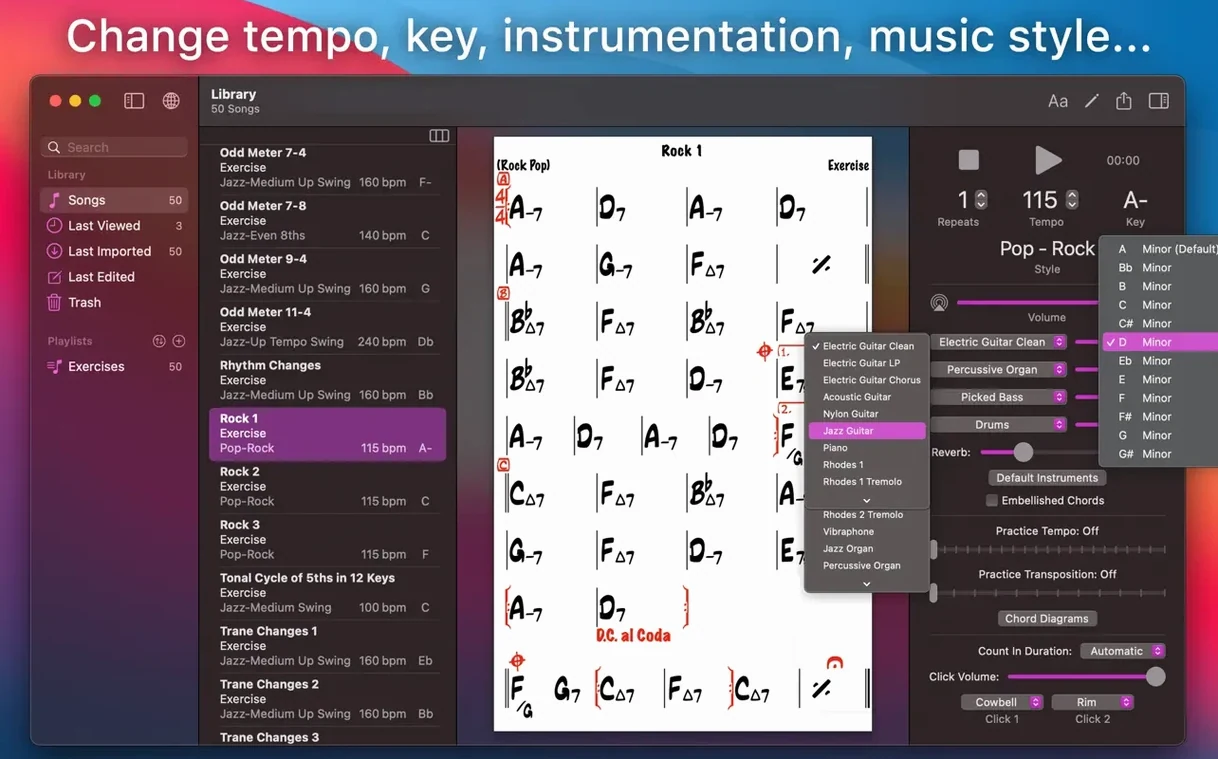
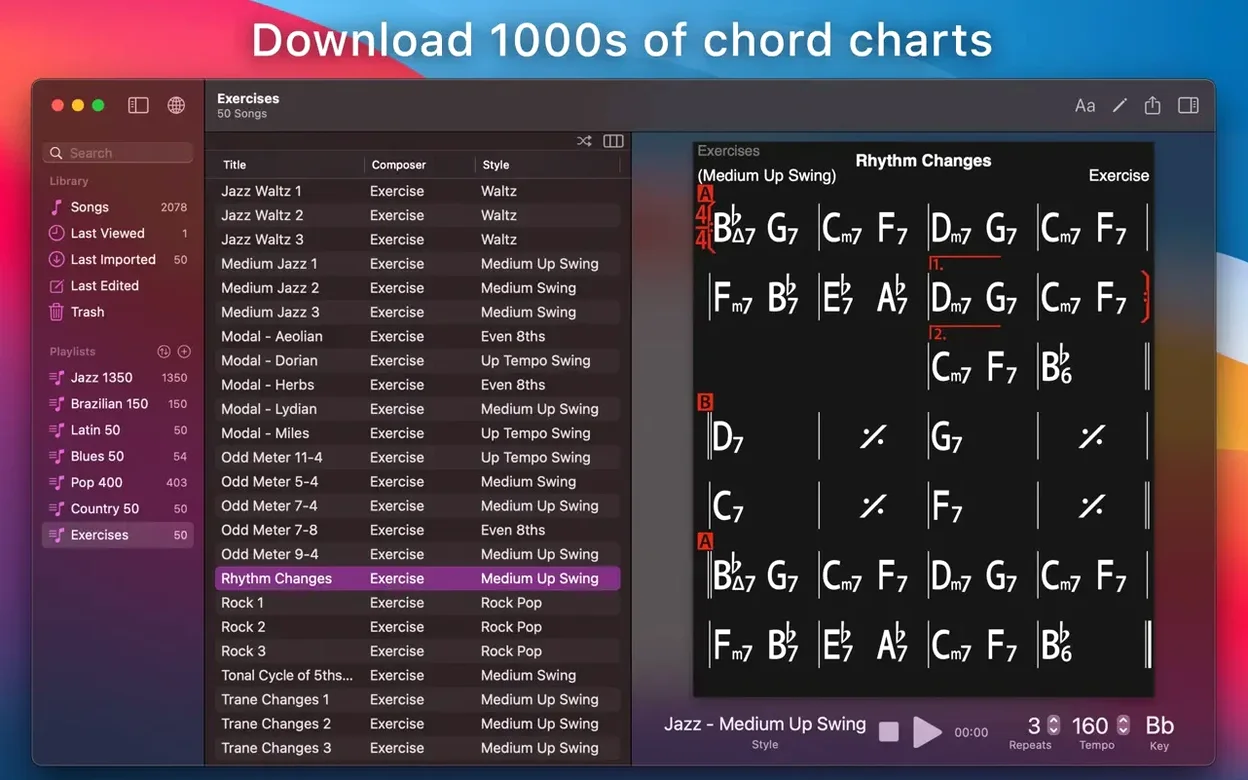
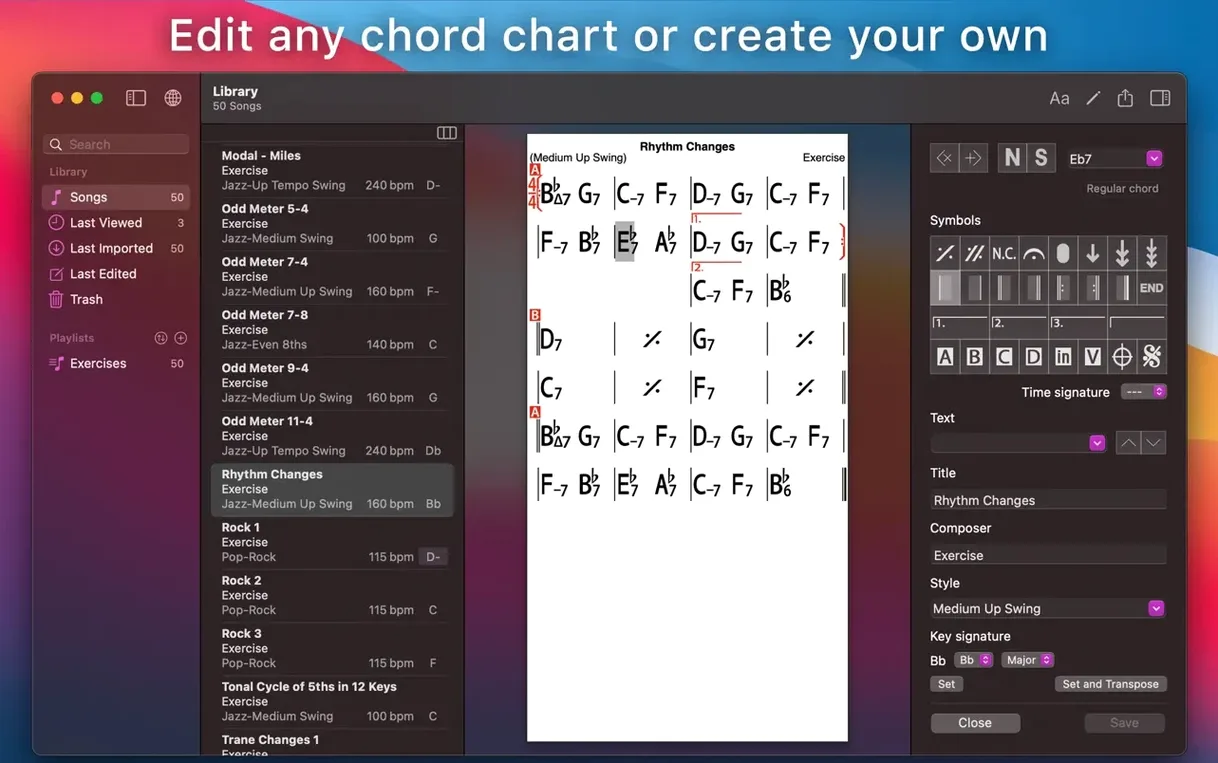
iReal Pro runs on any Mac from macOS 12.4 Monterey onwards, whether you are on Intel or Apple Silicon — no separate builds to worry about. For a working musician or a songwriter who rehearses alone, the app replaces a full backing band with piano, guitar, bass and drums that follow the chord chart you are looking at. You can record yourself singing or playing over the top, then export the whole thing as PDF or MusicXML if you need to share charts with a band or a student.
Beyond the basic accompaniment, there are 50 exercises built around common chord progressions, and the app will show guitar tab, ukulele tab or piano fingerings for any chart you pull up. Transpose to any key or switch to number notation in a couple of clicks — useful when you are playing with horn players or need to change the key on the fly. The chord chart editor lets you build your own library from scratch, and the Mac version is a standalone app, not just a scaled-down phone port.
For anyone after an iReal Pro torrent, the version here is 2026.3.2, and it includes the full feature set: editing, printing, publishing and collecting charts, with the interface available in English, French, German, Spanish, Italian, Japanese, Korean, Chinese and Russian.
Any musician who regularly practises alone will find a use for it, but the people who really lean on iReal Pro tend to fall into a few camps. Jazz and improvisation students are an obvious one — you can load a standard, set the tempo, pick a style and start blowing over changes without needing a pianist or a rhythm section. The scale suggestions for each chord make it easier to see what works over a progression, which is exactly the kind of thing a teacher would point you toward anyway.
Guitarists and ukulele players benefit from the tab and fingering diagrams, especially if you are still building your chord vocabulary. Instead of guessing a voicing, you get a clear diagram right there on the screen. Songwriters also get a lot out of it: you can sketch a progression, hear it back with a full arrangement, then tweak the chart until it sounds right. The recording feature means you can capture a rough vocal or melody idea over the playback and review it later.
Teachers use it to prepare playlists for students — you can build a set of charts for a lesson, transpose them to a key the student can handle, and export them as PDFs so everyone has the same sheet. The multiple playlists make it easy to keep different classes or ensembles separate. And because the Mac version syncs with iCloud, anything you create on the laptop shows up on your phone or iPad if you have the iOS version.
When you first open iReal Pro, a few adjustments make the experience much more useful straight away. The default tempo might not suit how you play, so set it to something comfortable before you start loading charts — you can always nudge it up later. The accompaniment style menu is worth exploring early on; picking the right genre for the song changes the feel dramatically, and trying a few different styles on the same chart can give you ideas you would not have thought of.
If you are planning to record yourself, check the audio output routing before you hit record. The app can mix your live input with the backing track, and getting that balance right from the start saves you from having to re-record later. The transpose setting is another one to set early if you are working with a singer or a transposing instrument — the app shifts the whole chart instantly, and you can toggle between letter names and number notation depending on what the rest of the band prefers.
iReal Pro works well alongside other music software on your Mac. You can export charts as MusicXML and open them in notation editors like MuseScore or Dorico if you need to develop an arrangement further. The audio export options — WAV, AAC and MIDI — let you drop a backing track into Logic Pro, GarageBand or any DAW for layering additional parts or mixing it with other recordings.
On the macOS side, iCloud sync is the feature that ties everything together. If you have iReal Pro on an iPhone or iPad, any chart you create or edit on the Mac appears on the other devices automatically. That is handy when you are at a jam and the chord changes for the next tune are on your phone, not your laptop. The app also supports drag and drop from the Finder for importing charts, and you can send PDFs straight to the print dialog or share them via the standard macOS share sheet.
Say you are a guitarist preparing for a weekly jam session. You know the standard repertoire, but you want to brush up on a few tunes you have not played in months. You open iReal Pro on the Mac, load the charts you saved from last year, and run through each one at a relaxed tempo with a medium swing style. The app plays bass, piano and drums behind you while you focus on your lines.
When you hit a section where the changes feel unfamiliar, you check the scale suggestions for those bars and try a few different approaches. You record yourself playing through the tune twice, then listen back to hear what worked and what did not. Before you leave, you export the charts you want to review on the train as PDFs, and the rest stay in a playlist that syncs to your phone via iCloud. At the session, the tunes you practised sound solid, and the one someone calls that you did not prepare? You pull it up on your phone, hit the transpose button so it fits the vocalist, and follow the chart while the app plays the changes. No band needed for the rehearsal, no paper to carry, and nothing got lost between the Mac and the phone.
Sign in or create your account to leave a comment.
No notes from photographers yet. If you have used this on a real folder, say which camera and which Mac.