Get it for my Mac (577 MB)
 HitPaw Univd
4.7.0
HitPaw Univd
4.7.0

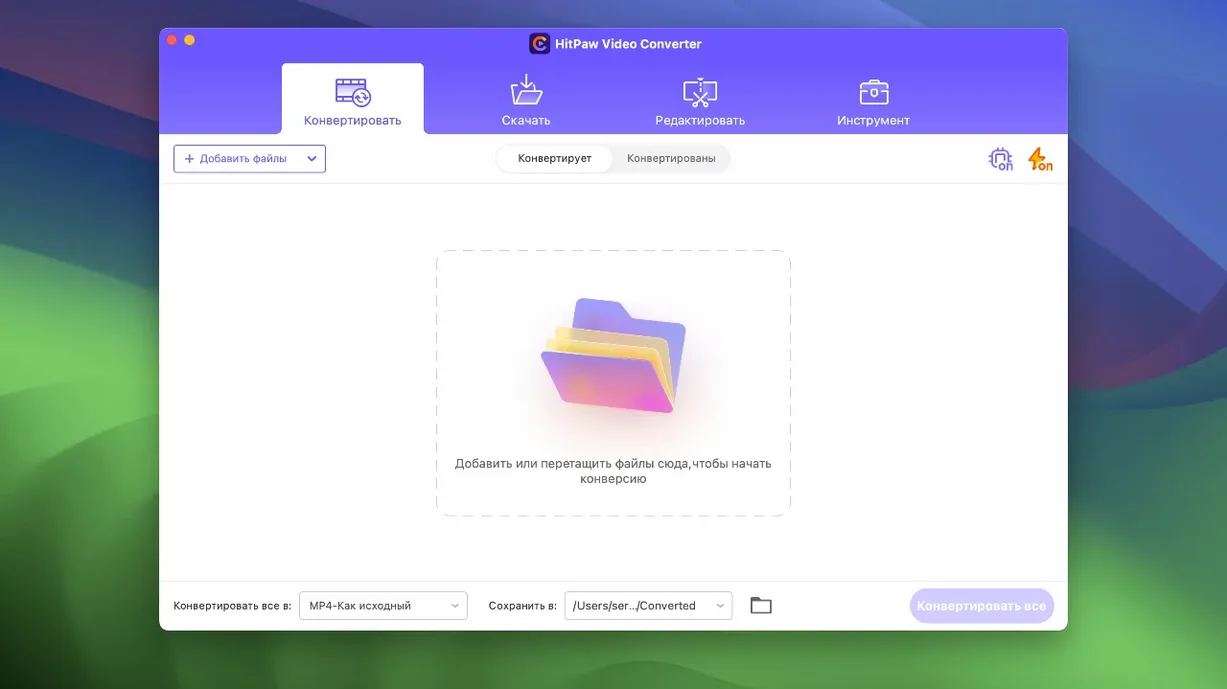
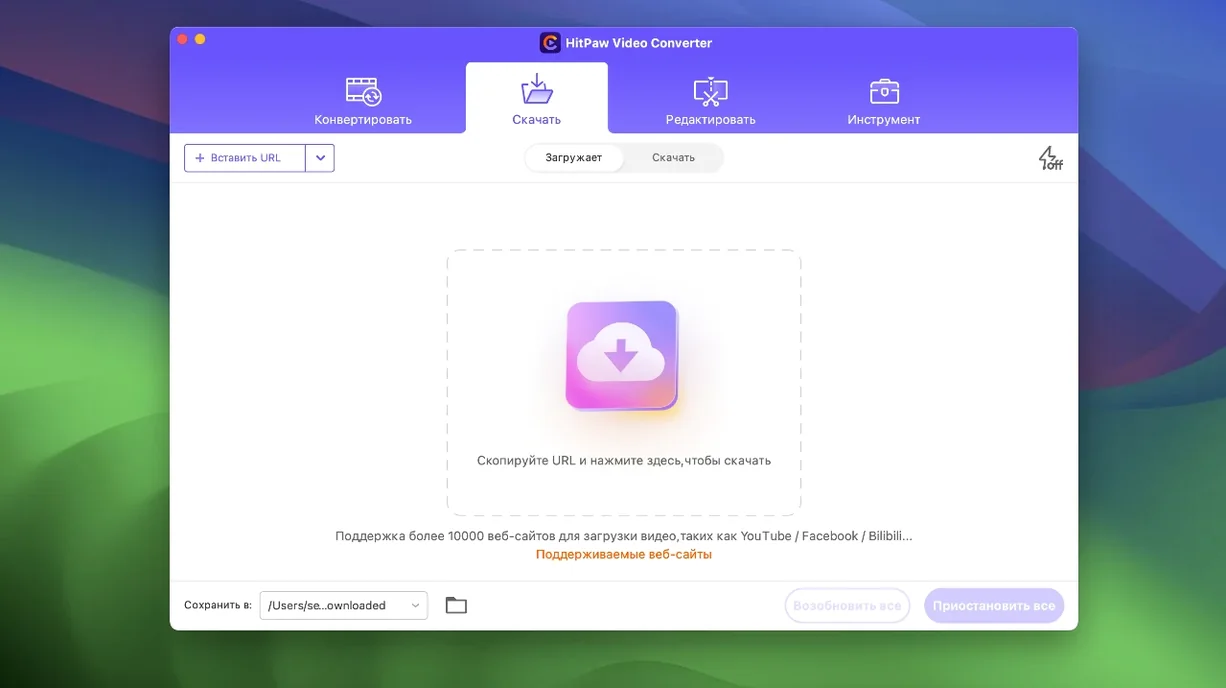
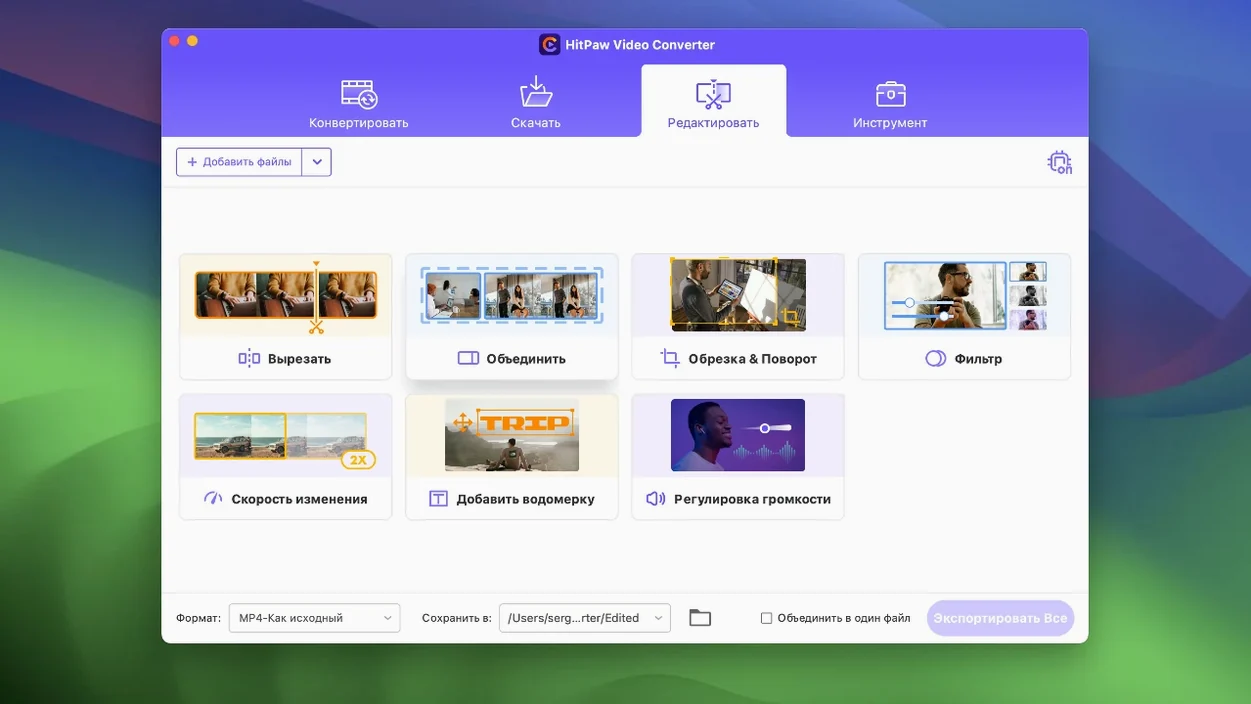
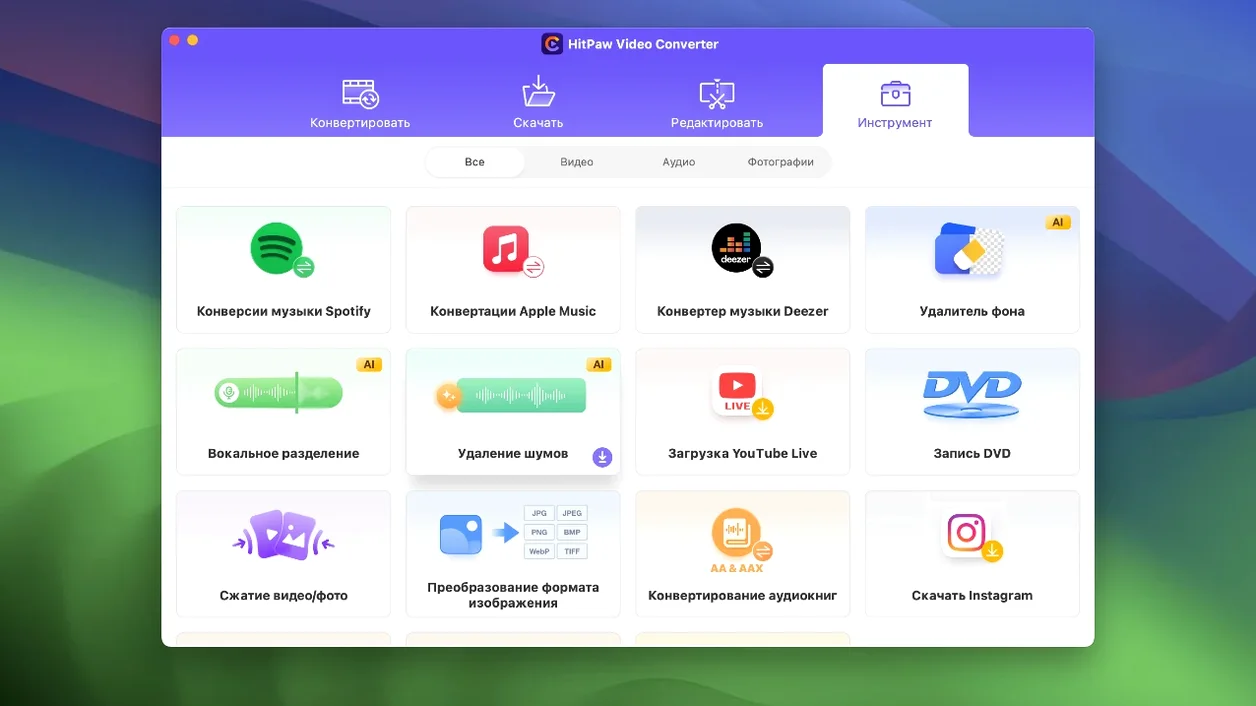
HitPaw Video Converter is a Mac app for converting, downloading, compressing, and editing video and audio files. It handles over 1000 formats including MP4, MOV, AVI, MKV, and MP3, and supports advanced codecs like VP9, ProRes, and Opus. Beyond conversion, it can grab videos from more than 10,000 websites and includes built-in AI tools for tasks like auto reframing. The app runs on macOS 10.15 and later, with an Intel-only architecture at version 4.5.0.
| Detail | Info |
|---|---|
| Developer | HitPaw |
| Version | 4.5.0 |
| macOS support | 10.15 or later |
| Architecture | Intel (x86 64-bit) |
| Languages | 16 including English, German, Spanish, French, Japanese |
This is a practical tool for anyone who regularly works with video files — editors, content creators, or just people who need to convert a download for a different device. The compression module and editor display were both optimised in the latest update, and the auto reframe feature is new. If you are on an Intel Mac and need a Swiss Army knife for media, this covers a lot of ground.
HitPaw Video Converter suits a range of Mac users, but some groups will find it more useful than others. If you are a video editor working on an Intel Mac, the format support alone saves time — no more hunting for a separate tool when a client sends a VOB file or an old ProRes clip. The auto reframe feature is handy for social media cuts, where you need a square or vertical frame from a horizontal source without re-editing the whole timeline.
Content creators who download clips from websites will also appreciate the built-in downloader. It pulls from over 10,000 sites, so grabbing a reference video or a music track from services like Deezer is one less trip to a browser extension. For anyone managing a media library across different devices — converting a MKV to MP4 for a tablet, or compressing a batch of home videos for storage — the compression module and format list cover the job without needing a second app.
Beginners with basic editing needs also benefit. The AI tools handle tasks like reframing automatically, so you do not need to learn the ins and outs of a full NLE just to crop a clip. And because the interface is available in 16 languages, it is accessible to a wide range of users without forcing them to work in a language they are not comfortable with.
The most common slip is not checking the output format before starting a batch conversion. HitPaw supports over 1000 formats, but the default preset might not match what your device expects. Always confirm the target format and codec — especially if you are converting for a specific player or editing suite.
Another one is ignoring the compression settings. The optimisation in version 4.5.0 helps, but if you are converting a large file without adjusting quality or size, you might end up with something that looks worse than the original. Take a moment to set a reasonable output size or bitrate, particularly for archival work.
Beginners also sometimes forget that the download feature works with a huge number of sites, but not every URL behaves the same. If a download fails, try pasting a clean link from the video page rather than a playlist or a redirect. And a small but common one: not closing other media apps before starting a conversion. If your Mac is already transcoding in another program, HitPaw might take longer than expected.
Start with a single test file. Convert a short MP4 to MOV or VP9, just to see how the app handles it and to get a feel for the workflow. Use the same file to try the auto reframe feature — it is new in this version and worth experimenting with right away.
Set up your output folder before you do anything else. HitPaw will remember it, so you are not digging through Finder for every converted file. If you plan to use the downloader, create a dedicated folder for web grabs too — keeps things tidy.
Explore the language options early. The app ships with 16 languages, and if English is not your first, switching to your native language in the first session makes the settings and tooltips more intuitive. You can always change it back later.
Finally, check the update page once a week. HitPaw has been releasing optimisations regularly, and the latest one improved the compression module and editor display. Staying on the current build means you get those refinements without waiting for a major version bump.
Sign in or create your account to leave a comment.
No notes from photographers yet. If you have used this on a real folder, say which camera and which Mac.