
 Get it for my Mac (326 MB)

 PDF Expert
3.13.4
- Version
- 6.5.0
- Developer
- PDF Technologies
- Interface in
- Russian, English, German, Spanish, Italian, Chinese (Traditional), Chinese (Simplified), Dutch, Polish, French, Japanese
- Licence on file
- K'ed by TNT team
- macOS it runs on
- macOS 11 or later
- Chip support
- Apple Silicon, Intel 64-bit
In the edit
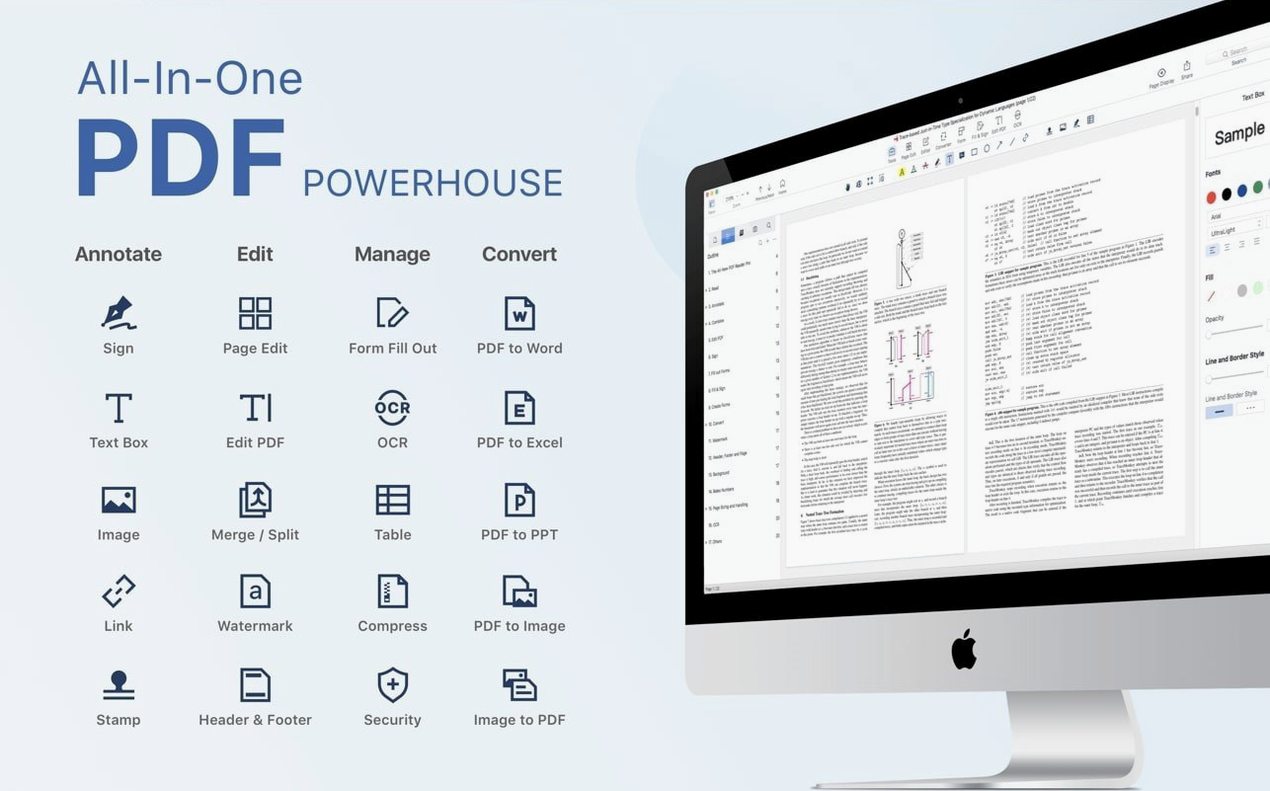
PDF Reader Pro is a Mac PDF editor that handles reading, annotating, converting, signing, and form filling — all in one app.
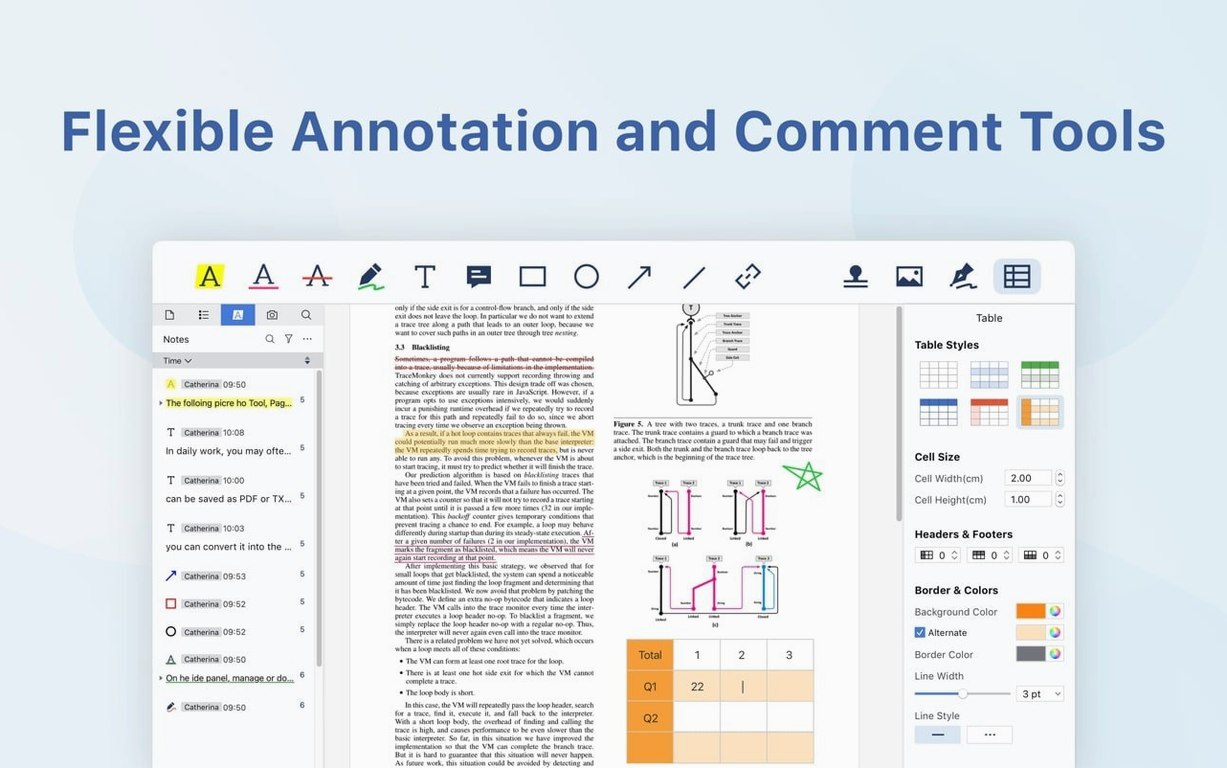
- Opened the contract and used the annotation tools to mark a few clauses. Highlighting, sticky notes, and freehand drawing all worked without lag, even with a 50-page document.
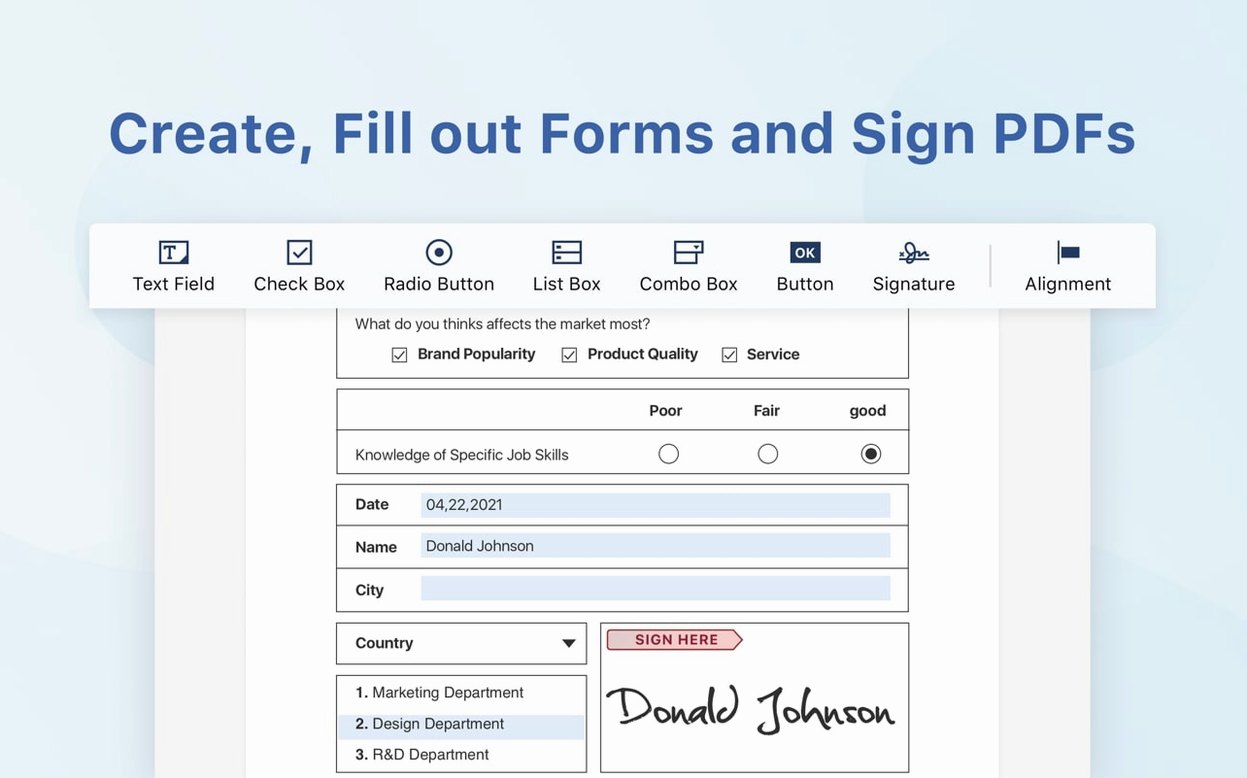
- Added a signature field using the eSign workflow from version 5.3.0. Placed it exactly where I wanted, then signed online through the app — no need to print, sign, and scan.
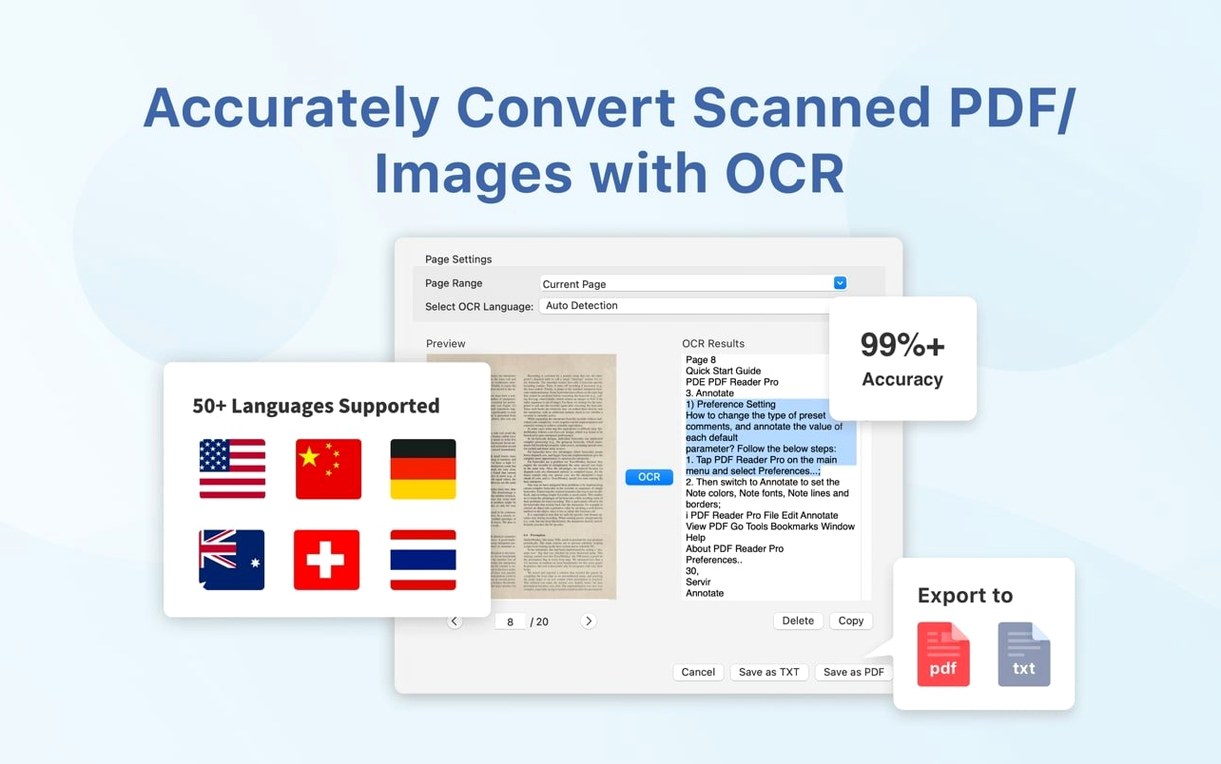
- Filled in a few form fields on another page. Text recognition kicked in for a scanned section, turning it into editable text in a couple of seconds.
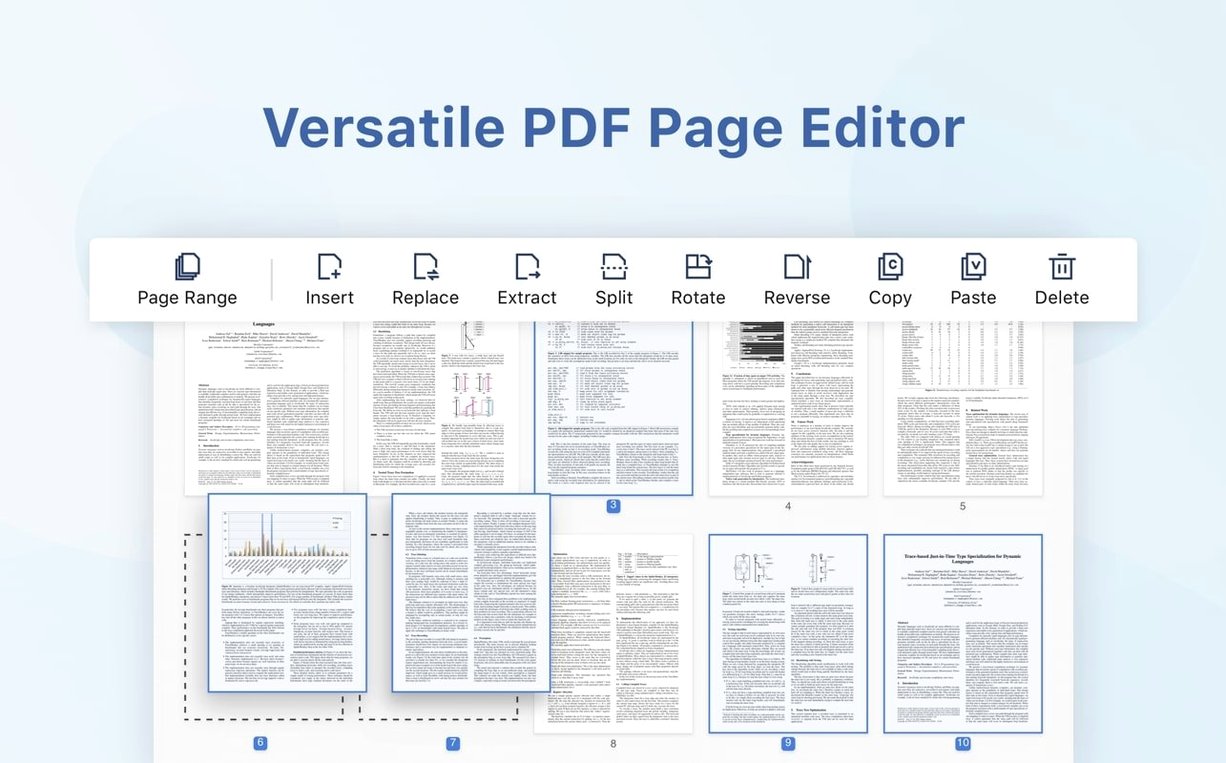
- Merged the signed contract with a supporting document — a single step, no file juggling.
- Converted the final merged file to a smaller PDF using the built-in compression. Ready to email.
That whole flow — open, mark up, sign, merge, convert — took maybe ten minutes. For a photographer who spends most of his day in Lightroom, that kind of straightforward handling is exactly what I need from a PDF tool.
Building a contract review workflow from scratch
Let me walk through how I handle a typical contract review, start to finish, using PDF Reader Pro. This is the kind of task that comes up every few weeks — a model release, a venue agreement, or a client brief that needs signing.
- Open the document. Double-click the PDF and it loads in the main viewer. The interface is clean — toolbar at the top, thumbnail sidebar on the left. I keep the sidebar open so I can jump between pages quickly.
- Read through and annotate. I use the highlight tool for key clauses — payment terms, cancellation policies, usage rights. For questions I want to raise later, I drop a sticky note in the margin. If there's a handwritten note on a scanned page, the text recognition makes it searchable, which saves hunting through pages.
- Fill in any blanks. Some contracts come with form fields already — dates, names, amounts. PDF Reader Pro detects them automatically, so I just tab through and type. No need to export and re-import.
- Sign and send. Version 5.3.0 added the eSign workflow, so I can place a signature field, sign online through the app, and finalise the document without leaving the software. That replaced my old routine of printing, signing with a pen, scanning, and emailing — easily fifteen minutes saved per document.
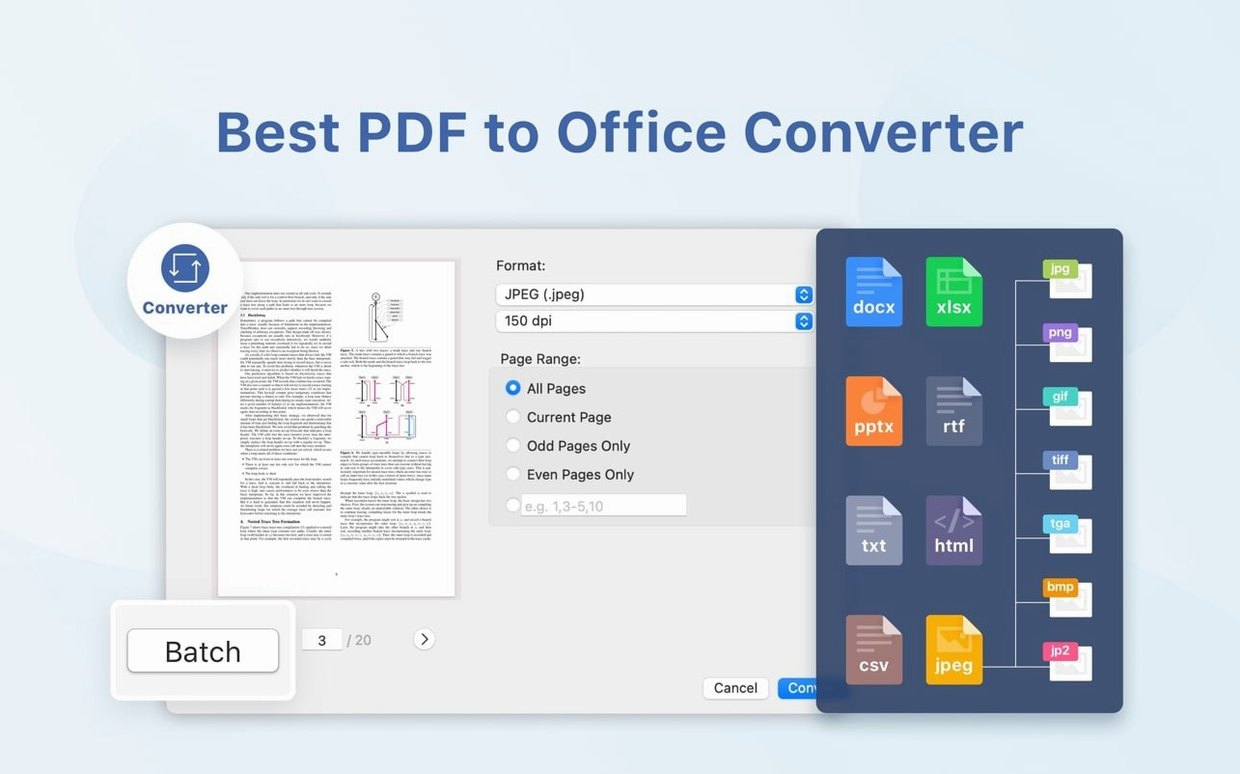
- Export for the client. If the client wants a Word version for their records, I use the export to Word option. If they just need a PDF, I compress the file a little before attaching it to an email.
This flow works for any document that needs reviewing and signing. The same steps apply to vendor agreements, insurance forms, and even the occasional script draft I get from a collaborator.
Syncs directly with Dropbox for contracts and models
I've used a few PDF editors on Mac over the years. Here is how PDF Reader Pro stacks up against the ones I see most often.
Preview. Apple's built-in app opens PDFs instantly and handles basic annotations — highlights, notes, signatures. But it stops there. There is no form filling, no text recognition, no merge or split features, and no export to Office formats. For quick reading, Preview is fine. For anything beyond that, you end up switching to another app.
On a Mac that already runs Lightroom, Photoshop, and a browser with thirty tabs, I notice the difference in responsiveness.
PDF Reader Pro sits between these two. The eSign workflow in version 5.3.0 brought it closer to Acrobat's signing capabilities, which was the main gap before. For a working photographer who needs PDF tools a few times a week, it covers everything without the overhead.
Built-in eSign workflow saves time on signatures
PDF Reader Pro works well with macOS features and other apps I already use. Here is how it slots in.
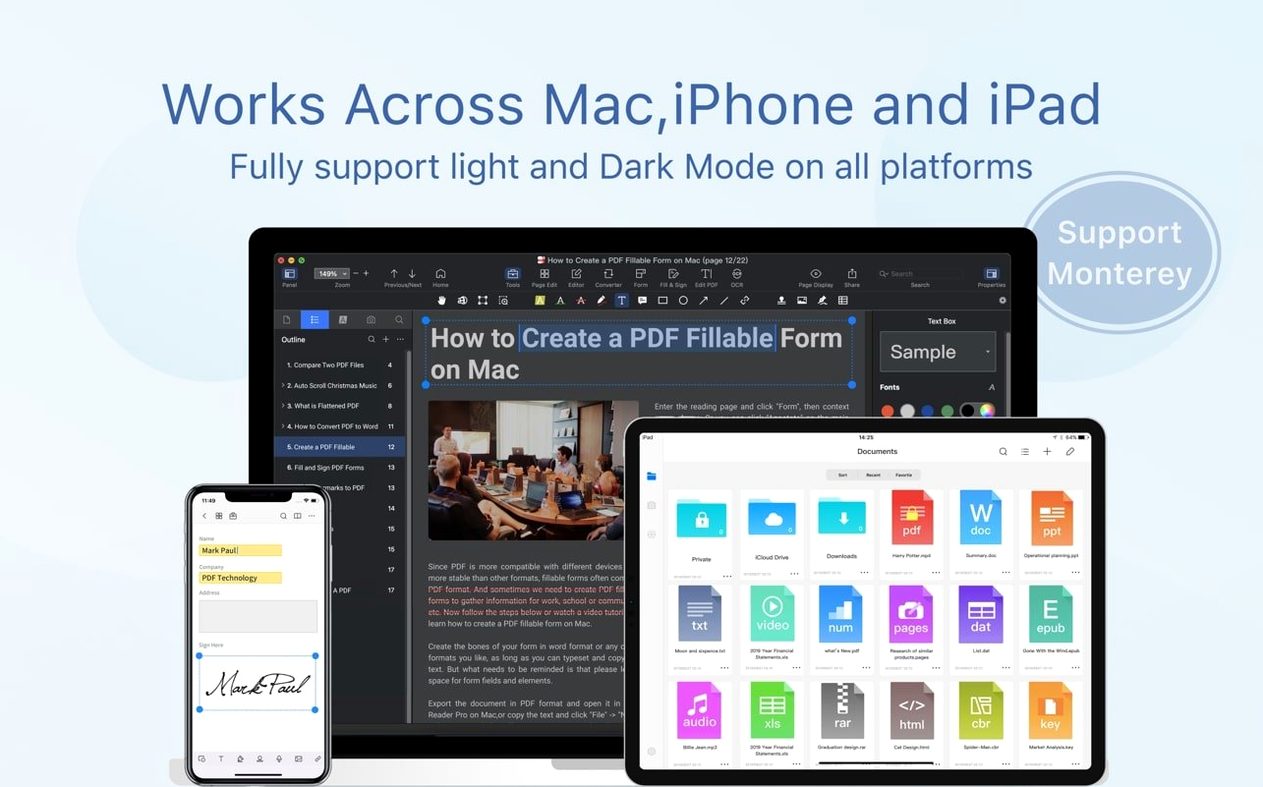
Dropbox sync. The app can sync files directly with Dropbox. I keep my contracts and model releases in a Dropbox folder, so I can open them in PDF Reader Pro, make changes, and have the updated version available on my phone or iPad without manually copying files. Handy for reviewing documents away from the desk.
Drag and drop from Finder. I drag PDFs from a Finder window straight into the app's thumbnail sidebar to insert pages from another file. If I need to add a supplementary document to a contract — a terms sheet or a schedule — it takes one drag.
Export to formats I actually use. When a client sends a brief as a PDF and I need to pull text into a proposal, I export to Word or RTF. The formatting carries over well enough that I only need a few tweaks. For pulling numbers from a table, the CSV export works.
Presentation mode. This is a niche one, but I have used it when reviewing a proof sheet with a client on my laptop. Presentation mode shows the PDF full-screen, and you can flip through pages without toolbars cluttering the view. It is not a replacement for a proper slideshow app, but for a quick walkthrough it does the job.
Text-to-speech. I do not use this often, but when my eyes are tired after a long editing session, I let the app read a contract aloud while I follow along. It is a small feature, but it has saved me from missing a detail more than once.
Opens faster than Preview for basic annotations
The current version is 6.0.0, and a few changes from recent releases have made a real difference in how I work day to day.
- eSign workflow — added in 5.3.0, still present in 6.0.0. This is the biggest quality-of-life improvement. Instead of printing, signing, scanning, and emailing, I place a signature field, sign online through the app, and send the final PDF. The whole process takes two minutes.
- Improved OCR — also from the 5.3.0 update. Scanned documents that used to come through as unsearchable images are now readable and editable. I have noticed that text recognition kicks in faster than before, and it handles multi-column layouts better.
- Better conversion — the 5.3.0 release notes mentioned improved conversion, and I have found that exporting to Word or Excel now preserves more of the original layout. Tables and bullet points used to shift around; now they mostly stay put.
These changes have turned PDF Reader Pro from a capable reader into a tool I reach for whenever a document needs more than a quick look. The core editing features have been solid for a while, but the signing and OCR improvements are what made it my default PDF app.
Mac it needs
- macOS 11 or later
- Intel or Apple Silicon
- Interface languages: Russian, English, German, Spanish, Italian, Traditional Chinese, Simplified Chinese, Dutch, Polish, French, Japanese
Questions I actually get
What versions of macOS does PDF Reader Pro support?
PDF Reader Pro works on macOS 11 and later, on both Intel and Apple Silicon Macs.
Does PDF Reader Pro support digital signing?
Yes, version 5.3.0 added eSign workflows, signature fields, and online signing.
Installing on a Mac
- Mount the disk image and run the app. If macOS blocks it, go to System Settings > Privacy & Security and click Open Anyway.
- Open Terminal, type the bypass command you see in the readme, and press Enter to let Gatekeeper know it is fine.
- Drag the app into your Applications folder.
- Launch PDF Reader Pro from Applications. Done.
Notes from photographers
Sign in or create your account to leave a comment.
No notes from photographers yet. If you have used this on a real folder, say which camera and which Mac.
