Get it for my Mac (384 MB)
 Typora
1.14.15
Typora
1.14.15

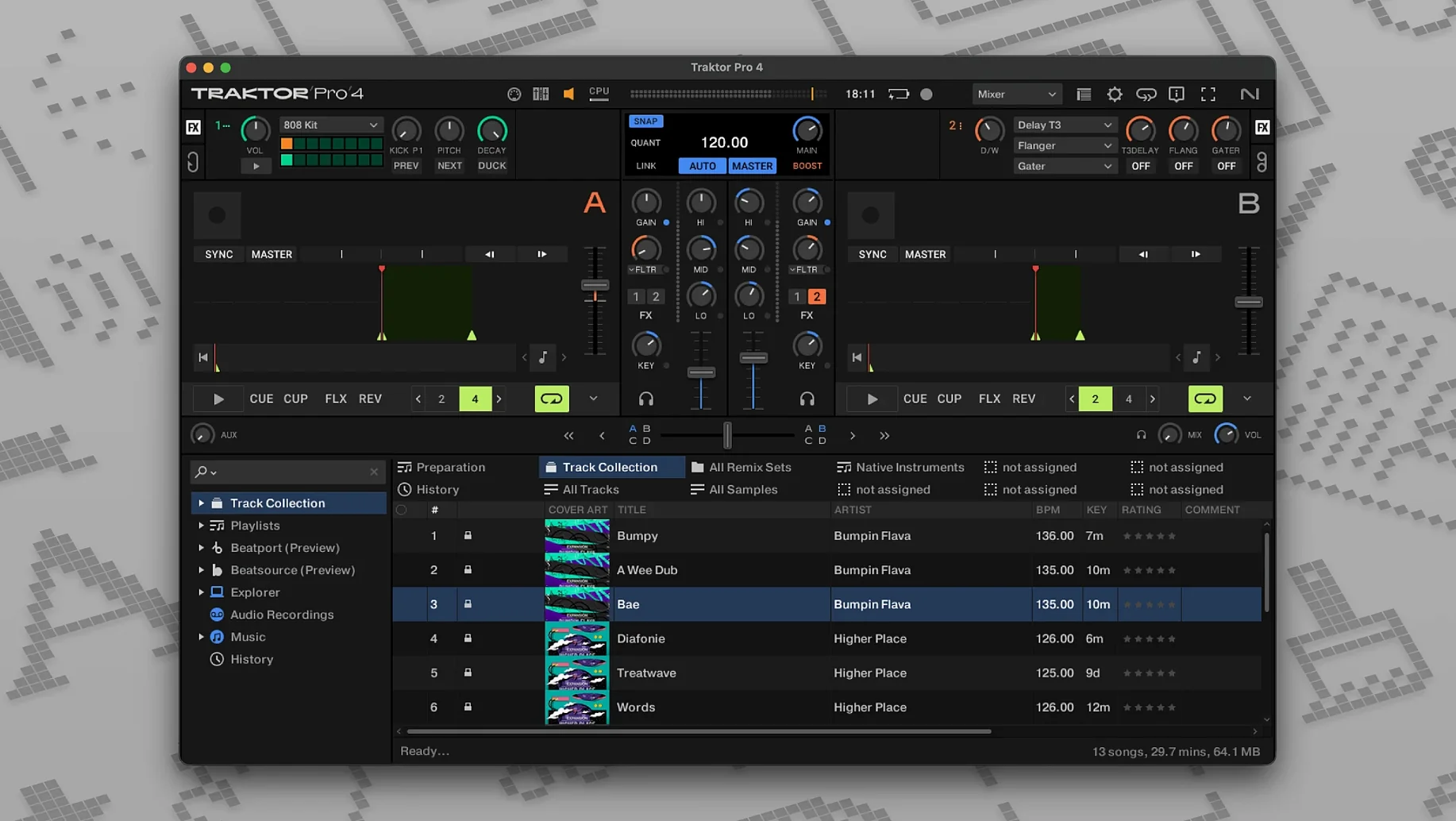
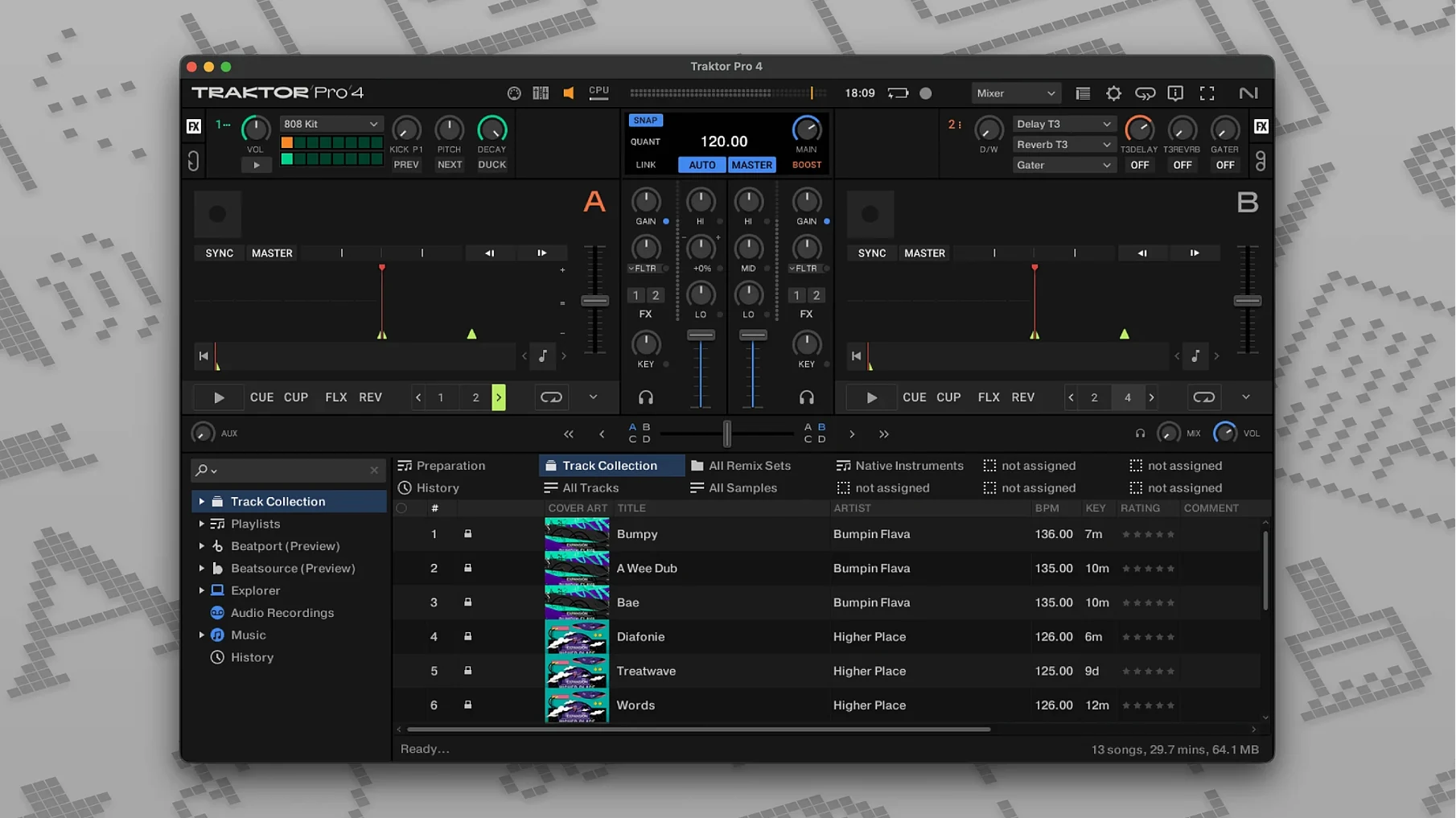
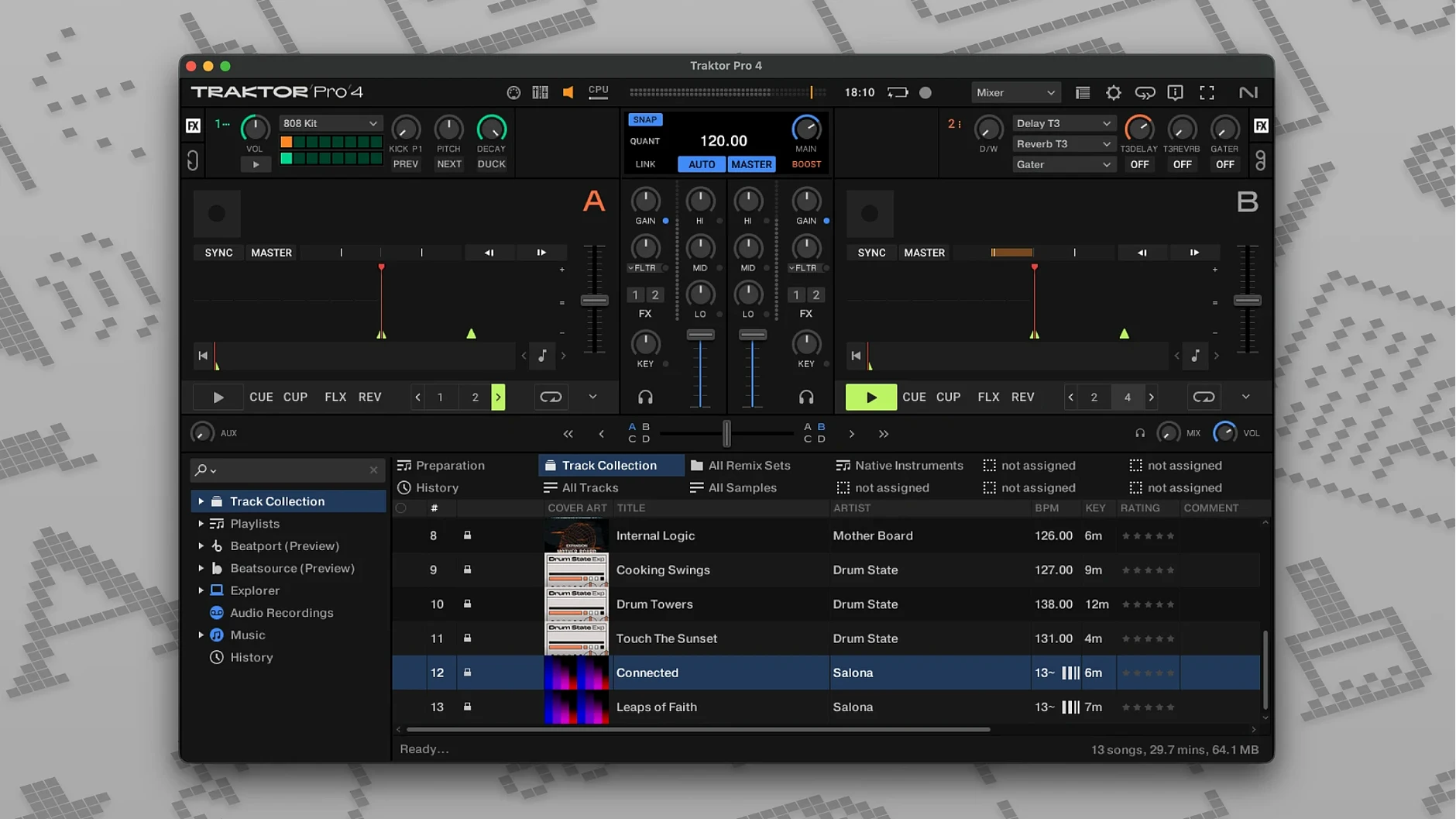
Traktor Pro 4 is Native Instruments' DJ software for mixing across four decks, built for working DJs who need control and reliability on stage or in the studio. It handles the full set of professional tools: beatmatched transitions, looping, effects, and sample triggering, with a workflow that stays out of your way when the set is live.
| Detail | Spec |
|---|---|
| Version | 4.5.1.21 |
| Developer | Native Instruments |
| macOS support | macOS 12 and later, Intel and Apple Silicon |
| Language | English |
The software includes stem separation, letting you pull vocals, drums or melody from a track on the fly, and integrates Beatport streaming for direct access to a large catalogue. You can export recorded mixes as WAV or AIFF files, save ID3 tags, and sync with external hardware or software through OSC and MIDI Clock. It works with an external DJ mixer or audio interface, and the interface can be rearranged with custom layouts. Whether you are running it on an Intel Mac or Apple Silicon, Traktor Pro 4 keeps the same core performance across architectures.
The day you install Traktor Pro 4, take a few minutes to set up audio before loading any tracks. Open the preferences and select your audio device — whether it is an external interface, a Traktor Kontrol controller, or the Mac's built-in output. If you plan to use an external DJ mixer, make sure the routing matches your hardware configuration. The app recognises both ARM and x86 64-bit architectures, so it will run natively on Apple Silicon or Intel Macs without any extra translation layer.
Next, configure your deck types. Traktor Pro 4 offers Track Deck, Stem Deck, Remix Deck, and Live Input deck types. If stem separation is part of your regular workflow, set at least one deck to Stem Deck mode from the start. You can change this later, but doing it early saves a menu dive mid-set.
Import your music library through the browser panel. Traktor can read iTunes tags, so if you keep your collection organised in Music (or iTunes), those tags come across. The browser scans your selected folders and builds a searchable list. Save a few ID3 tags on tracks you know well — the software writes them back cleanly.
Finally, assign a few keyboard shortcuts for actions you use most. The app supports user-defined keyboard shortcuts, and mapping them early means you reach for the mouse less often during a live set.
This workflow walks through a short set using two decks for full tracks and one deck for stem elements. It assumes you have a controller or MIDI device mapped, but the same steps work with keyboard shortcuts and mouse.
This setup uses three of the four virtual decks, leaving Deck D free for a live input or a fourth track if the set extends.
Traktor Pro 4 works well alongside other creative software on the same Mac. You can sync it with a DAW or a visual performance tool using OSC or MIDI Clock. Send timecode or transport commands from Traktor to Ableton Live or Resolume, and the tempo follows the master clock. This is useful for DJs who also run backing tracks or visuals from the same machine.
On macOS, Traktor benefits from the system's core audio handling. With an external audio interface connected, you can keep low buffer settings for responsive cueing and mixing. The app does not fight with other audio apps if you manage device selection carefully — assign the interface to Traktor and use built-in output for system sounds or a secondary app.
MIDI controllers are recognised without extra drivers on macOS. If you use a controller that is not a Traktor Kontrol device, the custom mapping system lets you assign functions to any knob, fader, or pad. The same goes for OSC: you can control Traktor from an iPad or another computer on the same network.
For file management, the browser reads your existing folder structure and iTunes tags, so you do not need to re-tag your library. If you use a separate music management app, just point Traktor's browser to that folder and it picks up the changes.
Can I use Traktor Pro 4 without a controller? Yes. The software works with mouse and keyboard. You can map keyboard shortcuts to almost every function, and the on-screen interface gives you access to all four decks, effects, and looping. Many DJs start this way before adding hardware.
Does it run on Apple Silicon Macs? Yes. The app supports both ARM and x86 64-bit architectures, so it runs natively on M1, M2, and M3 Macs as well as Intel Macs.
Do I need an internet connection? Only for Beatport streaming integration. If you stream tracks from Beatport, you need a connection. For local files, the software works fully offline.
Can I use it with other DJ software? Not at the same time. But you can sync Traktor with other programs via MIDI Clock or OSC, so it can act as the master tempo source for a DAW or visual software running on the same Mac.
What about stem separation quality? Traktor Pro 4 splits tracks into vocal, drums, bass, and melodic parts. The quality depends on the source material — well-mixed tracks separate cleanly, while dense or heavily compressed tracks can leave some bleed between stems. It is a live tool, not a studio editor, and works well for real-time remixing.
Is there a way to try custom mappings from other users? Yes. The software supports custom mappings, and the community shares them. You can load a mapping file, adjust it, and save your own version.
Reverse playback is a feature that does not get much attention but can change a mix. Flip the direction on a playing deck and the track plays backwards — useful for building tension or creating a momentary break before dropping the next track.
Custom layouts let you rearrange the interface elements. If you rarely use the Remix Deck, you can shrink that section and give more screen space to the waveform and stem controls. The layout saves with your preferences, so it stays the same between sessions.
The recording action writes ID3 tags into the exported mix. This means your recorded sets appear in Music or Finder with the artist and title you set, without extra tagging steps afterwards.
Live Input deck mode turns a deck into a pass-through for an external source. Connect a microphone, a turntable, or a second computer's output, and treat it like any other deck with effects and EQ. This is useful for talkovers, vinyl integration, or routing audio from a sampler into the mix.
Traktor Pro 4 saves its settings per user account. If multiple DJs share the same Mac, each person gets their own controller mappings, layouts, and keyboard shortcuts without interfering with the other profiles.
Yes, the software supports external DJ mixers and external audio interfaces, giving you flexibility with your existing hardware setup.
Traktor Pro 4 can export recorded mixes as WAV or AIFF files, and it also supports saving ID3 tags.
Sign in or create your account to leave a comment.
No notes from photographers yet. If you have used this on a real folder, say which camera and which Mac.