Get it for my Mac (24 MB)
 Termius
9.35.4
Termius
9.35.4

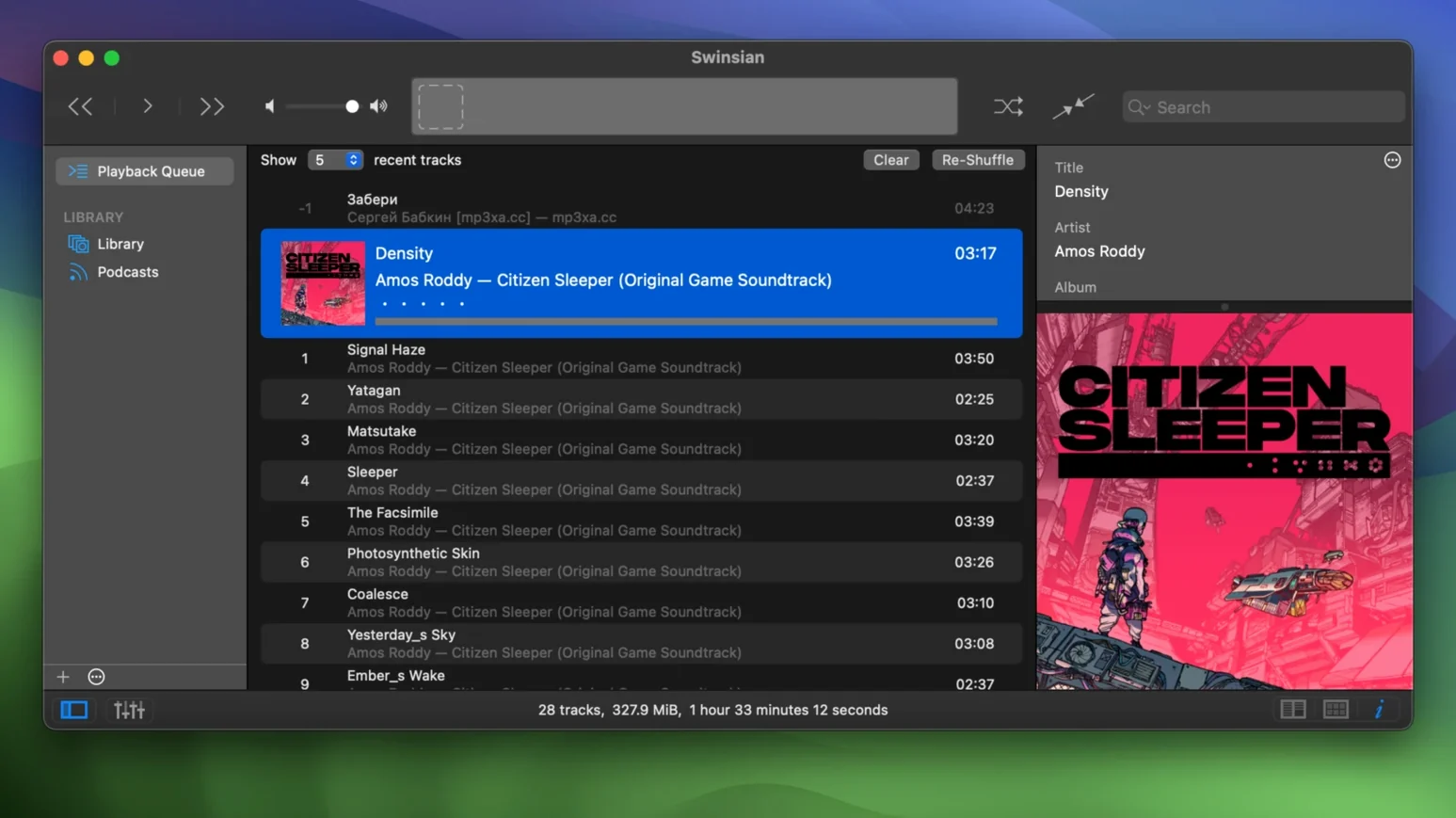
If you’ve spent any time with iTunes over the years, you know the feeling of waiting for a large library to load or fighting with metadata that never quite sticks. Swinsian is built for a different approach: it stays responsive even when your collection runs into tens of thousands of tracks, and it treats local files like they matter.
The first thing to set up is folder watching. Point Swinsian at your music directory and it keeps itself in sync as you add or remove files — no manual import needed. After that, open the tag editor. It supports find-and-replace with regular expressions, which is a lifesaver when you need to clean up a batch of badly named files. You can also fetch album artwork and spot duplicate tracks from the same window.
Swinsian supports just about every format you’re likely to own: FLAC, ALAC, Ogg Vorbis, Opus, DSF, and more. It scrobbles to Last.fm, plays through AirPlay, and shows playback notifications so you don’t have to keep the window open. Global keyboard shortcuts work out of the box, and if you listen to podcasts, it can download them automatically. For a first session, drag in a folder of FLACs, turn on the folder watcher, and see how fast it scans.
A few of Swinsian’s best features don’t shout for attention. The library statistics panel, for instance, gives you a quick count of tracks, artists, albums, and total play time — handy when you’re trying to figure out whether that “complete discography” folder really is complete. The separate playlist windows let you keep a queue open on a second monitor while you browse your main library, which is useful during long listening sessions.
The graphic equalizer comes in two widths: 10-band and 31-band. The finer one takes a moment to adjust, but it’s there if you want to shape the sound for a specific room or pair of headphones. If your audio interface supports it, Swinsian can change the device sample rate automatically to match the current track, so you don’t have to dig into system settings between a 44.1 kHz album and a 96 kHz one. And the cue sheet support covers both standalone .cue files and embedded cue sheet metadata — a detail that matters if you listen to live sets or classical compilations where tracks flow into each other.
The most common one is ignoring the folder watcher and trying to import everything manually. People drag folders in, then later add new music and wonder why it hasn’t appeared. Setting up the watched folder from the start saves that confusion. Another mistake is treating the tag editor like a simple rename tool. It can do that, sure, but the find-and-replace with regular expressions is where the real power is — a single search can fix inconsistent artist names or capitalisation across hundreds of tracks. Beginners often skip learning regex because it looks technical, but even a basic pattern like feat\. swapped for feat. saves time.
Some new users also expect Swinsian to manage their iTunes library in place, but it imports the library rather than syncing live with it. That means any changes you make in Swinsian’s tag editor won’t flow back into Apple Music automatically. It’s a standalone player, so think of the iTunes import as a one-time migration, not a two-way bridge. Finally, people sometimes miss the smart playlists feature and build static playlists by hand, when a smart playlist could keep itself updated based on rules like genre, rating, or last played date.
I know a photographer who listens to a lot of long-format audio while editing — interviews, audio documentaries, the odd music podcast. Before Swinsian, he used Apple’s Podcasts app, which worked fine until episodes started vanishing from his library after a few months. Swinsian’s automatic podcast download feature solved that. He set up a watched folder for new episodes, and the app downloads them on a schedule. The gapless playback means interview segments don’t clip the intro of the next file. And because he keeps a separate playlist window open on his second screen, he can queue up episodes without leaving his photo editor. The tag editor even lets him rename episodes with a consistent date format, which makes the library easier to browse later. For his use case, Swinsian replaced two apps with one.
Yes, Swinsian supports FLAC alongside MP3, AAC, ALAC, Ogg Vorbis, WMA, WAV, Opus, AC3, AIFF, MusePack, DSF, and APE.
Sign in or create your account to leave a comment.
No notes from photographers yet. If you have used this on a real folder, say which camera and which Mac.