Get it for my Mac (15 MB)
 Vellum
4.1.7
Vellum
4.1.7

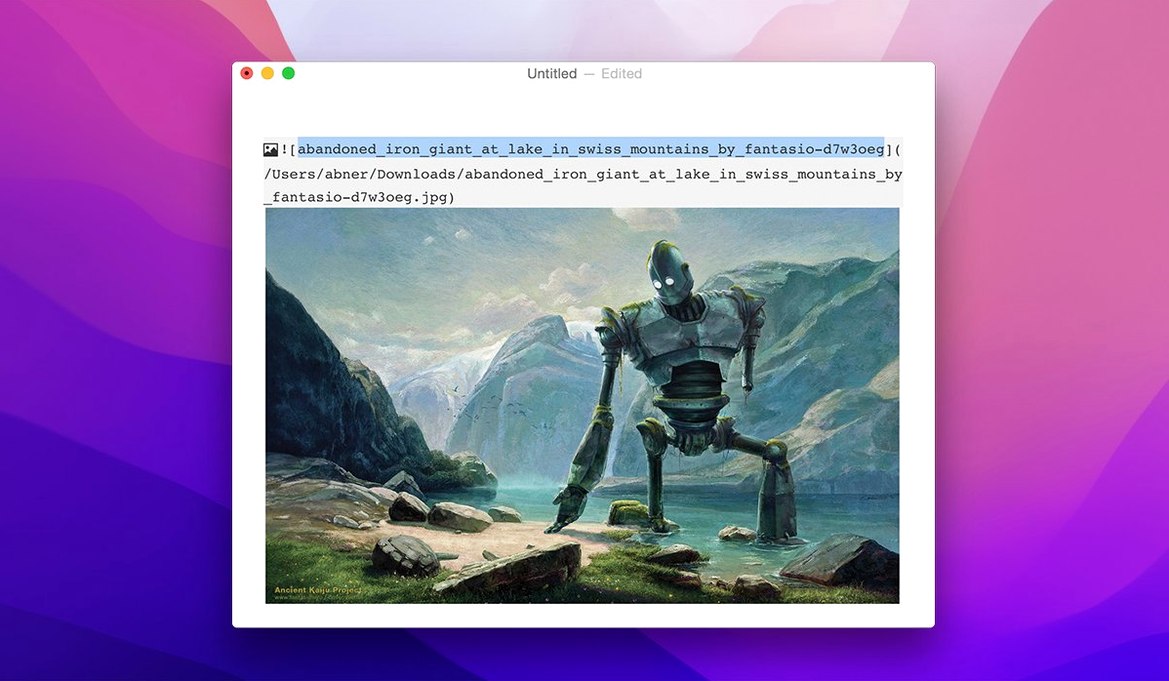
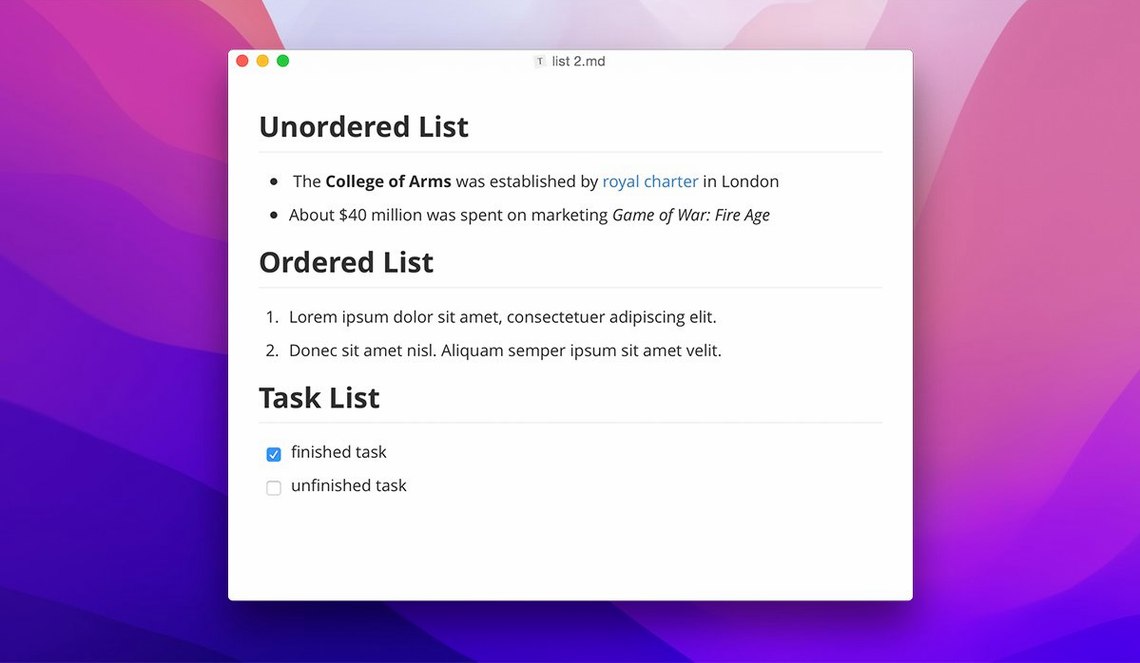
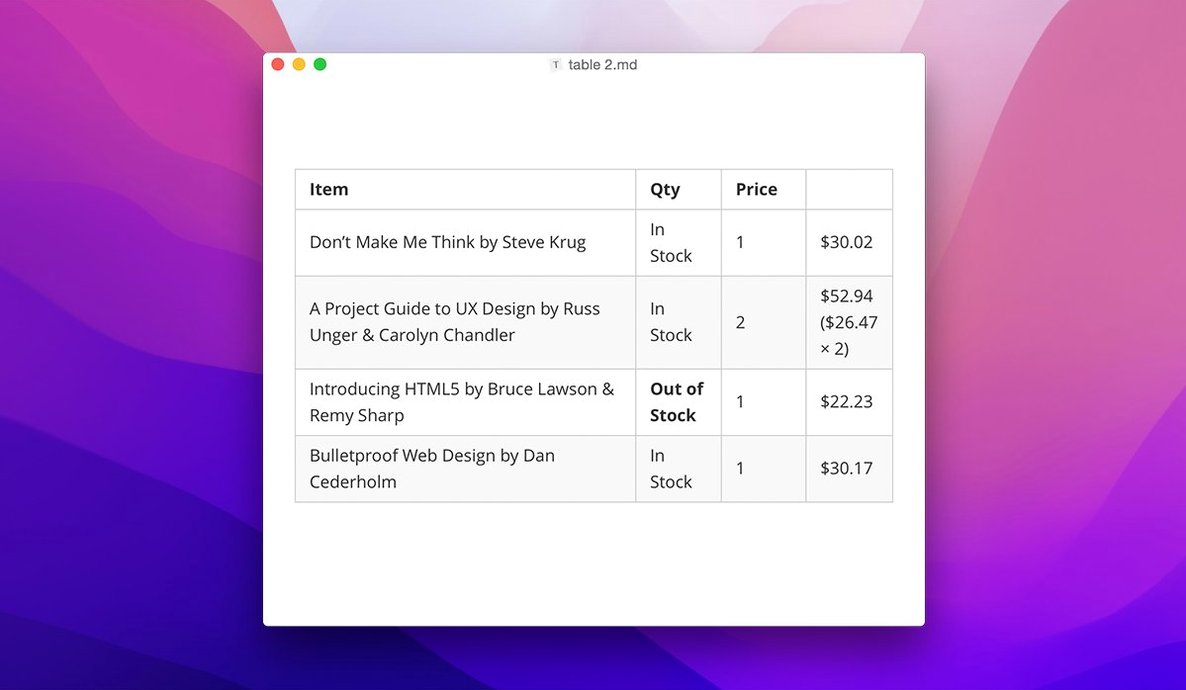
Typora is a cross-platform Markdown editor that replaces the usual split-pane preview with an inline WYSIWYG workflow — what you type is what you see, right where you type it.
It sits comfortably alongside the other writing and note-taking tools you already own. Instead of toggling between editor and preview, you stay in the same view, which suits anyone who drafts in Markdown and wants fewer distractions. Custom CSS themes let you match the look to your preferred writing environment.
The new floating editor toolbar keeps formatting options close without cluttering the interface. You can now show hidden files and folders in the sidebar, navigate the file tree with keyboard shortcuts, and access context-menu style settings on macOS. Small touches that make a daily driver feel more polished.
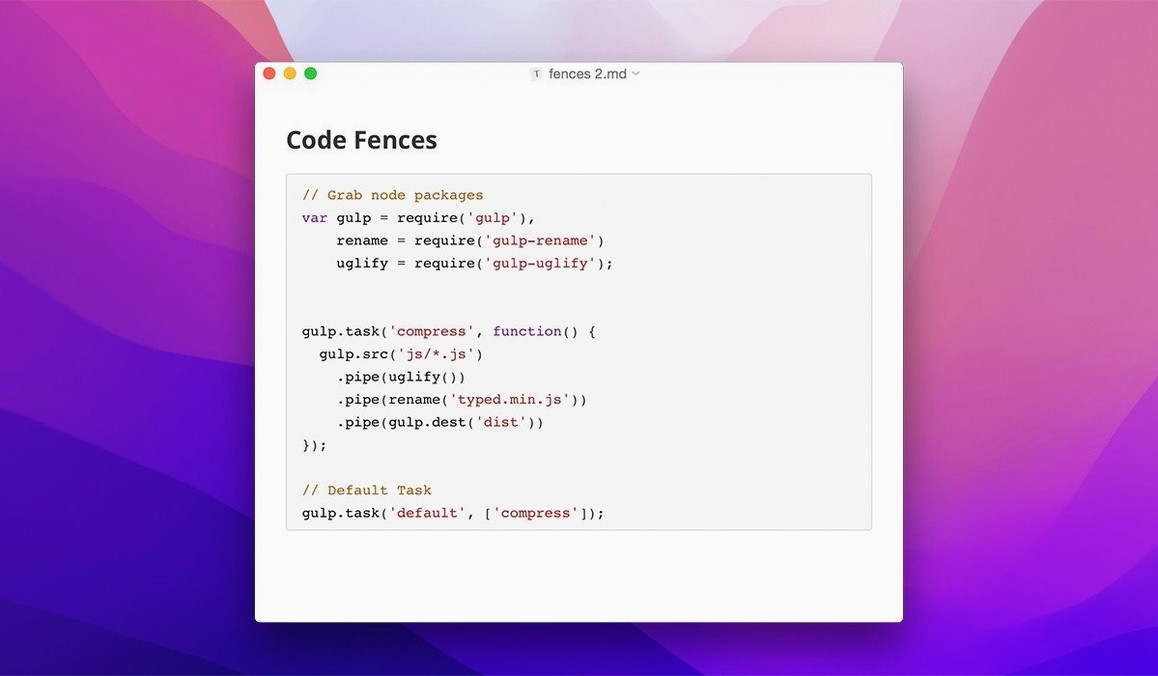
Typora handles code fences with syntax highlighting, LaTeX maths, and auto-generated tables of contents. Lightweight export covers the essentials, and the app ships in over 30 interface languages. It runs on macOS 10.13.6 and later, Intel and Apple Silicon alike.
The inline preview is the headline feature, but Typora has a few quieter touches that reveal themselves over time. The table of contents auto-generates from your headings and lives as a sidebar panel — useful when you're working through a long draft and need to jump between sections without scrolling. Code fences get syntax highlighting in the editor view itself, so you can review a snippet without exporting or switching modes. The lightweight export handles the common formats you'd expect, which means you can send a polished document to a client or a collaborator without leaving the app.
If you write in a language that isn't English, the interface covers over 30 languages, including Ukrainian, Arabic, Hebrew, and both Simplified and Traditional Chinese. That kind of localisation is rare in a Markdown editor of this size.
Consider a technical writer who maintains documentation for a small software team. They work in Markdown all day — writing guides, formatting code blocks, linking between documents. With Typora, they open a folder in the sidebar, navigate the file tree with the keyboard, and write without a preview pane splitting their attention. The floating toolbar appears when needed, and the custom CSS theme lets them match the editor's look to the company's style guide. When a draft is ready, export is a couple of clicks away. No mode switching, no second window.
Typora arrives ready to use, but a few adjustments make it feel like yours from the first document. The custom themes are a good place to begin — the app ships with several, and you can drop in your own CSS files if you have a preferred look. The sidebar can show hidden files and non-Markdown files if you toggle those options, which matters if your project folder contains assets or config files alongside your drafts. And because the floating toolbar is new in version 1.14, you might want to check its position and decide whether it stays visible or collapses when not in use.
For anyone who writes in Markdown regularly — whether for notes, documentation, or long-form text — Typora removes the friction between typing and seeing the final result. It is a straightforward tool that gets out of your way.
Sign in or create your account to leave a comment.
No notes from photographers yet. If you have used this on a real folder, say which camera and which Mac.