Get it for my Mac (789 MB)
 Adobe Lightroom Classic
15.6.0
Adobe Lightroom Classic
15.6.0

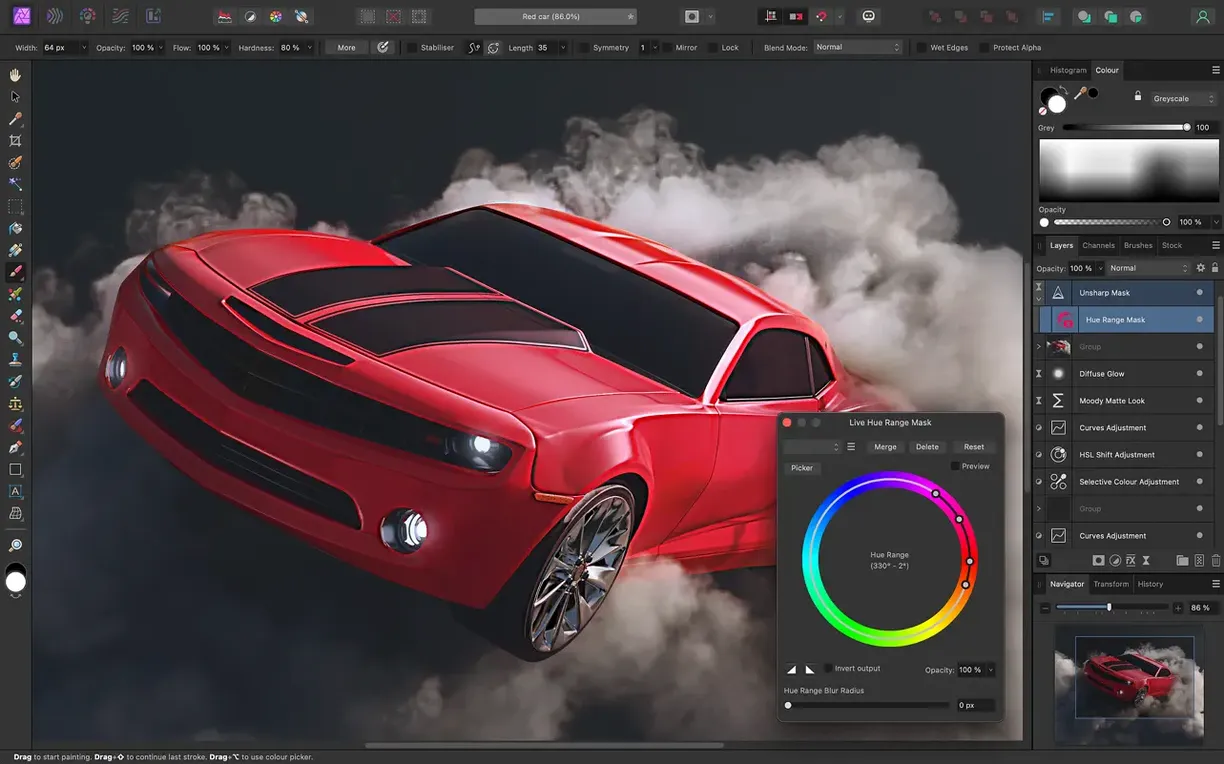
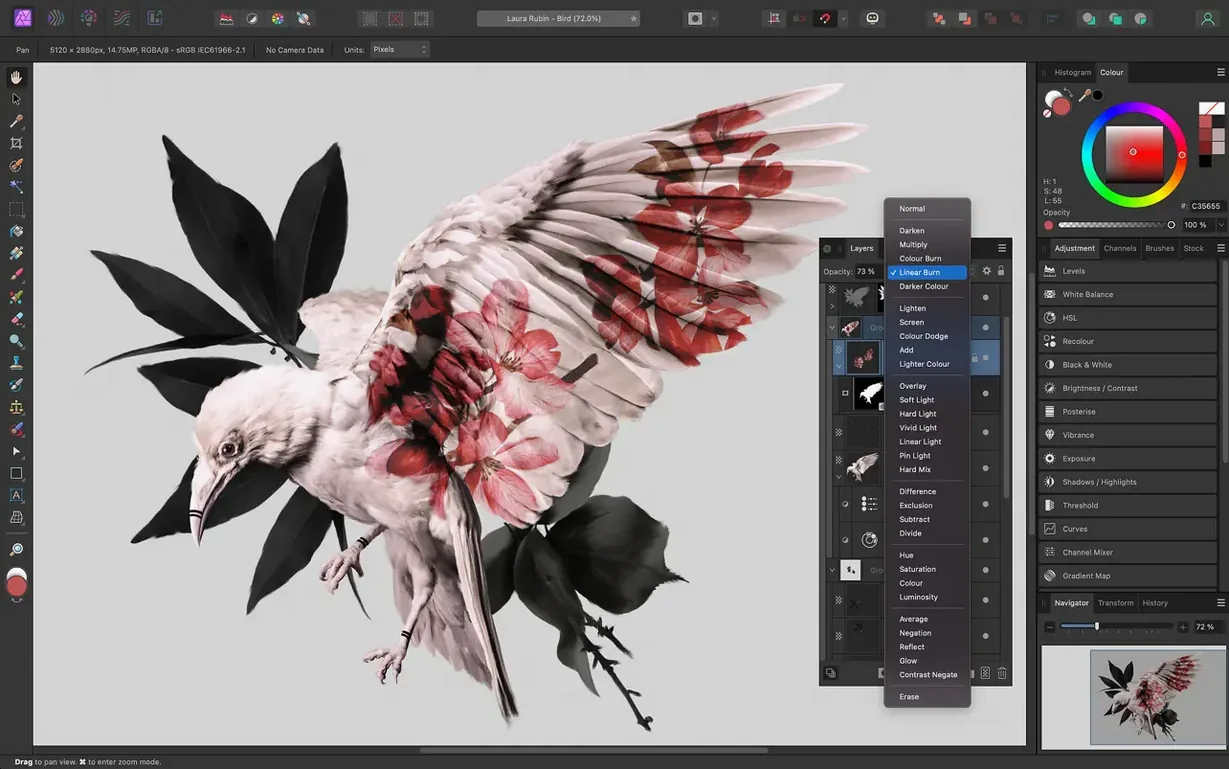
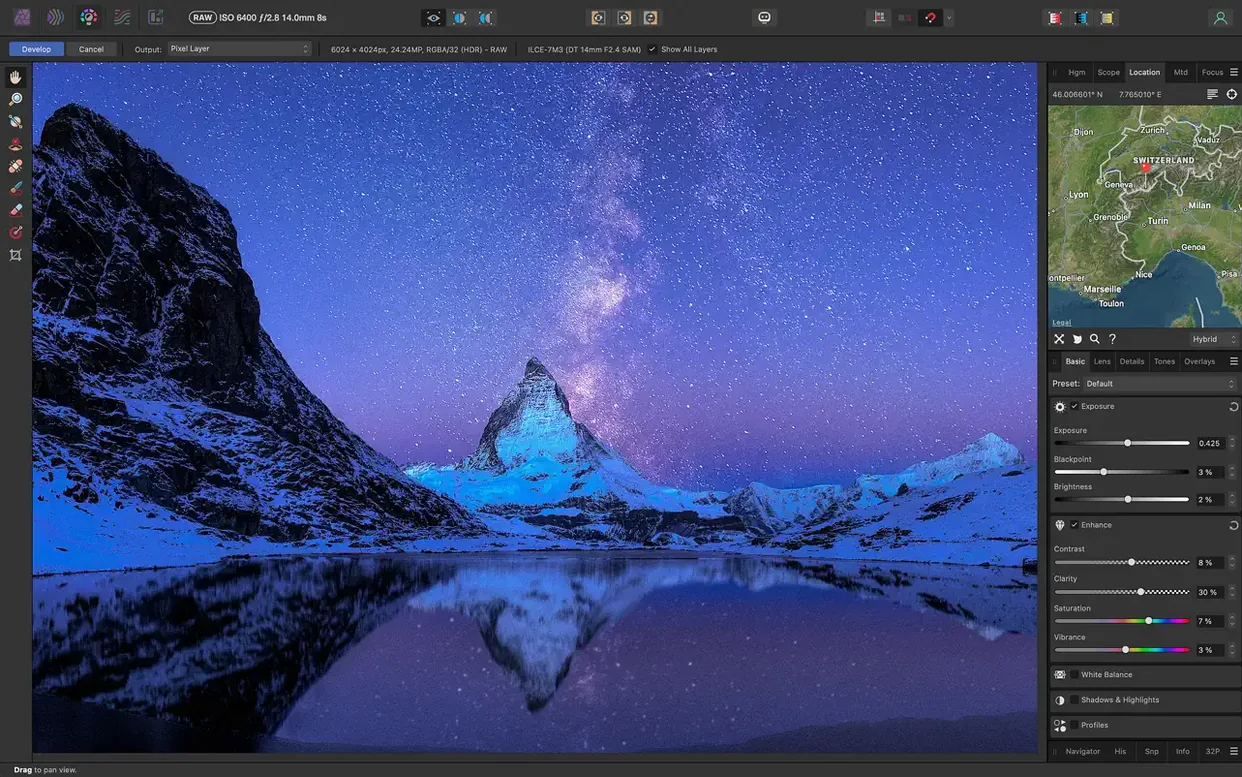
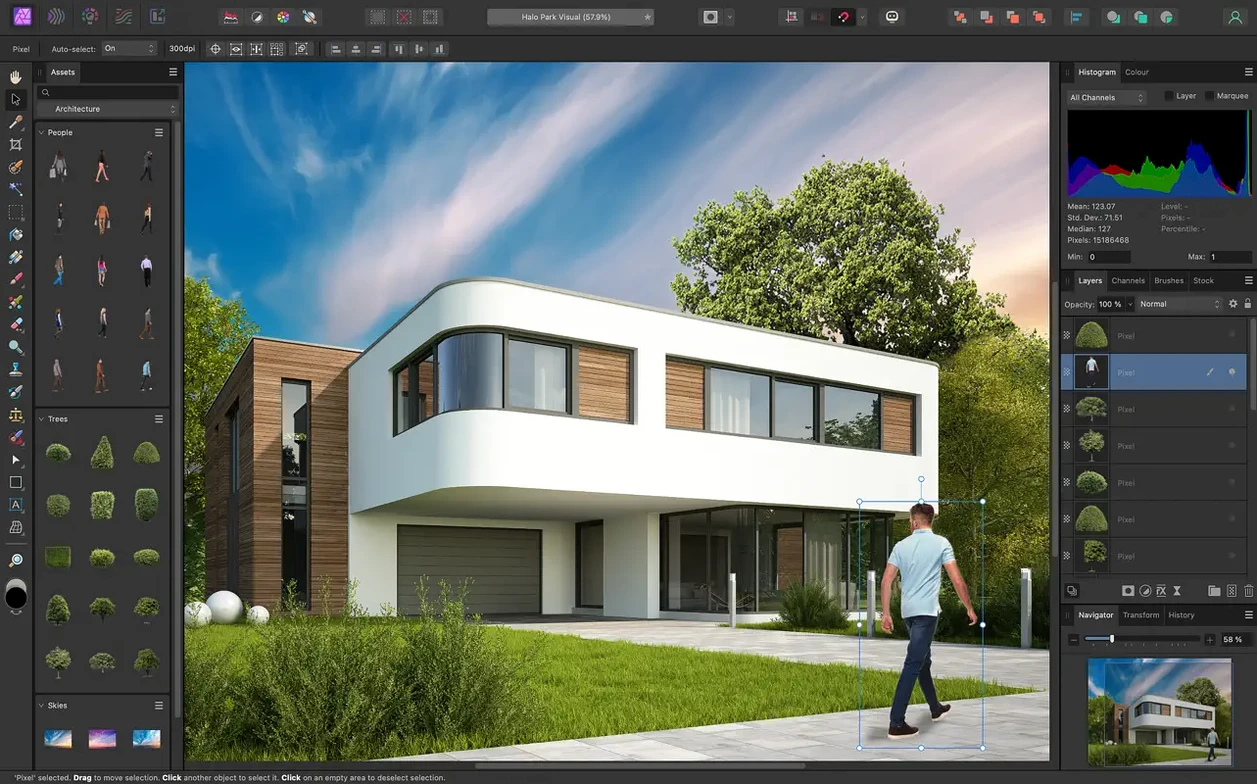
Affinity Photo 2 runs on any Mac from macOS 10.15 Catalina onwards, whether it’s an Intel machine or one of the newer Apple Silicon models. That means your M1, M2 or M3 MacBook Pro is good to go, and so is that older iMac that still does the job.
When you drop a RAW image into Affinity Photo, it opens in a dedicated pre-processing workspace before you touch the main editor. From there you can adjust exposure, white balance, clarity, vibrance, black point, shadows and highlights before committing to the full layer stack. It handles 16-bit and 32-bit per channel editing, which is useful when you want to keep headroom in highlights or shadows.
The inpainting brush works well for removing unwanted objects — a stray cable, a background figure, a spot on a wall. Just brush over the area and the software fills it in using the surrounding pixels. Combined with unlimited layers, adjustment layers and masks, you can keep the original untouched and work nondestructively on top.
Export options cover PNG, TIFF, JPG, GIF, SVG, EPS, EXR, HDR and PDF, so you can send a TIFF to the lab or a PNG to a client without bouncing through another app. If you want to keep your edit history with the document, that’s an option too — useful when you expect to revisit a job weeks later.
One of the first things photographers ask is whether Affinity Photo plays nicely with files from other editors. It opens, edits and saves Photoshop PSD files, which means you can move between apps without converting everything to a universal format. The layer structure usually comes through intact, though complex smart objects or layer effects from other editors might need a tweak once they land in Affinity.
Another common question is about colour spaces. Affinity Photo supports RGB, CMYK, LAB and grayscale, so you can work in the colour model that suits your output. If you prepare files for a magazine that demands CMYK, you can set that up from the start or convert later. The app handles the full range without forcing you into a single workflow.
People also wonder about tablet support before they commit. Wacom and other graphics tablets work with pressure, tilt and shortcut buttons, and there is a real-time brush tip preview that shows exactly where your stroke will land. That preview saves a lot of guesswork when you are painting masks or dodging and burning fine details.
The most frequent hiccup people hit is the Gatekeeper block on first launch. The fix is straightforward: press Enter in Terminal after running the bypass command, and the app will open without further fuss. After that first launch, it behaves like any other application.
Another snag is that some users forget to check the file format before opening a RAW image. Affinity Photo opens RAW files in its dedicated pre-processing workspace, but if you double-click a JPEG or TIFF, it goes straight to the main editor without the RAW controls. If you expected the RAW workspace, check that your camera files are in a RAW format the app recognises — most common camera RAW files are supported, but it is worth confirming yours are on the list.
Occasionally, people report that lens distortion correction or chromatic aberration removal does not appear to do anything on a particular image. This usually happens when the lens profile for that specific camera and lens combo is not built into the database. You can still adjust the sliders manually — the controls for distortion, vignetting and fringing are there, they just need a nudge by hand instead of an automatic profile.
Affinity Photo is part of a family that includes Affinity Designer and Affinity Publisher, and the three apps share a similar interface and file format. If you work across design and layout, you can move a retouched photo from Affinity Photo straight into a Publisher document without exporting first. The integration is not quite as tight as some all-in-one suites, but it is close enough that you rarely need a third app to bridge the gap.
On the macOS side, the app takes advantage of the standard file system features. You can use Quick Look to preview Affinity files in Finder, and drag and drop images from the desktop or Photos straight into an open document. If you use iCloud to sync files between devices, the .afphoto files sync normally as long as you save them inside your iCloud Drive folder.
For photographers who rely on a broader toolchain, Affinity Photo handles the formats you would expect from a professional editor. You can open an EXR or HDR file from a 3D render, apply tone mapping or focus stacking, and then export to a flattened TIFF for proofing. The macro recording feature is useful if you repeat the same set of adjustments across a batch of images — record the steps once, then play them back on the rest of the folder.
Affinity Photo 2 for Mac handles PSD, RAW, and standard formats without conversion, though "affinity photo 2 mac crack" is unsupported.
Sign in or create your account to leave a comment.
No notes from photographers yet. If you have used this on a real folder, say which camera and which Mac.