Get it for my Mac (2.3 GB)
 Clip Studio Paint
4.1.4
Clip Studio Paint
4.1.4
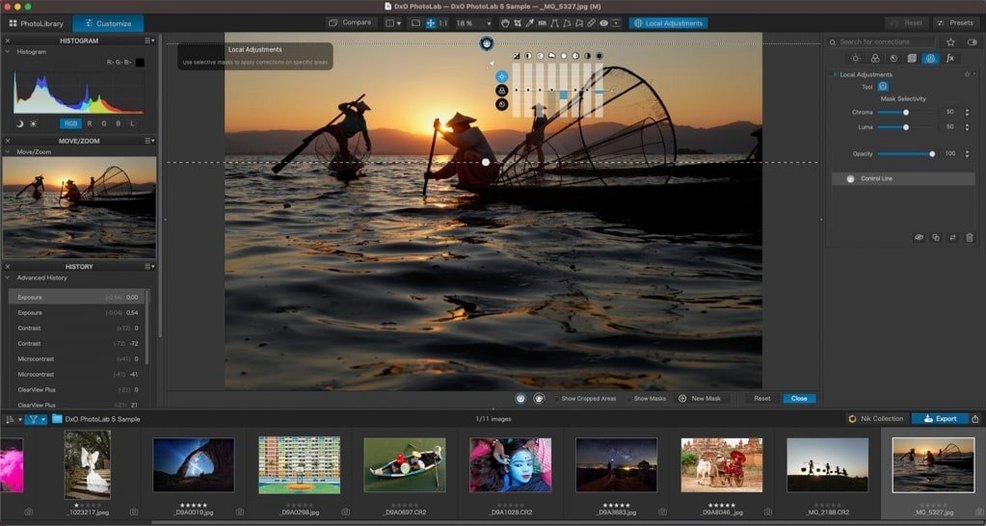
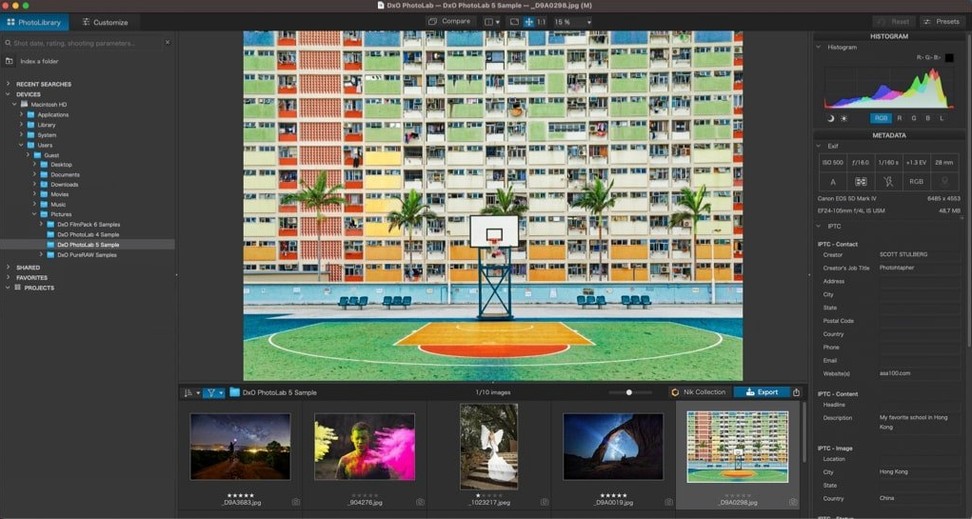
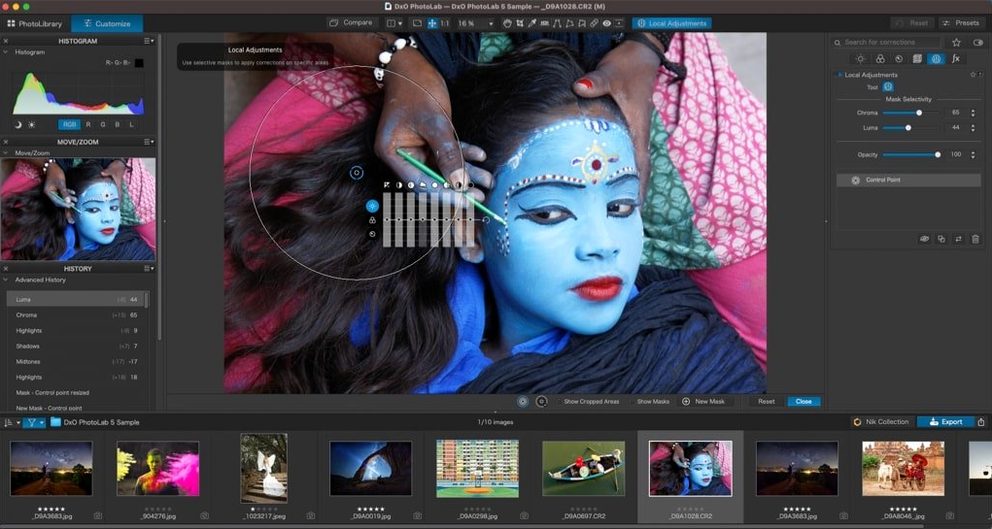
DxO PhotoLab 9 is the kind of tool that makes sense the moment you open a raw file and the lens corrections kick in. It used to be called DxO Optics Pro, and that heritage shows: the software relies on DxO Modules — precise optical profiles built from lab measurements of specific camera and lens combinations. For anyone shooting raw and wanting to fix distortion, vignetting, or chromatic aberration without thinking about it, that alone is a good reason to look at this version.
If you're on a Mac and editing raw files, you've probably looked at Capture One and Adobe Lightroom Classic. DxO PhotoLab 9 sits in a slightly different spot. Capture One is built around tethered shooting and studio workflows, and its colour editing tools are deep, but it doesn't have the same lens correction database. DxO's modules are measured in a lab, not estimated from profiles, so you get distortion and vignette fixes that match your exact lens at the focal length you shot at. Lightroom Classic has a huge ecosystem and cloud sync, but its noise reduction — even the newer AI version — doesn't reach the same level as DeepPRIME XD3 on Bayer and X-Trans sensors. For high-ISO raw files from a Fujifilm or Sony camera, PhotoLab's demosaicing and denoising is noticeably stronger. The trade-off is that PhotoLab doesn't do catalog management the way Lightroom does. It's a raw editor and a DAM, but not a cloud-synced library. If you already organise your files in folders or use something like Photo Mechanic, that's fine. If you want everything in one catalogue, you might feel the difference.
PhotoLab plays well with the rest of macOS. It supports Apple's HEIC, HEIF, and ProRAW formats natively, so if you shoot with an iPhone or a recent Mac camera, those files open without conversion. You can also copy and paste local adjustments between images, which speeds things up when you have a batch of shots taken under the same light. The edit synchronisation using Subject Types is useful for portraits or events: select a person in one frame, apply the same local edits to that person across similar shots. On the system side, the app runs on both Intel and Apple Silicon Macs, and the installer puts it straight into your Applications folder via a drag-and-drop installer. No extra helper tools or background services. If you use Finder tags or Smart Folders to sort your raw files, PhotoLab respects that structure. You can open a raw file from Finder straight into the editing window, make your adjustments, and export a TIFF or JPEG for finishing in Affinity Photo or Pixelmator Pro. It doesn't try to replace your entire post-processing pipeline — it handles the raw conversion, lens correction, noise reduction, and exposure work, then hands off to a pixel editor for retouching or compositing.
When you first open PhotoLab, a few adjustments make the experience smoother. The default palette layout can be customised to show only the tools you use regularly. If you shoot raw and want to see the full dynamic range, turn off automatic highlight and shadow clipping in the display options — that way the histogram reflects the actual raw data, not a processed preview. For noise reduction, DeepPRIME is set to a moderate strength by default, but you can raise it per image or set a higher baseline in the preset manager. If you process a lot of high-ISO files, it's worth creating a custom preset that applies DeepPRIME XD3 at your preferred level and sets the lens correction to automatic. That saves clicking through the same panels every time you open a raw file. The U Point tool works best when you adjust the size and feather of the control point before you start brushing, so spend a few minutes setting your preferred brush behaviour in the local adjustments panel. And if you export regularly to a specific folder or format, set that up in the export preferences first — it saves a dialog box every time you send a finished file to your editing queue.
It supports Apple’s HEIC, HEIF, and ProRAW formats, plus raw files from most major camera makers.
It uses DxO Modules, which are profiles based on lab measurements of specific camera and lens combinations, to correct distortion, vignetting, and chromatic aberration automatically.
It is the successor to DxO Optics Pro, now called DxO PhotoLab, and version 9 is the current release.
Sign in or create your account to leave a comment.
No notes from photographers yet. If you have used this on a real folder, say which camera and which Mac.