
 Get it for my Mac





 Bloom
1.5.50

- Version
- 2.2.6
- Developer
- Global Delight
- Interface in
- Russian, English, German, Spanish, Italian, Chinese (Traditional), Chinese (Simplified), Korean, Dutch, Portuguese, French, Japanese
- Licence on file
- K'ed by Antibiotics
- macOS it runs on
- macOS 10.14 or later
- Chip support
- Apple Silicon, Intel 64-bit
In the edit
Boom 3D works on any Mac running macOS 10.14 or later, whether it is Intel or Apple Silicon. That means nearly every Mac from the last few years can run it without a hitch.
What does Boom 3D actually do?
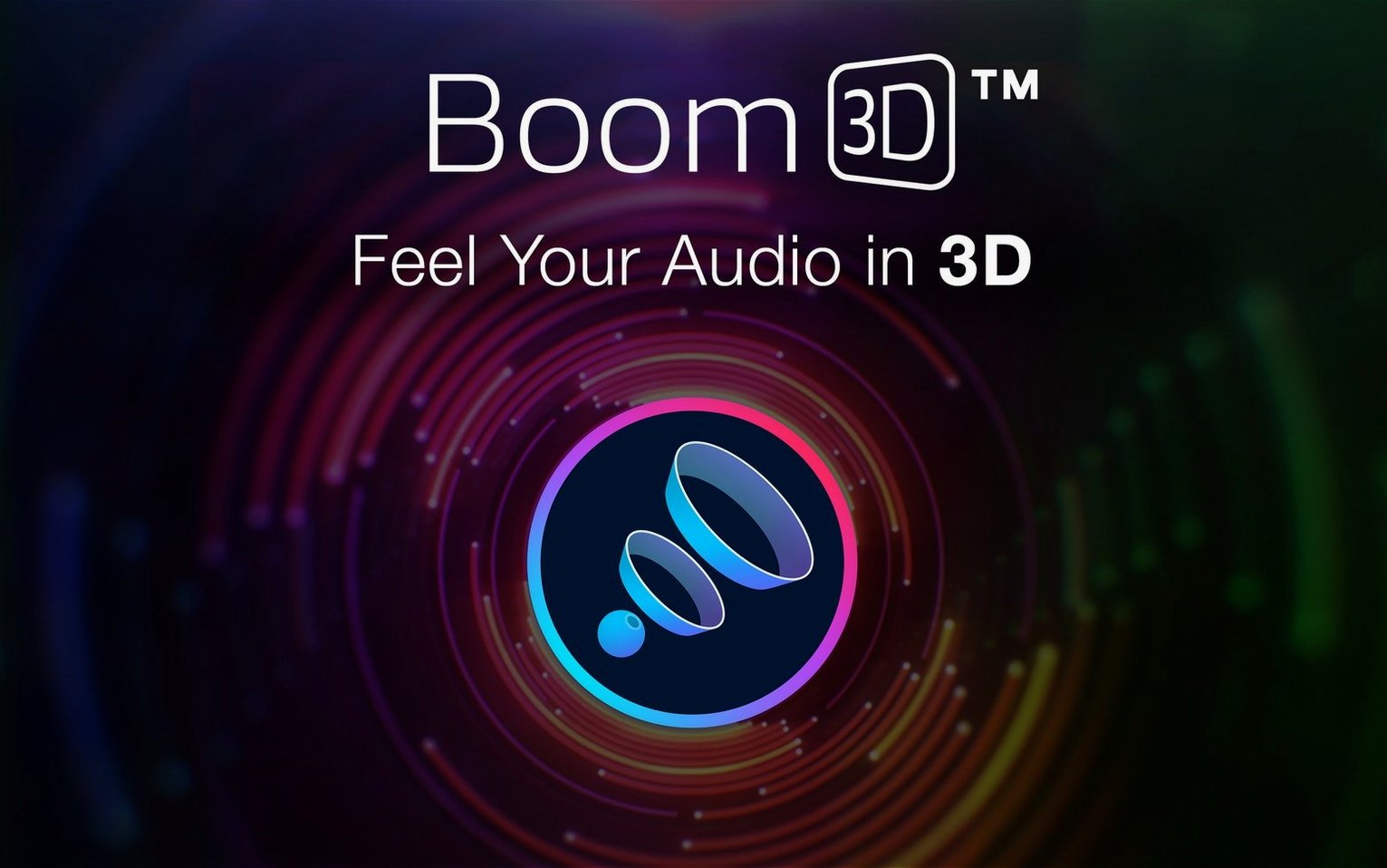
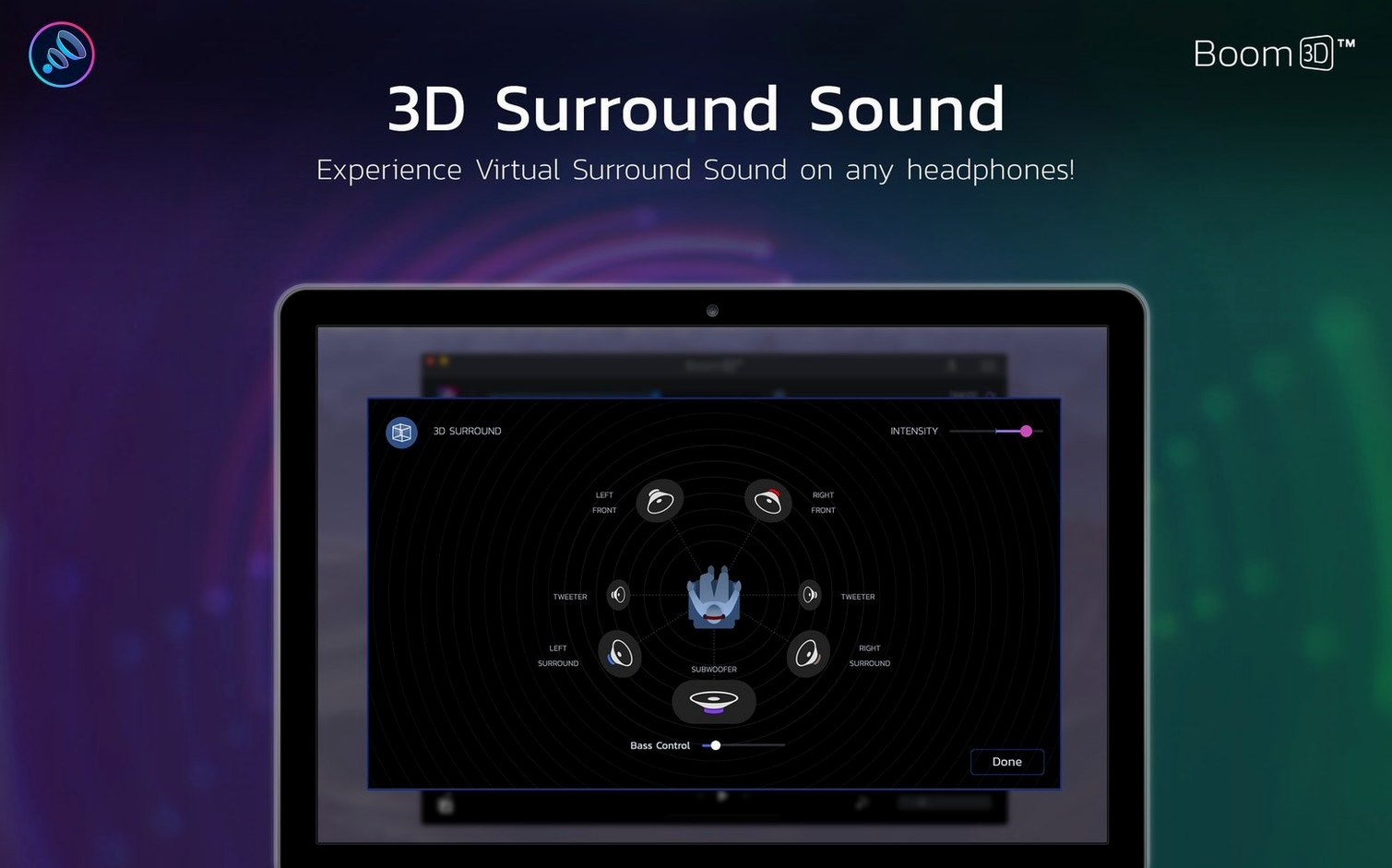
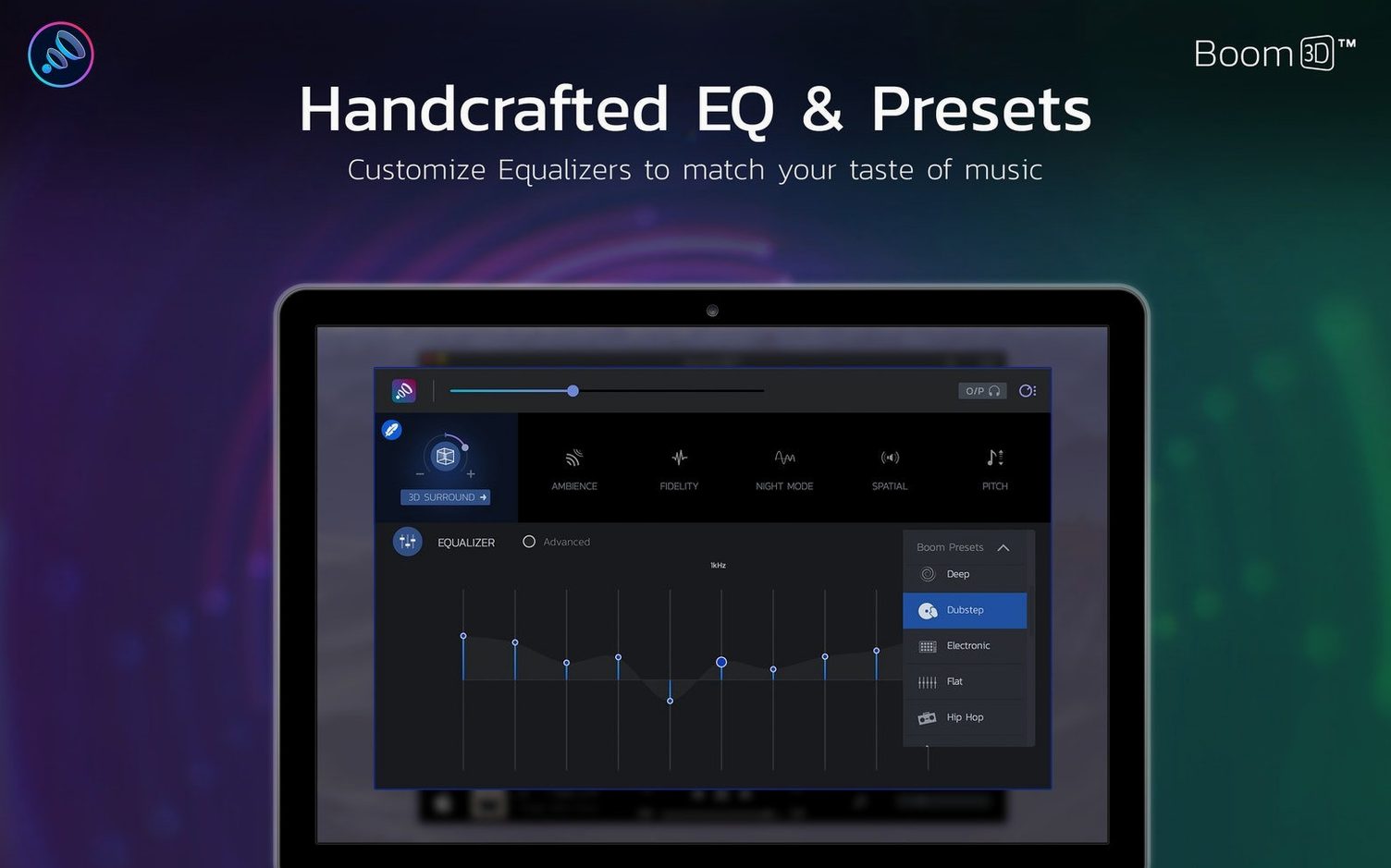
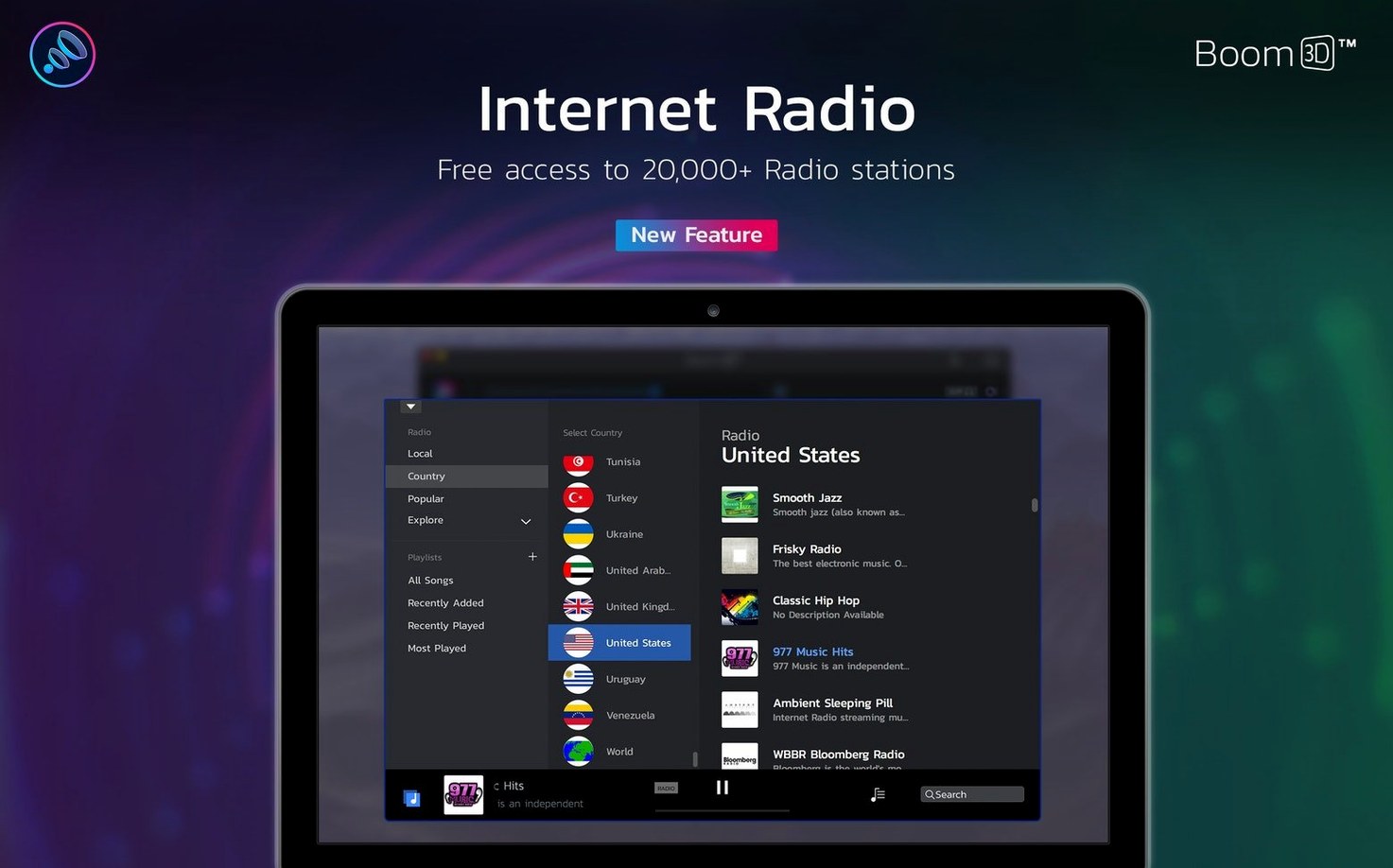
It is a system-wide audio enhancer. You get a precision equaliser, a volume booster that goes beyond the system limit, and 3D surround sound that works with your Mac headphones. It is part of Global Delight’s Boom line of audio tools.
Works with any headphones and even your Mac's speakers
Yes, the 3D surround sound effect is designed for headphones, so your everyday pair will do. The equaliser and volume boost apply to any output, internal speakers included.
Sits in your system tray and works alongside your audio panel
Boom 3D sits in your system tray after installation and runs quietly in the background. It does not replace your system audio panel — it works alongside it. You will see a small icon in the menu bar, and clicking it opens the main controls: volume booster, equaliser, and the 3D surround toggle.
The app is built for both ARM and Intel 64-bit architectures, so it behaves the same way on an M-series Mac as it does on an older Intel model. The minimum requirement is macOS 10.14, which covers Mojave through to the latest versions. If you are still on an older macOS like 10.10 to 10.13, there is a separate download page for that, so make sure you grab the right one.
Memory and disk footprint are modest — the installer is a few megabytes, and the app uses very little RAM when idle. It activates on system startup if you choose, but you can disable that in preferences. The interface is translated into twelve languages, so if English is not your first language, you can switch to German, Spanish, French, Italian, Portuguese, Dutch, Russian, Japanese, Korean, Simplified Chinese, or Traditional Chinese.
One thing to note: Boom 3D is a separate app from Boom 2, not an update. If you have been using Boom 2 on an older system, this version brings the newer interface and the same core features but keeps its own settings file. They can coexist, though there is little reason to run both.
Adjusting sound while editing photos with Spotify and Lightroom
Say you sit down to edit a batch of wedding photos. You have got Lightroom open, Spotify playing a playlist, and a few browser tabs with reference images.
You click the Boom 3D icon in the menu bar. The interface pops up. You raise the volume booster by a few notches. The music gets louder without distortion, which is the whole point of a system-wide booster — it does not just crank the gain, it applies careful limiting so you do not blow your ears out on the next track.
Next, you open the equaliser. You nudge the low frequencies up a couple of decibels to give the kick drum some weight, and you pull the highs back just a touch because the cymbals were a bit harsh. The equaliser is precise — you can adjust individual bands or pick a preset if you are in a hurry. There is no right or wrong here; you set it how you like it and the app remembers that setting for all your music until you change it.
You switch on 3D surround sound. The effect widens the stereo image, making the music feel less like it is inside your head and more like it is in the room around you. It is subtle enough that you do not notice it consciously, but when you turn it off, the sound collapses back to flat stereo and you realise how much space it was adding.
Now a video call comes in. You lower Spotify’s volume using the per-app volume control — a slider that adjusts individual applications without touching the system master volume. The call comes through clearly. When the call ends, you bring the music back up. The whole thing takes a couple of clicks.
You finish editing, close everything, and the Mac goes to sleep. The next day, Boom 3D starts with the system and your equaliser settings are still there. No need to reconfigure.
Headphone users get the biggest benefit from the 3D surround effect
Boom 3D is useful for anyone who listens to music, podcasts, or video on their Mac, but it really shines for a few specific groups.
Headphone users get the biggest benefit. The 3D surround effect is designed for headphones, and the volume booster helps when you are using low-impedance headphones that do not get very loud on a Mac’s built-in headphone jack. If you switch between headphones and speakers often, the per-app volume control saves you from constantly adjusting the system volume.
People who watch films or video content on their Mac will appreciate the surround effect for dialogue clarity and the sense of space in action scenes. The equaliser can also help tame overly bright soundtracks or boost quiet dialogue.
Podcast and radio listeners who find some recordings too quiet or too loud can use the booster to normalise volume across different shows. The per-app volume control helps here too — if a podcast app plays back at a different level than your music player, you can balance them without touching anything else.
And then there are the people who just want more control over their Mac’s audio. macOS has a basic volume slider and nothing else. Boom 3D gives you an equaliser, a booster, and per-app sliders — all in one menu bar icon. If you have ever wished you could turn up a quiet video without making the system sounds deafening, or adjust bass for a specific pair of headphones, you are the target audience.
Common concerns answered before you install
Will Boom 3D interfere with my audio interface or external DAC?
No. Boom 3D works at the system level, so it processes audio before it reaches your output device, whether that is the built-in headphone jack, a USB sound card, or an external DAC. Your hardware still handles the final conversion. The equaliser and booster apply to the signal, but they do not bypass or change your audio interface settings.
Affects Spotify, Apple Music, YouTube, and any other app
Yes. Because Boom 3D is system-wide, it affects any application that outputs sound — browsers, music apps, video players, games. Whatever you play, you get the same processing. The per-app volume sliders let you control individual sources, but the equaliser and surround effect apply to everything.
Can I use Boom 3D with external speakers?
You can, but the 3D surround effect is designed for headphones. The equaliser and volume booster work with any output, so if you want to boost speaker volume or adjust EQ for a specific set of speakers, that is fine. The surround effect on speakers will not give the same result as on headphones — it is intended for close listening.
Does it add latency?
Boom 3D processes audio in real time, and the processing is light. For music and video, you will not notice any delay. For live monitoring or recording, you might want to disable it — but that is true of any system-wide audio processing tool. The toggle is quick from the menu bar.
How do I revert changes if I do not like the result?
Open the Boom 3D interface and set the volume booster to zero, turn off the equaliser, and disable surround. That returns your audio to normal. If you want to remove the app entirely, it uninstalls like any other Mac application, and your system audio goes back to its original state. No permanent changes.
Running alongside other audio processors can cause double processing
You can, but running multiple system-wide audio processors can cause conflicts. The equaliser and booster overlap, and you might end up with double processing. It is simpler to pick one tool and use it consistently. Boom 3D covers volume boost, EQ, and surround in one app, so there is usually no need for extra utilities.
Boom 3D ships in English, German, Spanish, French, Italian, Portuguese, Dutch, Russian, Japanese, Korean, and both Simplified and Traditional Chinese. Twelve languages in total.
Mac it needs
- macOS 10.14 or later (macOS 11 or later on the official site)
- Intel or Apple Silicon
Questions I actually get
What macOS version do I need for Boom 3D?
Boom 3D requires macOS 10.14 or later.
Does Boom 3D work on Apple Silicon Macs?
Yes, it runs on both Intel and Apple Silicon Macs. Compatibility covers the full range of modern hardware.
What kind of audio effects does Boom 3D include?
It includes a precision equaliser, a system-wide volume booster, and 3D surround sound that works with headphones.
Notes from photographers
Sign in or create your account to leave a comment.
No notes from photographers yet. If you have used this on a real folder, say which camera and which Mac.
