
 Get it for my Mac (16 MB)





 Pacifist
4.1.4
- Version
- 1.11.0
- Developer
- appmakes
- Interface in
- English
- Licence on file
- Not required
- macOS it runs on
- macOS 10.14 or later
- Chip support
- Apple Silicon, Intel 64-bit
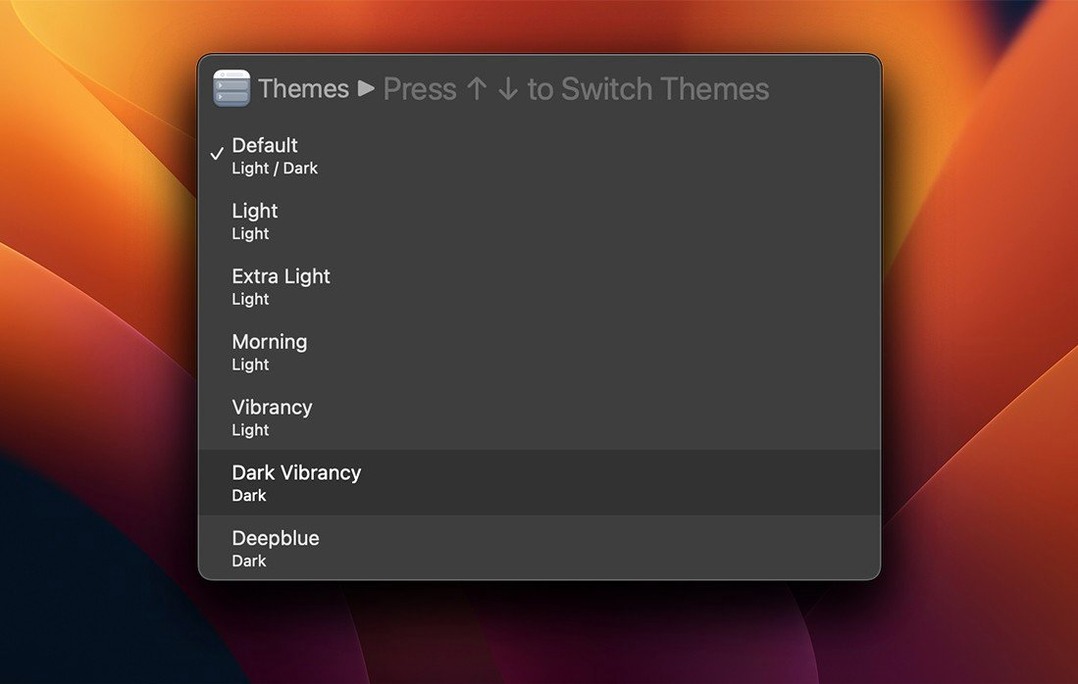
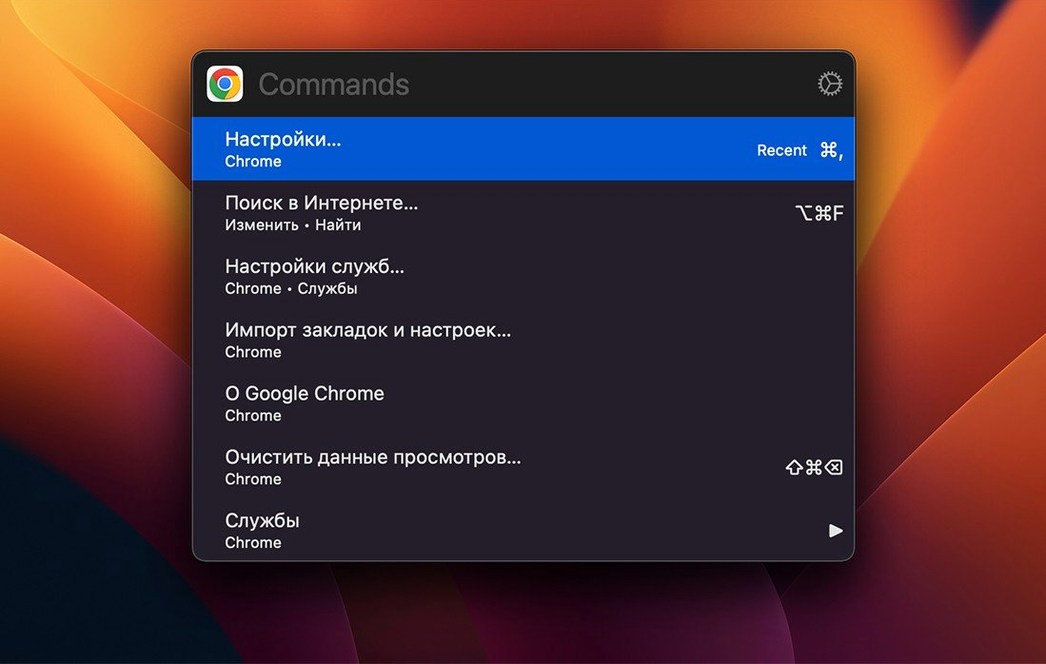
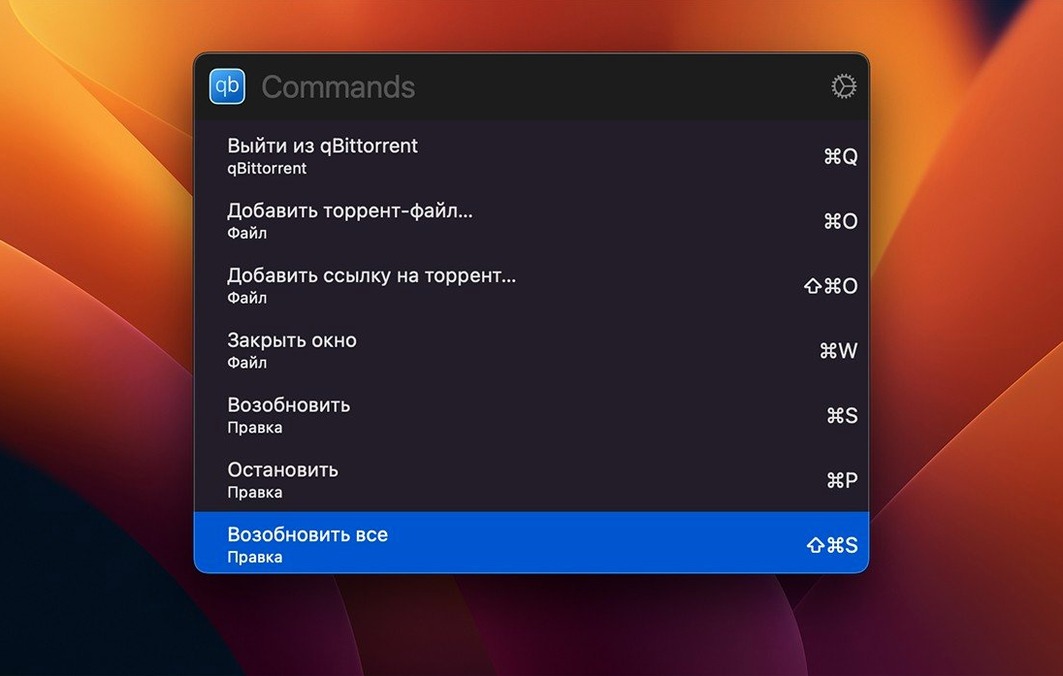
In the edit
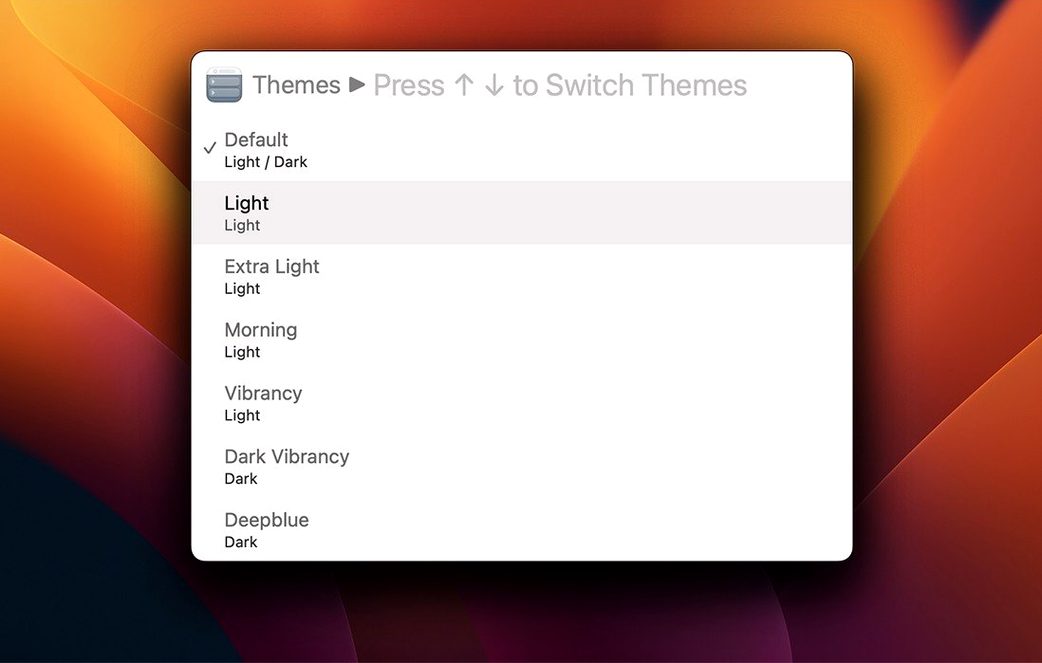
Shift-Command-P is the shortcut that opens Paletro, and once you get used to having it around, you might wonder how you managed without it. It reads the main menu of whatever app you have in front of you — Lightroom, Capture One, even Mail — and presents the available commands in a clean, searchable palette. The original keyboard shortcuts are shown alongside each item, so you can learn them as you go.
Using it is simple: press the shortcut, start typing to filter, and press Return to run the command. No mouse, no digging through nested menus. If there are menu items you never want to see, you can disable them for specific applications. Paletro uses macOS accessibility features to pull the list of commands, so it works with most apps out of the box. It includes several themes if you want to match your editor setup, and version 1.10.0 fixed a compatibility issue with Mail on Sonoma.
How paletro fits into your mac setup
Paletro lives in the menu bar and stays out of the way until you call it. It doesn’t replace Spotlight, Alfred or Raycast for launching apps or searching files — it does something those tools can’t: it surfaces the menu of the app you’re already using. I keep it running alongside a launcher and a clipboard manager, and they never step on each other. The palette opens over whatever window you’re working in, so you don’t lose your place.
It also works well with macOS Spaces and full-screen mode. If you’re editing a batch of portraits in Capture One on one desktop and checking email on another, Paletro follows the frontmost app in each space. You don’t need to reconfigure anything when switching between them.
For anyone who uses keyboard-driven tools like Sublime Text, VS Code or Terminal, Paletro feels familiar from the start. The same fuzzy-search logic you expect from an IDE command palette is there, but applied to Finder, Safari or Preview. It bridges the gap between apps that have good keyboard shortcuts and those that rely on mouse navigation.
A real workflow: processing a wedding gallery in capture one
Here is how Paletro fits into my culling and editing process from start to finish.
- Open Capture One and import the day’s RAW files. I press Shift-Command-P, type “adjust” and select the adjustment tools I need — no clicking through the tool tabs.
- During culling, I use the palette to switch between the viewer, browser and library tools. Typing “viewer” or “browser” gets me there faster than the toolbar.
- When I want to apply a style, I open Paletro, type “styles” and pick the one I need from the menu. Capture One’s styles menu can be deep, but Paletro flattens it into a searchable list.
- For exporting, I type “process” or “export” and the relevant menu item appears with its shortcut. I can see the shortcut key and start using it directly next time.
- Between edits, I switch to Safari to check client emails. Paletro reads Safari’s menu too — I use it to open bookmarks, clear history or toggle the developer tools without leaving the keyboard.
The whole sequence stays keyboard-driven. I only reach for the mouse when I need to paint adjustments on the image itself.
Will it slow down your Mac?
Will it slow down my Mac?
Paletro runs as a lightweight menu-bar app and only scans the current app’s menu when you open the palette. It doesn’t index anything in the background or use noticeable resources. I keep it running during 12-hour editing days without thinking about it.
Does it work with every app?
It works with any app that has a standard macOS menu bar. Some apps with custom interface frameworks — like certain Adobe plugins or niche creative tools — may not expose their menus in a way Paletro can read. In practice, it covers Lightroom, Capture One, Affinity Photo, Final Cut Pro, Logic Pro, Safari, Mail and most other apps a photographer uses. You can also disable it for specific apps if a menu item gets in the way.
What happens if an app updates and changes its menu structure?
Paletro reads the menu live, so it adapts automatically. You don’t need to update a database or reconfigure anything when Capture One or Lightroom adds a new feature. The next time you open the palette, the new commands are there.
Can I customise how it looks?
Yes. There are several built-in themes, and you can write your own custom styles if you want the palette to match your editor theme or desktop wallpaper. The palette appearance is separate from the app it’s controlling, so you can keep a dark theme in Lightroom and a light palette if that works better for you.
Get used to the Shift-Command-P shortcut first
The first thing I’d suggest is leaving the default shortcut as Shift-Command-P. It doesn’t conflict with common app shortcuts, and muscle memory builds quickly. Use it a few times in Finder, then in Safari, then in your photo editor. The palette shows the original shortcuts for each command, so you’ll start learning them without trying.
Spend a few minutes in the preferences to disable any menu items you know you’ll never use. If Lightroom’s “Help” submenu has items you never touch, hide them. That keeps the list shorter and the fuzzy search even faster.
If you work with a non-English version of an app, Paletro can search by English words or alphabet characters even when the menu items are in another language. That is worth testing early if you localise your apps.
Finally, try using Paletro for one full editing session without touching the mouse for menu navigation. You will probably reach for the trackpad a few times out of habit, but by the end of the session, Shift-Command-P will feel natural. After that, it’s just a matter of which apps you train yourself to use it with next.
It is a small utility that does one thing well: make every app’s menu faster to use.
New this release
- Fixed an issue where some key characters, like arrow keys, were not displayed correctly.
Mac it needs
- macOS 10.14 or later
- Intel or Apple Silicon
Questions I actually get
Does Paletro show keyboard shortcuts from the current app?
Yes, it displays the original shortcut keys alongside each menu command, so you can learn them as you work.
Can I remove certain menu items from the palette?
You can disable specific menu items for individual applications, keeping the palette focused on what you actually use.
Does Paletro work with Mail on macOS Sonoma?
Version 1.10.0 fixed a compatibility issue with Mail.app on macOS Sonoma, so it should work fine with the current release.
Installing on a Mac
- Open the downloaded disk image.
- Drag the app to the Applications folder alias.
- Once the copy finishes, launch the app from Launchpad.
Tip: Grant accessibility permissions when macOS asks — Paletro needs them to read the menu of the frontmost app.
Notes from photographers
Sign in or create your account to leave a comment.
No notes from photographers yet. If you have used this on a real folder, say which camera and which Mac.
