Get it for my Mac (10 MB)
 SwitchResX
4.14.2
SwitchResX
4.14.2

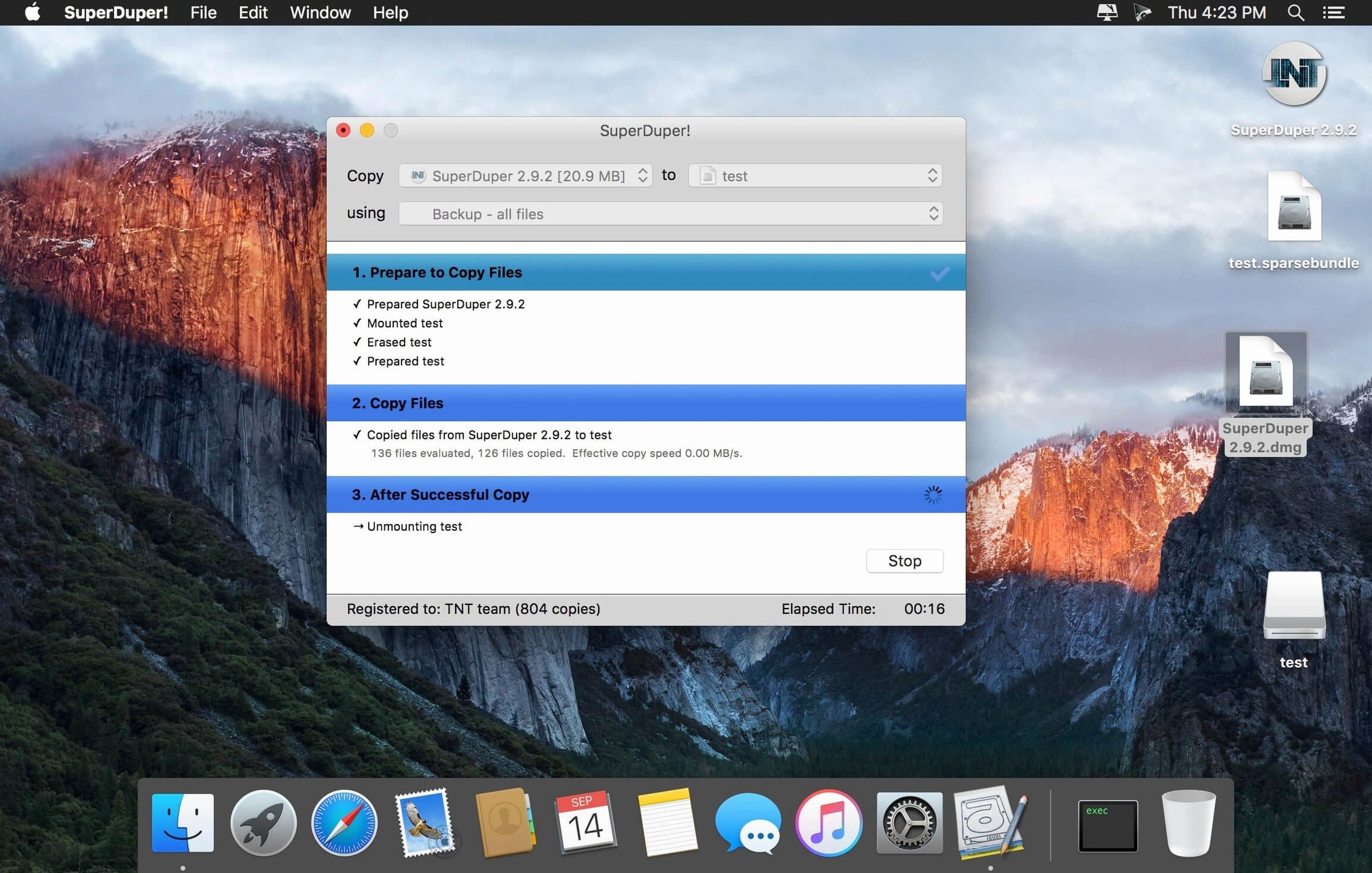
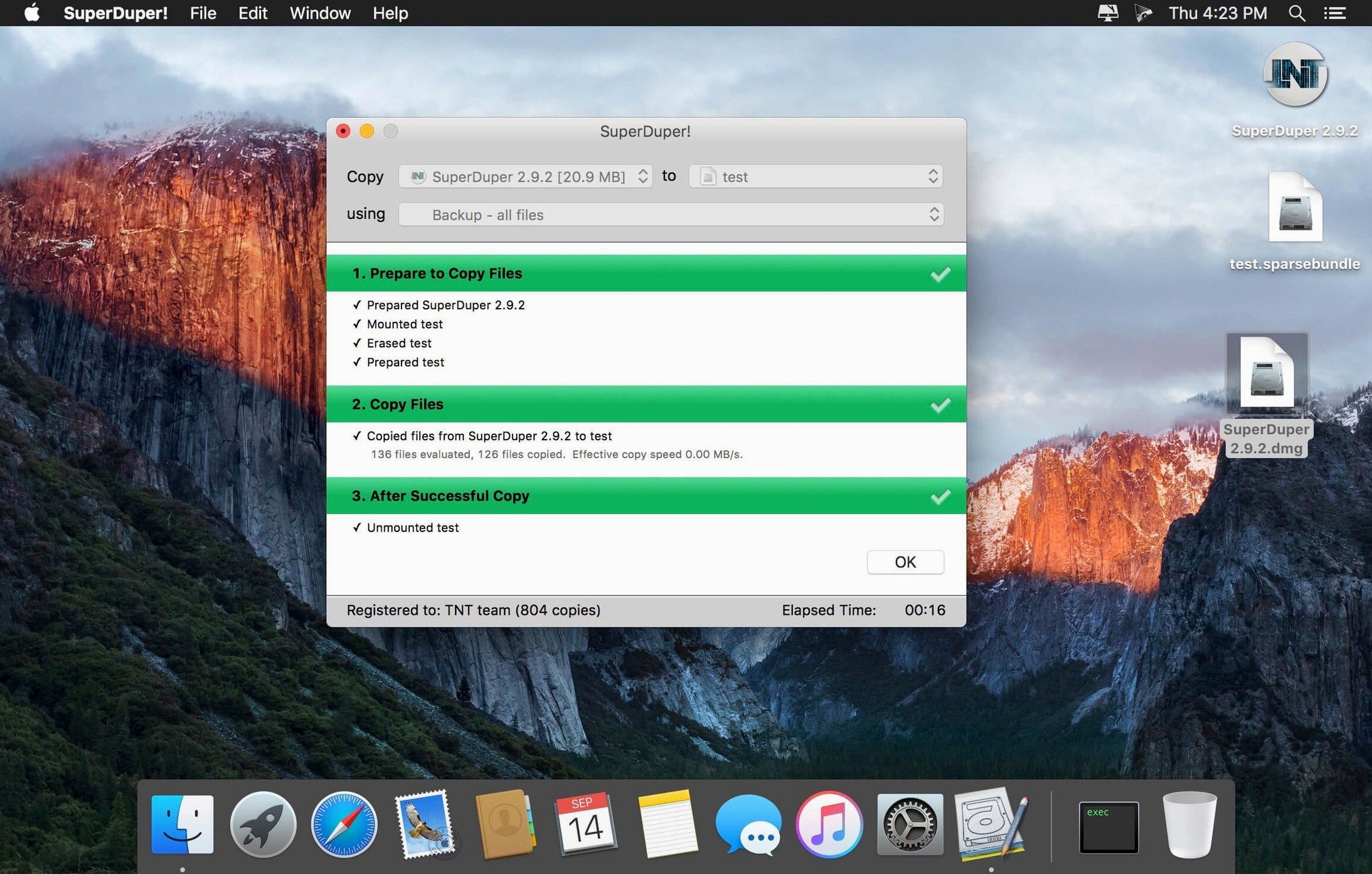
Every working photographer knows the sinking feeling when a drive fails mid-season. SuperDuper! for Mac solves that by creating bootable copies of your system — so you can keep editing from a clone if the internal drive goes down.
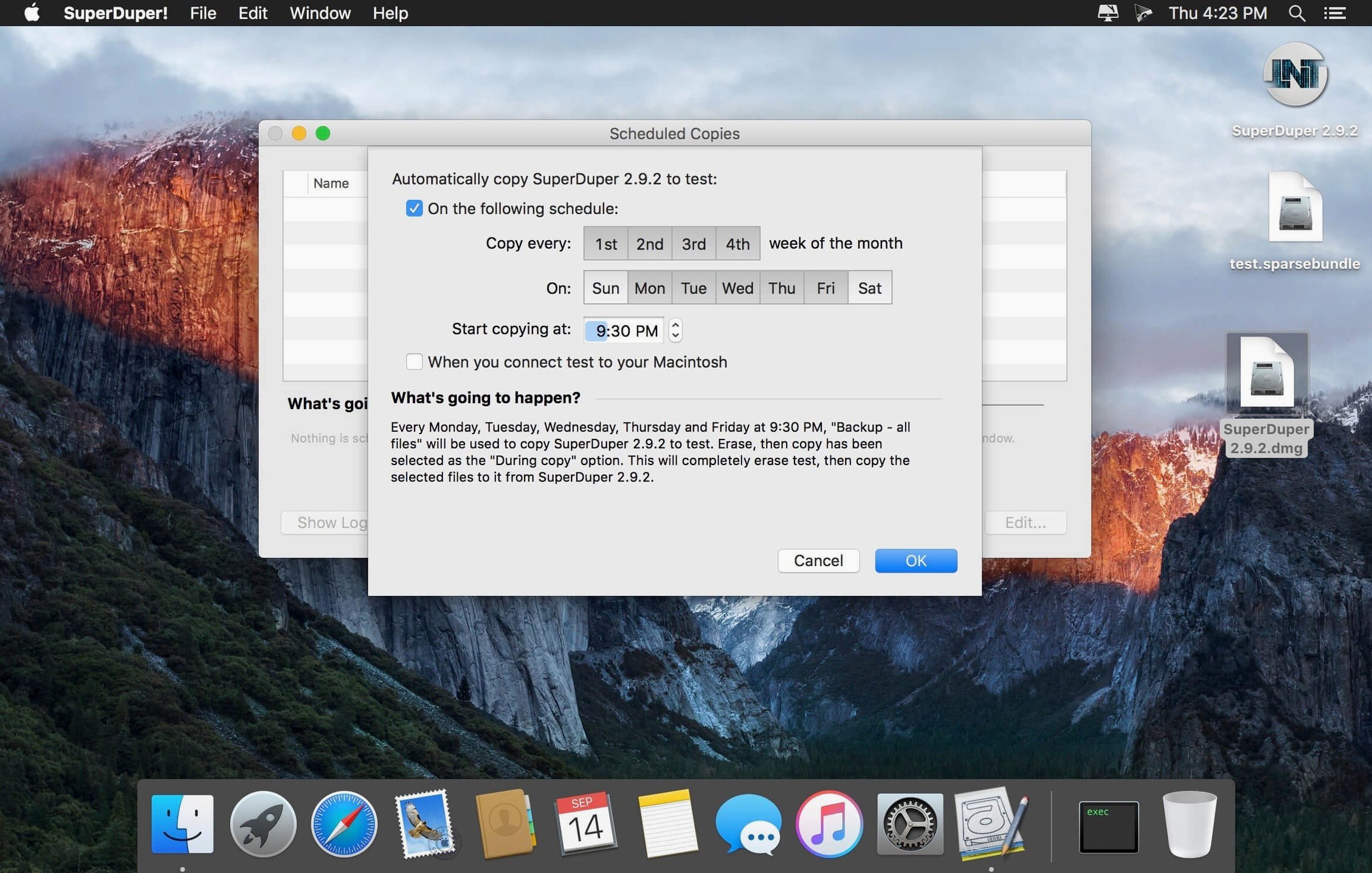
Whether you are on an Apple Silicon Mac or an older Intel machine, the app runs natively on both architectures. The scheduler means you can set a nightly clone and forget it. And if you need to revert to an earlier system state, the checkpoint feature saves you rebuilding your entire setup from scratch after a failed macOS update or a corrupt library file.
There are a handful of backup utilities for macOS, and each takes a different approach. Carbon Copy Cloner is probably the closest competitor — it also makes bootable clones and has a scheduler. Where SuperDuper! differs is in its simplicity: fewer menus, fewer options, and a workflow that feels more like a straightforward copy than a full backup suite. For someone who just wants a bootable clone without digging into filters and exclusions, SuperDuper! gets out of the way faster.
Time Machine, the built-in macOS tool, is fine for file-level recovery but does not produce a bootable drive. If your internal SSD fails, you are reinstalling macOS first and then restoring from a Time Machine backup — which takes time you might not have. SuperDuper! skips that step entirely: plug in the clone, hold the Option key at startup, and you are back to work on the same desktop, same apps, same settings.
Then there is Disk Utility, which can restore a disk from an image but lacks scheduling, scripting, and checkpoint support. It is a recovery tool more than a backup strategy. SuperDuper! fills the gap between the system-level restore and the fully automated, bootable backup that a working Mac user needs.
With SuperDuper!, you plug in an external SSD, open the app, select the source folder on your camera card and the destination on the external drive, and let it copy. While that runs, you can set a scheduled clone of your main system drive for 3 am. By morning, you have both a folder-level copy of the day's work and a bootable clone of your entire machine — two layers of protection before you even check out of the hotel.
The same scenario works for anyone who edits on the go: video editors, graphic designers, developers. A bootable clone on a portable SSD means your whole setup travels with you, and you can plug into any Mac that matches your architecture.
The clone does not appear as a startup disk.
This usually happens when the destination drive is formatted as APFS but the source is HFS+, or vice versa. SuperDuper! handles both formats, but the clone needs to match the source's partition scheme. If the drive does not show up in the Startup Disk pane, check its format in Disk Utility and reformat it to match the source before cloning again.
The scheduler stops running after a macOS update.
macOS occasionally resets permissions for background tasks after a system update. If your scheduled backup stops firing, open SuperDuper!, go to the scheduler settings, and re-save the schedule. This re-registers the launch daemon and usually fixes the issue.
A checkpoint restore fails or takes too long.
Checkpoints are stored on the destination drive, so if that drive is nearly full, the restore can stall. Keep at least 20 percent free space on your backup drive to give the checkpoint system room to work. If the restore fails, try a full clone from the checkpoint source instead of a direct restore.
Not testing the clone.
The biggest mistake is creating a bootable clone and never actually booting from it. A clone that looks successful in the app might fail at startup if the destination drive has a hidden issue. Always restart from the clone at least once after creating it — ideally before you need it.
Cloning to a drive that is also used for Time Machine.
SuperDuper! works best with a dedicated backup drive. If you point it at a drive that also holds Time Machine backups, the clone can conflict with Time Machine's snapshots and cause errors on both sides. Use separate drives for each tool, or partition one drive into two volumes.
Scheduling without checking the destination is connected.
The scheduler will try to run even if your external drive is unplugged. The backup fails silently, and you might not notice until you need the clone. A simple habit: glance at the SuperDuper! status menu before you disconnect your backup drive, or use the app's notification settings to alert you on failure.
Ignoring the script support.
Advanced users can attach scripts to run before or after a clone — for example, to unmount a network drive first or to verify the clone with a checksum. Beginners often skip this section, but even a simple post-clone script that ejects the backup drive safely can save you from corrupted data.
Sign in or create your account to leave a comment.
No notes from photographers yet. If you have used this on a real folder, say which camera and which Mac.