Get it for my Mac (6 MB)
 SuperDuper!
4.0.7
SuperDuper!
4.0.7

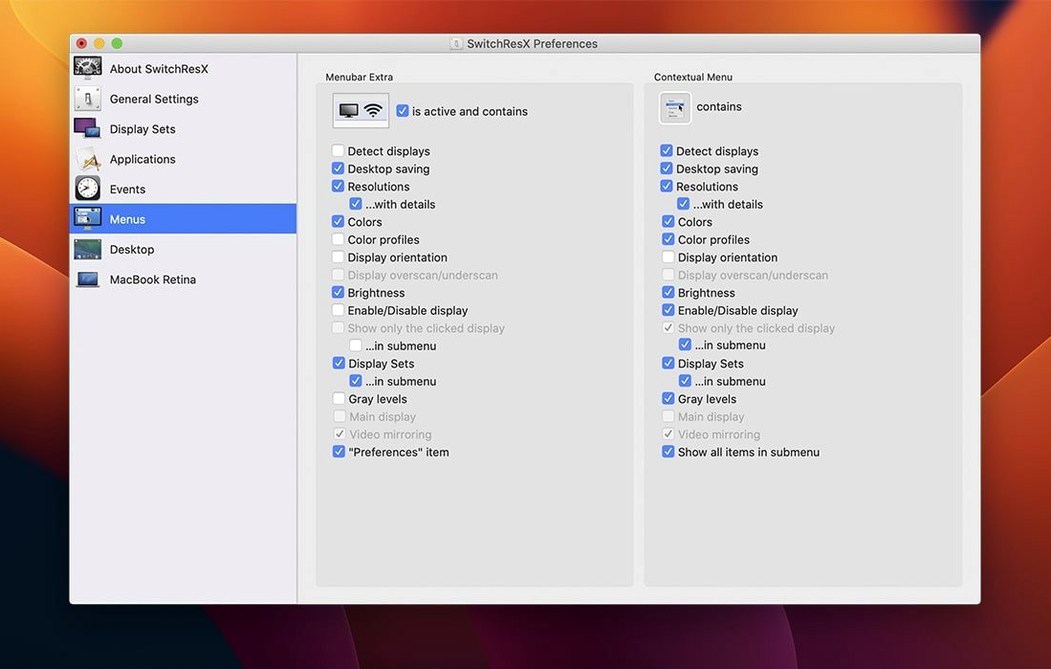
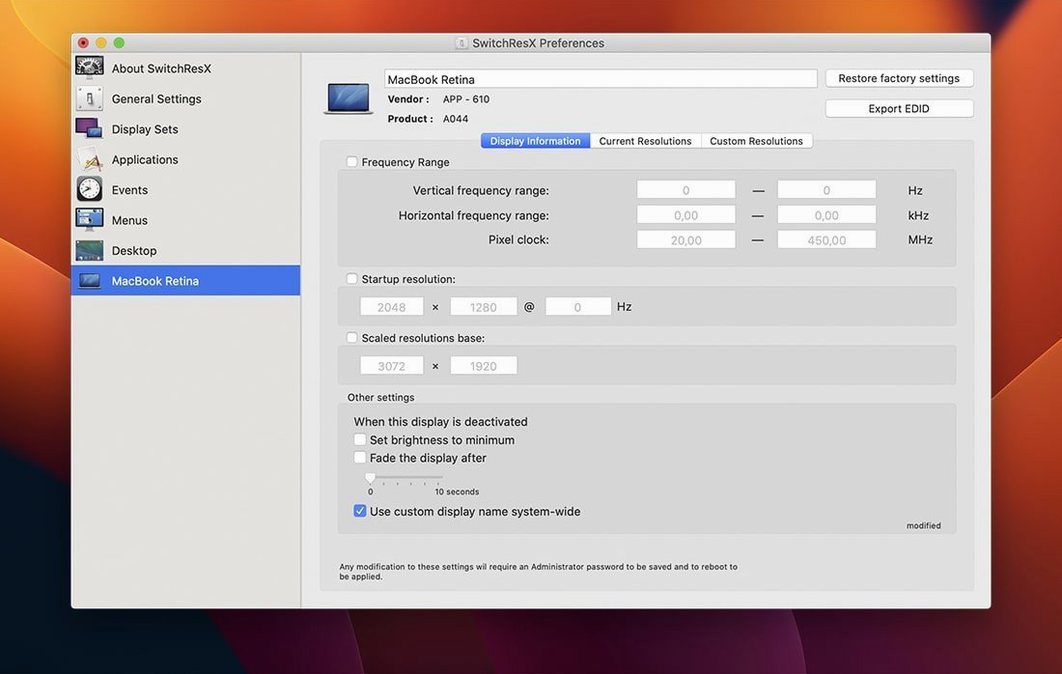
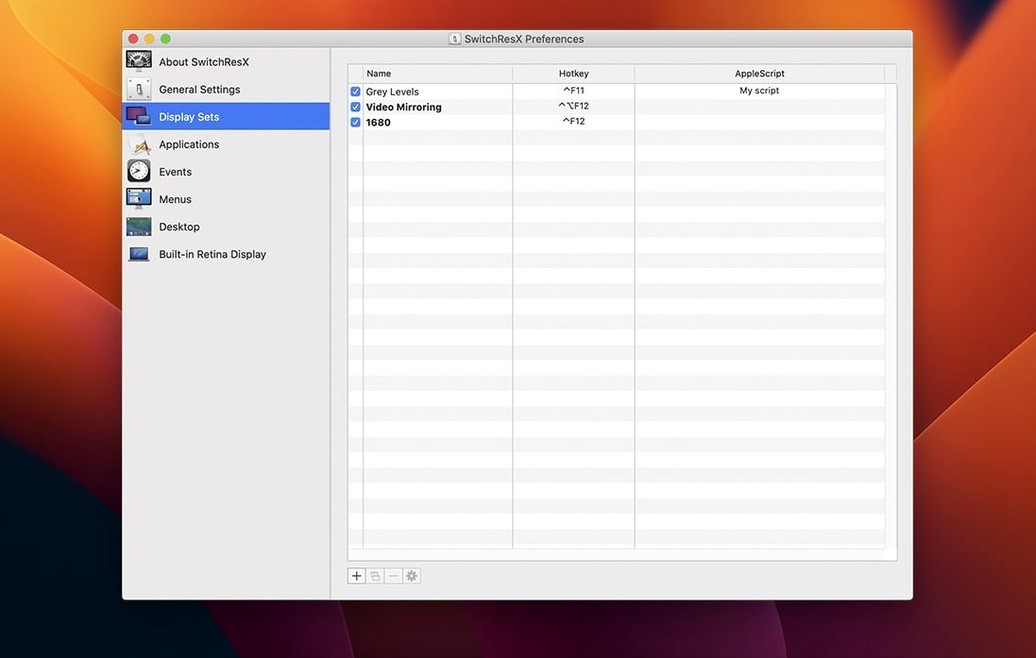
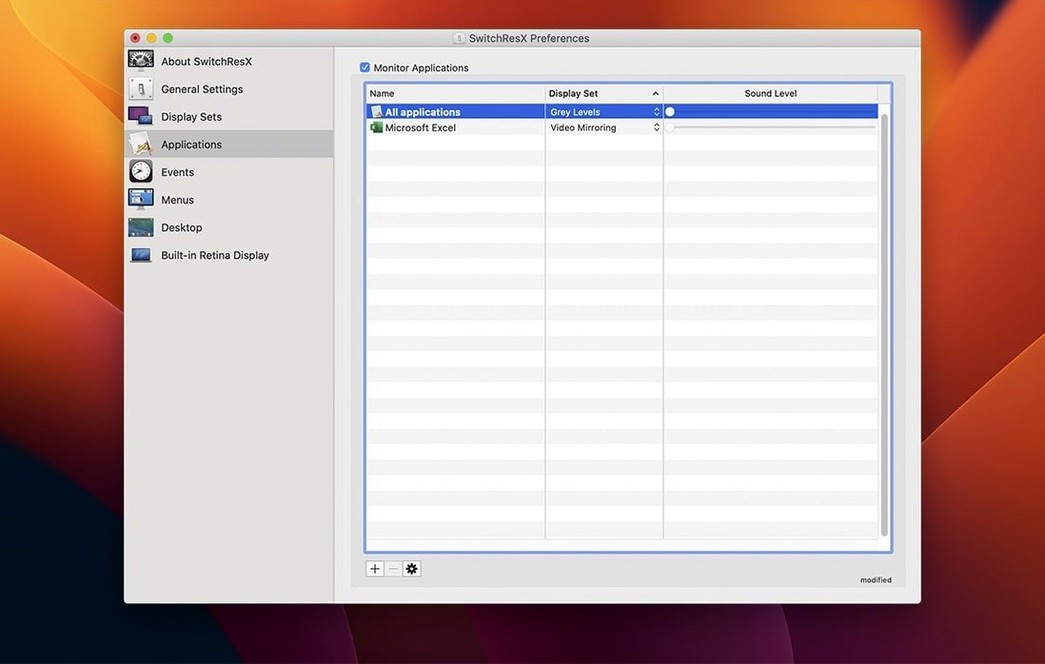
SwitchResX gives you control over monitor resolutions that macOS normally hides. You can create custom colour-plus-resolution profiles, adjust rotation, set up mirroring to a second screen, and even manage external displays like plasma panels, HDTVs, and projectors.
Custom resolution profile — A saved set of resolution, colour depth, and refresh rate settings that you can switch to at any time. Useful for projectors or HDTVs that need specific output.
Display Set — A collection of settings for one or more monitors. You can switch between Display Sets for different work modes, like editing, presenting, or watching video.
Disable a display on Apple Silicon — Version 4.14.2 lets you quit the Dock when turning off a built-in screen, freeing system resources on M-series Macs.
AppleScript support — You can automate resolution changes and monitor switching from scripts, which is handy for repeatable setups.
Version 4.14.2 came out in October 2025, and the fixes it brings matter more than a typical point release might suggest. If you ever plug and unplug a MacBook from a dock or a monitor throughout the day, you will notice the difference.
The biggest change is that SwitchResX no longer keeps resaving and updating its own settings when no display is attached. Before this fix, the app could get stuck in a loop writing preference files even when the lid was closed and no external screen was connected. That meant unnecessary disk writes and, in some cases, a preference file that grew stale or corrupted. Now it just sits quietly until a display appears.
Another fix that saves head-scratching: displays that show up in macOS with no name. Some third-party monitors and adapters report an empty string instead of a model name, which used to leave them unmanageable inside SwitchResX. Version 4.14.2 handles those nameless displays properly, so you can assign custom resolutions and colour profiles to them like any other screen.
The Display Set deletion bug was a small one but annoying if you have several sets. Deleting a set that was referenced by another set could cause a hiccup. That is resolved now.
And for Apple Silicon users, you can now quit the Dock when disabling a display. This is a niche but useful tweak if you run your MacBook in clamshell mode with an external monitor and want to free up memory by killing the Dock process entirely.
After installing, most people head straight to the custom resolutions panel. But there are a few settings that make the biggest difference day to day.
Both Intel and Apple Silicon Macs are supported, so it does not matter if you are on a 2013 Mac Pro or a 2025 MacBook Air.
Can I use it with a TV as a monitor? That is one of its main use cases. Plasma panels, HDTVs, projectors — if macOS shows a picture but the resolution is wrong or the colours look off, SwitchResX can create a custom resolution profile that matches what the display actually expects. It is especially useful for older TVs that do not report their full EDID data.
Is it safe to create custom resolutions? As long as you stay within the display's supported refresh rate and timing limits, it is fine. The app gives you warning fields if you try something outside the usual range. Start with a resolution close to the monitor's native one and adjust from there.
Does it work with Retina displays? Yes, it supports Retina resolutions, so you can create HiDPI modes that macOS does not offer by default.
Can I automate it? Yes, through AppleScript. You can write scripts that switch Display Sets, change resolutions, or enable and disable monitors. This is useful if you have a fixed desk setup and want to switch between work and presentation modes without opening the app.
Say you have a MacBook and a projector that only works at 1280x720 with a specific refresh rate. Here is how to set it up with SwitchResX so it just works every time you connect it.
If you do this often, write a short AppleScript that selects the Display Set and bind it to a keyboard shortcut through a launcher app. Then you never have to open SwitchResX during the actual presentation.
Yes, it can create combined colour-plus-resolution profiles, so you can save both colour settings and resolution in one profile.
It works with plasma panels, HDTVs, third-party monitors, and projectors, letting you control resolution and mirroring for each device.
The update fixes repeated self-updating of settings when no display is attached, an issue with displays that have no name in macOS, and a problem deleting a Display Set used after another Display Set.
Sign in or create your account to leave a comment.
No notes from photographers yet. If you have used this on a real folder, say which camera and which Mac.