Get it for my Mac (64 MB)
 Tuxera NTFS
2023.1
Tuxera NTFS
2023.1

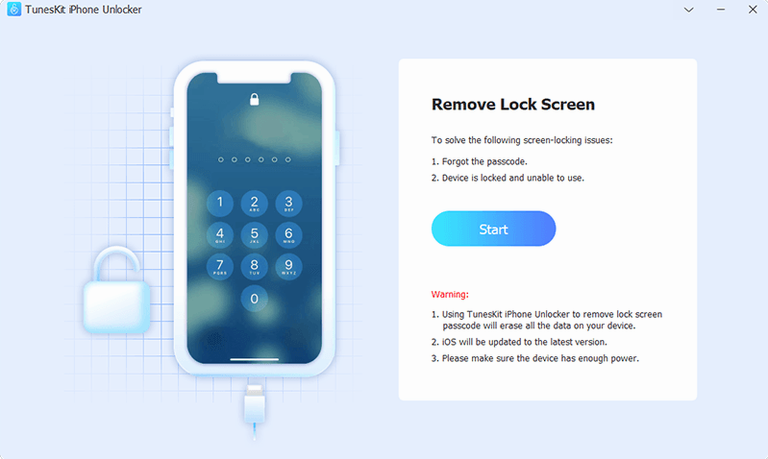
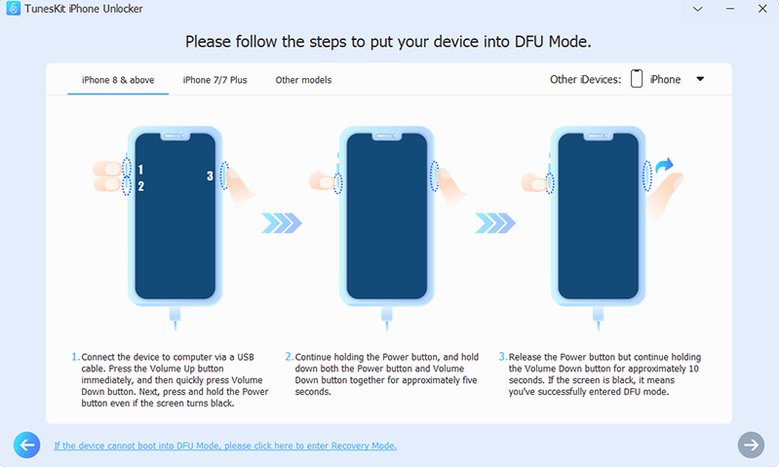
You have an iPhone with a smashed screen that stopped registering touches, or maybe too many failed passcode attempts have left it disabled. Either way, the device is locked and you need back in. TunesKit iPhone Unlocker version 2.7.0.16 is a third-party tool for macOS that handles this sort of thing — passcode removal, Screen Time lock, and related restrictions on iPhone, iPad, and iPod touch. It works on OS X 10.11 and later, Intel 64-bit Macs included.
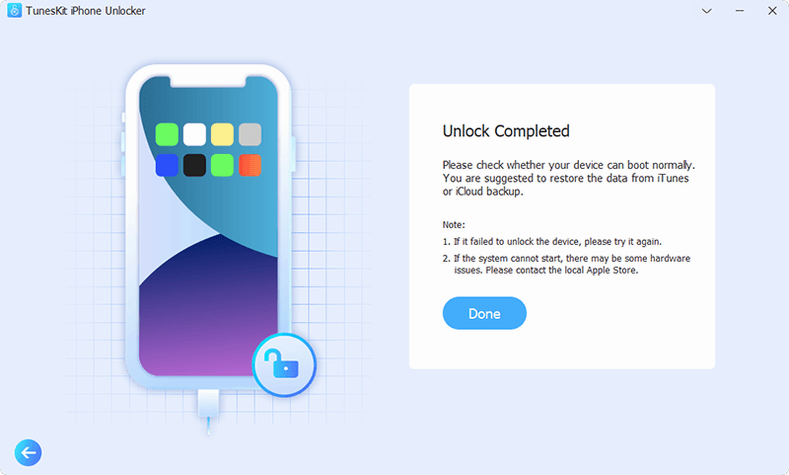
After the process completes, the device restarts without the old passcode. You set a new one and carry on. The tool also handles cases where Touch ID is not working or the screen is unresponsive, which makes it a practical option when the usual recovery routes feel like a dead end.
The most frequent slip I hear about is jumping straight into the process without checking which unlock mode matches the situation. TunesKit iPhone Unlocker has different paths for passcode removal, Apple ID removal, Screen Time lock, and MDM lock. Choosing the wrong one wastes time and can leave you wondering why nothing happened. Take a moment to read the on-screen options before clicking.
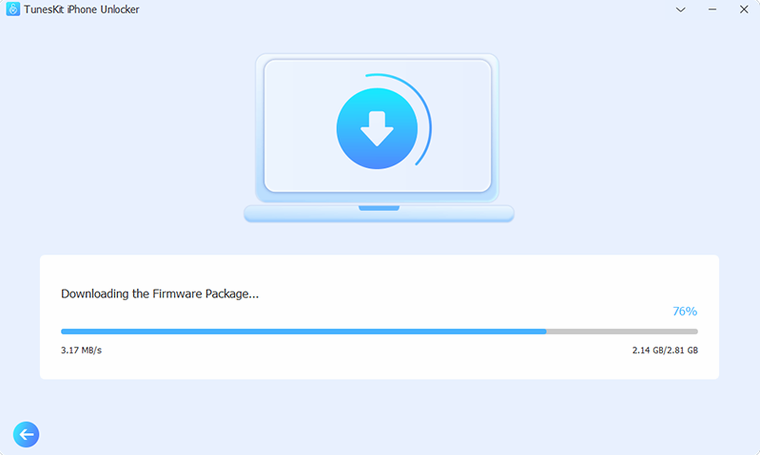
Another one is disconnecting the device during firmware download. The app pulls down the right iOS package automatically, and that download takes a few minutes depending on your connection. Yanking the USB cable halfway through because it looks like nothing is happening will force you to start over. Let it finish.
Some people also forget to check which iOS version their device is running before they begin. The iCloud Activation Lock removal, for instance, currently covers iPhone 5s through iPhone X on iOS 12.0 to 16.7.15. If your device or software is outside that range, you will hit a wall. A quick Settings check beforehand saves a lot of head-scratching.
And there is the Gatekeeper bypass. The installer tells you to press Enter in Terminal to get past it, and some users skip that step or close Terminal too early. The app will not launch properly if Gatekeeper blocks it. Follow the instructions exactly — mount the image, run Open Gatekeeper friendly, press Enter, drag to Applications. No shortcuts.
People often ask whether TunesKit iPhone Unlocker works on the latest macOS versions. The requirement is OS X 10.11 or later, and the build is Intel x86 64-bit. That covers a lot of ground, including older Macs that Apple no longer supports with newer operating systems. If you are on an older MacBook or iMac running El Capitan or later, you are fine.
Another common question is whether the process wipes the device data. The passcode removal path does clear the device as part of the unlock — that is how iOS handles it. You will end up with a clean device that you can restore from a backup or set up fresh. The Apple ID and activation lock removal options follow similar logic. Back up your data before you start if you can, but if the device is already disabled or the screen is broken, that might not be possible.
People also wonder if the app supports iPads and iPod touches. It does. The same screen lock and Apple ID removal features apply across iPhone, iPad, and iPod touch, so one tool covers the household.
And yes, the interface is in English only. If that is not your first language, the options are straightforward enough that a quick glance at the menu labels should get you through.
This one is for anyone who manages iOS devices regularly — not just their own, but family members or a small fleet of hand-me-downs. Parents who end up with a child's iPad that has a forgotten Screen Time lock or a passcode that nobody remembers will find this useful. It saves the trip to a repair shop or the hassle of trying to restore through iTunes on a device that won't connect properly.
Secondhand device flippers and refurbishers also get good mileage from it. If you buy used iPhones or iPads that still have an Apple ID or activation lock attached, the removal feature is exactly what you need to make the device usable again. The no-jailbreak solution in later versions means you do not have to mess with the device's security just to clear the lock.
Photographers and creative professionals who use iPhones as secondary cameras or field monitors sometimes end up with a locked device after a shoot goes wrong — a smashed screen from a dropped rig, or a passcode lockout from a pocket dial. Being able to unlock it on a Mac without mailing it off for repair keeps the workflow moving.
And then there is the straightforward case of someone who simply locked themselves out of their own phone. If you have ever tried to remember a passcode after switching to a new one and drawing a blank, you know the feeling. This tool is for that moment.
Sign in or create your account to leave a comment.
No notes from photographers yet. If you have used this on a real folder, say which camera and which Mac.