Get it for my Mac (182 MB)
 Adobe Premiere Pro
26.5.2
Adobe Premiere Pro
26.5.2

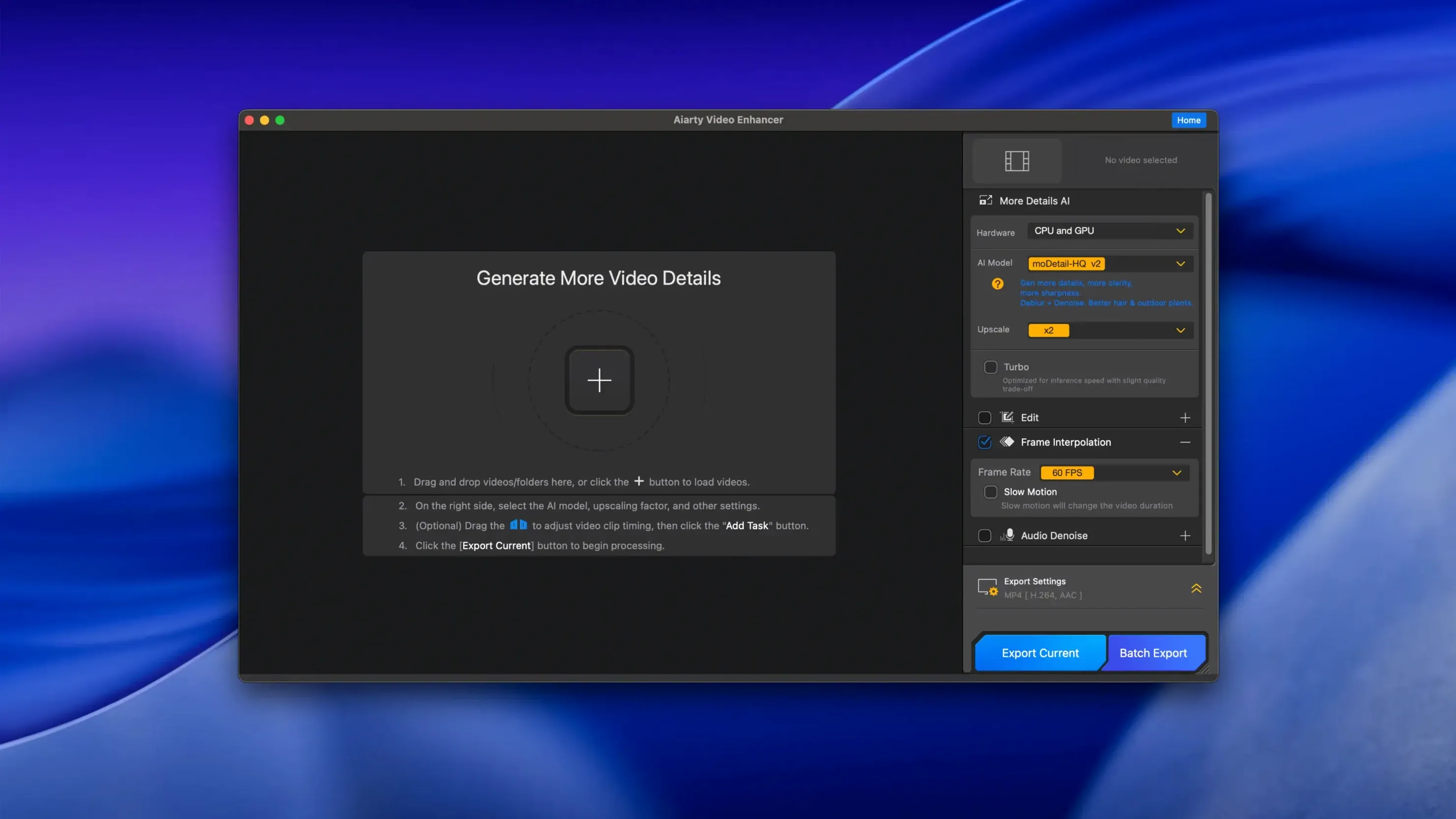
Wedding photographers and video editors who juggle archive footage, old family tapes or client deliveries often end up with clips that need a serious quality lift. Aiarty Video Enhancer is a desktop app built for that moment.
Aiarty Video Enhancer sits in that middle ground between a specialised tool you open for a single job and something you can reach for mid-edit. If you work in Final Cut Pro or DaVinci Resolve, you export the rough clip, run it through Aiarty, then bring the cleaned version back into the timeline. The app doesn't pretend to be an NLE, and that honesty is part of why it works.
It also plays well with Compressor and HandBrake if you need to re-wrap formats before or after enhancement. Because version 3.8 added MKV support, more archive footage flows straight in without a conversion stop. And the resumable exports mean you can queue up several long clips, close the lid on your MacBook on the train, and pick up where you left off later — something that matters when you're editing wedding films on the move.
For photographers who also shoot video, the app pairs naturally with Aiarty's own image enhancer line, but it's a separate tool for a different kind of raw material. You wouldn't use it for stills, and you wouldn't use the image version for footage. The separation keeps each app focused.
Before you throw your first 1080p clip at it, spend two minutes in the preferences. The default output location is usually the desktop or the source folder, but if you work with large batches, point it to a dedicated processing drive or an external SSD. That saves you hunting through folders later.
If your Mac has Apple Silicon, make sure the app is running natively and not through Rosetta. You can check in the app's own settings or in the Info window on the .app file. For Intel Macs with a dedicated GPU, confirm that the GPU acceleration option is enabled — that's where the heavy lifting happens, and leaving it off means waiting longer than you need to.
The model selection screen can feel overwhelming the first time you see it. Pick one enhancement model and stick with it until you know what it does to your footage. The denoise model is a good starting point for handheld wedding clips shot in low light. The upscale model works better for old archive footage that just needs more pixels. Trying to run everything through every model at once is where beginners hit trouble.
The most common one is over-processing. You load a clip that's slightly soft, run it through the upscaler, the denoiser, the deblurrer and the frame interpolator all at once, and end up with footage that looks artificial. The AI adds detail well, but it can also invent texture where there was only noise. Start with the one model that matches the problem. Add another pass only if the result still needs it.
Another mistake is ignoring the audio until the end. The Audio Denoise module is a one-click fix, but if you export the enhanced video first and then try to clean the audio separately, you lose sync or quality. Run audio cleanup as part of the same session while the video is still in the app.
Beginners also forget about storage. The app warns you about disk space, but the temporary files during processing can be larger than the final export. If you have less than 512 GB free, you might run into a stalled export halfway through a 4K upscale. Keep an eye on the free space before you start a batch of long clips.
Frame interpolation for 16X slow motion is impressive, but it works best on footage that already has some motion. Trying to create smooth slow motion from a static talking head just wastes processing time. Save it for dance-floor moments, confetti throws or anything with natural movement.
Say I've got a client's wedding reception footage shot on a smartphone in 1080p. The lighting was bad, the audio picked up a humming air conditioner, and the best man's speech is a little blurry because the camera operator was moving. Here's how a session with Aiarty Video Enhancer might go.
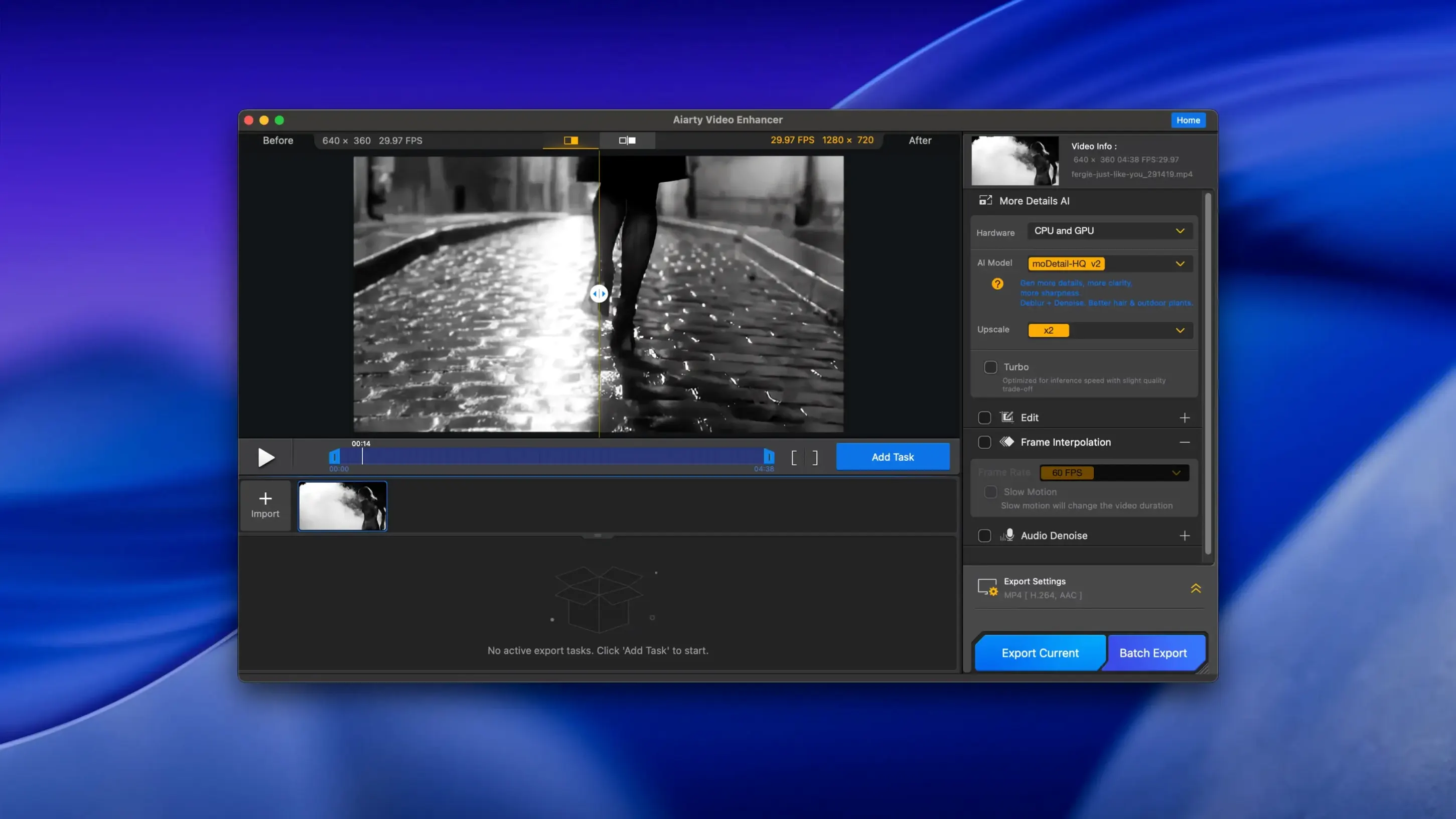
First, I drag the clip onto the app window. I scrub through to find the speech section and mark that as my region of interest. No point processing the whole hour-long reception if I only need the five-minute speech.
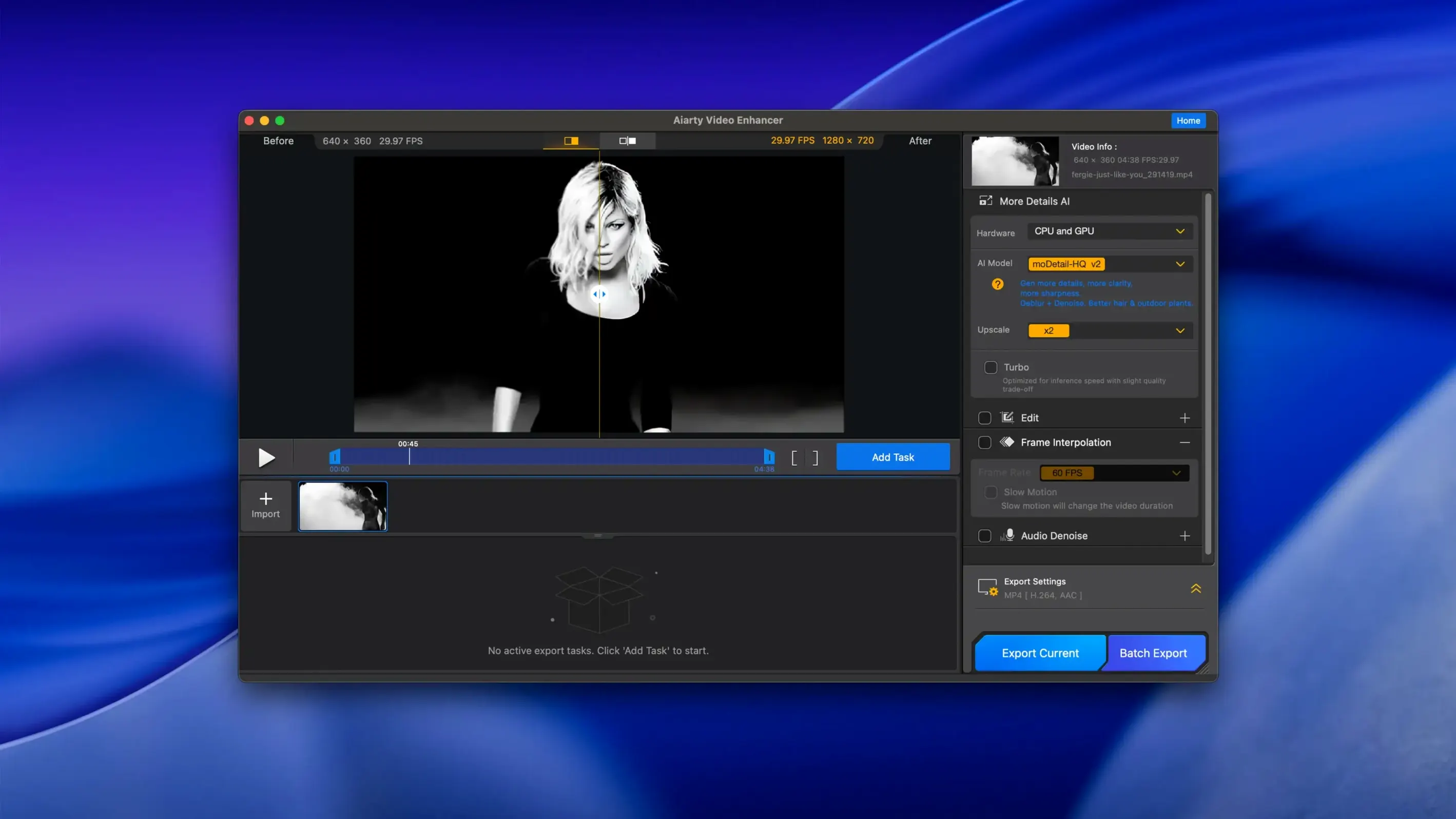
Next, I choose the deblur model for that region. I leave the rest of the clip untouched for now. The preview window updates after a few seconds, showing the cleaned frames side by side with the original. The difference is visible, especially around the edges of faces and the text on the speech cards.
Then I switch to the Audio Denoise module. One click, and the preview plays back the cleaned audio. The air conditioner hum drops out, and the speech comes forward. I toggle it on and off a couple of times to make sure nothing else got lost.
For the final export, I set the resolution to 4K and choose the H.264 codec — good compatibility for client delivery. I enable resumable export because I know I might close the laptop mid-process. The app estimates the file size, and I check that I have enough room on the external drive I selected earlier.
I hit export. The progress bar moves steadily. I walk away, make tea, come back to a finished file. I drag it into Final Cut, drop it on the timeline, and it lines up with the rest of the edit without any sync drift.
That's the session. No drama, no tweaking sliders for twenty minutes. Just pick the problem, apply the model, export the result. For someone who edits video for a living, that kind of straightforward workflow is the whole point of having aiarty video enhancer on the Mac in the first place.
Yes, it supports Apple Silicon processors natively and also works on Intel Macs with a dedicated GPU.
Version 3.8 added MKV support alongside the existing common video formats.
Yes, the app includes an Audio Denoise module specifically for cleaning up audio tracks.
Sign in or create your account to leave a comment.
No notes from photographers yet. If you have used this on a real folder, say which camera and which Mac.