Get it for my Mac (60 MB)
 Motion
6.3
Motion
6.3

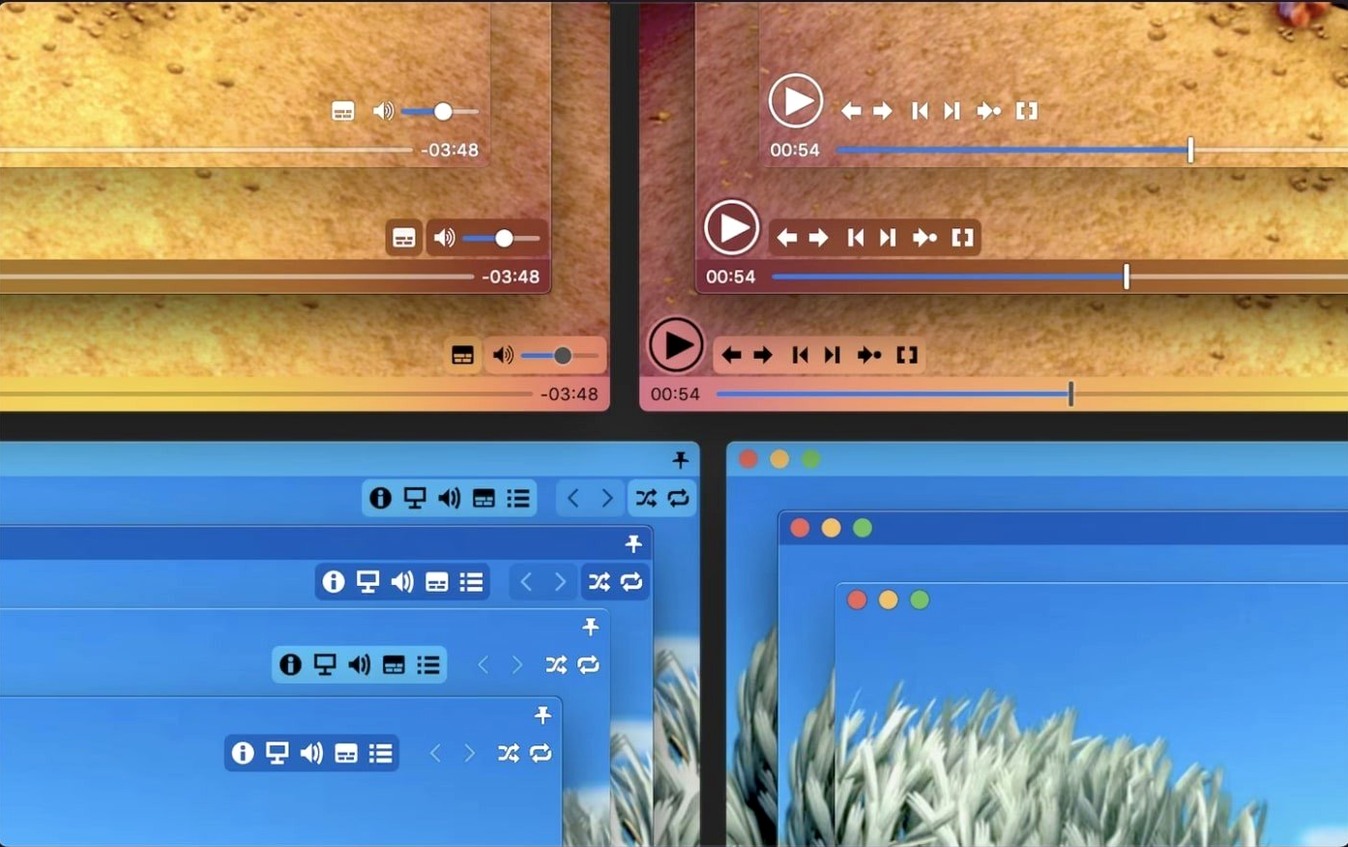
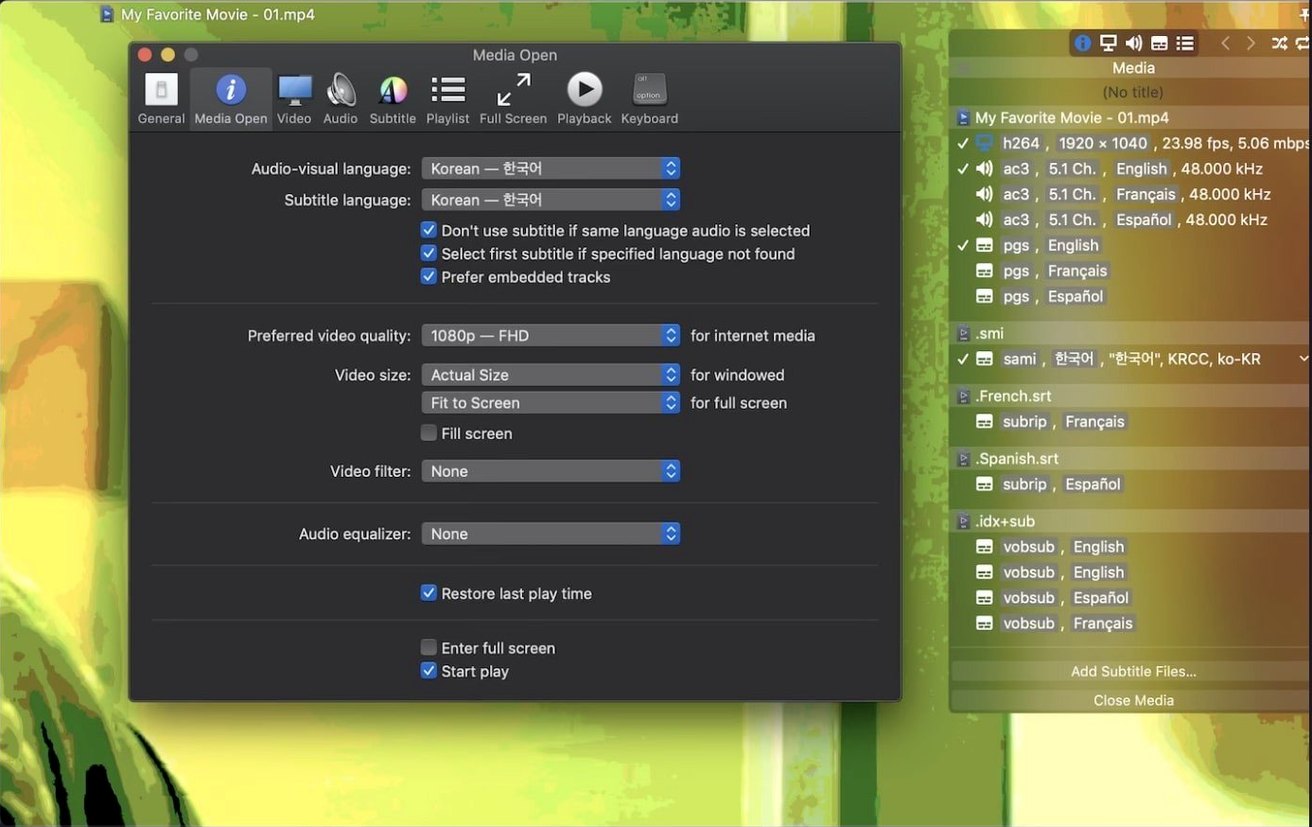
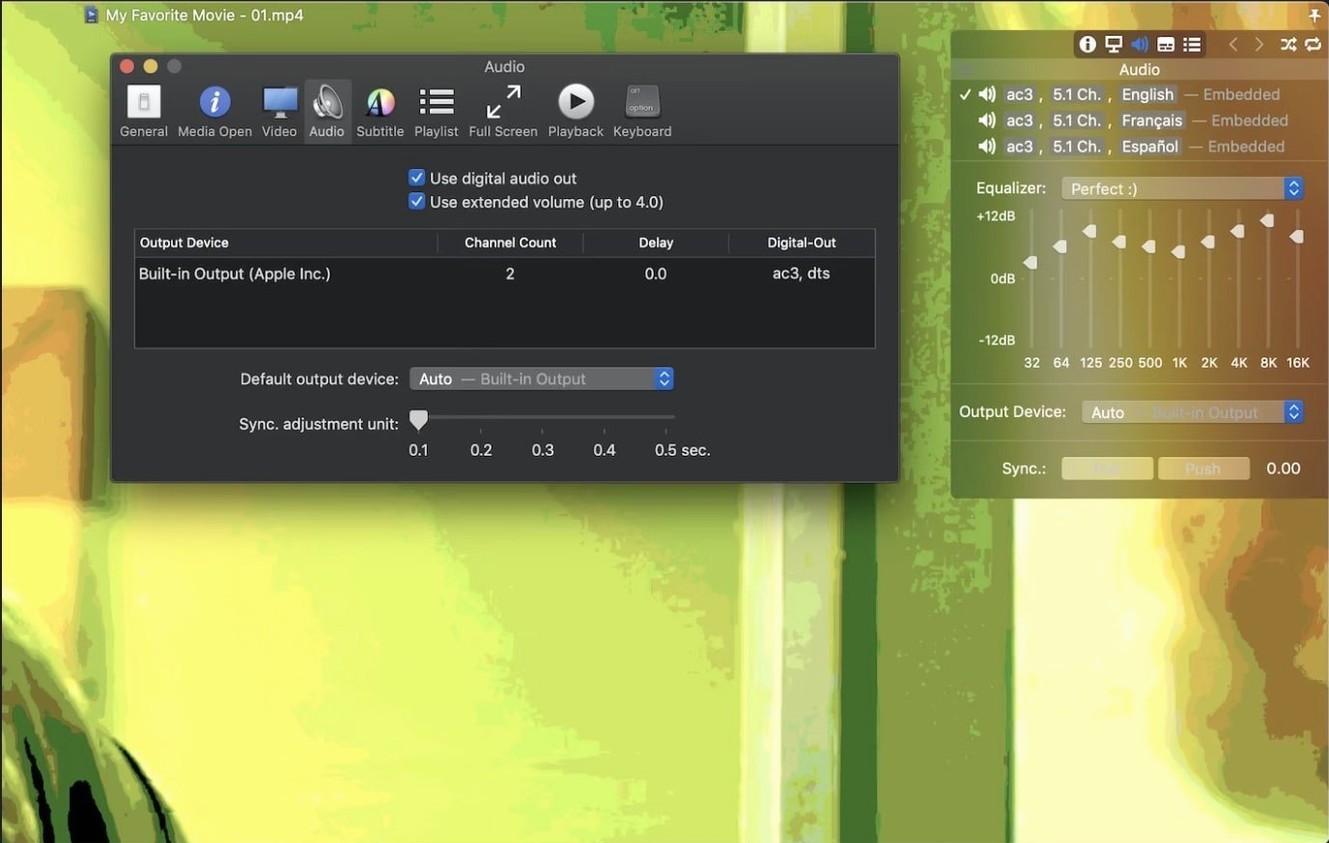
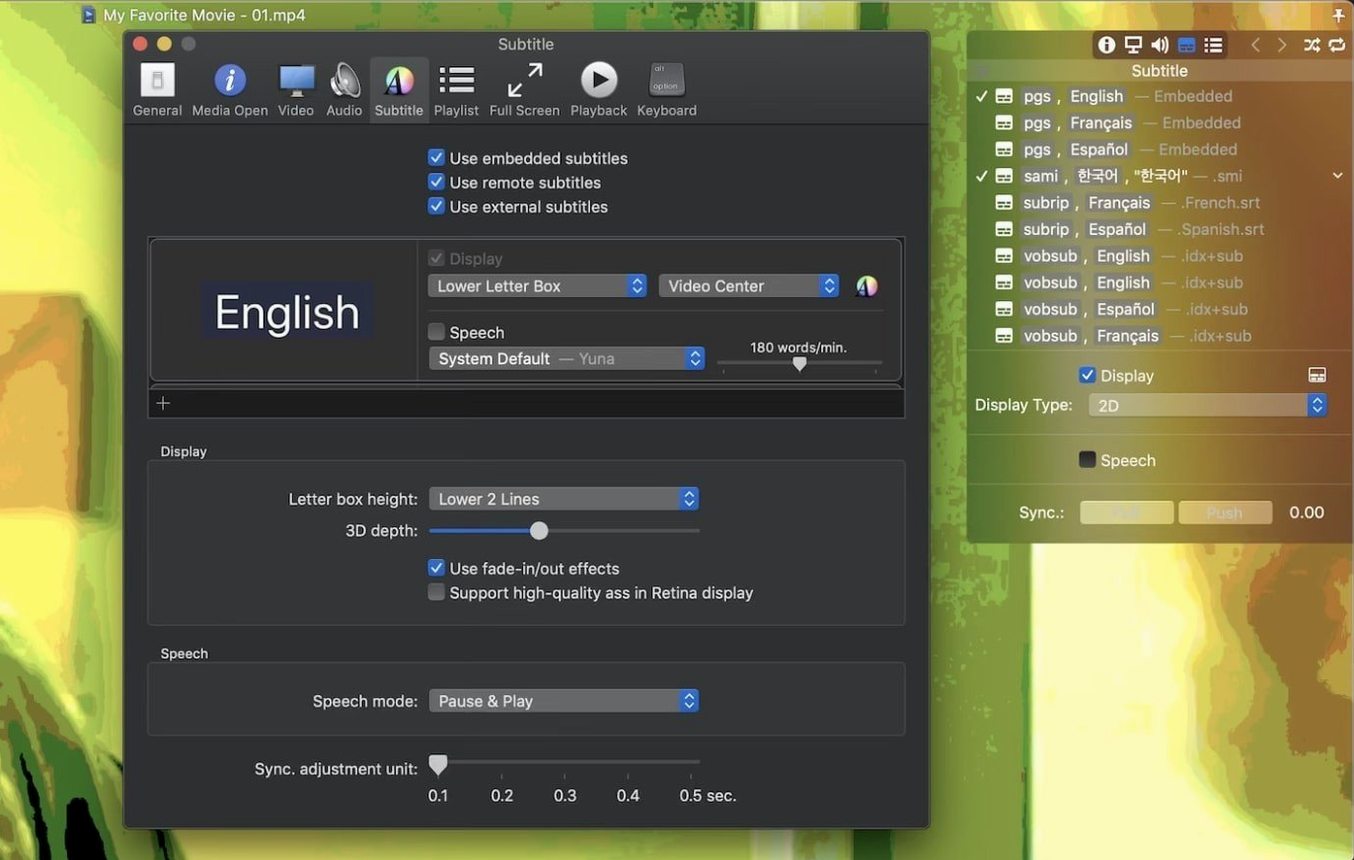
Movist Pro runs on any Mac from macOS 10.13 High Sierra onwards, Intel or Apple Silicon. That covers pretty much everything still getting security updates, so you don’t need to check your system version before installing.
It’s a video player built around QuickTime and FFmpeg, which means it handles a wide range of formats without extra codec packs. Playlists get some thoughtful touches: autocompletion that searches for the next episode and matching subtitle files, plus shuffle and repeat modes. You can work in a single window or let each video open in its own document. Subtitle support is generous — encoding detection is automatic, you can customise the display fully, and it even handles compressed subtitle files inside .zip and .rar archives. If you want multiple subtitles on screen at once, that works too.
If you watch a lot of local video files on your Mac — series with episode folders, films with external subtitles, or archived downloads — Movist Pro handles the organisational bits that QuickTime Player skips. The sandboxed app mode keeps things tidy if that matters to your setup.
Anyone who keeps a local video library on their Mac will find a reason to keep Movist Pro around. That includes people who archive TV series with episode folders and need the playlist autocompletion to grab the next file and its matching subtitle. It suits users who collect films in different containers — MKV, MP4, AVI — and don’t want to hunt for a separate codec pack each time they open something. If you work with video files that have embedded subtitles or external .srt and .ass files stored alongside the video, the automatic encoding detection and the ability to show several subtitle tracks at once saves fiddling. People who prefer keyboard shortcuts for speed will appreciate the playback speed adjustment and screenshot capture, both of which are accessible without digging into menus. And if you’re on a Retina display, the app renders video at the screen’s native resolution without looking soft.
Movist Pro has a few details that don’t make the feature list but matter once you notice them. The HDR tone mapping is one: if you play HDR content on a standard dynamic range display, the app maps the colours so the video doesn’t look washed out or blown out. It’s not something you’ll think about until you open a file and it just looks right. Another is the Letter Box subtitle display, which places subtitles outside the video frame in the black bars, keeping the picture itself clear. The subtitle sync adjustment is handy when a downloaded subtitle file is slightly off — you can nudge it forward or backward without re-encoding anything. For audio, the S/PDIF digital output lets you send sound to an external DAC or home theatre system if your Mac supports it. And the app works in both a single-window mode and a multi-document mode, so you can switch depending on whether you want one video at a time or several open in separate windows.
A few things trip people up when they first use Movist Pro, but they’re easy to fix once you know where to look. If a video won’t play and you see a black screen or an error, the file might use a codec that QuickTime can’t handle — switch the playback engine to FFmpeg in the preferences and try again. That covers most TS and MKV files that give trouble. Another issue: subtitles not showing up even though the file is in the same folder as the video. The app expects the subtitle file to have the same name as the video, or it won’t pick it up automatically. Rename the .srt or .ass file to match the video filename and it should appear. If subtitles appear garbled or with wrong characters, the automatic encoding detection might have guessed incorrectly — you can change the encoding manually in the subtitle settings. Finally, if Movist Pro crashes on launch, it might be related to a disabled System Integrity Protection, which version 2.17.2 specifically addresses. Make sure you’re running that version and the crash should be resolved. For the few TS videos that still refused to play in earlier builds, the same update fixed that too.
Version 2.17.2 fixed a bug where some TS videos would not play, so that format should work reliably now.
Yes, it supports subtitles inside .zip and .rar archives, and you can display an unlimited number of subtitles at the same time.
Sign in or create your account to leave a comment.
No notes from photographers yet. If you have used this on a real folder, say which camera and which Mac.