
 Get it for my Mac (86 MB)
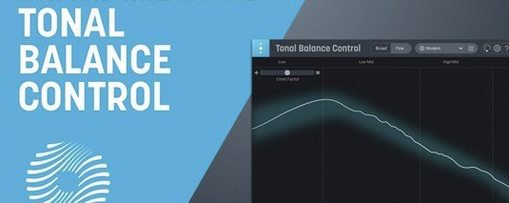 iZotope Tonal Balance Control
3.0.0

- Version
- 1.1.0
- Developer
- iZotope
- Interface in
- English
- Licence on file
- K'ed by TEAM HCiSO
- macOS it runs on
- macOS 13.3 or later
- Chip support
- Apple Silicon, Intel 64-bit
In the edit
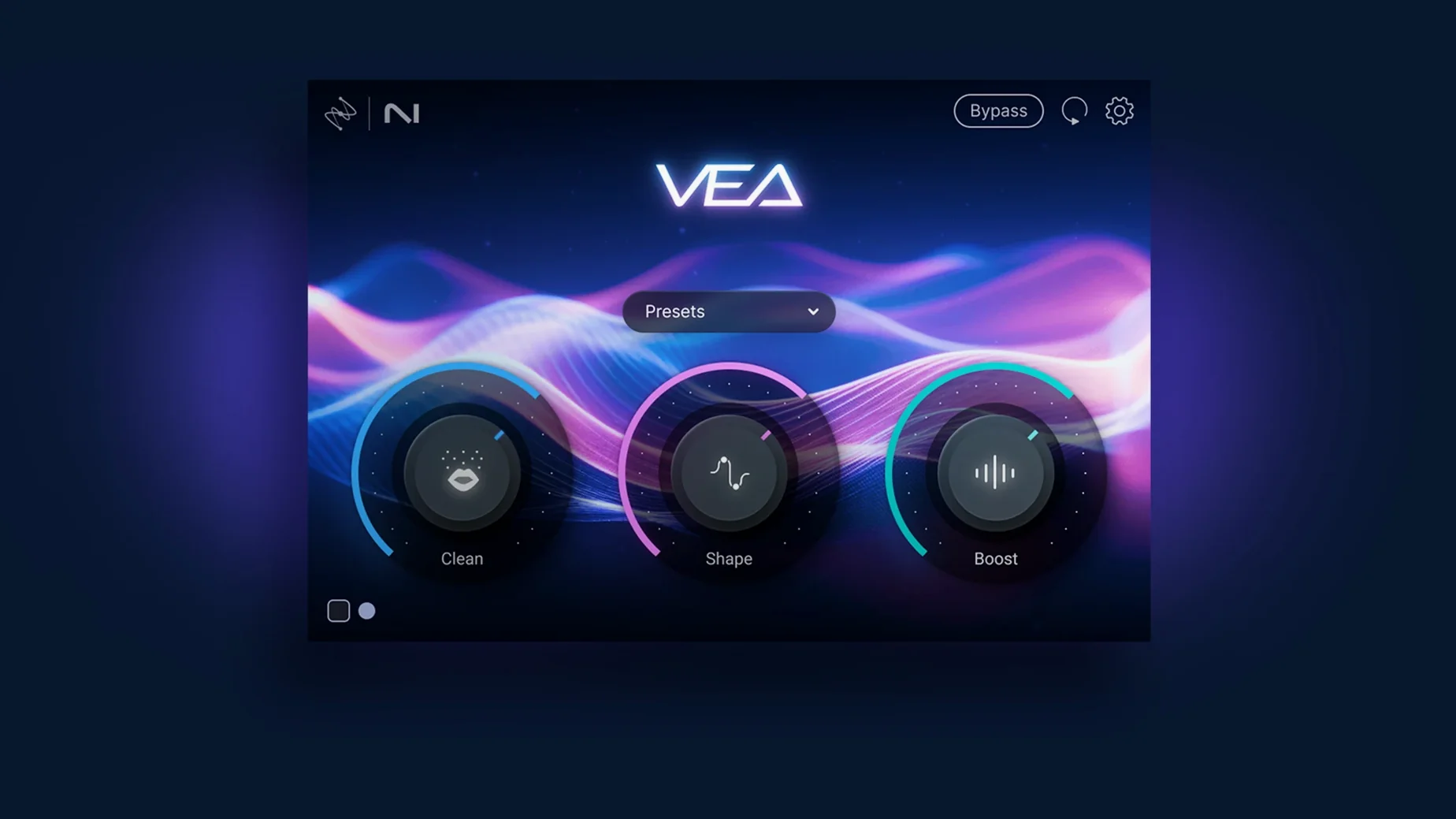
You finish recording a podcast episode or a voiceover, load it into your session, and the first listen reveals room rumble, a bit of sibilance, and a vocal that sits a little too far back. That is where iZotope VEA comes in. It is an AI-driven audio enhancer built on technology from RX, Ozone and Nectar, and it lives on a track or bus to clean and shape voice recordings in one pass.
- On a dialogue track — reduces background noise and increases clarity so the voice cuts through without sounding processed.
- On a voiceover bus — the Clean control tightens up muddiness while the Shape control lets you dial in a brighter or warmer tonality.
- On a podcast mix bus — the Boost control adds a polished, radio-ready lift to the entire vocal group.
- On a live-recorded remote interview track — tames inconsistent room tone and evens out level shifts in a single instance.
- On a scratch vocal track during editing — cleans up bleed and noise quickly so you can comp takes without distraction.
- On a final mix bus — a light touch of VEA can glue and polish the spoken word elements without affecting the music or ambience underneath.
It is designed for podcasters and content creators who want professional-sounding voice recordings without spending hours on manual EQ, compression and noise reduction. One instance, a few controls, and the voice sits where it should.
Start with VEA's default controls on your voice track
Once VEA is installed and your DAW has rescanned its plugins, open a session with a voice track that needs work. Insert VEA on the track and leave the three controls — Clean, Shape, Boost — at their default positions for a moment. Listen through the track. The AI does a solid first pass, so you get a sense of what it thinks the voice needs before you touch anything.
Try soloing the plugin and bypassing it a few times. That A/B comparison tells you more about what Clean is doing to the noise floor and what Shape is doing to the tone than any preset name ever could. I usually do this on a short section — ten or fifteen seconds — so my ears don't drift.
Next, set your track levels so the input into VEA is healthy but not clipping. The plugin works best when the source is consistent; if the recorded level is very low, the AI has to work harder to bring up clarity and you might hear more of the noise floor underneath. A quick gain stage before the plugin saves time later.
Clean a two-person remote interview in one pass
Remote interviews are where VEA earns its keep. Two people recorded separately, different rooms, different mics, maybe some background hum on one side. Here is a start-to-finish way to handle it.
- Put VEA on each voice track individually. Do not bus them together yet. Each speaker gets their own instance so the AI can adapt to that specific recording environment.
- Set Clean first. On the noisier track, bring Clean up until the room tone drops away. Stop the moment the voice starts to sound thin or distant — that is the edge. On the cleaner track, a lower Clean setting is often enough.
- Adjust Shape per voice. A darker microphone might need more Shape to bring out articulation. A bright condenser might need less. Listen to each voice in context with the other, not in solo, so the two sit in a similar tonal space.
- Add Boost last. A small amount — think 2–4 dB on the fader — adds presence without making the track feel loud or pushed. Boost is easy to overdo, so I dial it in while listening to the whole conversation, not just the word.
- Check the quietest moments. Play the gaps between words and the softer sections. If the noise reduction is pumping or the voice is breathing oddly, back Clean off a little. The goal is natural, not silent.
This approach keeps each speaker sounding like themselves while the overall conversation gains clarity and consistency. You can download iZotope VEA for Mac and try this exact workflow on your next interview edit.
Adjust the Clean threshold first for better sound
VEA ships with a default state that works across many sources, but three adjustments get you closer to your own sound faster.
- The Clean threshold. By default, the plugin applies a moderate amount of noise reduction. On a well-recorded track, you can pull Clean back to maybe a quarter of the range and still hear the benefit — less hiss, no artefacts. On a noisy recording, push it up, but keep checking the silent parts for any watery or metallic sounding artefacts.
- The Shape curve direction. Shape is not just a simple EQ tilt. It adapts to the voice it hears. If you work with a voice that is already bright, try dialling Shape down slightly rather than leaving it neutral. The AI rebalances around the new position, and you often get a smoother top end.
- Boost level relative to your mix bus. Boost adds presence, but if you have compression or limiting later in the chain, too much Boost can push the voice into pumping. Set Boost before your bus processing, then check the final result. A lower Boost setting with a gentle bus compressor often sounds more polished than a high Boost setting with nothing after it.
These are starting points, not rules. Each voice and room is different, and VEA responds to the material it hears. iZotope VEA intelligently matches audio levels across your tracks, making it ideal for podcasters and video editors.
Leave VEA at its default settings to begin
Listen through the track.
Apply VEA to each speaker's track individually
- Set Clean first. On the noisier track, bring Clean up until the room tone drops away. Stop the moment
New this release
- Minimum supported macOS version was changed.
- Supported host application versions were changed.
Mac it needs
- macOS 13.3 or later
- Intel or Apple Silicon
- English interface
Questions I actually get
What macOS version does iZotope VEA require?
iZotope VEA 1.1.0 requires macOS 13.3 or later and works on both Intel and Apple Silicon Macs.
What kind of audio processing does VEA do?
VEA reduces background noise, increases clarity, and lets you shape the tone with Clean, Shape and Boost controls. It uses technology from iZotope's RX, Ozone and Nectar lines.
Installing on a Mac
- Open the downloaded disk image.
- Run the standard installer.
- Restart your DAW or host application to see VEA in your plugin list.
Notes from photographers
Sign in or create your account to leave a comment.
No notes from photographers yet. If you have used this on a real folder, say which camera and which Mac.
Next to it in VST Plugins
All VST Plugins picks
iZotope Tonal Balance Control
3.0.0
 iZotope RX
12.1.0
 Kalifornia Dynamic KD Alkane
1.0.17
 iZotope Insight
2.4.0
 iZotope FXEQ
1.0.0
 Komplete FX Bundle
2026.1
 Komplete Kontrol
3.5.4
