
 Get it for my Mac (5 MB)






 Amadeus Pro
2.8.14
- Version
- 2.1.2
- Developer
- Johnson Fung
- Interface in
- English
- Licence on file
- Included
- macOS it runs on
- macOS 14 or later
- Chip support
- Apple Silicon, Intel 64-bit
In the edit
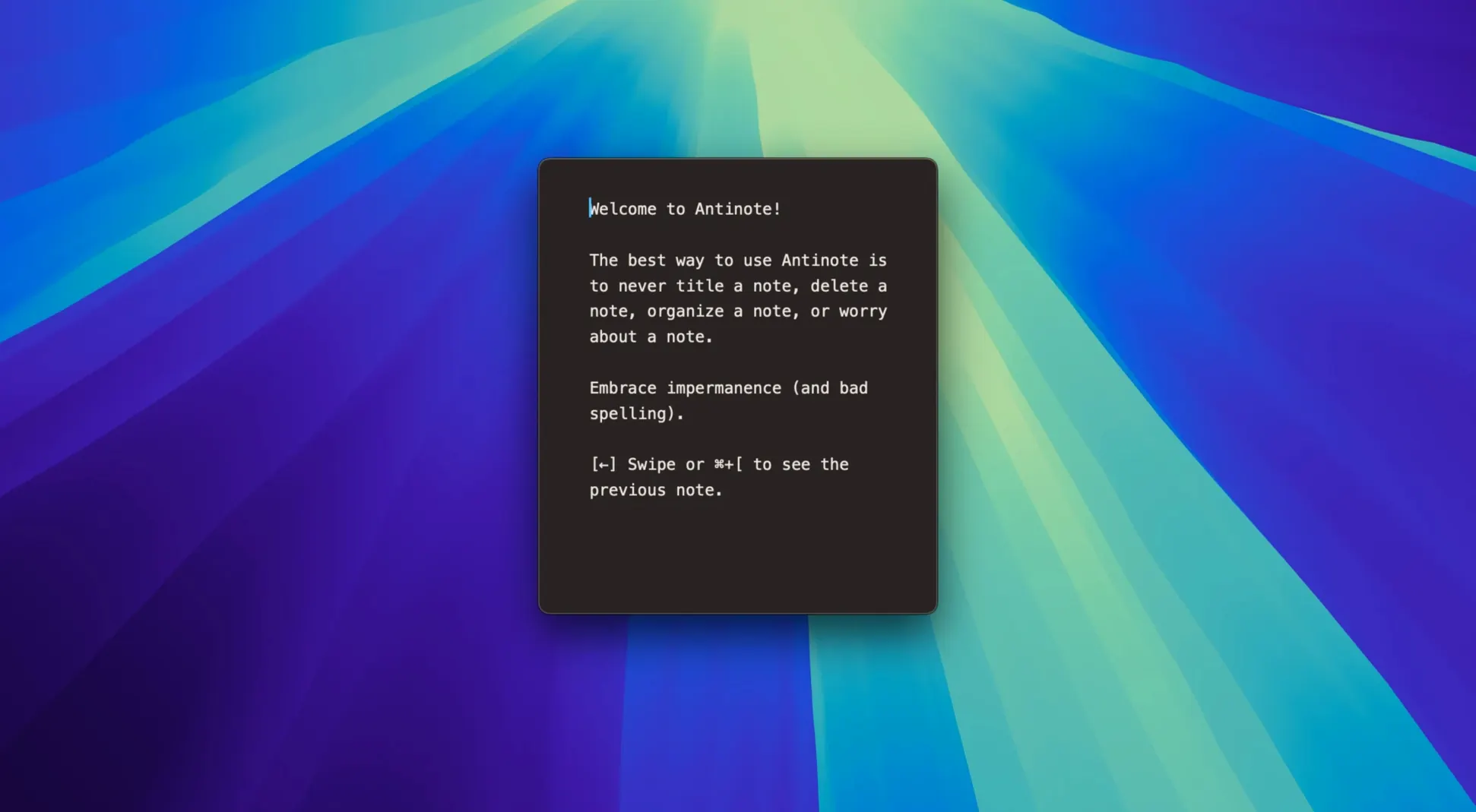
Every Mac user I know has that one spot where random bits of text end up: a sticky note, a quick TextEdit file, or a half-typed email draft. Antinote steps in as a proper scratchpad for exactly that kind of work. It lives as a dock app, a menu bar app, or a drop-down, so it's always a click away when you need to jot down a thought, run a quick calculation, or convert a currency without leaving what you are doing.
The app handles the small stuff that usually slows you down. Type a sum and it calculates as you go. Write a distance and it converts to kilometres or miles. Need a timer? It has a stopwatch, countdown, and pomodoro support built in. For writing tasks, it counts words and lines, checks reading ease, and searches instantly. If you delete something by accident, File > Recover Notes from The Void brings it back. Export is straightforward: plain text or Markdown.
It runs on macOS 14 or later and is designed with privacy in mind — no accounts, no cloud sync, just your notes on your machine. The interface is clean and feels at home alongside the other tools a working photographer keeps open during a busy edit session. It is not a replacement for a proper editor or a full notes app; it is the place for the stuff that does not need one.
How Antinote compares with similar Mac scratchpads
There are a few apps in the same corner of macOS. Tot gives you a set of small, coloured dots for quick text, and it syncs via iCloud if you want your snippets everywhere. It is clean and simple, but it does not do math, conversions, or timers. Drafts is more of an inbox for text that you process later; it has powerful actions and deep integration with other services, but it leans into a workflow that expects you to revisit notes, not throw them away. Antinote sits somewhere between the two. It does not pretend your notes are permanent, so it strips formatting, shortens links, and keeps everything keyboard-driven. If you mainly want a place for temporary calculations and throwaway text, it is faster to use than Drafts and more capable than Tot.
A hotfix that fixed double-firing shortcuts
Version 2.1.2 was a small hotfix, but the two changes it brought are worth knowing. The first one matters if you use keyboard shortcuts to open the app: some users on 2.1.1 saw shortcuts fire twice on the first launch, and that is now sorted. The second is a safety net. Accidentally deleting a note and losing it used to be final. With 2.1.2, you can go to File > Recover Notes from The Void and get that text back. It is a small addition, but it changes how freely you clear out your scratchpad when you know nothing is truly gone.
Why treating Antinote like a permanent notes app will lose your data
The most common one is treating it like a permanent notes app. Antinote does not sync to iCloud or any other service, so if you wipe a note expecting it to be saved somewhere else, it will not be. The Recover Notes feature helps, but only for deletions you catch quickly. Another mistake is pasting text and expecting the formatting to stay. The app strips formatting and indentation on purpose, so if you need to keep the layout of a paragraph, paste it somewhere else first. Beginners also miss the inline calculation feature at first — they open a calculator separately instead of just typing the sum directly into a note. And the clipboard watch feature is easy to overlook: turn it on, and anything you copy elsewhere appears automatically in Antinote, which is useful when you are collecting links or numbers from different places without switching windows each time.
New this release
- Hotfix for shortcuts firing twice on the first launch of version 2.1.1.
- Accidentally deleted notes can now be recovered via File > Recover Notes from The Void.
- This was a temporary hotfix release.
Mac it needs
- macOS 14 or later
- Intel or Apple Silicon
- Interface language: English
Questions I actually get
Can Antinote run from the menu bar?
Yes, Antinote can run as a dock app, a menu bar app, or a drop-down, so you can choose how it fits your workflow.
Installing on a Mac
- Open the downloaded disk image.
- Drag the app into the Applications folder shortcut.
- After copying finishes, launch the app from Launchpad.
Notes from photographers
Sign in or create your account to leave a comment.
No notes from photographers yet. If you have used this on a real folder, say which camera and which Mac.
