- Version
- 2.2.9
- Developer
- Splasm Software
- Interface in
- Russian, English, German, Spanish, Portuguese, Swedish
- Licence on file
- K'ed by TNT team
- macOS it runs on
- OS X 10.11 or later
- Chip support
- Apple Silicon, Intel 64-bit
In the edit
Chapter artwork on Ventura is one of those fixes that tells you the developers still care about the details. Audiobook Builder 2.2.9 keeps doing what it has always done well — turning a stack of audio files or an old CD into something your iPhone or iPad treats as a proper audiobook — but now it also plays nice with macOS 15 Sequoia and stops throwing false “no audio in file” errors on WAVE files with MP3 data inside.
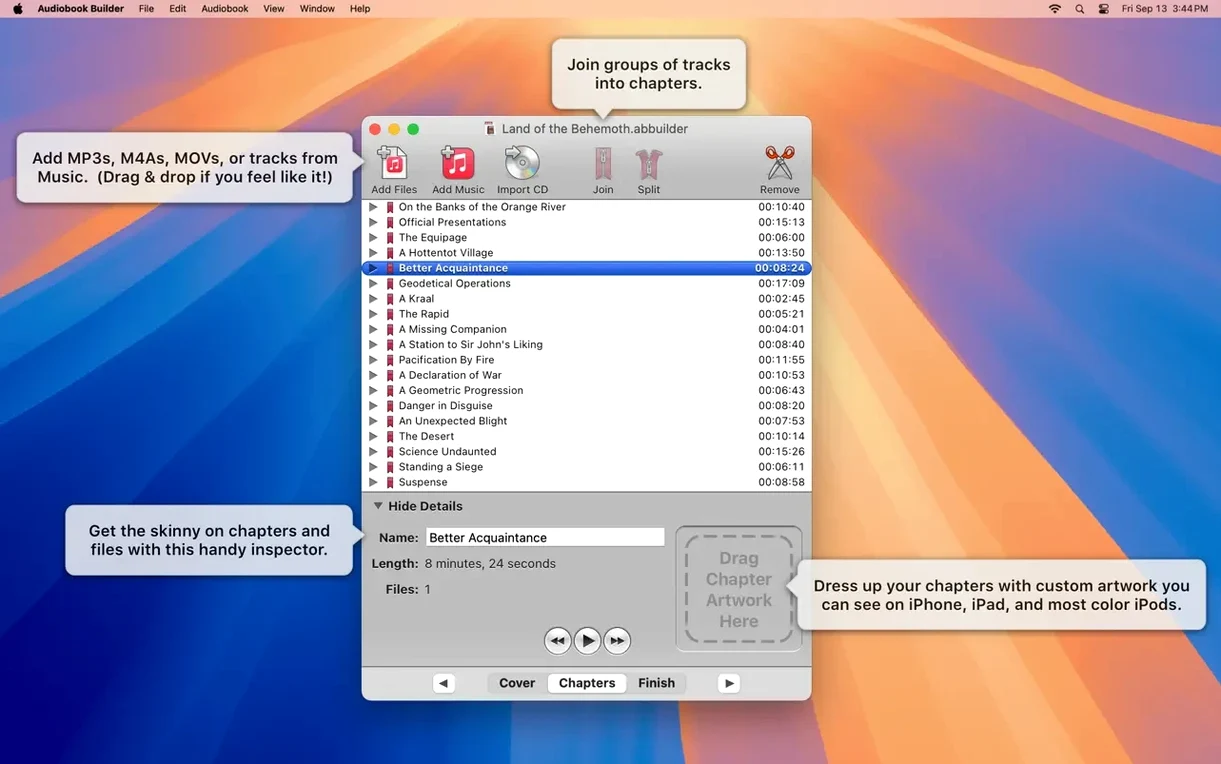
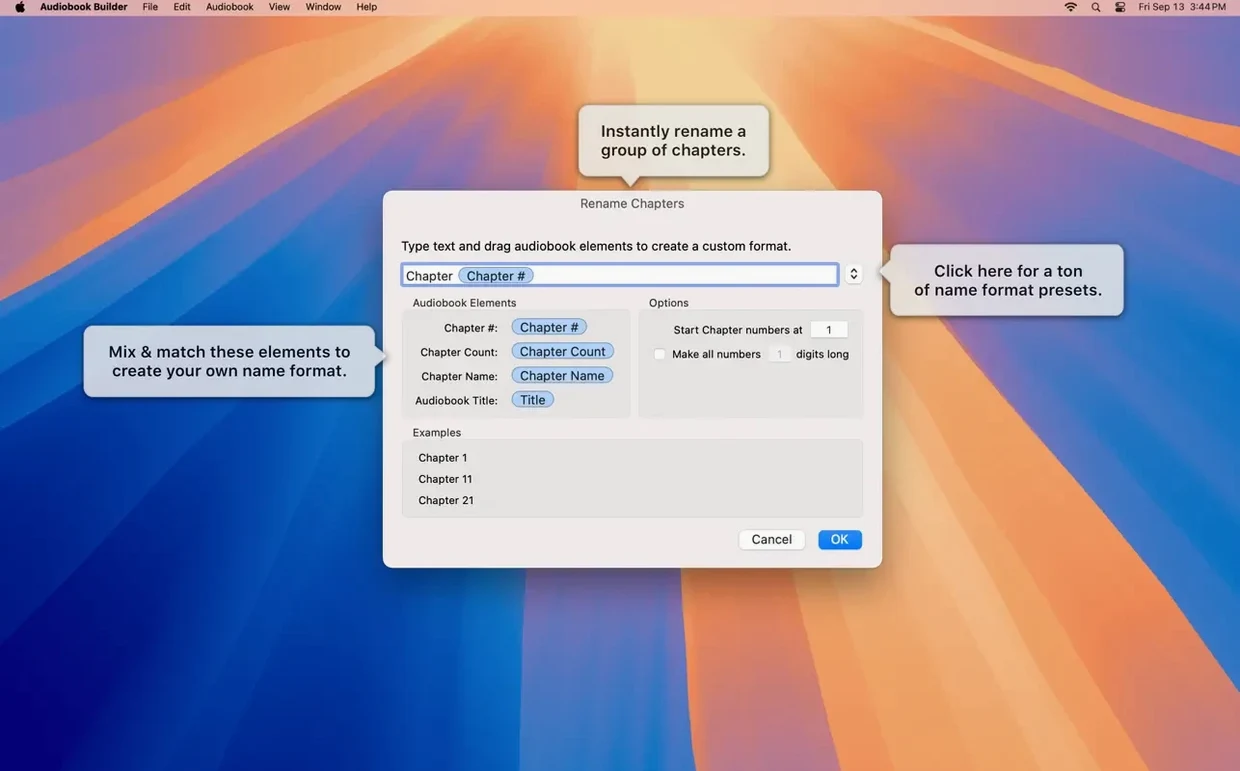
Manually control chapter breaks and custom titles
- Manual chapter control with custom titles. You decide where breaks land and what each chapter is called, not some auto-detect algorithm.
- Cover artwork and chapter artwork that actually show up on macOS 13 Ventura and later. The previous version had a gap here; 2.2.9 closes it.
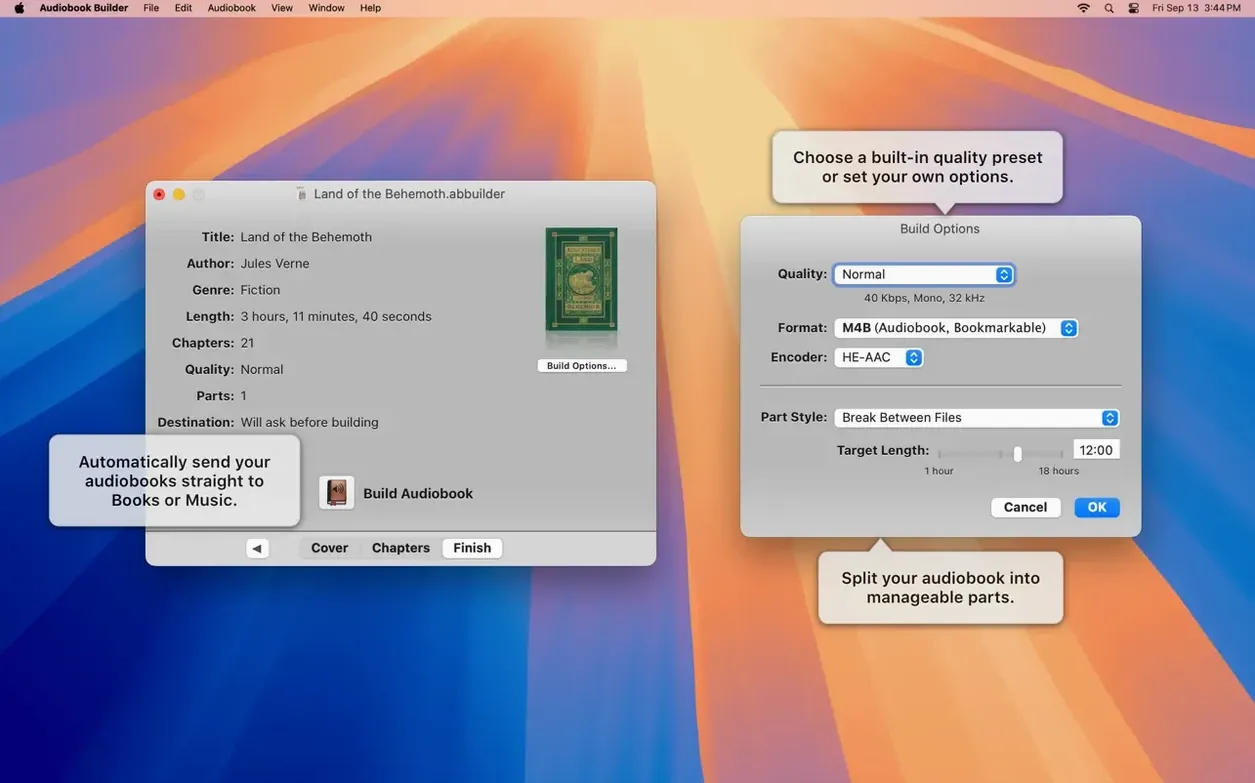
- Direct export to iTunes, Music, or Books. No extra steps, no format guessing — the finished book lands where you want it.
Still works on older Macs, still runs on Apple Silicon
The app supports everything from OS X 10.11 El Capitan through macOS 14 Sonoma and the new Sequoia. Intel and Apple Silicon are both covered, and the interface can switch between English, German, Spanish, Portuguese, Russian, or Swedish. If you have a stack of CDs gathering dust or a folder of MP3 chapters that need proper structure, this version does the job without fuss.
Tweak audio quality presets for music or smaller files
Before you build your first book, open the preferences and look at the audio quality presets. The default is fine for spoken word, but if you are working with music-heavy material or want smaller file sizes for a long drive, the custom settings let you dial in bitrate and sample rate yourself. I tend to set mine to a lower bitrate for audiobooks — speech does not need the full frequency range, and the smaller file syncs faster to an older iPhone.
The chapter artwork toggle is another one to check early. If you are building a book with multiple sections, turning on chapter images makes each chapter feel like its own track in the Books app, which is especially nice for anthologies or lecture series. And if you plan to send the finished book to iTunes rather than Books, make sure the destination setting matches your habit — it saves rebuilding later.
Bridges raw audio and your Apple device library
Audiobook Builder sits in a useful middle spot between a raw audio editor and your Apple device library. You do not need Logic or Audacity to prepare files — just drag in whatever you have, whether it is ripped from a CD with iTunes, exported from QuickTime Player, or converted with something like XLD. The app reads the formats you are likely to have and lets you focus on structure, not transcoding.
Chapter skip, resume from where you stopped, lock screen controls — it all works because the app writes the correct metadata and chapter markers. I also use it alongside Finder tags: I tag the source folder with a colour before dragging it in, so I remember which batch of files I have already processed.
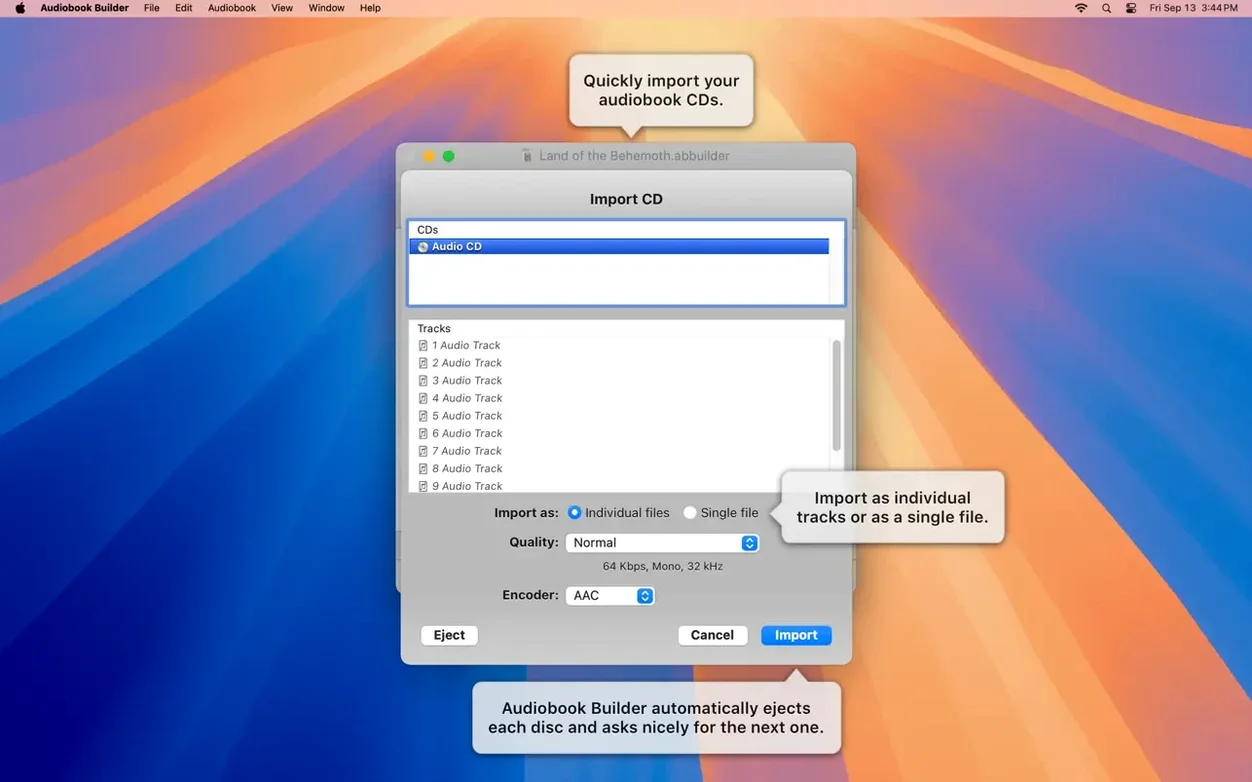
For anyone building a personal library from old CDs, pairing Audiobook Builder with a CD ripper that outputs WAVE or AIFF is a solid workflow. The app itself handles the organisation and export, while the ripper handles the extraction. No overlap, no fuss.
A full workflow: turning a lecture series into an audiobook
Say you have twelve lecture recordings in MP3 format, each about forty-five minutes long, and you want them as one audiobook with a chapter per lecture. Here is how it goes in Audiobook Builder.
- Drag all twelve files into the main window in the order they should play. The app lists them as a single track by default.
- Switch to manual chapter control and create a chapter break at the start of each file. Name each chapter after the lecture topic — custom titles are much more useful than “Track 01” when you are skipping around later.
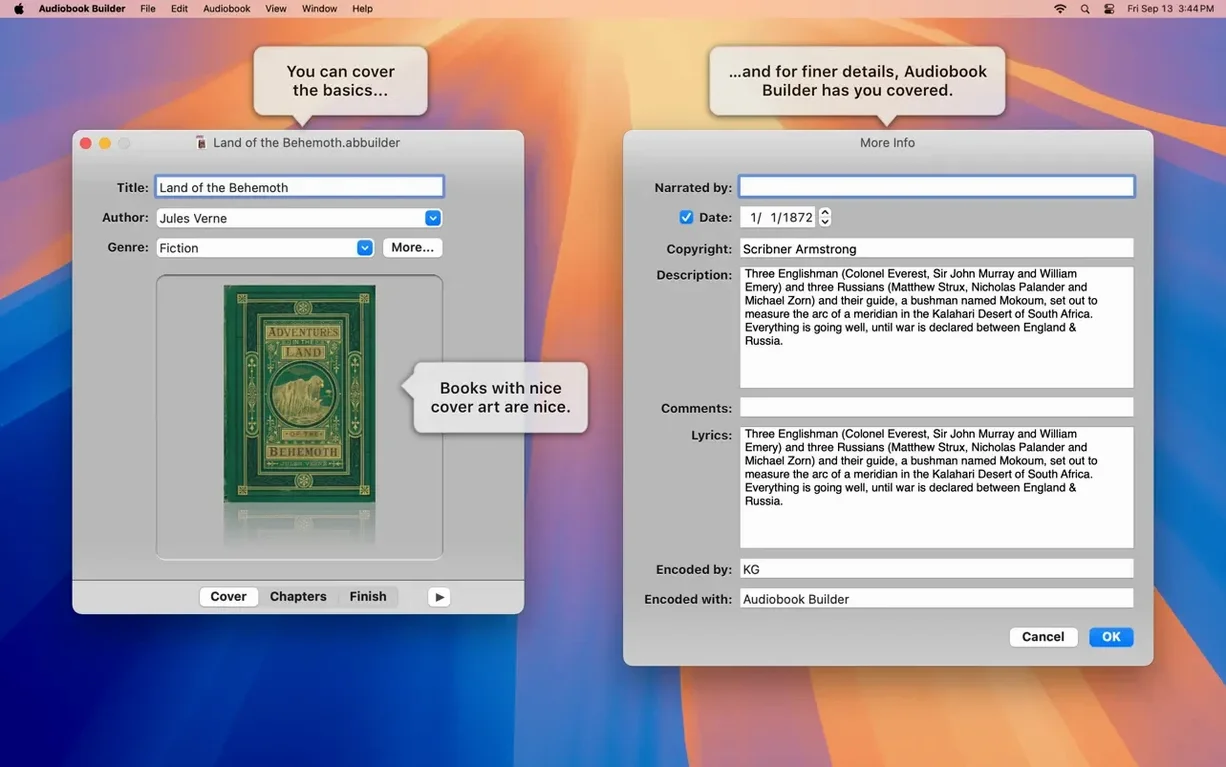
- Add a cover image. A scan of the course booklet or a simple title card works. Chapter images are optional here, but I add a small label for each lecture so the cover art in Books shows the topic name.
- Set the audio quality. For spoken lectures, I choose a medium preset or a custom setting around 64 kbps. The files stay clear and the final size is manageable.
- Fill in the book title, author name, and any description text. This metadata is what the Books app displays, so it is worth getting right.
- Click build and choose Books as the destination. The app processes the files, writes the chapter markers, and sends the finished audiobook straight into your library. Sync to your iPhone or iPad and you are done.
The whole process takes about as long as the encoding step, which depends on your source files and chosen quality. The organisation part is minutes.
Run a short test export before building a long book
- Start with a short test — one or two files, a simple chapter structure, export to Books. That way you confirm your settings and destination before committing to a long build.
- Keep your source files in a dedicated folder with clear names. The app picks up filenames as chapter titles if you do not set custom ones, so naming them “01_introduction.mp3” saves typing later.
- If you are building audiobooks from CDs, rip them first with a separate tool, then bring the files into Audiobook Builder. Trying to rip and build in one step adds complexity; separating the two stages keeps each one simple.
- Check the chapter artwork on your device after the first build. If you are on macOS 13 Ventura or later, the 2.2.9 update fixed artwork display, but it is worth confirming your cover and chapter images look right before you process a whole series.
- If you ever need to rebuild a book with different settings — say, a higher bitrate or different chapter names — keep the original project file. Audiobook Builder saves your work, so you can tweak and rebuild without dragging everything in again.
New this release
- Ready for macOS 15 Sequoia.
- Cover and chapter artwork work on macOS 13 Ventura.
- No longer shows “no audio in file” errors for WAVE files with MP3 audio data.
- Corrects an error reporting glitch on pre-macOS 11.3 Macs.
- Restores the Description tag for some classic iPods.
Mac it needs
- macOS OS X 10.11 or later
- 64-bit processor (Intel or Apple Silicon)
Questions I actually get
Can Audiobook Builder handle audio CDs?
Yes, it converts audio CDs directly into audiobooks for Apple devices, chapter stops and all.
Does it work on Apple Silicon Macs?
Yes, version 2.2.9 runs natively on Apple Silicon and also supports Intel-based Macs.
What macOS versions are supported?
It runs on OS X 10.11 El Capitan through macOS 15 Sequoia, so old and new Macs are covered.
Installing on a Mac
- Mount the disk image and run Open Gatekeeper friendly.
- Press Enter in Terminal to bypass Gatekeeper.
- Drag the app to the Applications folder.
- Open the app when installation is complete.
Notes from photographers
Sign in or create your account to leave a comment.
No notes from photographers yet. If you have used this on a real folder, say which camera and which Mac.