Get it for my Mac (442 MB)
 Guitar Pro
8.1.5-31
Guitar Pro
8.1.5-31
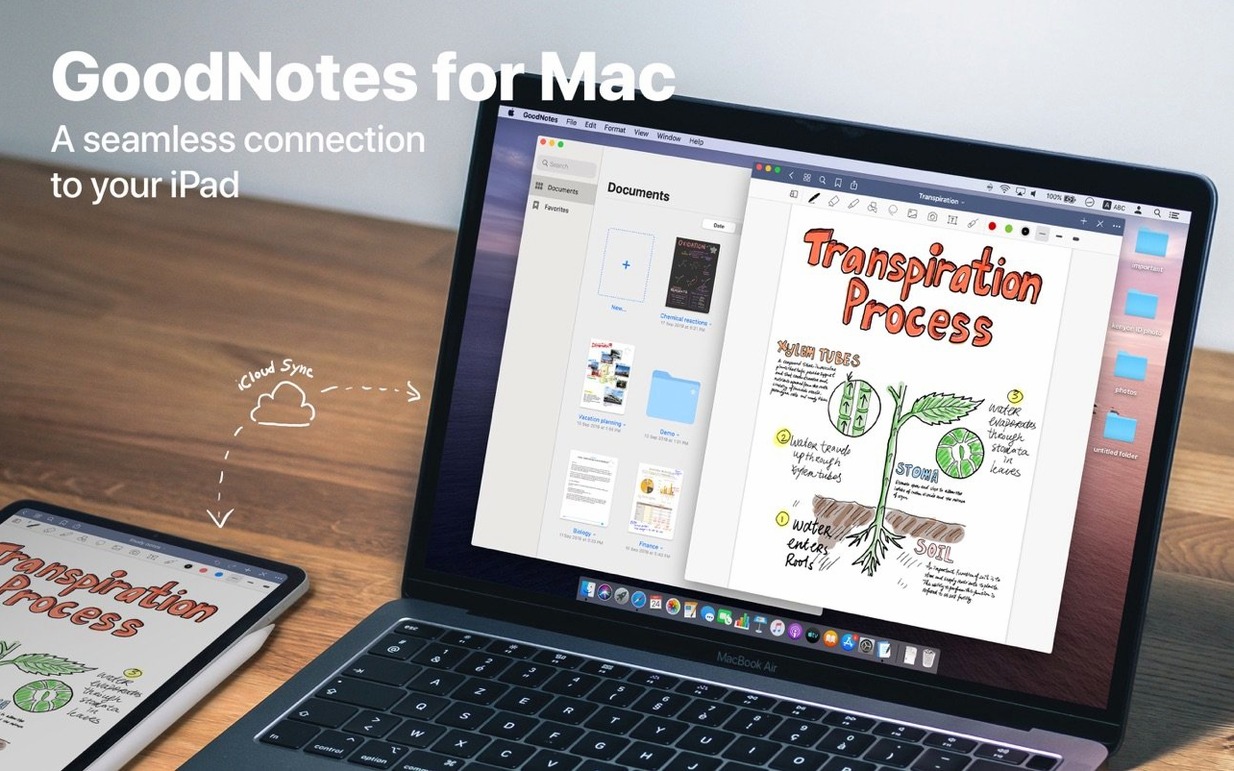
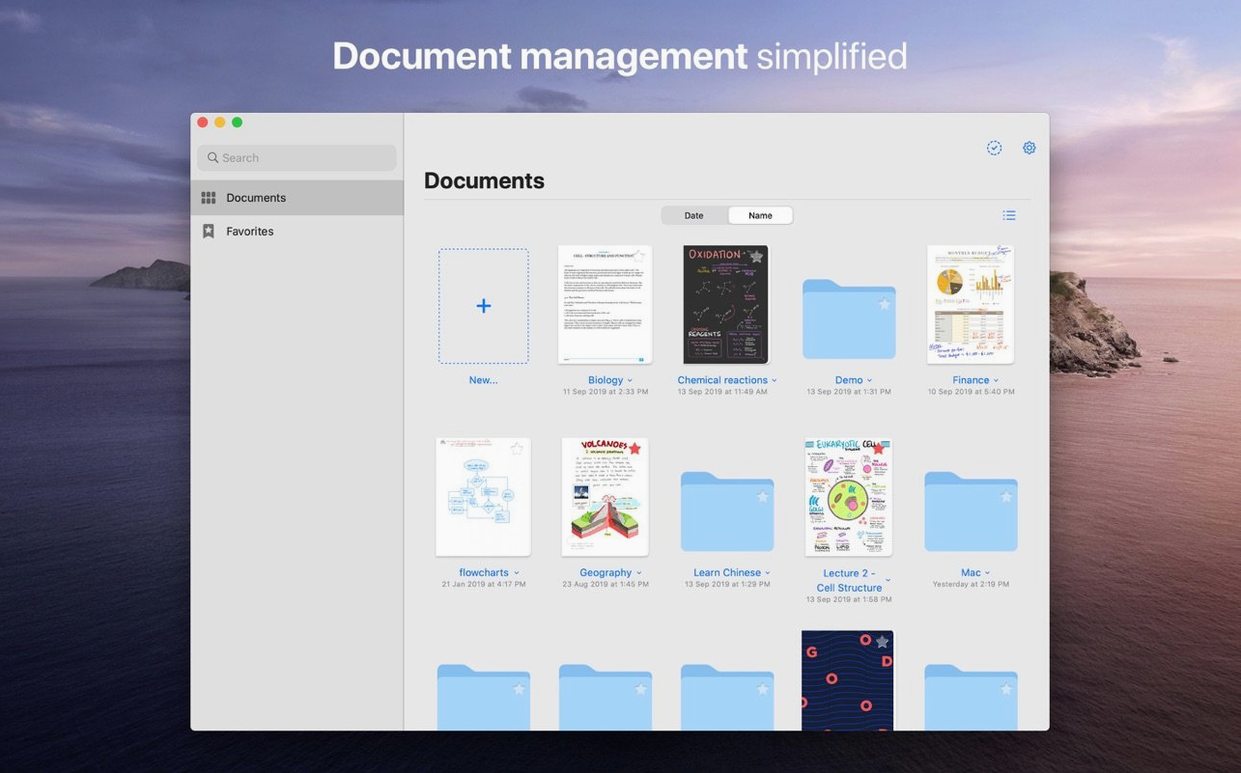
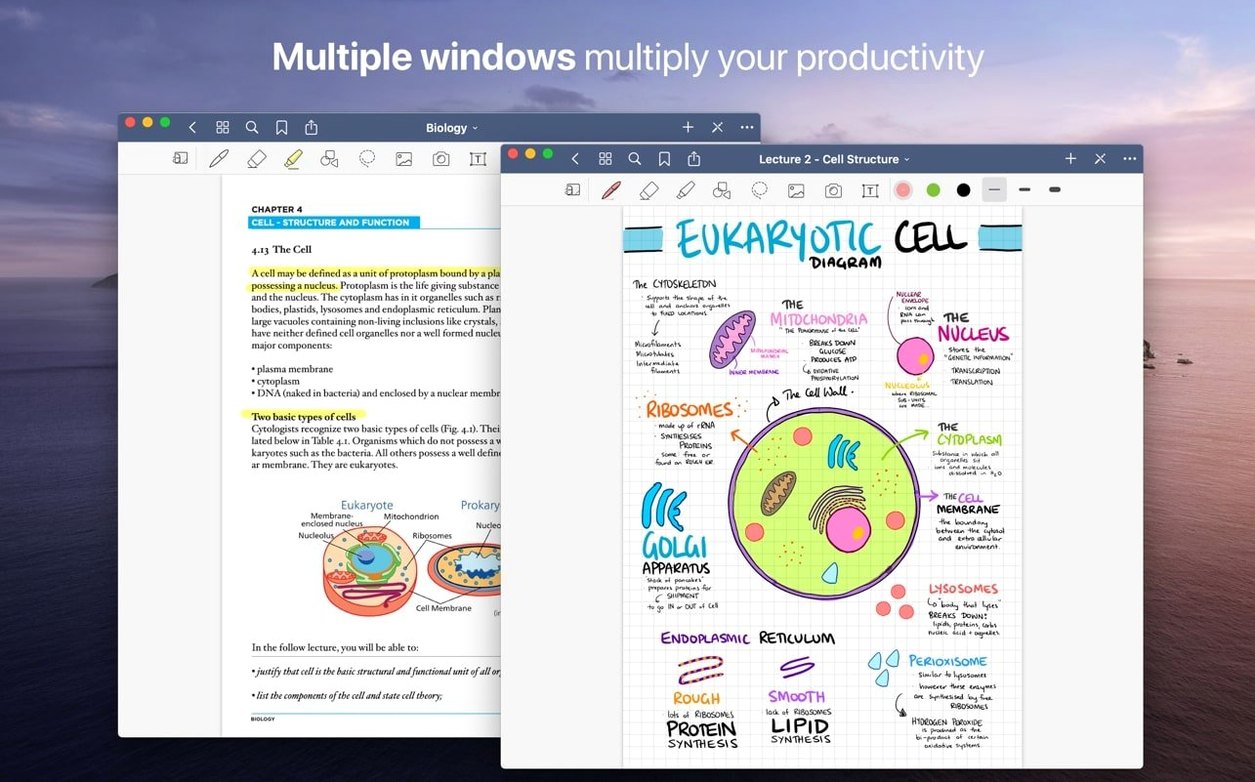
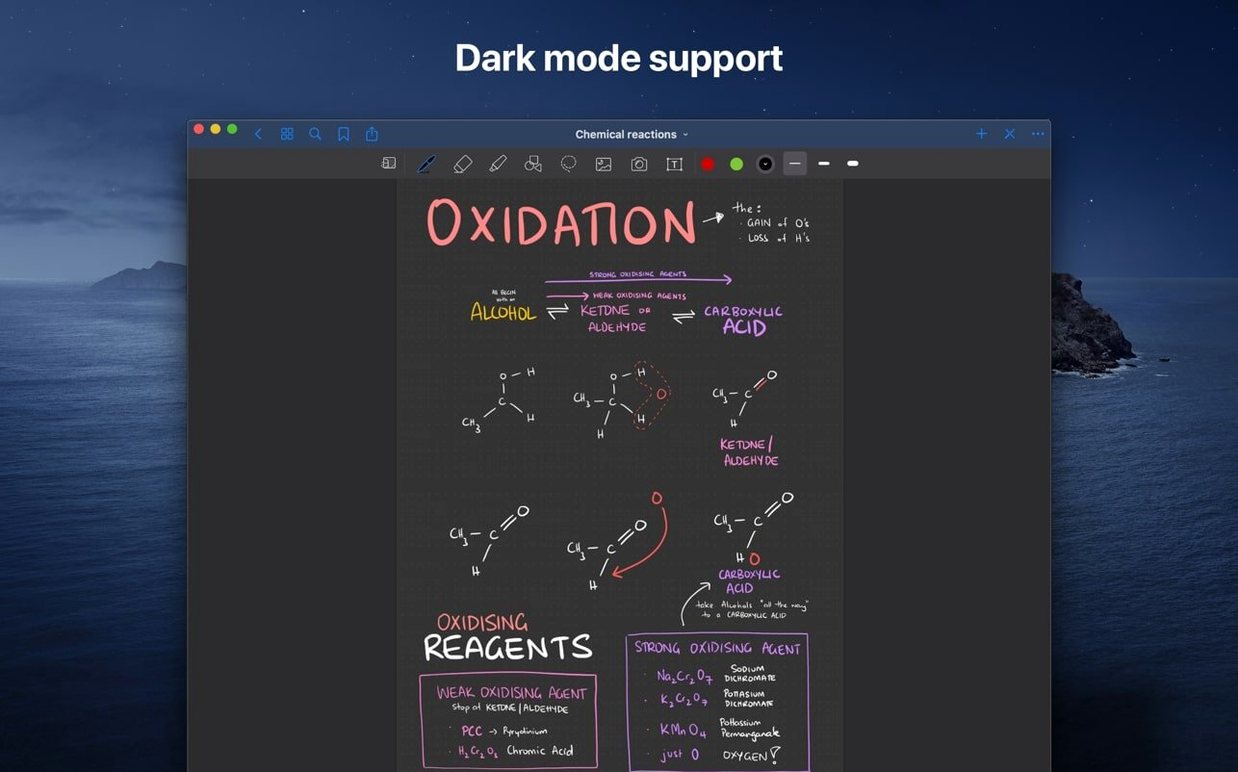
If you already keep notes on an iPad or iPhone, GoodNotes for Mac feels like the natural desk-bound extension. You can view, edit, and organise the same documents without reaching for the tablet. The trick is knowing where to start when you first open it on a Mac.
| Detail | Info |
|---|---|
| Developer | Time Base Technology Limited |
| Current version | 5.9.8 |
| macOS requirement | 10.15 or later, Intel & Apple Silicon |
| Interface languages | 14 including English, French, German, Spanish |
Drop a PDF or image straight into the window and you can annotate it with typed text, handwriting, or the Shapes tool that straightens rough lines. The custom table of contents is a lifesaver when a document runs long. iCloud syncs everything between your Mac, iPad, and iPhone, so a note started on the train appears ready to edit on the Mac. And when you need to send a page elsewhere, just drag it out to Finder as a PDF.
The real strength of GoodNotes on a Mac is how it sits alongside the apps you already use. I drag PDFs from Safari or Mail straight into a notebook. When I need to pull a reference from a scanned article, I open it in GoodNotes, highlight the key lines, and drag the annotated page back to a folder for later. That drag-and-drop export works both ways — you can pull a single page or a whole document out as a PDF without ever opening a save dialog.
iCloud sync is the backbone if you also own an iPad or iPhone. A study sheet scribbled on the iPad appears on the Mac a few seconds later, and the same happens in reverse. The sync is document-level, so editing on one device won't overwrite changes you made on another as long as you give it a moment to catch up. Split View on the Mac means I can keep a reference PDF open on one side and a blank notebook on the other, typing or writing notes without switching windows.
Students are the obvious fit. Import lecture slides as PDFs, annotate them during class, and build a searchable table of contents for each module. The handwriting recognition makes your scribbled notes searchable later, which saves a lot of scrolling when revision comes around.
Researchers and academics benefit from the same features but with heavier PDFs. I know someone who keeps their entire literature review in GoodNotes — dozens of papers, each annotated and organised into folders by topic. The custom table of contents means they can jump to the methods section of any paper without flipping pages.
Professionals who handle signed documents or marked-up drafts find the annotation tools useful too. Import a contract, mark changes with the pen tool, and export the final version as a PDF. The eraser that only removes marker ink is a small detail that saves time when you highlight over text and want to clean it up.
Casual note-takers who just want a digital notebook for meeting notes or journaling will find it straightforward. You don't need to learn layers or complex menus — open a notebook, pick a pen, and write.
Can I open my existing GoodNotes files from the iPad? Yes. If you already use GoodNotes 5 on an iPad or iPhone and have iCloud enabled for the app, your notebooks sync to the Mac automatically. The first launch may take a minute to download everything, but after that it stays in sync.
Does it work with a trackpad or only with a drawing tablet? Handwriting with a trackpad is possible but not ideal — your finger or a mouse produces wobbly lines. The app works best with an iPad for handwriting input. Typing is fine with any keyboard, and the text tool works exactly as you'd expect.
Can I search my handwritten notes? Yes. GoodNotes indexes handwriting so you can search for words you wrote by hand. It is not perfect with every handwriting style, but for most people it picks up enough to make notes findable.
What about backing up my notes? iCloud handles the sync, but you can also export notebooks as PDFs for manual backup. Drag a folder or document out of the sidebar to Finder, and you have a static copy. GoodNotes also supports automatic backup to cloud services, though that depends on how you configure it in the settings.
Can I use it without an internet connection? Yes. The app works fully offline. Changes sync to iCloud the next time you connect.
Say you have a PDF of lecture slides from your tutor. Here is how you would work through it in GoodNotes on the Mac.
That whole process takes about as long as it would with paper and pen, but the searchable text and organised folders make the later revision much faster.
Yes. Changes sync automatically through iCloud between your Mac, iPad, and iPhone, so your documents stay up to date across all devices.
Sign in or create your account to leave a comment.
No notes from photographers yet. If you have used this on a real folder, say which camera and which Mac.