Get it for my Mac (1 GB)
 MAMP PRO
6.9.0
MAMP PRO
6.9.0

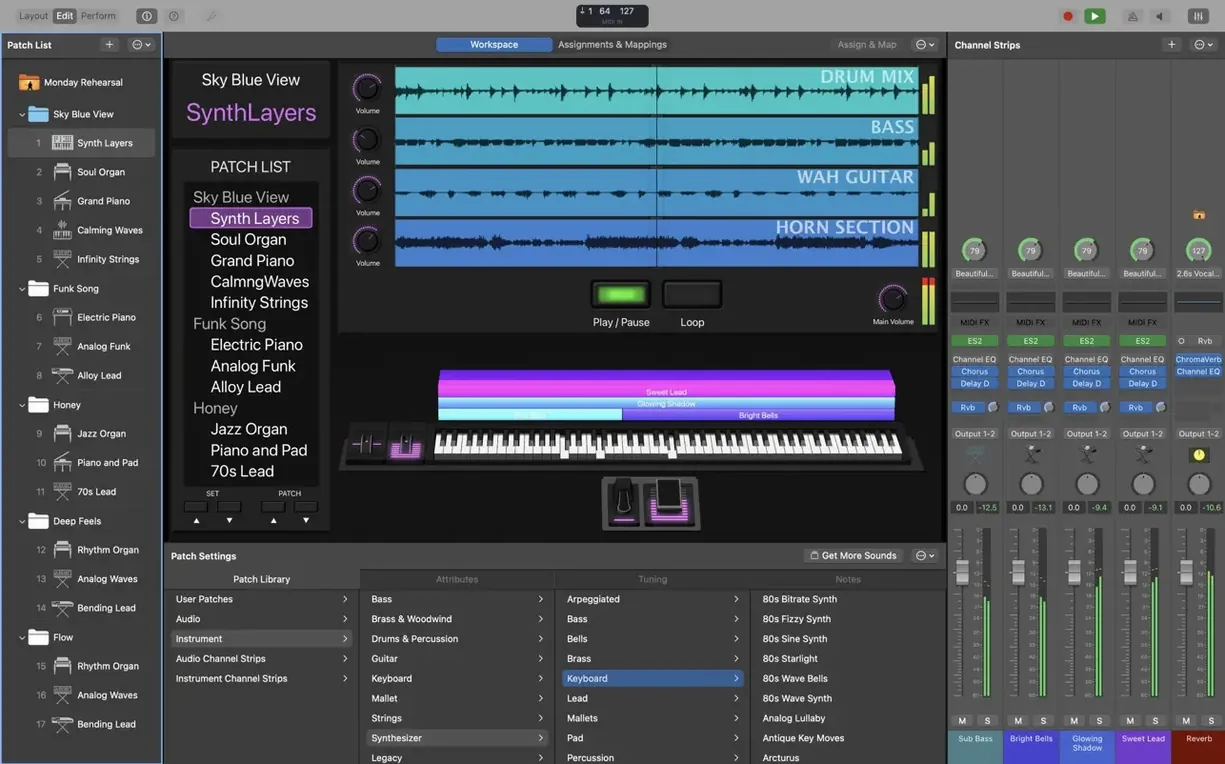
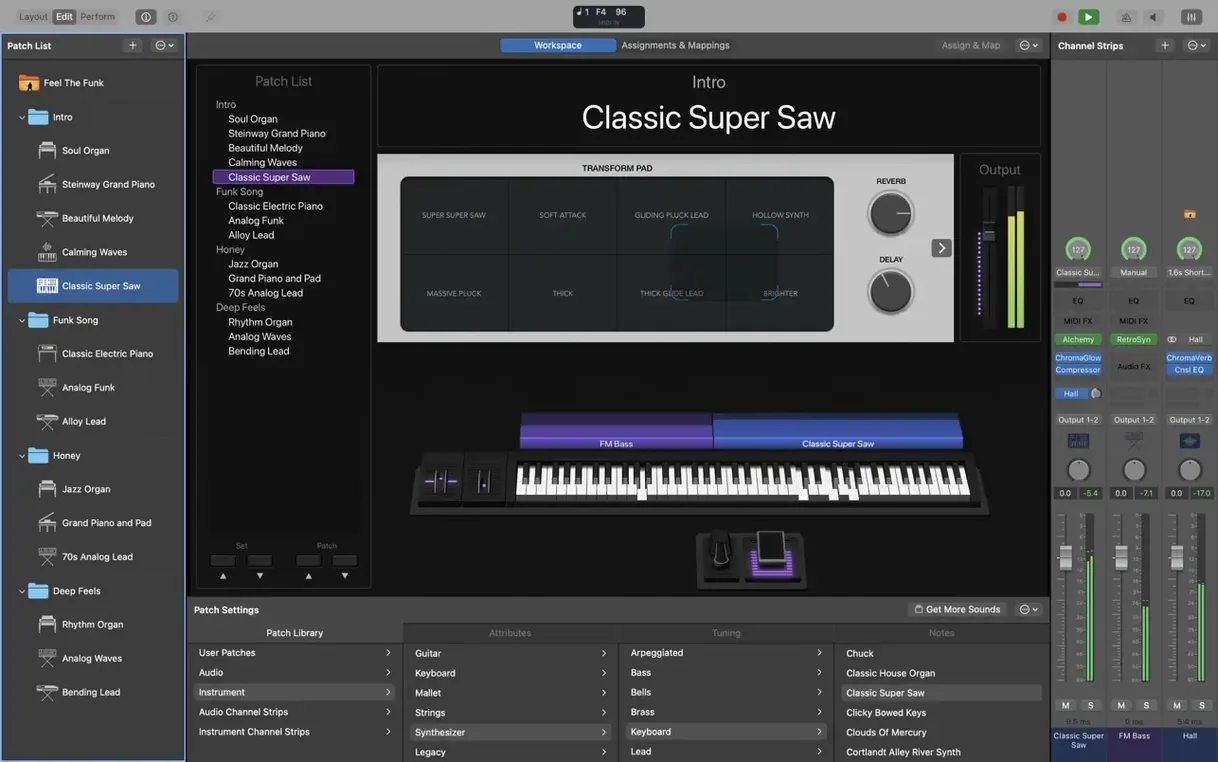
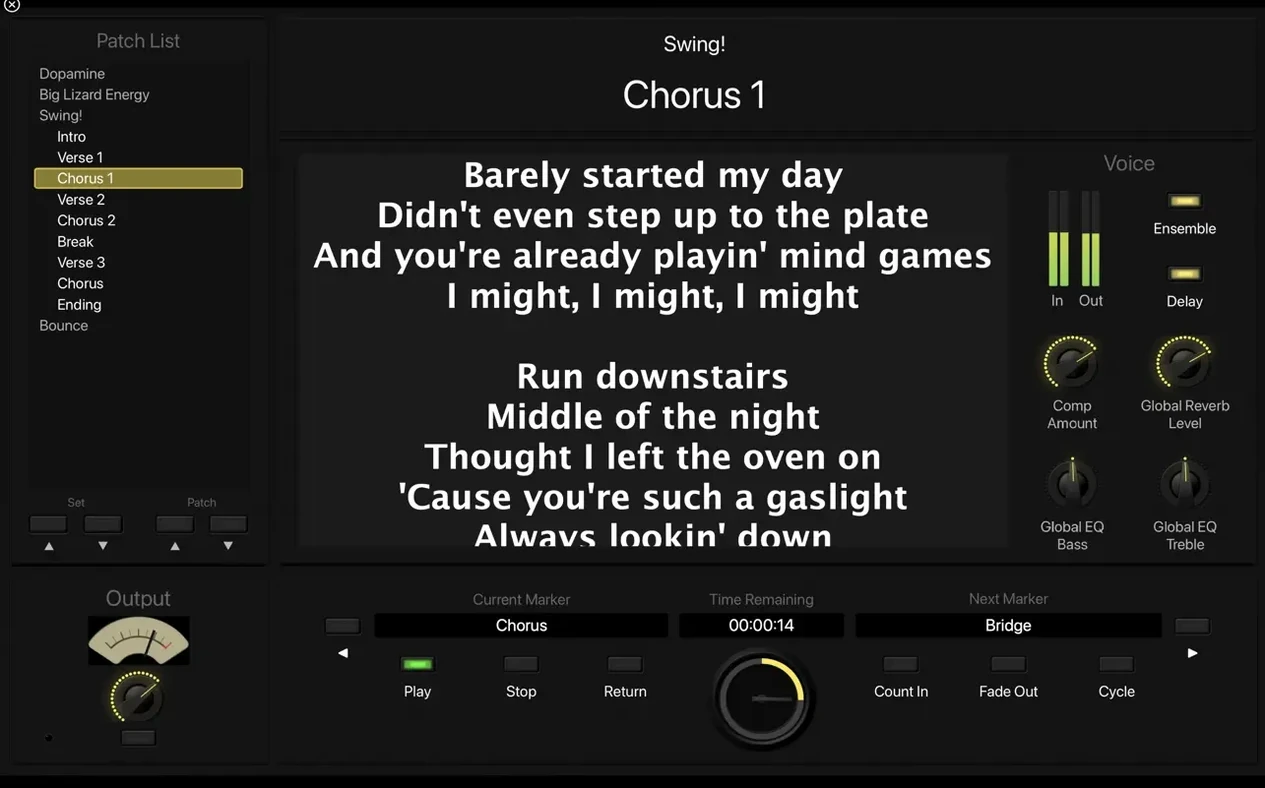
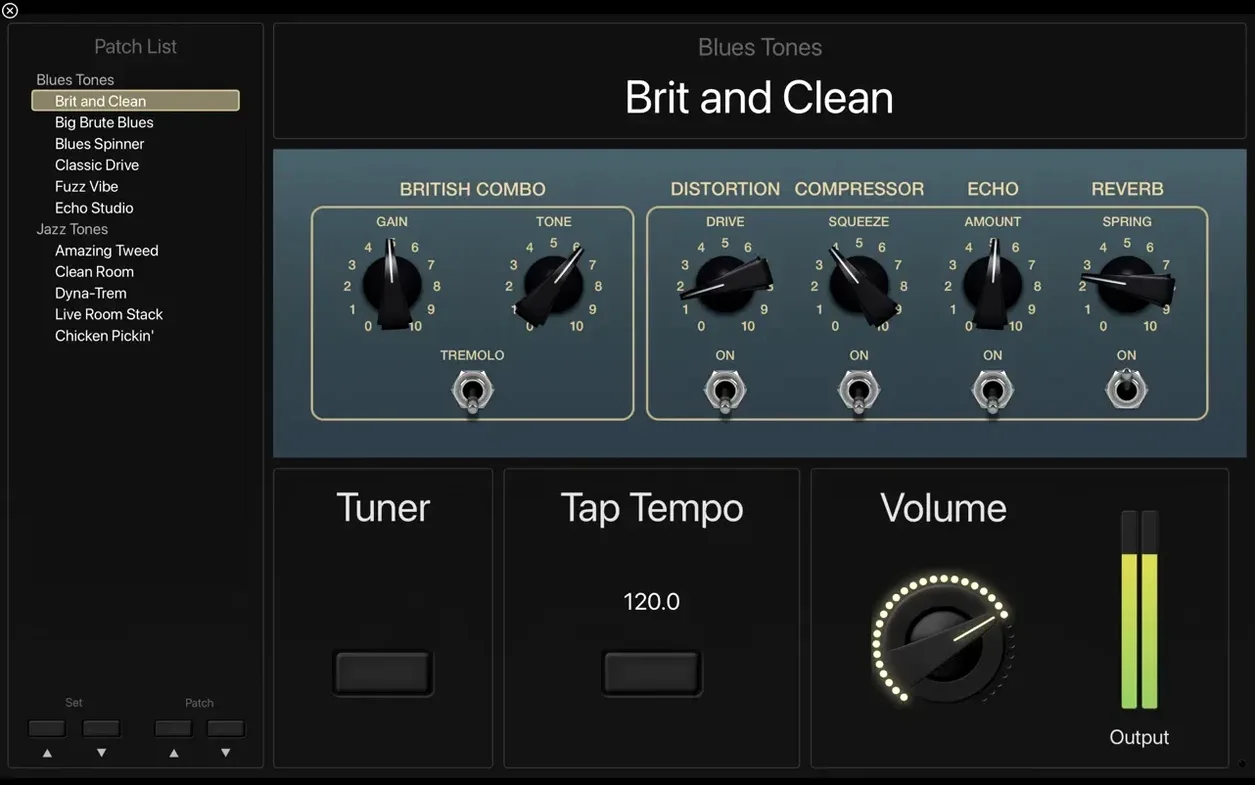
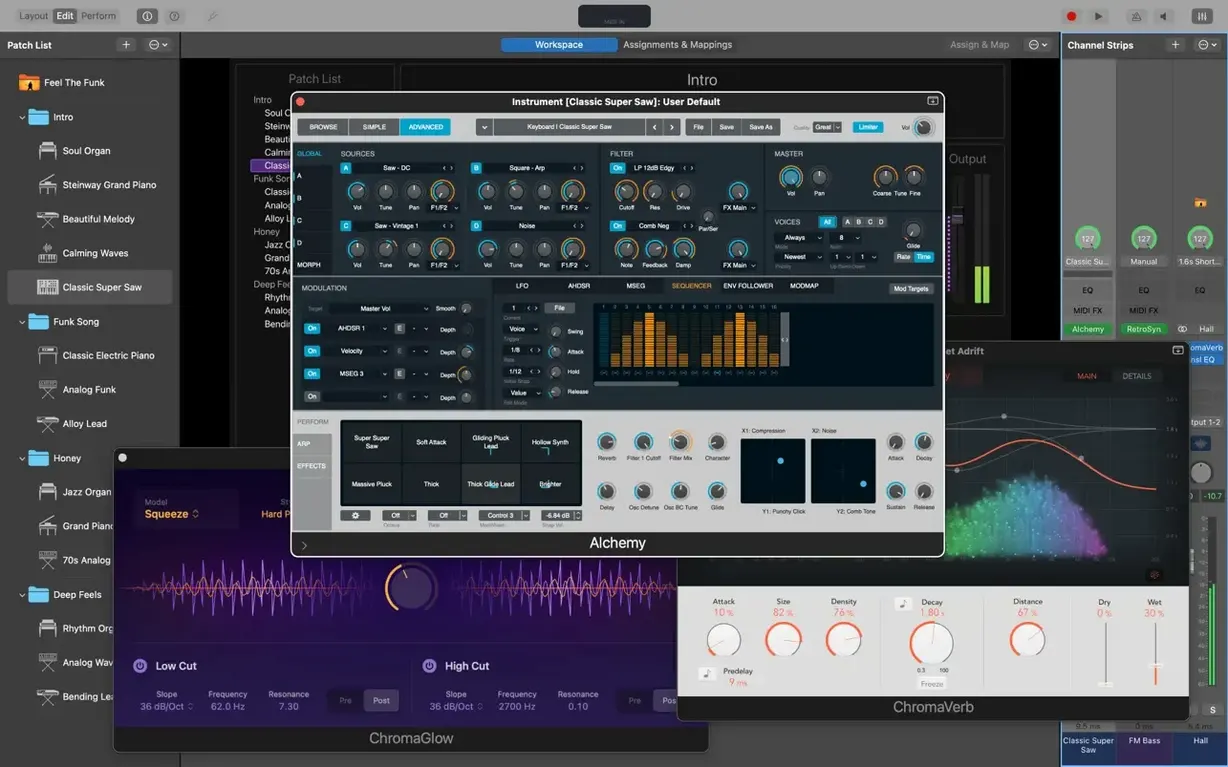
You already know Logic Pro for the studio. MainStage is its live-stage sibling: the same instruments and effects, but stripped down to a full-screen interface you control with your hands or feet. No timeline, no arranging — just sounds mapped to keys, pads, or pedals, ready to go when the house lights go down.
Before you grab a mainstage download free mac copy, here are the three questions most people ask first.
That’s the quick tour. The current version (4.3.1) fixes a MIDI SysEx block and restores number typing in the Add Channel Strip window, so if you were holding off on an older build, now is a good time to update.
MainStage has a few quiet features that don't make the splashy marketing but save time once you know them. The Smart Controls system, for instance, gives you patch-specific on-screen controls without needing to map anything by hand. Open a patch and the knobs and sliders that appear are already assigned to the most useful parameters — filter cutoff, reverb mix, release time. You can tweak them with a mouse or touch, but the real win is that they follow you when you switch patches, so your muscle memory stays consistent across a set.
The Patch List itself has a small but important behaviour: switching between patches doesn't cut off the sound from the previous one. If you hold a chord on a pad sound and jump to a lead patch, the pad rings out naturally. That's the kind of thing you don't notice until you're playing a show and it saves you from a dead gap between songs.
Another detail is the way MIDI plug-ins sit in the signal chain. Arpeggiator, Chord Trigger and Transposer aren't separate apps you route through — they're insert effects that process incoming MIDI before it reaches the instrument. So you can slap an Arpeggiator on a Vintage Electric Piano patch and the arpeggiation happens inside the same channel strip, no extra cabling.
The full-screen tuner is worth a mention too. It's not buried in a menu; it takes over the interface cleanly, and you're back to your patch with one tap. For guitarists and bassists who tune between every song, it's the difference between a quick glance and a menu dive.
MainStage 4.3.1 runs on macOS 15.6 or later and requires Apple Silicon. There is no Intel version in this build, so if you're on an older Mac, the app won't open. The installer itself is a straightforward disk image: open it, drag the app to the Applications folder alias, then launch from Launchpad. No additional components to configure.
Disk space is the main thing to plan for. A minimal installation takes 6 GB, which gives you the core app and a selection of sounds. The full Sound Library — all 1,800 instrument and effects patches, plus the 750 sampled instruments and 4,600 Apple Loops — needs 57 GB. That's a lot, but you can choose which components to download during setup. If you only play vintage keys, you don't need the orchestral samples.
Language support covers English, German, Spanish, Simplified Chinese, French and Japanese. The interface follows macOS system language settings, so if you prefer working in one of these, it will switch without extra configuration.
You open MainStage and the screen goes full. No dock, no desktop icons — just the workspace. You start with a Concert, which is the top-level file that holds all your patches for a setlist. If you're building a new show, you might begin by importing sounds from Logic Pro or GarageBand using the Sound Library browser. Pick a piano patch, a pad, a lead synth, and they load into individual patches in the Patch List.
Next, you connect your MIDI controller. Plug it in via USB, and MainStage recognises it almost immediately. You open the hardware control assignment panel and map the first eight knobs to filter cutoff, resonance, attack, release, reverb mix, delay time, delay feedback and master volume. That's a typical starting point. You save that mapping as a template so the next concert starts with the same assignments.
You play through the patches one by one. The Vintage B3 patch responds to drawbar changes if your controller has faders. The Retro Synth patch cuts through a mix without much EQ. You test the patch switching — hold a chord on the pad, tap the next patch name, and the sound sustains. Good.
Then you add a Playback plug-in to a dedicated patch for backing tracks. You drag in a stereo WAV file, set the start point and let it loop during rehearsal. The transport controls stay visible on screen, but you can also assign play and stop to a footswitch if you have one.
Rehearsal runs for an hour. You tweak a few reverb sends, adjust the Transposer MIDI plug-in on a keyboard patch that needs to shift up a fifth, and save the concert. The whole session stays inside one window.
Say you want a split patch: bass on the left half of the keyboard, piano on the right. Here is one way to set it up in MainStage.
Start with a new patch. Add two channel strips — one for the bass sound, one for the piano. On the bass strip, load a sampled instrument from the Sound Library; on the piano strip, load a Vintage Electric Piano patch. Each strip gets its own MIDI channel.
Now you define the keyboard zones. In the channel strip settings, you set the bass to play from C1 to B2, and the piano from C3 to C7. The crossover note is clean — no overlap unless you want one. You can also set a velocity crossfade so the two sounds blend smoothly at the split point, but for a simple bass/piano split, a hard cut works fine.
Next, assign a Smart Control to the piano strip for the reverb send. You want to be able to dial in more ambience during a ballad without digging into menus. Map the Smart Control knob to the reverb bus send level. Save the patch as "Bass + EP Split".
During a show, you select this patch from the Patch List. The left hand plays the bass, the right hand plays the piano. If you need to switch to a different split later in the set, the next patch loads without cutting off the sound from the current one.
MainStage shares its sound library with Logic Pro and GarageBand. If you already have either of those installed, the instruments and effects you've downloaded are available in MainStage without re-downloading. That's useful if you're moving between a studio setup in Logic and a live setup in MainStage — the patches you built in the studio can be imported directly.
Audio Unit plug-ins from third-party developers work as long as they are 64-bit. So if you have a favourite reverb or synth from another manufacturer, it shows up in the channel strip insert menu alongside Apple's own plug-ins. No wrapper needed.
The Touch Bar on MacBook Pro gets its own controls. You can assign it to show Smart Controls, the Patch List, or the workspace switcher, depending on what you need at that moment. It's a small thing, but when you're standing at a keyboard and don't want to reach for a mouse, having the Touch Bar at your fingertips saves a step.
For backing tracks and click tracks, the Playback plug-in handles stereo or multichannel audio files. You can route the click to a separate output — headphones or a monitor feed — while the backing track goes to the main mix. That separation is standard in live setups, and MainStage does it without extra routing software.
MainStage turns your Mac into a live performance rig with thousands of realistic instrument and effect sounds. The convenience of having everything in one installer outweighs the hassle of piecing together missing samples from separate sources. A mainstage free download that includes the complete Sound Library saves you the time of tracking down individual instrument packs later.
No. MainStage 4.3.1 requires macOS 15.6 and Apple Silicon. Intel Macs are not supported.
Yes, as long as they are 64-bit Audio Unit plug-ins. MainStage loads the same AU instruments and effects you already have in Logic.
A minimal installation takes 6 GB. If you want the full Sound Library with all sampled instruments and loops, you need 57 GB free.
Tip: keep the disk image around until you’ve opened the app and confirmed it works.
Sign in or create your account to leave a comment.
No notes from photographers yet. If you have used this on a real folder, say which camera and which Mac.